First user account


First user account |
|
| Solution Installation > Turret/Console Installation > Device standard Installation > Device Installation |
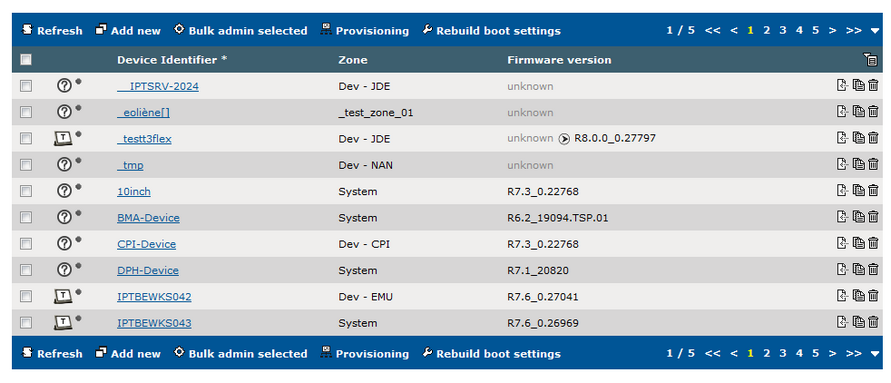
IT & voice administrator must continue setting up the device by connecting to TSS administration console and by performing the following tasks •Create the device account ; •Create one user account ; The operations below must be carried out from a workstation which can connects to the AC device from a standard Internet navigator. Device account creation1)From the Device Management drop menu, select Turrets item 2)From the device list, press "Add new" button
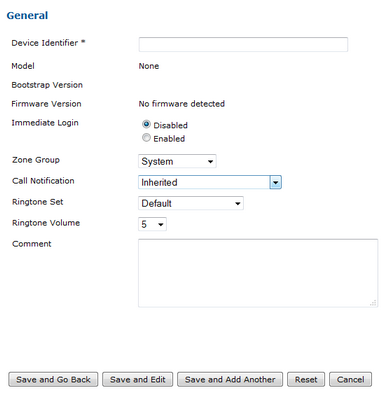
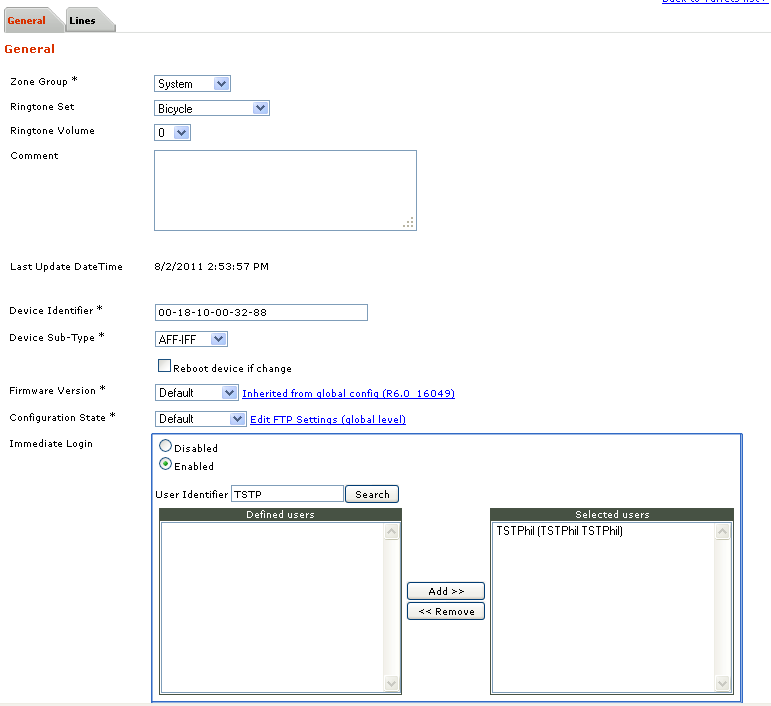
3)The device edition form must be filled in as follows
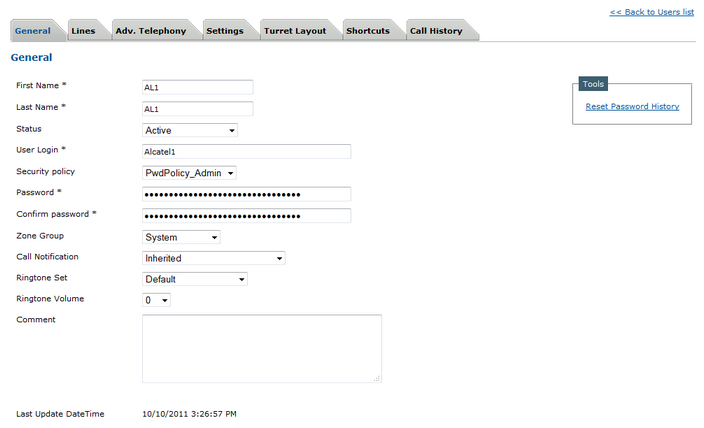
4)Press "Add and go back" button to commit the changes ; User account creation1)From the Account Management drop-down menu, select Users item 2)From the User list screen, press the Add new button. 3)The user edition form must be filled in as follows
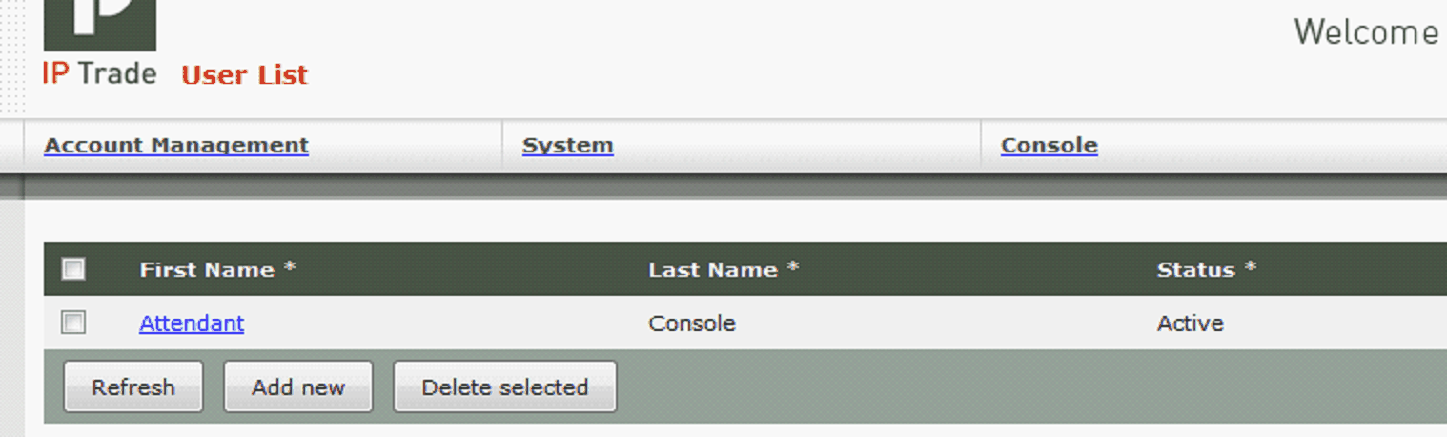
4)Press Add and go back button to commit the changes ; 5)The user list is displayed with the new user
6)Enter the user edition form by clicking on the user’s first name text
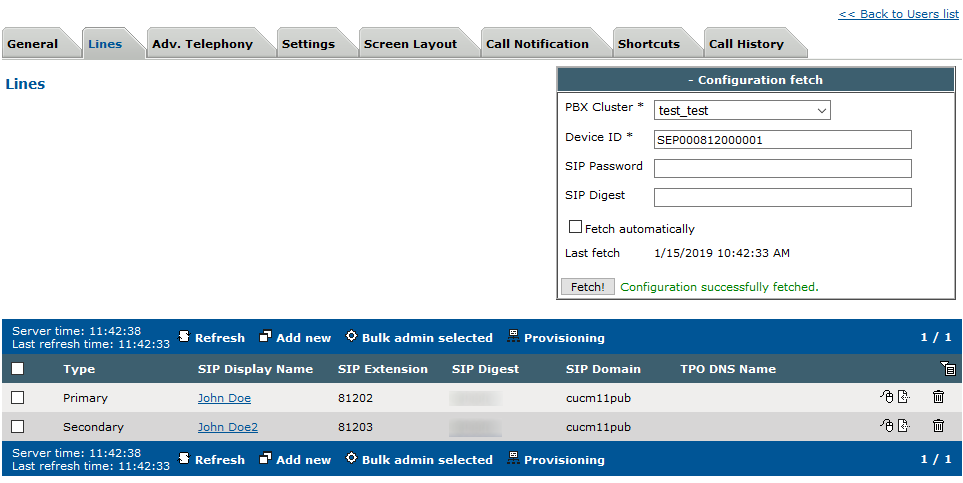
7)From the Lines tab, select a PBX Cluster, enter the CUCM device identifer previously provisioned and leave SIP password and SIP digest blank (assuming that the device security profile has been configured). Then press "Fetch" to download all lines from the CUCM. This procedure is explained with more details in the "Fetch Lines" topic. (Alternatively you may press the "Add New" button and fulfill the line manually but it's not recommended if PBX is a Cisco CUCM, see the "PBX Line configuration" topic).
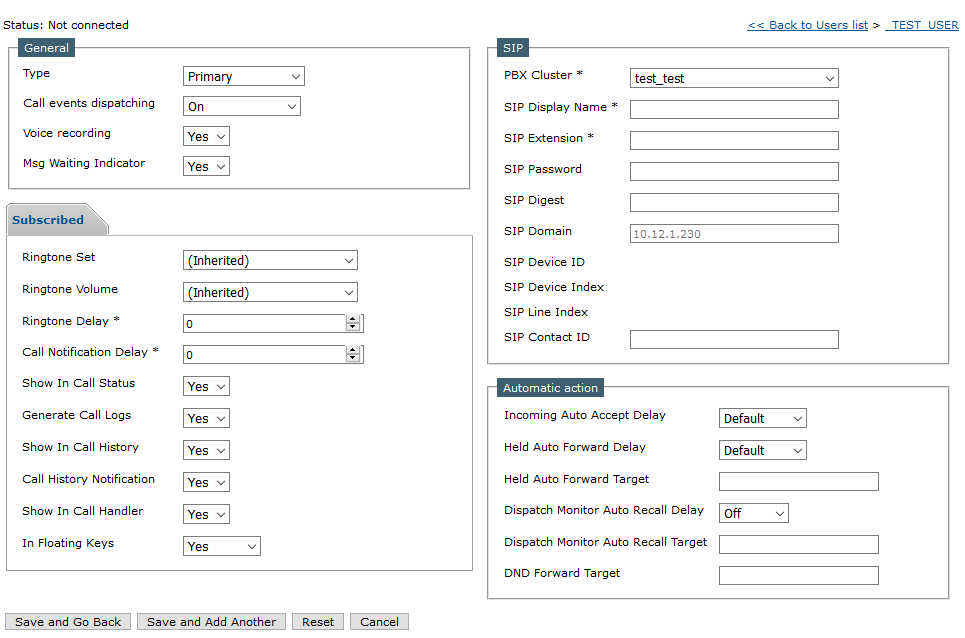
Here is the manual lines setup definition screen.
Link user to deviceThis step is optional, it allows users to login on the turret without entering any credentials. From the device edition form, enable Immediate login checkbox.
Search after the user you wish to add to the turret default config. You may add up to 4 users. Move the selected users on the right boc by pressing the Add button. Save the change and reboot the turret for changes to take effect. |