CUCM Provisioning


CUCM Provisioning |
|
| Solution Installation > Turret/Console Installation > PBX Lines provisioning |
Install the CUCM IP Trade deviceThis feature enables the IPTrade EK/TAD Device Definition inside the Cisco Call manager. 1.Login to CUCM console, Open Cisco Unified Administration console from your preferred Internet navigator and log onto the system with administration privileges 2.Go to Cisco Unified OS Administration 3.Go to Software Upgrade, Install/Upgrade menu 4.Select the source from which you are going to download the cmterm-IPTrade-XX-YY-sip.cop.sgn file (either from FTP/SFTP or local CD/DVD on the CUCM) and click Next a.CUCM 11.x and CUCM 12.x: cmterm-IPTrade_EK_11.0v3-sip.k3.cop.sgn or cmterm-IPTrade_TAD_11.0v1-sip.k3.cop.sgn b.CUCM 14.x and CUCM 15.x: cmterm-IPTrade_EK_14.0v1-sip.k4.cop.sha512 or cmterm-IPTrade_TAD_14.0v1-sip.k4.cop.sha512 c.xxxEKxxx Files are designed for turrets (with or without XMA + FlexPro)
5.Click on the Next button until the file is uploaded and installed on the CUCM (refer to Cisco documentation if needed)
6.Repeat this sequence of operation until all publisher and subscribers have successfully installed the file. Security profile for IPTrade deviceIn order to enable line configuration fetching from AC devices, a specific security profile must be defined as per the procedure below. Open Cisco Unified Administration console from your preferred Internet navigator and log onto the system with administration privileges 7.From the main menu, select System > Security profile > Phone Security Profile 8.From the List Phone Security Profiles panel, press Add New button
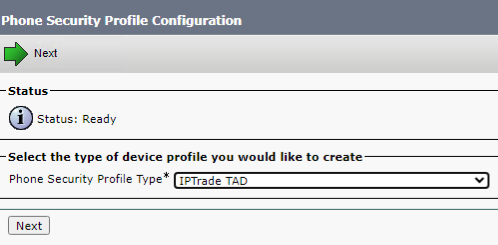
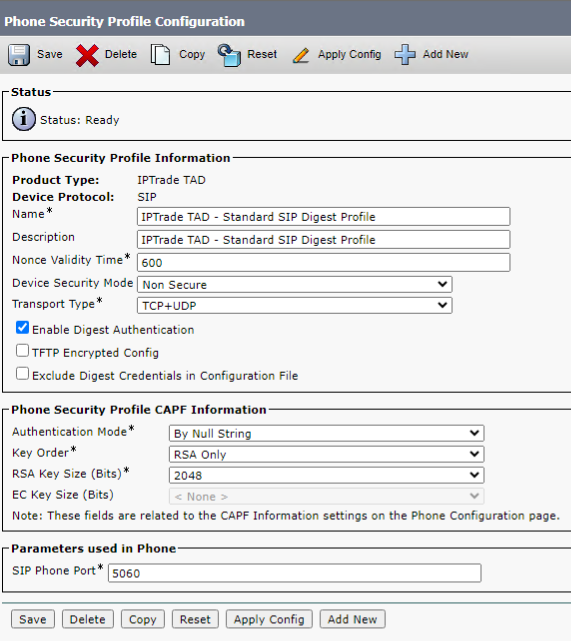
9.From the Phone Security Profile Configuration, select the device type IPTrade EK/TAD in the drop-down list and press Next button, the Phone Security Profile Information panel should be displayed
Other resourcesThe section above covers only operations directly related to the IPTrade attendant console. Describing all other tasks necessary to set up the telephony infrastructure is beyond the scope of this document. We encourage readers to consult the relevant Cisco documentation for further details. |