TSS Configuration


TSS Configuration |
|
| Solution Installation > TradeSense Installation |
TerminologyOn the TSS Console, TradeSense is refered to as "Productivity Tool", sometimes shortened "BTPT". TradeSense, Productivity Tool, BT Productivity Tool or BTPT are all synonyms. TSS functional compatibility
The TSS "major.minor" version and the TradeSense"major.minor" upgrade bundle version must be aligned.
For instance, TradeSense with the upgrade bundle 9.4.foo is compatible with the TSS 9.4.bar.
In this context, all that matters is the "major.minor" version, the "patch" version does not.
TradeSense activationTSS API resources required by TradeSense are disabled by default. They must be enabled.
Go to System > Settings > TSS Settings to enable authenticated authorization.
service.authorization=authenticated
Make sure to click on "Reload Application" for this setting to be taken into account. TradeSense clusteringTradeSense does not handle clustering for the time being, the feature will be available in future versions.
Yet, to account for these future developments, the TSS considers TradeSense as a node, part of a cluster.
Therefore, the provisioning must be done accordingly :
•one node must be created per TradeSense OVA (a typical installation would only have one OVA/node) •a node must be associated to a cluster Node creationLog into the TSS console, go to Device Management > Productivity Tools and click "Add New".
Enter a node name and click on the "Save and Go Back" button. The node name will be used during the TradeSense configuration process, it must be unique. Cluster creation
Log into TSS console and go to Device Management > Productivity Tools Clusters and click "Add New".
The cluster name will be used during the TradeSense configuration process, it must be unique. Enter a cluster name and click on "Save and Go Back" button.
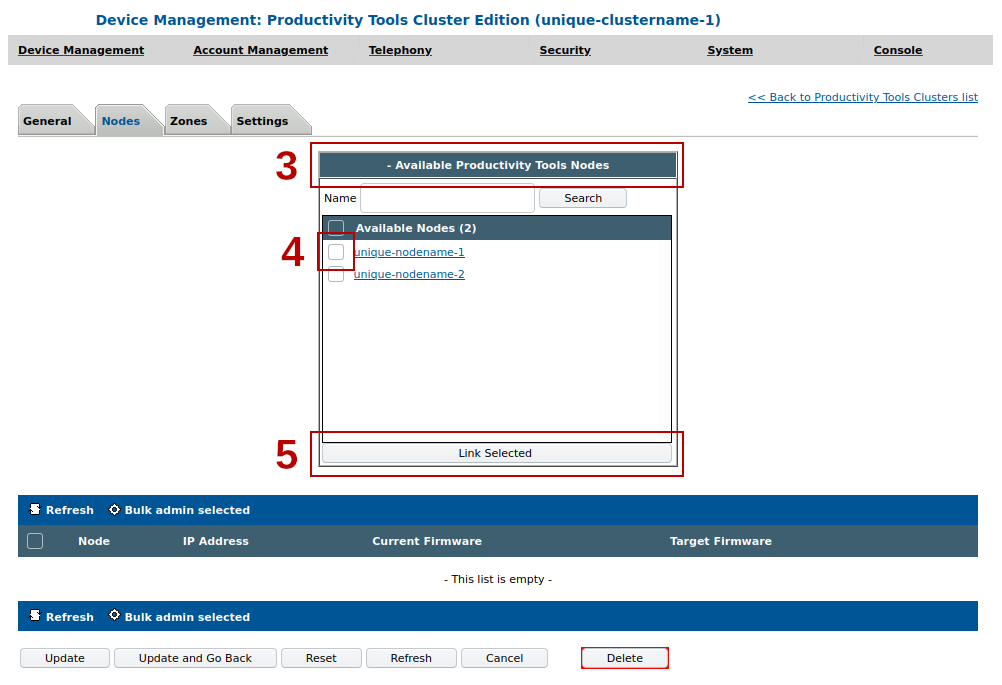
1.Click on the cluster name that you have just created. 2.Go to the Nodes tab. 3.Click on "Available Productivity Tools Nodes". 4.Check the checkbox next to the node that you have created. 5.Click the "Link Selected" button. 6.Finally, click on the "Update and Go Back" button.
SNMP
SNMP traps can also be configured to target the TradeSense IP address to centralize them on Assure.
If a custom SNMP community is used instead of the default one, it needs to be the same one for all the devices monitored by the same TradeSense cluster. In addition, the custom community needs to be configured in the Productivity Tools Cluster settings : application.global.snmp.read.community=<CustomCommunity> application.global.snmp.trap.community=<CustomCommunity>
Mandatory configurationCustomer Relationship Management (CRM)Presence, calls information and line subscription are sent to TradeSense via the CRM events. In the Turret boot settingsapplication.crm.serviceURI=http://<TRADESENSE-IP>/gecko/api/raw-events
When using HTTPS in CRM URI and TradeSense certificate is not signed by a CA trusted by the Turret (see Deploying a trusted certificate), the following additional settings must be added:
application.crm.ignoreErrorCertCA=true application.crm.ignoreErrorCertCN=true application.crm.ignoreErrorCertDate=true application.crm.ignoreErrorCertUsage=true In the Shared Profile / User Profile settingsprofile.setting.authorizecrm=true profile.setting.crm.announceallcalls=true
Note : these settings are subject to a license
Optional configurationWalk The Floor configurationTo be able to do a Walk The Floor test, Click-to-Dial needs to be enabled on the users. In the Shared Profile / User Profilesprofile.setting.authorizetsp=true
Note : this setting is subject to a license
Recording configurationThese settings are necessary for Assure to be able to check calls on the Voice Recorder platform. In the Turret boot settingsapplication.recorder.ddi.wait.mastercallid=true application.global.recorder.keepalive=true
In the Shared Profile / User Profile settingsprofile.setting.recording.adddeviceidinfo=true
In the TPO boot settingsapplication.recorder.usetpodnsname=true application.global.recorder.keepalive=true
Call geolocationTradeSense monitors devices exposed by the TSS with the help of Zones.
Zones can be used to enrich Assure and Analytics call data with location information. In this setup, a Zone corresponds to a geographical region.
By configuring the country, region and city for a Zone, reports will benefit from the following improvements:
•when the "country" is set, phone numbers will be located to city level of accuracy •a location can be given to external local area calls dialed without an area code •internal calls can be geolocated following the values provided in their respective Zone
If a Zone does not have location data configured, TradeSense will fall-back to the System zone values, if available.
Go to Device Management > Zones and either click on "Add new" to create a new one or on specific Zone name to edit an existing one.
From the General tab of the Zone edition page, you can set Country, State, City and Call Prefix information. Dialing plan rulesDialing plan rules are used to help determine the location of the remote party in a call.
Since the actual configuration on a platform can be a very complex interaction of settings at the Zone, Profile, Turret, User and CUCM levels, the values here should be chosen to enable a best effort description of the dialing plan. In the Productivity Tools Cluster settingsprofile.setting.dialingrule.internalnumberlength.min=5 profile.setting.dialingrule.internalnumberlength.max=6 profile.setting.dialingrule.internationalnumberlength=13 profile.setting.dialingrule.internationaloutgoingprefix=00 profile.setting.dialingrule.outgoingprefix=9
Voice Recording check Configuration
The setting (application.assure.vr.check.only) provides the admin an option to configure the calls that needs to be checked for voice recording. See below for available options for this setting. In the Productivity Tools Cluster settingsapplication.assure.vr.check.only=ALLCALLS
Voice Recording check will be done for all calls
application.assure.vr.check.only=WTF
Voice Recording check will be done for Walk The Floor Calls only
application.assure.vr.check.only=EXCEPTWTF
Voice Recording check will be done for all calls except Walk The Floor Calls |
||||||||||||||||||||||||||||||||||||||||||||||||||||||||||||||||||||||||||||||||||||||||||||||||||||||||||||||||||||||||||||||||||||||||||||||||||||||||||||||||||||||||||||||||||||||||||||||||||||