Gecko Configuration


Gecko Configuration |
|
| Solution Installation > TradeSense Installation |
Gecko Web Authentication
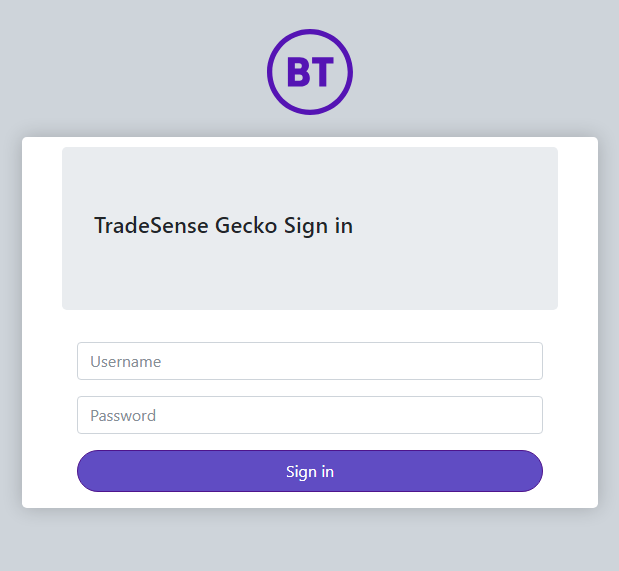
The Gecko webpage requires login credentials and can be accessed at "<tradesenseurl>/gecko/login"
Configure Gecko Web Authentication
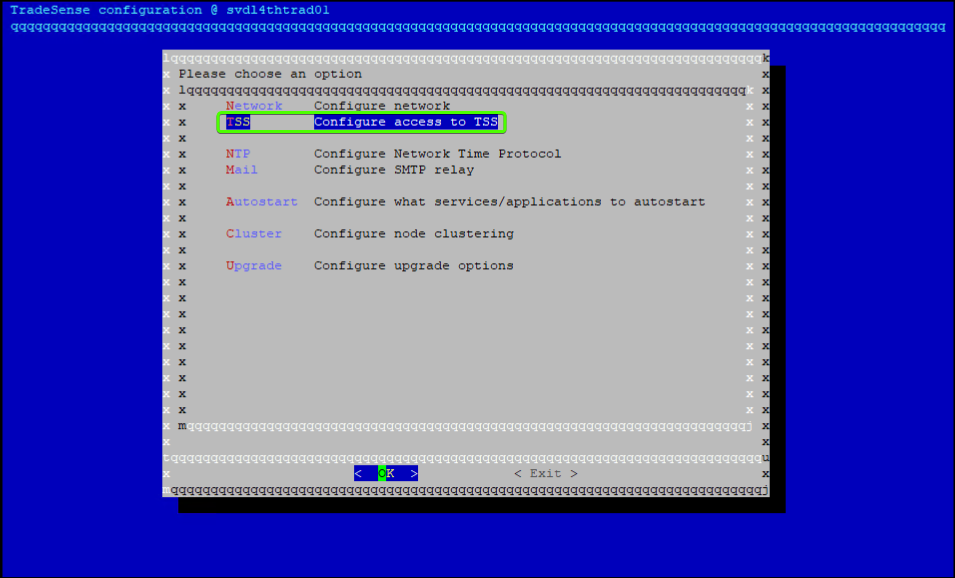
The Username and Password credentials for the Gecko login page can be changed by going to the terminal option "configure-node > Configure access to TSS" as seen below
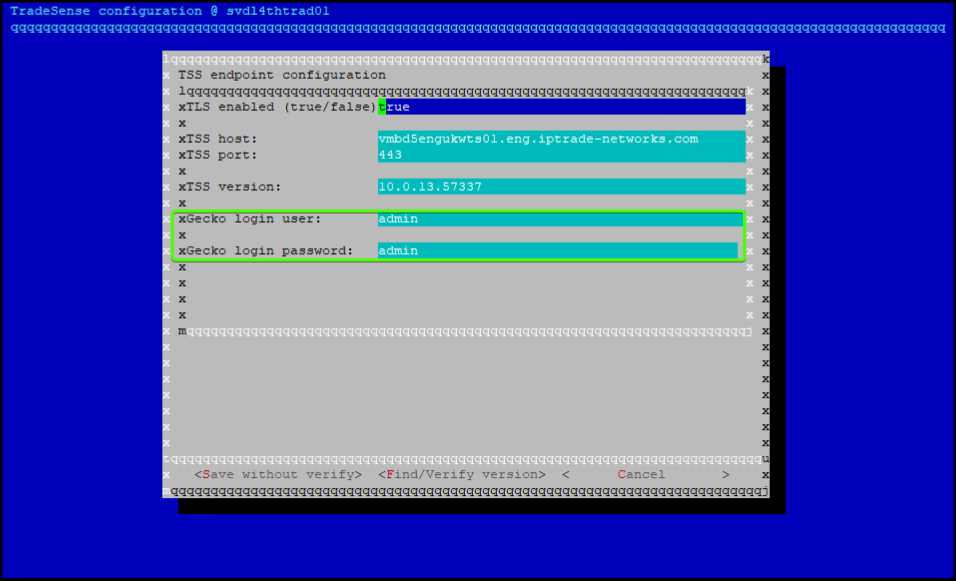
Then update the "Gecko login user" and "Gecko login password"
Gecko API Authentication
To access the Gecko API, users must authenticate using the "<tradesenseurl>/gecko/api/provisioning/v1/auth" endpoint, which generates a token upon successful authentication. This token is used in subsequent API calls to authorize requests. The process of obtaining the token involves sending a POST request to the "<tradesenseurl>/gecko/api/provisioning/v1/auth" endpoint with a JSON body containing a "salt" and a "authKey".
Authentication ProcessGenerate the authKey
To generate the authKey, which will be used for authentication, follow the below steps:
1.Compute the SHA-256 hash of the password.
2.Convert the result of Step 1 to uppercase.
3.Compute the SHA-256 hash of the concatenation of the uppercase result from Step 2 and the salt.
(The result of this computation is the authKey.)
•In one line, the process can be described as:
"salt" can be any string of your choice.
Send the POST Request to Authenticate
Once the authKey is generated, make a POST request to the"<tradesenseurl>/gecko/api/provisioning/v1/auth" endpoint with a JSON body containing the salt and the computed authKey.
Handle the Response
Once the request is sent, the gecko server will respond based on whether the authkey credentials are correct or not.
Successful Authentication:
If the credentials are valid, the server will return a JSON response containing the token.
Invalid Credentials:
If the credentials are invalid, the server will return an error message.
Accessing Gecko APIAfter successfully obtaining the token, it must be included in the Authorization header for any requests made to the Gecko API.
Replace <your-token> with the token received in the response after successful authentication.
TPO and TPO Cluster api zones filter Below are the changes made in Gecko to implement zone query parameter to filter out devices from all the available zones in tss. This will allow assure to filter out /tpo and /tpoclusters api data for all the zones including monitoring and non monitoring zones as below
Gecko WebSocket STOMP Connection
Only authenticated STOMP clients are allowed to establish a connection.
1. Client Connection Request
To authenticate to the STOMP server, the client must include an Authorization header in the CONNECT frame. The CONNECT frame structure is as follows:
Authorization: The Authorization header must include a token prefixed by Bearer
Token Generation: The token can be generated by calling the /gecko/api/provisioning/v1/auth API.
Heartbeat: The client specifies the desired heartbeat intervals for communication.
2. Server Validation
When the server receives the CONNECT frame, it validates the Authorization header to checks for the presence and validity of the token.
1.Invalid or Missing Token: If the token is missing or invalid, the server responds with an ERROR frame and closes the connection:
2.Valid Token: If the token is valid, the server responds with a CONNECTED frame, allowing the client to proceed:
After successful authentication, the client can subscribe to topics to receive messages from the server. The communication between the client and gecko stomp server continues without interruption as long as:
•The connection remains active. •Neither the client nor the stomp server terminates the connection.
Token Expiry
•The token generated via the /auth API is valid for 60 minutes. •If the client attempts to connect using an expired token, the connection will be rejected by the server. •Once connected, token expiry does not affect the active session. The client and stomp server can continue exchanging messages as long as the connection remains active. |