Communications


Communications |
|
| IT&Operations > Security > TradeSense |
TradeSense ↔ TSSIf the TSS is secure (see "Configure HTTPS binding on the TSS"), TradeSense will automatically encrypt and authenticate its otherwise unencrypted communications with the TSS. Web accessTradeSense comes with a default, unique, generated at the time of deployment, private key (4096 bits) and self-signed certificate. Web access to the various applications and components is therefore encrypted.
Self-signed certificate details:
common name: default.tradesense alternative name: default.tradesense country: UK province: London city: London organization: BT unit: BT TradeSense email: default@tradesense.com Key Length: 2048 Deploying a trusted certificateA certificate signed by the same CA as the one used by the TSS can be deployed on TradeSense.
1. Generate a CSR from the TSS console 2. Get the CSR signed by a Certificate Authority 3. Upload the signed certificate on the TSS
Generate a Certificate Signing Request (CSR)1. On the TSS console, go to Devices Management > Productivity Tools Clusters, click on the desired cluster name.
2. Add below keys and values in Productivity Tools Clusters > [Cluster Name] > Settings
Note: •Key "application.csr.country.code" should be set with a two-letter ISO country code only. Example (UK,US,IN,AU, etc) •Key "application.csr.keylength" should be set with values of either 2048 or 4096. If any other values are given, then the certificate will be generated with a keylength of 2048. •If any of the key values are not provided in TSS > Productivity Tools Cluster > [Cluster Name] > Settings, then the certificate will be generated with the default values. country: UK, province: London, organization: BT, unit: BT TradeSense, email: default@tradesense.com, Key Length: 2048
3. Provide a Fully Qualified Domain Name (FQDN)
4. Click "Update"
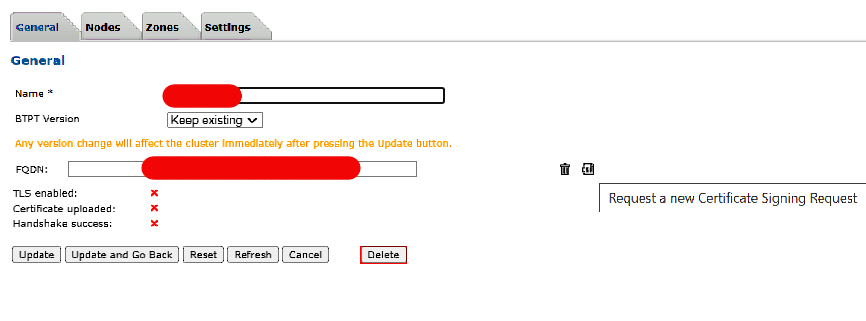
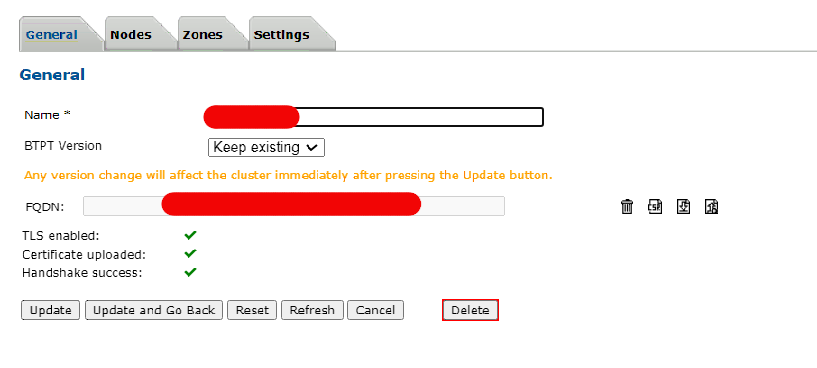
5. A "Request CSR" icon will appear next to the "FQDN" field, click onto it
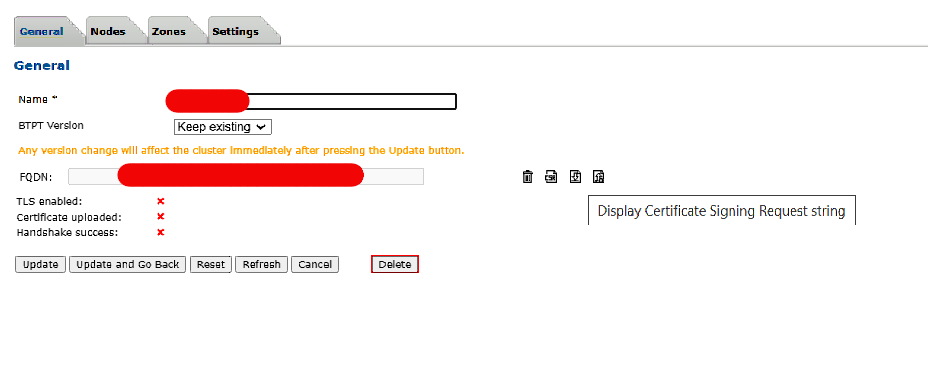
6. Click "Refresh" a couple of times until the "Display CSR" icon appears
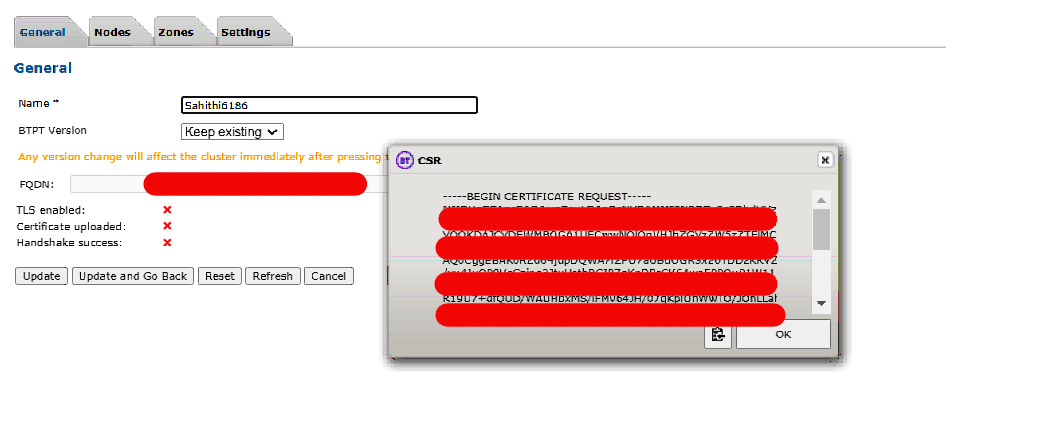
7. When the "Display CSR" icon appears, click onto it and copy/paste the CSR
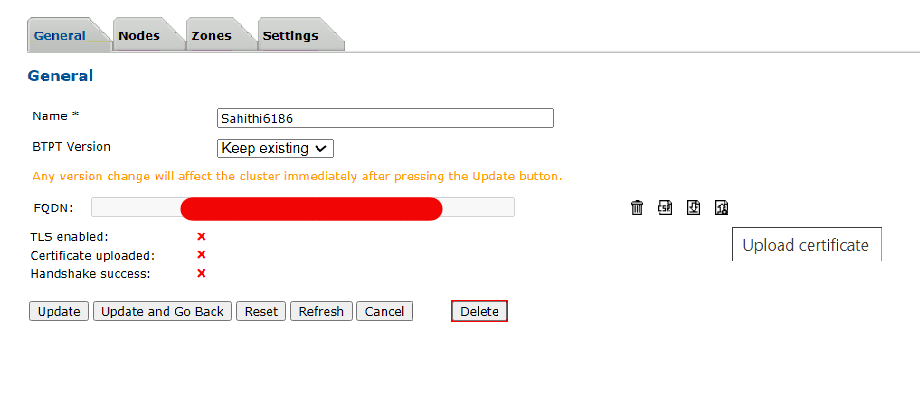
Get the CSR signed by a Certificate AuthorityProceed to get the CSR signed by your Certificate Authority of choice. Upload the signed certificate on the TSSWhen the signed certificate is available, upload it using the "Upload certificate" icon.
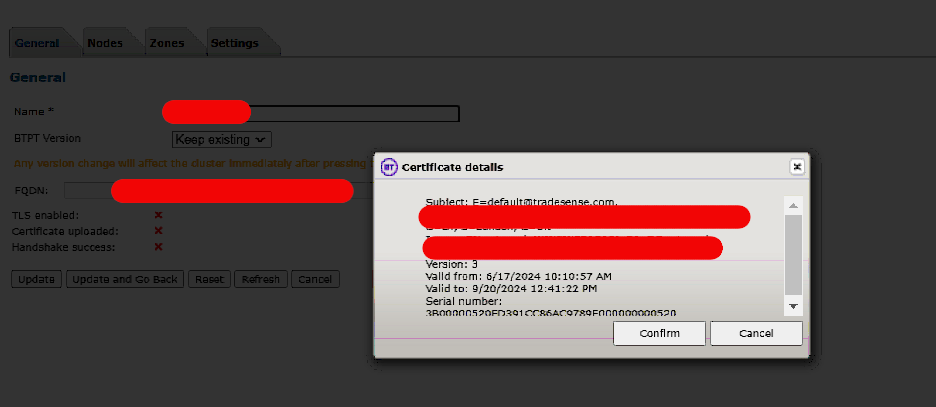
Make sure that information displayed in the popup are correct.
Hit [Ok].
The signed certificate will be automatically deployed on TradeSense.
|