Configuration


Configuration |
|
| Compliance > Assure > Alerting |
Within the Alarms Configuration page you are able to perform a variety of configuration changes. Here you are able to provide the Customer information, HTTP/HTTPS proxy details, email details for alerting, Alarm Configuration, Zendesk integration and Network Management System (NMS) hostnames.
Here you can also enable/disable Maintenance mode, see the SNMP configuration retrieved from TSS and configure the alarms behavior.
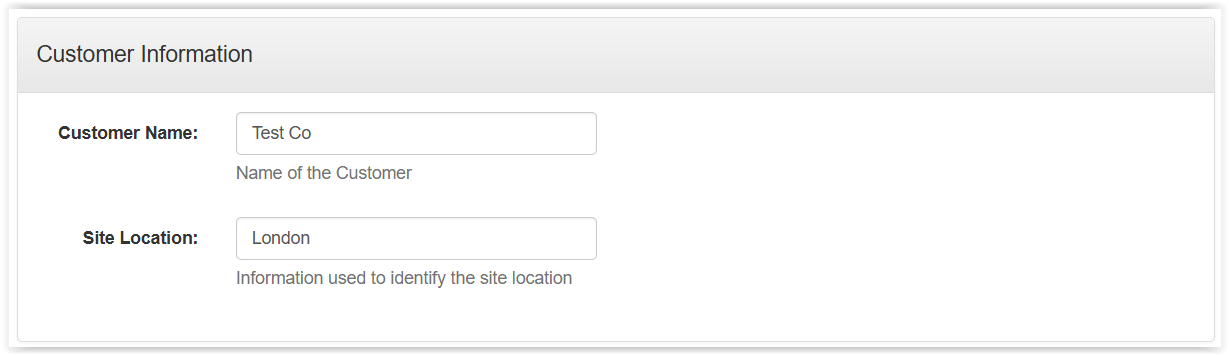
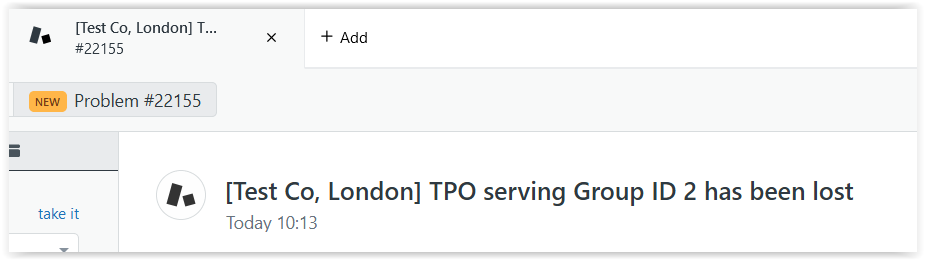
Customer InformationManage the Customer Name and location. This data will appear in tickets raised in Zendesk.
Example ticket in Zendesk:
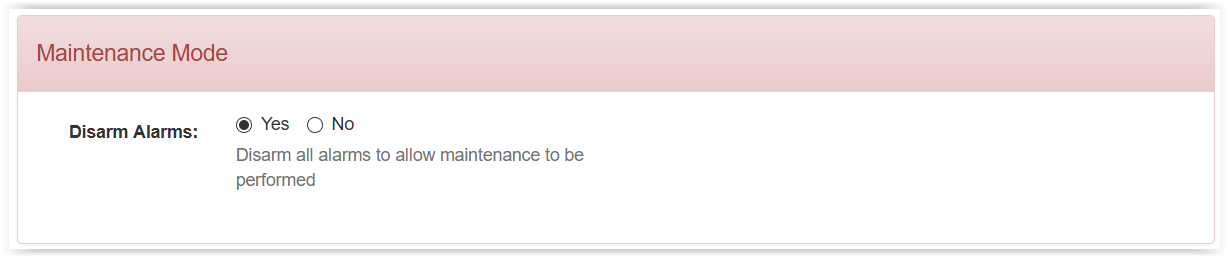
Maintenance ModeMaintenance mode allows to disable alarms for a planned maintenance for instance.
When Maintenance Mode is enabled, you will see this warning banner at the top of the Assure Dashboard screen:
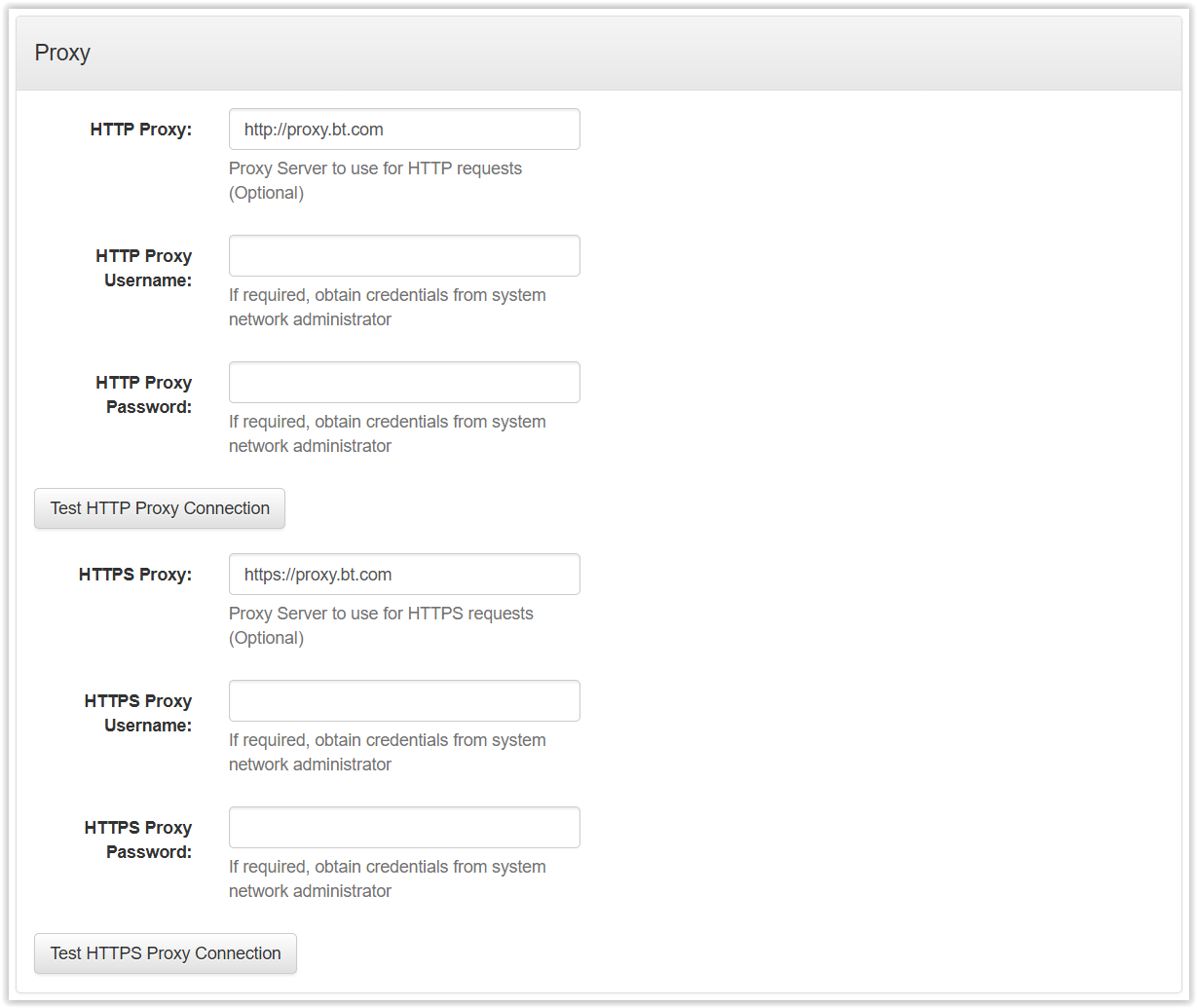
Note: Whenever Maintenance Mode is enabled, the system generates and sends an SNMP trap to the configured NMS hostname associated with the respective TradeSense instance. ProxyIt allows to manage the proxy settings (if applicable). This may be required to connect to Zendesk.
Click “Test Proxy Connection” to test connectivity using these credentials.
It allows to manage Email configuration. Assure alarms can be configured to send Email notifications (as well as raise Zendesk tickets). If enabled all alerts notifications will also be sent by Email. File with the details of the emergency contacts needs to be uploaded, email will be sent based on the contacts mentioned in the file. Turret will send SNMP trap with the contact mentioned in it, an email will be forwarded to that contact if it is present in the uploaded file. If the contact is not available in the file, then assure will send email to default one(with the list of contacts a default entry in the below format needs to be added). default, <email_id>, <location>
SMTP:
SMTP Details(Server, Username, Password, Port) need to be defined by the user. Connection security enables user to communicate over TLS.
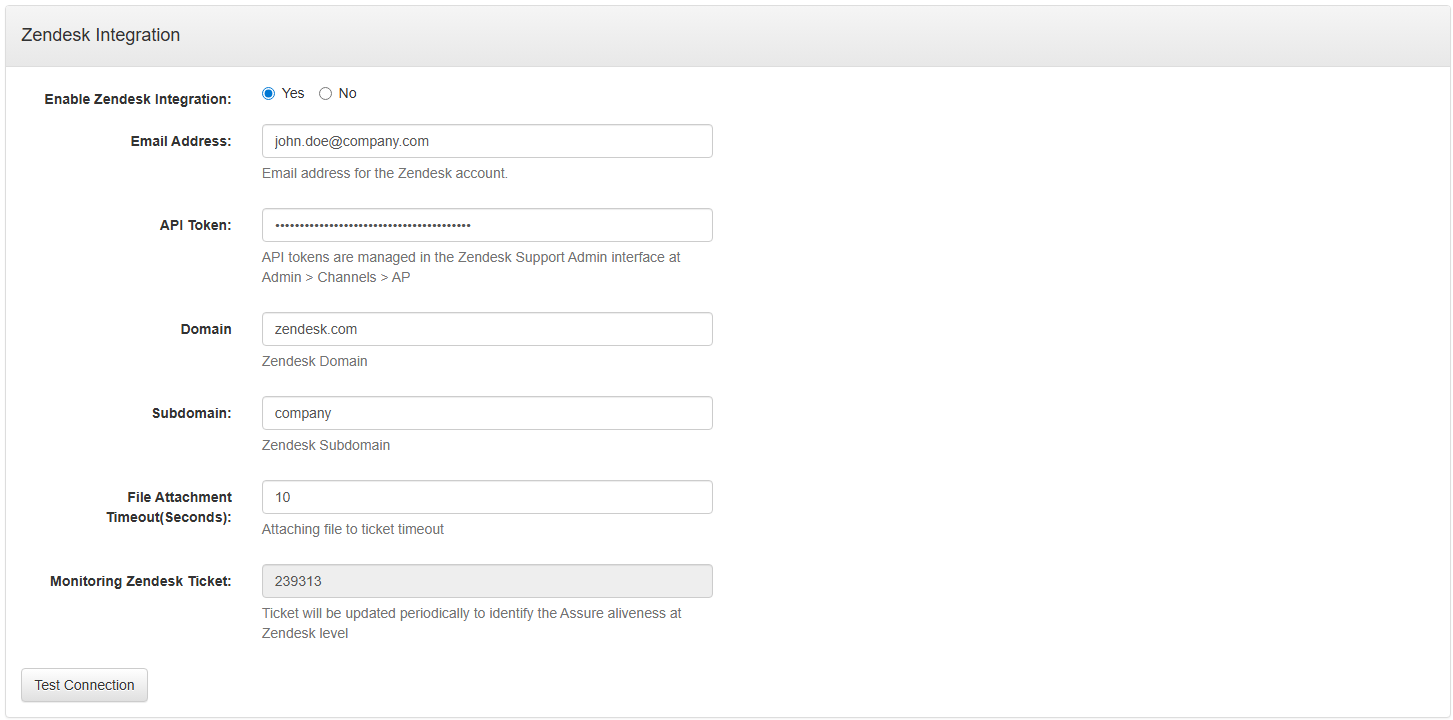
Zendesk IntegrationIt allows to manage Zendesk integration credentials.
Please make sure to provide correct Domain & Subdomain and Click “Test Connection” to test Zendesk connectivity using these credentials.
Assure has a keep-alive mechanism to Zendesk. Every 5 minutes, Assure is updating a Zendesk ticket. The ID of this ticket is displayed here as "Monitoring Zendesk Ticket". This mechanism allows to monitor the Assure connection from the Zendesk side. To be able to monitor Assure connectivity, this ticket can be recognized by these two tags attached to it : "support_assure" and "support_assure_ka". An automation rule can then be created on Zendesk to check if tickets with these two tags have been updated recently.
Note: From Tradesense Version 10.0.19, All Zendesk logs will be displayed in assure->zendesk folder
Retry information & closed state If there is any status change on the opened ticket of the tradesense at zendesk presumably closed/closed by merge the incident at the tradesense retry 10 times to contact zendesk to update the event and failing to do will move the incident to archive state.This is a configurable value which can be handled with the below setting. application.assure.zendesk.max_notify_retry_count_for_updates = 10 So here the incident w.r.t tradesense is closed because of its respective status on zendesk. Any similar alert received onto the system will have a new ticket on the tradesense as well as on zendesk. Retry is valid for zendesk ticket creation as well. if there is any problem connecting to zendesk while creating the ticket tradesense retries 60 times to contact zendesk for creation. This is a configurable value which can be handled with the below setting. application.assure.zendesk.max_retry_count_for_zendesk_creation = 60 Historical alerts information There are a few incidents on the tradesense that requires a manual intervention to resolve failing to do so by the administrator will have certain performance issues on the tradesense. The new change from 10.0.17 will take into effect that incidents with no events/manual intervention will move the incident from active state to inactive by updating the same on the respective ticket on the zendesk. The default value is set to be 10 days and can be handled with the below setting.
application.assure.alerting.active_incident_retention_days = 10 The above setting does mean that if there are no activities on any active incident for past ten days the incident would be moved to inactive state updating the same on the respective ticket on the zendesk.
Solved dependency info The status of the ticket on the zendesk can only be resolved if the following fields of the zendesk form are filled in. So following the change from 10.0.17 the following fields with its values are added as part of ticket creation/updation. Updated in yellowpages also. below are the default values configured on the tradesense.
application.assure.zendesk.custom_field.customer_issue_categorization = monitoring application.assure.zendesk.custom_field.issue_component = tradesense application.assure.zendesk.custom_field.about = ipt__support__tradesense__assure__other application.assure.zendesk.custom_field.site_region_country = region_other Note: It is suggested that the above values are configured according to the site. e.g: the value for the key application.assure.zendesk.custom_field.site_region_country can be europe__uk for the site named "EMEA::UK" in the custom_field_options of the tagger type titled Site Region-Country.
Parked incidents The incidents that have issues with zendesk connectivity or awaiting for zendesk connectivity to be restored stays under parked incidents tab of the alerting.So following the change from 10.0.17 the following fields with its values are added as part of ticket creation/updation. Updated in yellowpages also.
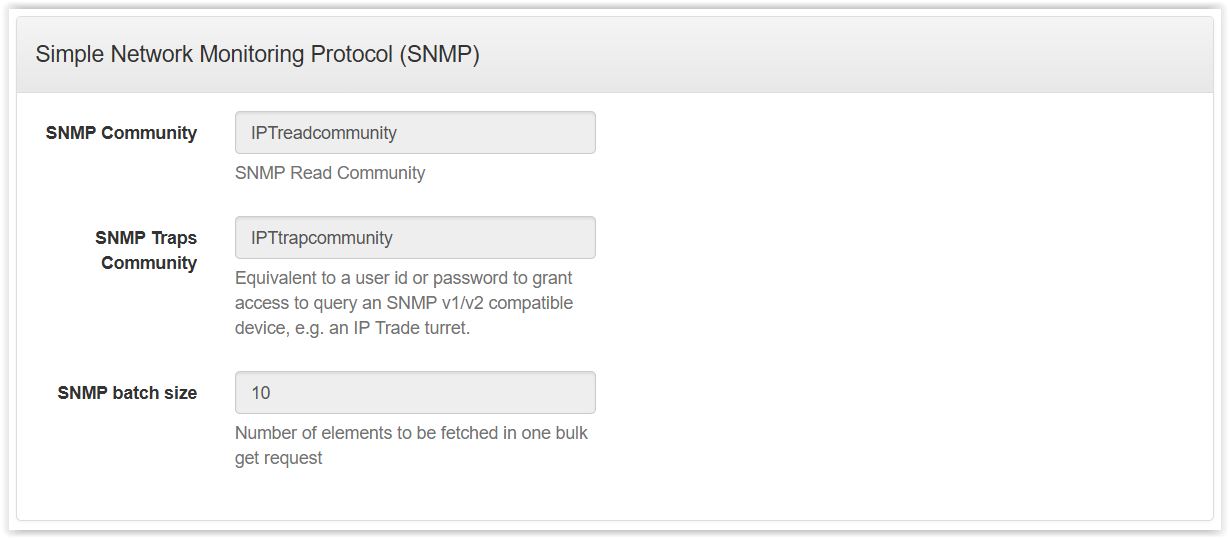
application.assure.zendesk.max_retry_count_for_zendesk_creation = 60 application.assure.zendesk.max_notify_retry_count_for_updates = 10 Note: Awaiting Creation details of incidents for zendesk ticket will be shown in assure dashboard page. SNMPIn this section, you can see the SNMP configuration that has been retrieved from the Productivity Tools cluster settings on the TSS.
To be able to monitor the different components, SNMP needs to be enabled on Turret, TPO and TSS and the SNMP read community needs to be the same as the one configured on these devices. To change the default SNMP communities on Assure, add these settings in the Productivity Tools Cluster settings on the TSS console :
application.global.snmp.read.community application.global.snmp.trap.community
See here for devices configuration and here for TSS configuration.
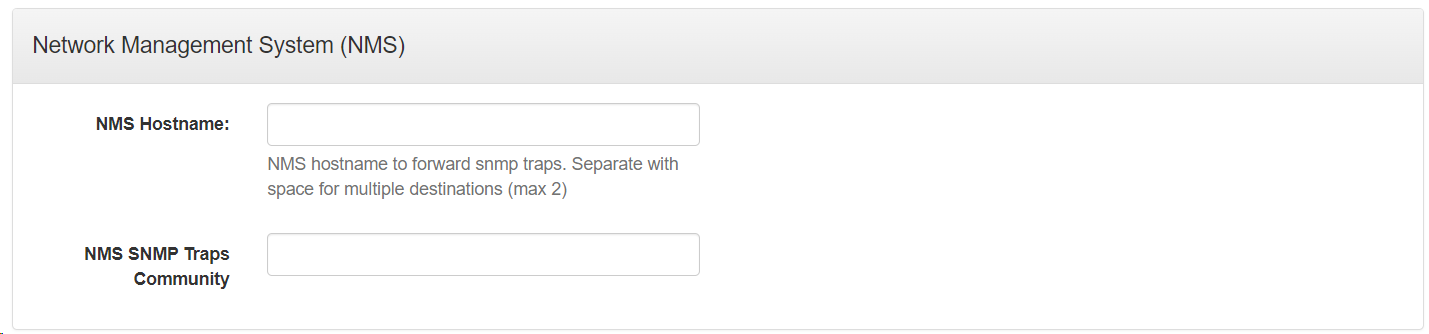
Forwarding SNMP TrapsTo enable forwarding SNMP Traps , you need to configure Network Management System(NMS) in this section
Note: Traps will be forwarded with the configured NMS SNMP Traps Community String. Settings to enable forwarding alerts to third party NMS Servers:To enable forwarding alerts to third party NMS Servers on Assure, add these settings in the Productivity Tools Cluster settings on the TSS console :
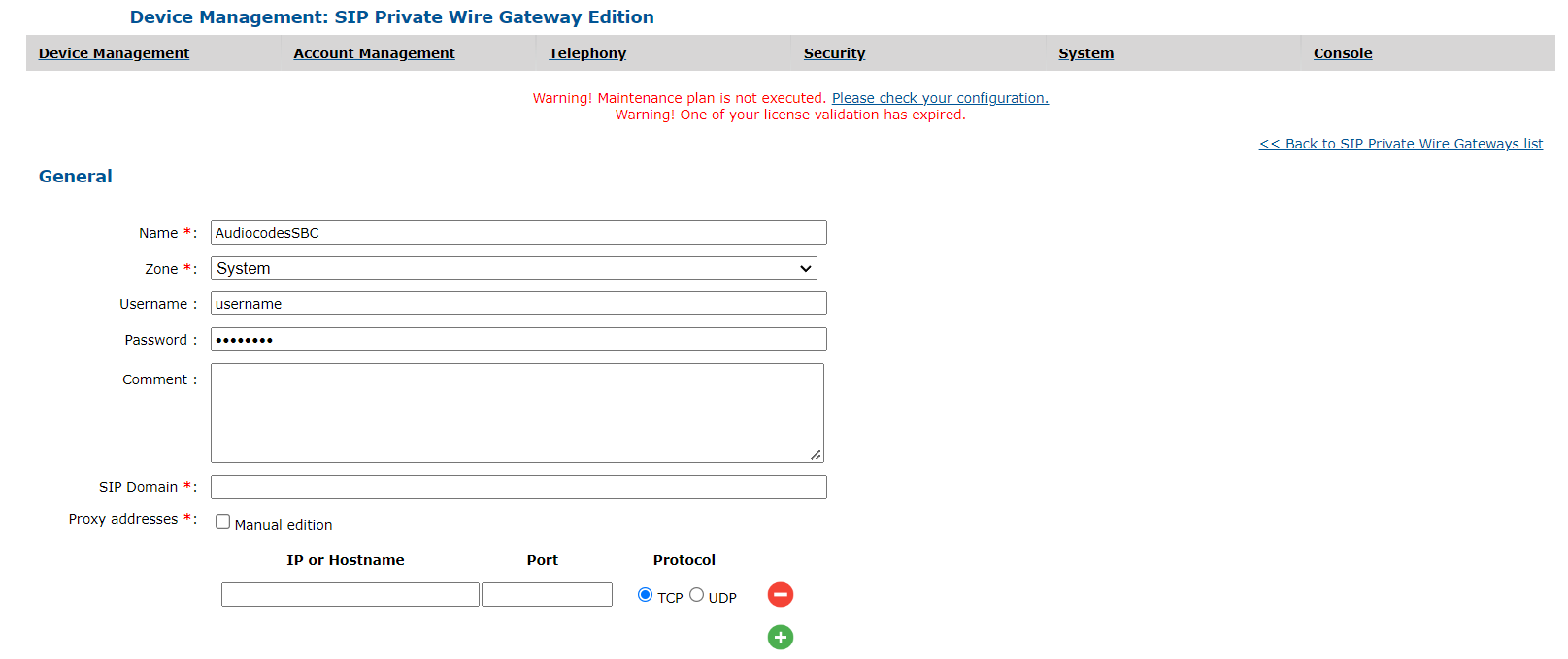
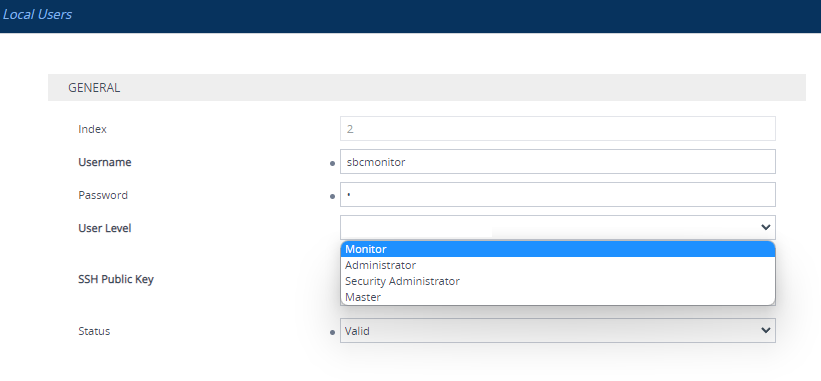
application.assure.alerts.enable.snmp.trap.forward=True SBC Audiocodes ConfigurationAlarm monitoring of the SBC is done over the API. API authentication will be done with credentials configured in the TSS.
In the SBC you can create any user level for API authentication.
You can Ignore some of the SBC alarms severities by setting following key in “Productivity tools cluster” settings application.assure.audiocodes.alarms.ignoreseverities. |