Without Domain


Without Domain |
|
| Solution Installation > TSS Installation > Install TSS on a standard server > Upgrade TSS/Console |
OverviewThis section describes how to update TSS/Console version when system is not using SQL replication. Redundancy can be used.
Here is an overview of installation procedure:
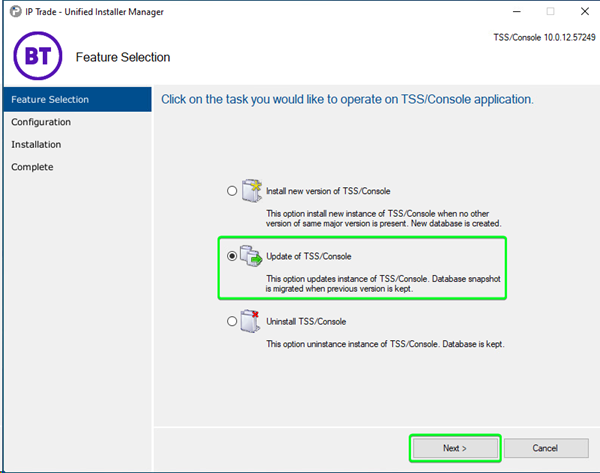
Upgrade first instance of TSS/ConsoleProceed as follows: Extract the archive TSS-Console-10.1.Y.Z.cab. Start the application UIM.exe. Select option Update of TSS/Console and press "Next" button.
Next step ask you to choose some options: •Version: Version to upgrade. Server will be determined depending of selected version. •Server: Server where database is stored. Server will be determined depending of selected version. •Authentication: Type of authentication to connect to SQL Server (not used with mySQL). oWindows Authentication oSQL Server Authentication (Important: User administrator used to log on Windows must have sysadmin role into SQL Server - this is required to copy database) oAzure managed identities •Login: Login to connect to DBMS. Client ID when paired with Azure managed identities. •Password: Password to connect to DBMS. •Database: Database will be determined depending of selected version..
Press "Next" button.
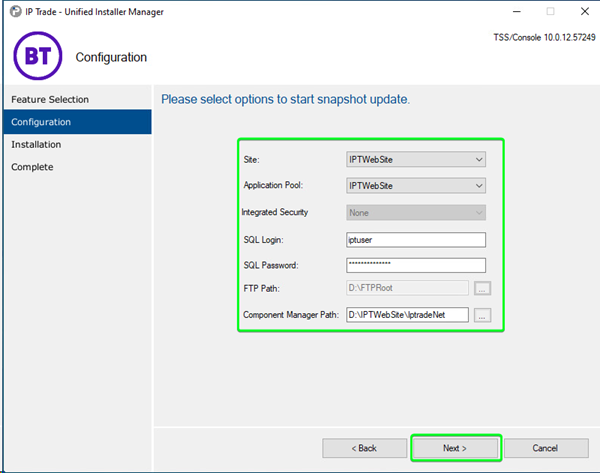
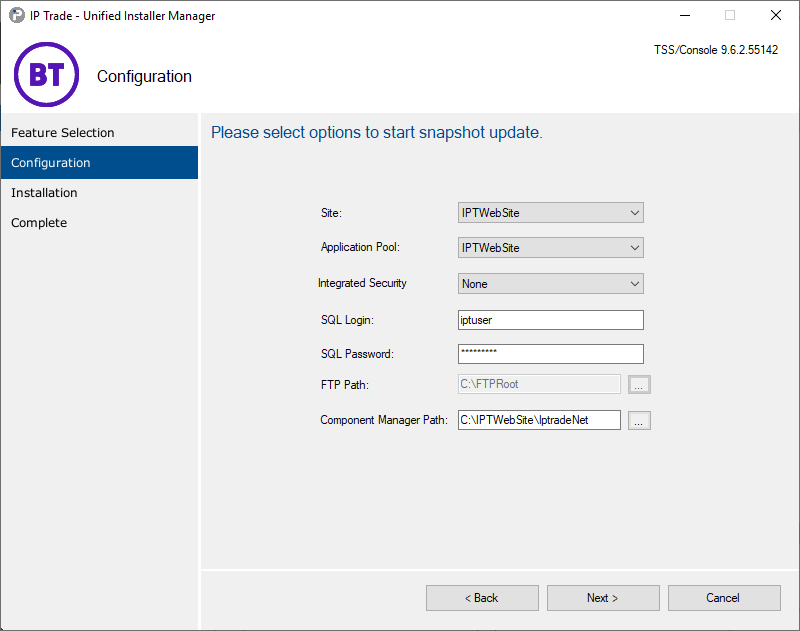
Next step ask you to choose some options: •Site: HTTP site that will be used. Choose your recently created Site. •Application Pool: application pool will be used to install application on. •Integrated Security: security mode used to connect to the SQL database. If Domain Authentication is selected, the TSS will use the Application Pool virtual account. •SQL Login: login application will use to connect to SQL Server or mySQL. Client ID when paired with Azure managed identities. The login is not required with Domain Authentication. •SQL Password: password application will use to connect to SQL Server or mySQL. The password is not required with Domain Authentication nor Azure managed identities. •FTP Path: the local directory of the FTP site (used for devices upgrades and configuration). Note that its value is automatically retrieved and the field is not editable when upgrading from an 8.x or greater version, as a single common FTP site is required.
Press "Install" button.
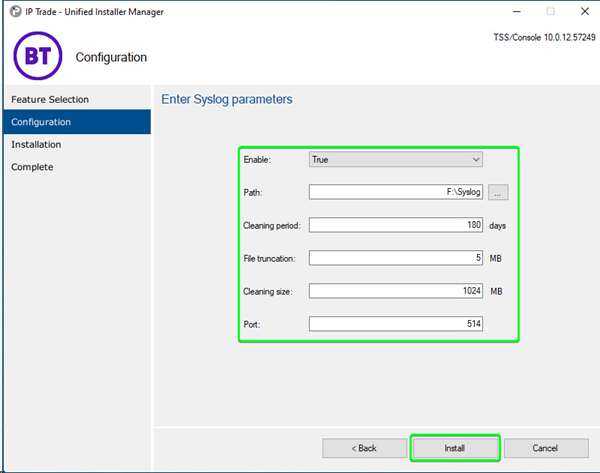
Next step ask you to choose some options about Syslog configuration: •Enable: Enable syslog log (Enable the automatic start on the Windows Service) •Path: Path of syslog log •Cleaning period: Delete syslog files that are older than this value (in day) •File truncation: Maximum file size (in mo) of each syslog log •Cleaning size: Maximum total file size (in mo) of all syslog log •Port: Port of syslog log
Next step is status step.
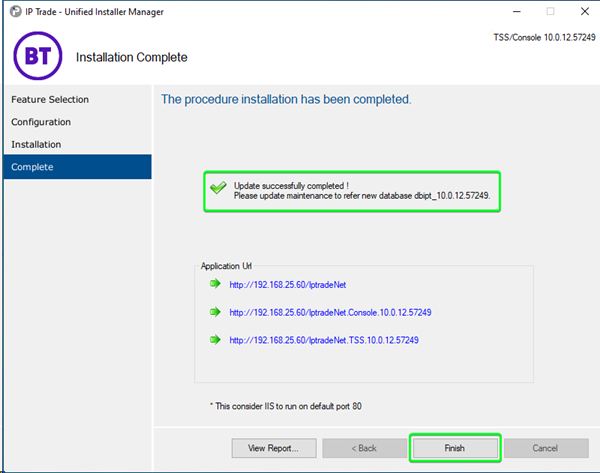
At the end of the process the following screen is displayed:
The application is now installed in the displayed location and ready to be used. Note the displayed URL for future use.
For more information about IptradeNet application see corresponding section: IptradeNet/TSS/Console: Quick Start Guide.
Upgrade other instance of TSS/ConsoleThis section is optional - it is only used when you are using redundancy. See section Upgrade first instance of TSS/Console to upgrade other instances TSS/Console. This section can be executed several time depending of number or instance of TSS/Console using redundancy.
Update Component Manager URLs for Secure AccessAs part of the TSS Server Install Operating System > Configuring IIS guide, you were instructed To Configure TLS on IIS
All TSS Servers should be secured with certificates. By default the UIM installer will create Console and TSS links with HTTP and the IP address of the server.
To update these links to use HTTPS and FQDN follow this guide: Update Component Manager URLs
|