IptradeNet


IptradeNet |
|
| Solution Installation > TSS Installation > Install TSS on a standard server > IptradeNet/TSS/Console: Quick Start Guide |
Overview
IptradeNet offers unique URLs that never change. These TSS & Console URL can be used by turrets device and point to active TSS/Console version. This offers advantage to be simpler to manage.
Login screen
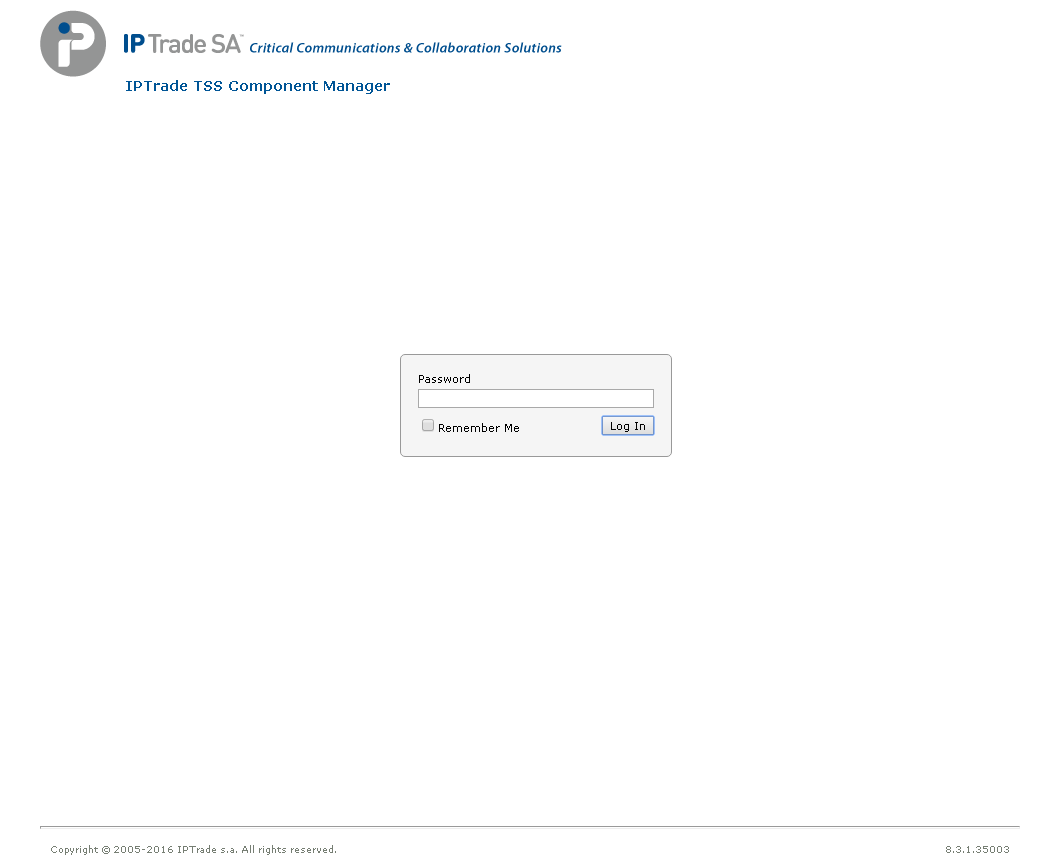
First screen is authentication screen.
Here is default credential: •Login: iptrade •Password : <blank> (no password)
This can be change by editing web.config of application under tag appSettings/login and appSettings/password. Web Application URL : http://YOUR_IP_ADDRESS/IptradeNet/ Note : Replace string YOUR_IP_ADDRESS in previous url by server ip address where TSS is installed to.
Select Active Version
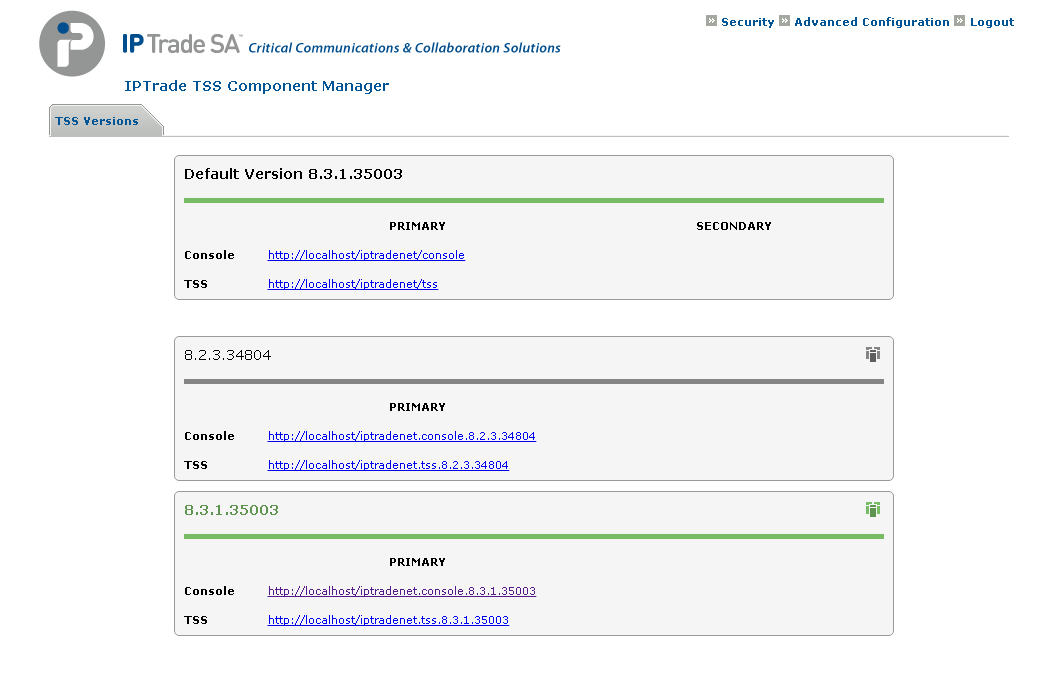
Once you are logged, you can see different install of TSS/Console application. By default, no version is selected as default. Press Set As Active… button (gray icon in right upper corner of frame) to select active version. Current active version is marked with green color (here 8.0.0.28175).
This means that: •http://YOUR_IP_ADDRESS/iptradenet/console points to Console of 8.0 (http://YOUR_IP_ADDRESS/IptradeNet.Console.8.0.0.28175) •http://YOUR_IP_ADDRESS/iptradenet/tss points to TSS of 8.0 (http://YOUR_IP_ADDRESS/IptradeNet.TSS.8.0.0.28175)
Both URL can be used but IptradeNet url offers advantage to never change (this can facilitate upgrade procedure because no change is needed in FTP to change TSS url).
Default Version
Both links are pointing to selected active version.
|