Upgrade version


Upgrade version |
|
| Solution Installation > TSS Installation > Using the TSS Virtual Appliance > TSS |
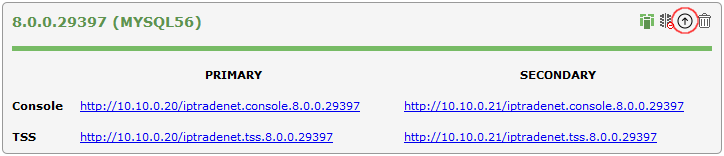
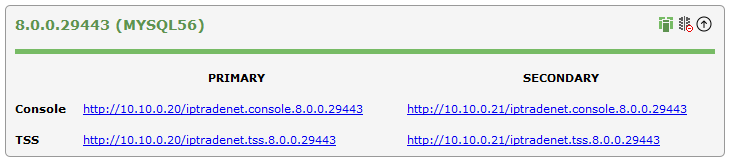
OverviewUse this option to upgrade a TSS/Console version and keep data. Source version is preserved and target version is created containing data of source version. Upgrade versionTo a TSS/Console version: •Open the Component Manager in a web browser •Select the TSS Versions tab •Press the "Upgrade" this version icon next to the version to upgrade.
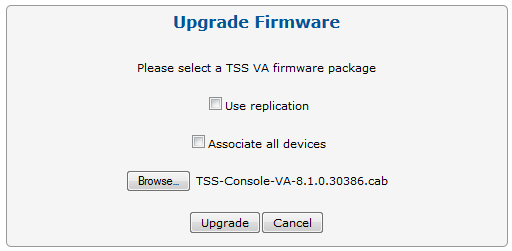
•To replicate the version on the secondary server, check Use replication. If this option is checked, version will be automatically installed on the secondary server and replication will be activated between the primary and the secondary TSS/Console. •Press the "Browse..." button and select the firmware (TSS-Console-VA-<VERSION>.cab) on disk •Press the "Upgrade" button
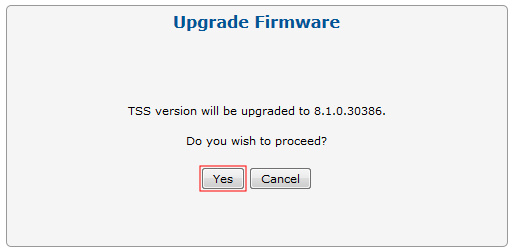
•Press the "Yes" button to confirm
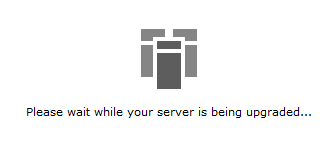
•Wait for the upgrade process to complete
•Once the upgrade is done, the new version appears on the Component Manager's main screen
|