Configuring IIS


Configuring IIS |
|
| Solution Installation > TSS Installation > Install TSS on a standard server > Install Operating System > Windows Server 2016 |
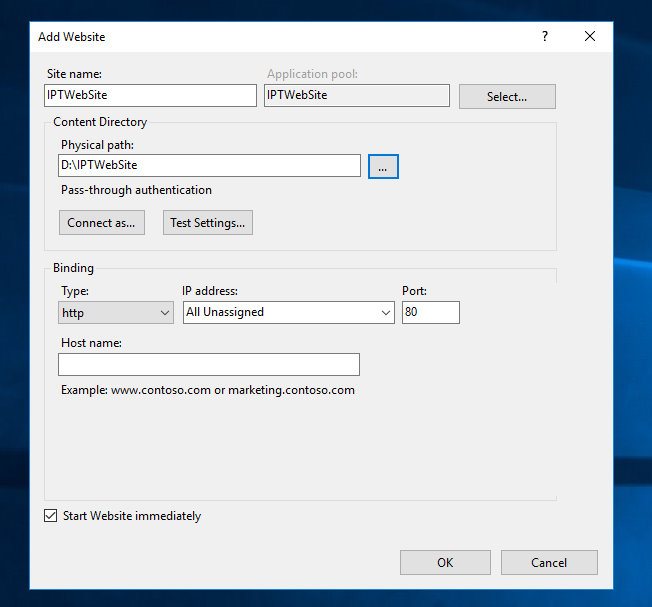
OverviewThis section explains how to configure the web server and FTP server on Internet Information Services (IIS). To Run the Web Site Creation WizardProceed as follows: •Create a folder D:\IPTWebSite. •Open Internet Information Services (IIS) Manager. •Go to the folder Internet Information Services > •Right-click "Default Web Site" and select "Remove". •Right-click the node Sites and select "New > Web Site". •Enter site name: IPTWebSite. •Select: D:\IPTWebSite as physical path. •Leave binding mode with default value. •Press "OK" button
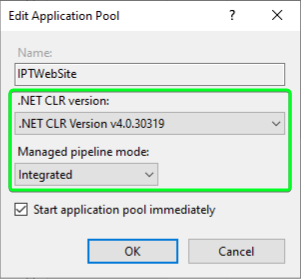
Windows Server 2016: Use integrated pipeline modeOn Windows Server 2016, we advice changing managed pipeline mode to integrated mode. •Open IIS •Select Application pools > right click on IPTWebSite (or the application currently used by your web site) > Basic Settings… •Set: o.NET CLR version: .NET CLR Version v4.0.30319 oManaged pipeline mode : Integrated •Press "OK" button.
Additional information: An other solution consist to keep integrated mode but make the application compatible by command given by server when accessing application.
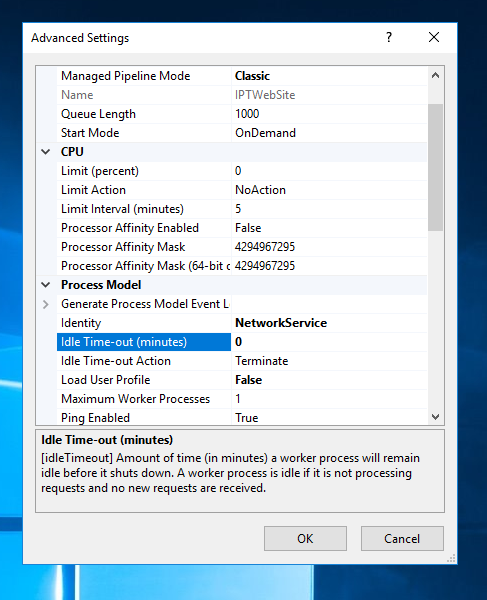
Change default user and disable idle time-out•Select proper application pool (IPTWebSite). •Click on "Advanced Settings...". •Change Identity field from ApplicationPoolIdentity to NetworkService. •Change Idle-Timeout field from 20 (minutes) to 0.
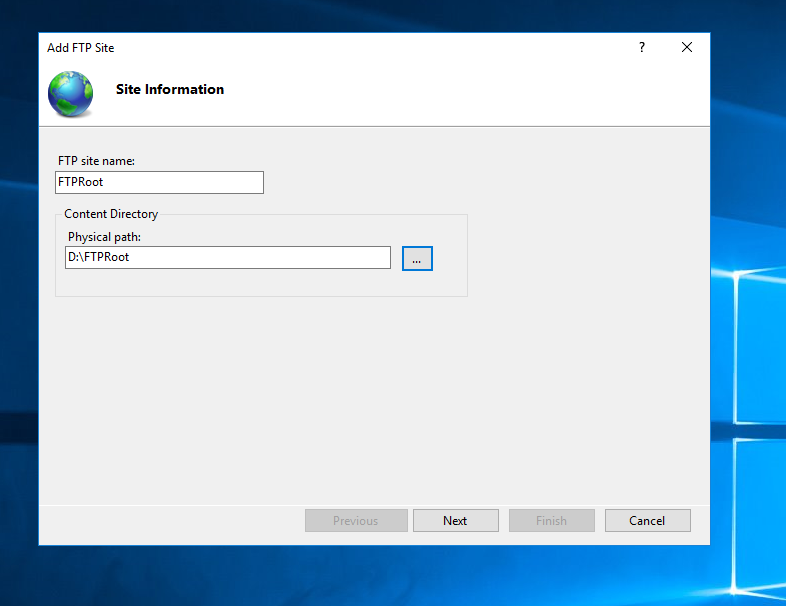
•Press "OK" button. To Configure FTP site•Create a folder D:\FTPRoot; •Open IIS. •Right click on computer name in left pane > Add FTP Site. •Set FTP site name : FTPRoot. •Set Physical Path: D:\FTPRoot as Physical path. •Press "Next" button.
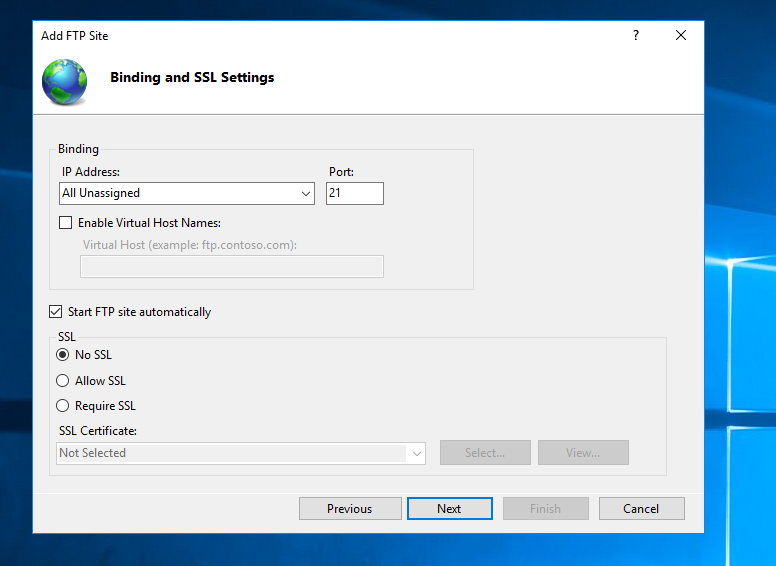
•Leave binding default value. •Set SSL : No SSL. •Press "Next" button.
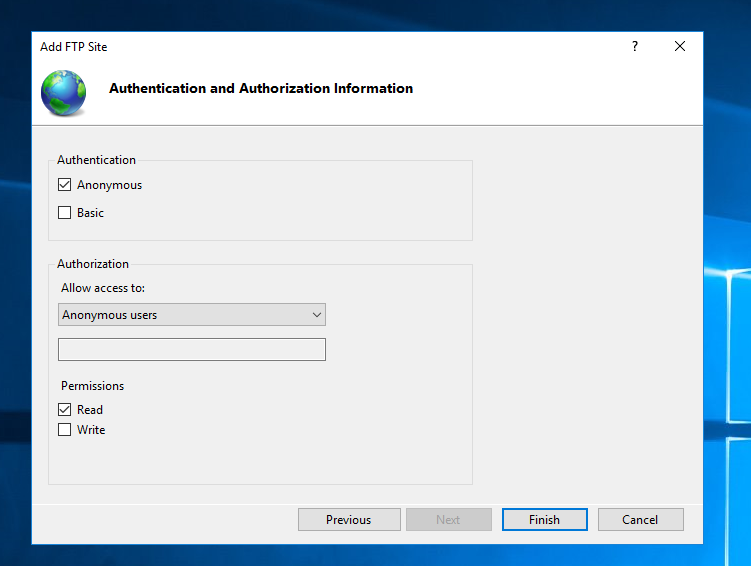
•Set Authentication: Anonymous. •Set Authorization for Anonymous users with Read permission. •Press "Finish" button.
•Refresh the list if necessary.
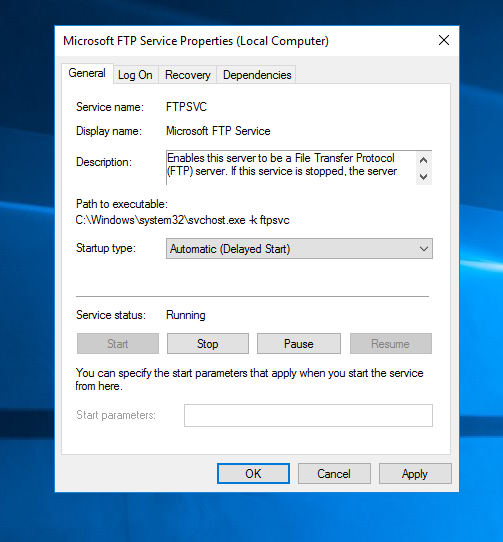
Configure FTP Publishing Service•Open Control Panel > Administrative Tools > Services. •Right click on "Microsoft FTP Service" then click on "Properties". •Set Startup Type to Automatic (Delayed Start).
•Press "OK" button.
Configure HTTP(S) access to FTP Site
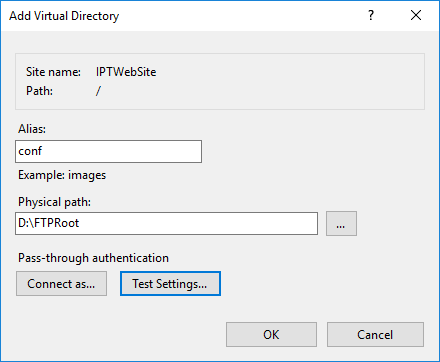
•Open IIS •Right click on IPTWebSite (or the application currently used by your web site) > Add Vitual Directory •Name the Virtual Directory "conf" and set the path to the FTP Site
•Click on the Virtual directory and then on "Mime Types" •Click on "Add"
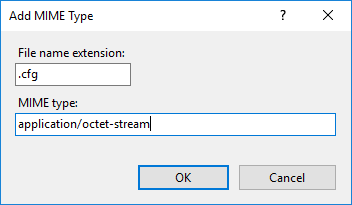
•Set the file name extension to ".cfg" and the MIME Type to "application/octet-stream". Then click on OK •Click again on "Add"
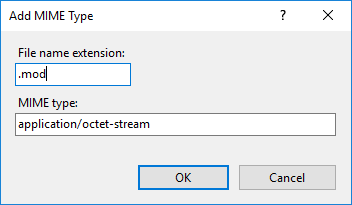
•Set the file name extension to ".mod" and the MIME Type to "application/octet-stream". Then click on OK •Click again on "Add"
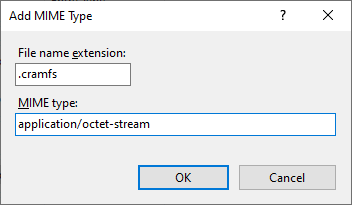
•Set the file name extension to ".cramfs" and the MIME Type to "application/octet-stream". Then click on OK •Click again on "Add"
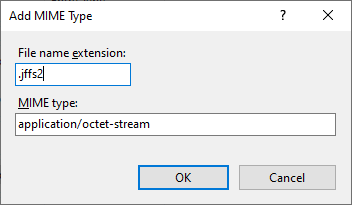
•Set the file name extension to ".jffs2" and the MIME Type to "application/octet-stream". Then click on OK •Click again on "Add"
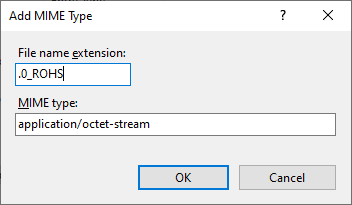
•Set the file name extension to ".0_ROHS" and the MIME Type to "application/octet-stream". Then click on OK •Click again on "Add"
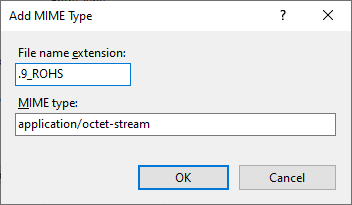
•Set the file name extension to ".9_ROHS" and the MIME Type to "application/octet-stream". Then click on OK
It's now possible to access to the FTP Site through HTTP(S) To Configure SSL on IIS
NOTE: This next step is optional and is required only if you plan to use SSL. You need your own certificate to proceed the install. By default, IIS is configured to use the HTTP protocol. The main security issue is that traffic between the client and the server is done as clear text. To secure the transmission between client and server, the information is encrypted by using SSL.
To configure SSL on IIS, follow this procedure.
|