Generating Secured Passwords


Generating Secured Passwords |
|
| Solution Installation > TSS Installation > Install TSS on a standard server > Install Operating System > Windows Server 2016 > Securing the Server (optional) |
OverviewThe purpose of the section is to explain how to generate some secure password with a password generator. At this step, you are going to generate some character string which will be used later as password. You can skip that part if you want to generate passwords by yourself.
You will need to create passwords for: •SQL users: sa user, users of TSS and Console applications; •Local Windows users: in case of deploying a strong security mode.
We advise the use of Keepass. It is freeware that can be downloaded from http://keepass.info. Generate Passwords for SQL UsersYou have to create passwords for the SQL user (User creation will be tackle on the following chapter about SQL Server). sa: the SQL Server super user;
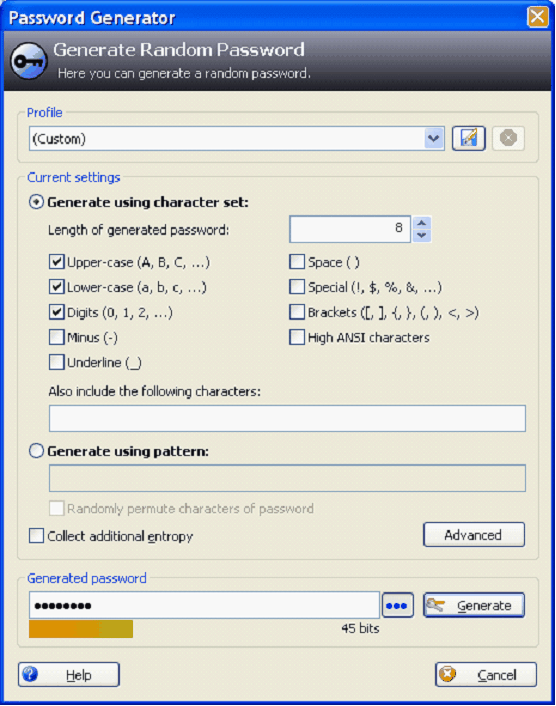
Proceed as follows: •Start Keepass. •Go to Tool > Password Generator menu. •Select the following settings:
•Click on "Generate" to create a password. •Click on button •Copy the password into a temporary file. You will need them during SQL installation.
Generate Passwords for Windows Local UsersYou also have to create passwords for two Windows local users: •Tss-admin2: backup account for a local access on the server. Member of the administrators group, but can not connect trough Remote Desktop. •Sql-service: “service” user, for the SQL services. Automatically, during the SQL server installation, SQL installation Wizard gives the right privilege for this user. We have just to create it as simple user. To create two passwords use the password generator as already instructed on previous step. |