Create a map page


Create a map page |
|
| User Options > Shortcuts > Advanced Usage > Shortcut geographical mapping > Configure |
A (geographical) shortcut map page is a classical shortcut page with the display option value set to "Map". Create a map page
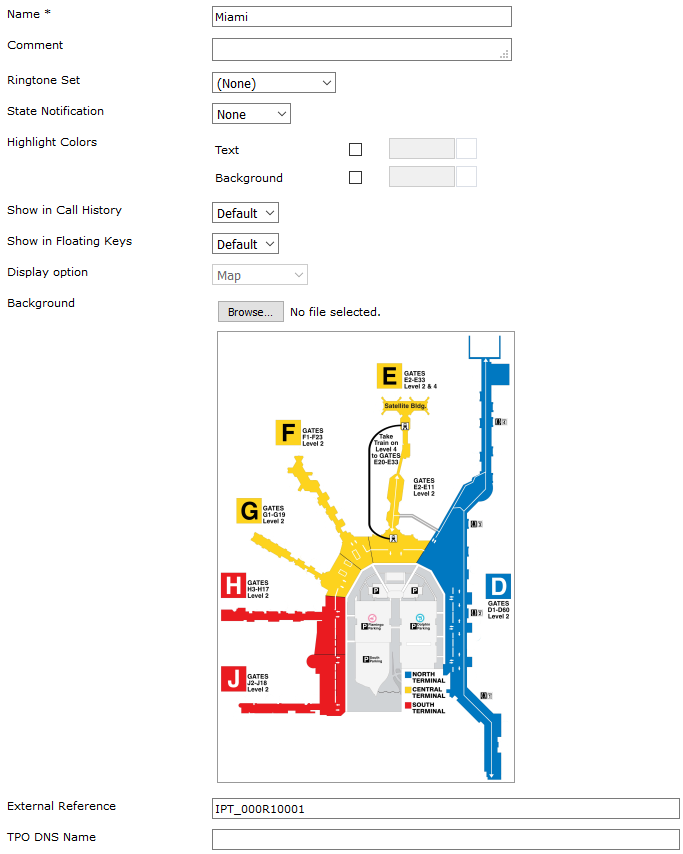
1.Connect to the TSS Administration Console using an administrator account. 2.Navigate to "Account Management" -> "Users" or "Shared Profiles" and select the profile to configure. 3.Select the "Shortcuts" tab. 4.Under the "Shortcut Pages" section, click "Add new". 5.Select the Display option "Map". A new control, called "Background", will appears allowing the administrator to associate an image with the page. 6.Choose a name for your page and upload a background that meets the requirements (see limitations) from your workstation. 7.Save your new shortcut map page.
 |