The advanced configuration allows customizing the keyboard's features beyond the default preset settings that are generated with the basic profile.setting.keyboard.external setting.
Four generic configuration keys allow configuring what action is taken when a specific hard key is pressed.
These generic settings are:
•profile.setting.keyboard.scancode.<scan code> •profile.setting.keyboard.scancode.ctrl.<scan code> •profile.setting.keyboard.scancode.alt.<scan code> •profile.setting.keyboard.scancode.shift.<scan code>
ctrl, alt and shift can also be combined together in order to simulate a combination of these keys:
•profile.setting.keyboard.scancode.ctrl.alt.<scan code> •profile.setting.keyboard.scancode.ctrl.shift.<scan code> •profile.setting.keyboard.scancode.ctrl.alt.shift.<scan code> •profile.setting.keyboard.scancode.alt.shift.<scan code>
where <scan code> has to be replaced by the number of the scan code of the hard key. Some hard keys generate a single scancode, while others generate a Control event with the hard key, and thus are configured with the second setting mentioned.

|

|
|

|
|

|
The use of ctrl, alt or shift keys doesn't allow the long press key management.
|
|

|
|
|

|
|
|
|
|
|
|
Please note that numerical keys, such as digits from 0 to 9, *, #, Clear, Del, Up, Down, Left, Right cannot be re-assigned.
|
|
|
|
|
|
External Keyboard
Here are the internal designs of the available hard keyboards:
External Keyboard 1
External Keyboard 1 uses this keycode mapping :
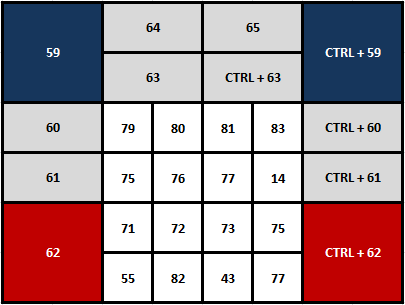
In order to make the External Keyboard 1 work, setting the basic profile.setting.keyboard.external value to 1 automatically generates the following advanced settings on the turret, at login time:
profile.setting.keyboard.scancode.59 = newleft
|
profile.setting.keyboard.scancode.ctrl.59 = newright
|
profile.setting.keyboard.scancode.60 = holdleft
|
profile.setting.keyboard.scancode.ctrl.60 = holdright
|
profile.setting.keyboard.scancode.61 = monitorleft
|
profile.setting.keyboard.scancode.ctrl.61 = monitorright
|
profile.setting.keyboard.scancode.62 = endleft
|
profile.setting.keyboard.scancode.ctrl.62 = endright
|
profile.setting.keyboard.scancode.63 = transferleft
|
profile.setting.keyboard.scancode.ctrl.63 = transferright
|
profile.setting.keyboard.scancode.64 = callhistory
|
profile.setting.keyboard.scancode.65 = conference
|
If a few keys need to be re-configured (to match a different keyboard layout), each setting can be individually added (it will have precedence over the automatically generated settings above).
External Keyboard 2
External Keyboard 2 uses this keycode mapping :
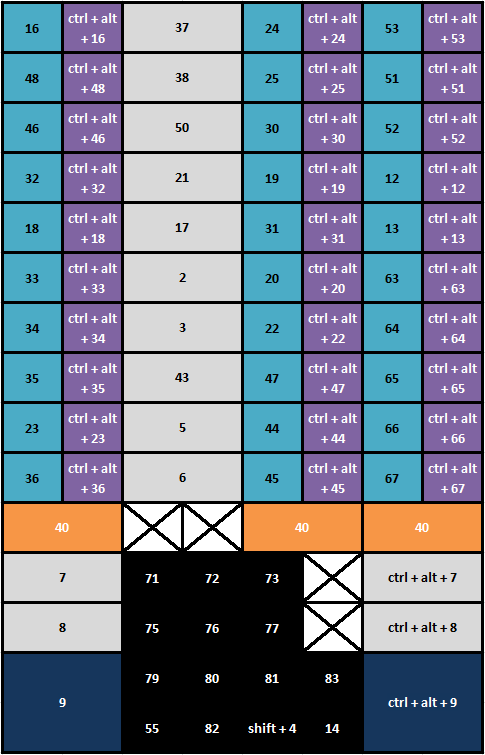
In order to make the External Keyboard 2 work, setting the basic profile.setting.keyboard.external value to 2 automatically generates the following advanced settings on the turret, at login time:
profile.setting.keyboard.scancode.37 = intercom
|
profile.setting.keyboard.scancode.38 = corporate
|
profile.setting.keyboard.scancode.50 = history
|
profile.setting.keyboard.scancode.21 = room
|
profile.setting.keyboard.scancode.17 = dnd
|
profile.setting.keyboard.scancode.2 = forward
|
profile.setting.keyboard.scancode.3 = speak
|
profile.setting.keyboard.scancode.43 = maintenance
|
profile.setting.keyboard.scancode.5 = shortcut
|
profile.setting.keyboard.scancode.6 = shortcut
|
profile.setting.keyboard.scancode.7 = monitorleft
|
profile.setting.keyboard.scancode.ctrl.alt.7 = monitorright
|
profile.setting.keyboard.scancode.8 = holdleft
|
profile.setting.keyboard.scancode.ctrl.alt.8 = holdright
|
profile.setting.keyboard.scancode.9 = newendleft
|
profile.setting.keyboard.scancode.ctrl.alt.9 = newendright
|
profile.setting.keyboard.scancode.16 = mic.1.1
|
profile.setting.keyboard.scancode.ctrl.alt.16 = handset.1.1
|
profile.setting.keyboard.scancode.48 = mic.1.2
|
profile.setting.keyboard.scancode.ctrl.alt.48 = handset.1.2
|
profile.setting.keyboard.scancode.46 = mic.1.3
|
profile.setting.keyboard.scancode.ctrl.alt.46 = handset.1.3
|
profile.setting.keyboard.scancode.32 = mic.1.4
|
profile.setting.keyboard.scancode.ctrl.alt.32 = handset.1.4
|
profile.setting.keyboard.scancode.18 = mic.1.5
|
profile.setting.keyboard.scancode.ctrl.alt.18 = handset.1.5
|
profile.setting.keyboard.scancode.33 = mic.1.6
|
profile.setting.keyboard.scancode.ctrl.alt.33 = handset.1.6
|
profile.setting.keyboard.scancode.34 = mic.1.7
|
profile.setting.keyboard.scancode.ctrl.alt.34 = handset.1.7
|
profile.setting.keyboard.scancode.35 = mic.1.8
|
profile.setting.keyboard.scancode.ctrl.alt.35 = handset.1.8
|
profile.setting.keyboard.scancode.23 = mic.1.9
|
profile.setting.keyboard.scancode.ctrl.alt.23 = handset.1.9
|
profile.setting.keyboard.scancode.36 = mic.1.10
|
profile.setting.keyboard.scancode.ctrl.alt.36 = handset.1.10
|
profile.setting.keyboard.scancode.24 = mic.2.1
|
profile.setting.keyboard.scancode.ctrl.alt.24 = handset.2.1
|
profile.setting.keyboard.scancode.25 = mic.2.2
|
profile.setting.keyboard.scancode.ctrl.alt.25 = handset.2.2
|
profile.setting.keyboard.scancode.30 = mic.2.3
|
profile.setting.keyboard.scancode.ctrl.alt.30 = handset.2.3
|
profile.setting.keyboard.scancode.19 = mic.2.4
|
profile.setting.keyboard.scancode.ctrl.alt.19 = handset.2.4
|
profile.setting.keyboard.scancode.31 = mic.2.5
|
profile.setting.keyboard.scancode.ctrl.alt.31 = handset.2.5
|
profile.setting.keyboard.scancode.20 = mic.2.6
|
profile.setting.keyboard.scancode.ctrl.alt.20 = handset.2.6
|
profile.setting.keyboard.scancode.22 = mic.2.7
|
profile.setting.keyboard.scancode.ctrl.alt.22 = handset.2.7
|
profile.setting.keyboard.scancode.47 = mic.2.8
|
profile.setting.keyboard.scancode.ctrl.alt.47 = handset.2.8
|
profile.setting.keyboard.scancode.44 = mic.2.9
|
profile.setting.keyboard.scancode.ctrl.alt.44 = handset.2.9
|
profile.setting.keyboard.scancode.45 = mic.2.10
|
profile.setting.keyboard.scancode.ctrl.alt.45 = handset.2.10
|
profile.setting.keyboard.scancode.53 = mic.3.1
|
profile.setting.keyboard.scancode.ctrl.alt.53 = handset.3.1
|
profile.setting.keyboard.scancode.51 = mic.3.2
|
profile.setting.keyboard.scancode.ctrl.alt.51 = handset.3.2
|
profile.setting.keyboard.scancode.52 = mic.3.3
|
profile.setting.keyboard.scancode.ctrl.alt.52 = handset.3.3
|
profile.setting.keyboard.scancode.12 = mic.3.4
|
profile.setting.keyboard.scancode.ctrl.alt.12 = handset.3.4
|
profile.setting.keyboard.scancode.13 = mic.3.5
|
profile.setting.keyboard.scancode.ctrl.alt.13 = handset.3.5
|
profile.setting.keyboard.scancode.63 = mic.3.6
|
profile.setting.keyboard.scancode.ctrl.alt.63 = handset.3.6
|
profile.setting.keyboard.scancode.64 = mic.3.7
|
profile.setting.keyboard.scancode.ctrl.alt.64 = handset.3.7
|
profile.setting.keyboard.scancode.65 = mic.3.8
|
profile.setting.keyboard.scancode.ctrl.alt.65 = handset.3.8
|
profile.setting.keyboard.scancode.66 = mic.3.9
|
profile.setting.keyboard.scancode.ctrl.alt.66 = handset.3.9
|
profile.setting.keyboard.scancode.67 = mic.3.10
|
profile.setting.keyboard.scancode.ctrl.alt.67 = handset.3.10
|
If a few keys need to be re-configured (to match a different keyboard layout), each setting can be individually added (it will have precedence over the automatically generated settings above).
|
|
|
|
|
|
The hard key associated to the scan code 40, called "control" key (there are three on the external keyboard 2, in orange on the diagram) is interpreted by the Turret as a modifier key, just like the ALT, SHIFT, and CTRL keys on a classic keyboard. It is intended to be used in combination with another key, especially for the monitor entries management. Therefore it is not possible to associate an action to a key whose scan code is 40.
|
|
|
|
|
|
|
|
|
|
|
|
Using the external keyboard predefined settings prevents another external keyboard from being used to input text in the turret application.
|
|
|
|
|
|
Additional settings
| Location: Terminal Profile Settings, Terminal Boot Settings |
 |
|
|
| Location: Terminal Profile Settings |
|
|
|
| Location: Terminal Profile Settings, Terminal Boot Settings |
|
|
|
| Location: Terminal Profile Settings, Terminal Boot Settings |
|
|
|
| Location: Terminal Profile Settings, Terminal Boot Settings |
|
|
|
Available actions
Here is the list of the turret actions that are available through programmable hard keys. For each action, the configuration value(s) is given (underscored).
New
This action places a new outbound call on a handset.
Like the "New" button on the turret layout.
Available for each handset: newleft or newright
|
|
Hold
This action puts a call (hosted on a handset) on hold.
Like the "Hold" button on the turret layout.
Available for each handset: holdleft or holdright
|
|
Monitor
This action moves a call to the monitor. The call is moved to its previous monitor entry, or its secondary device), or to the first free entry.
Like moving a call on a monitor entry on the turret layout.
Available for each handset: monitorleft or monitorright
|
|
End
This action terminates a call hosted on a handset.
Like the "End" button on the turret layout.
Available for each handset: endleft or endright
|

|
Accept Incoming
This action accepts the first incoming call, or the incoming call appearing on the single handset.
Like the "Answer" button on the turret layout.
Value: acceptincoming
|
|
Transfer
This action initiates, and later confirms a transfer on a call hosted on a handset.
Like the "Transfer" button on the turret layout.
Available for each handset: transferleft & transferright
|

|
Conference
This action initiates, and later confirms a conference on a call hosted on the active handset.
Like the "Conference" button on the turret layout.
Value: conference
|

|
Call History
This action opens the Call History panel.
Like the "History" button on the turret layout.
Value: history
|

|
Voice Mail
This action opens the Voice Mail panel.
Like the "Voice Mail" button on the turret layout.
Value: voicemail
|

|
Recorder
This action opens the Recorder panel.
Like the "Recorder" button on the turret layout.
Value: recorder
|

|
Room
This action opens the Room panel.
Like the "Room" button on the turret layout.
Value: room
|

|
My Calls
This action opens the My Calls panel.
Like the "My Calls" button on the turret layout.
Value: mycalls
|

|
Options
This action opens the Options panel.
Like the "Options" button on the turret layout.
Value: options
|

|
Forward
This action opens the Forward panel.
Like the "Forward" button on the turret layout.
Value: forward
|

|
Intercom
This action opens the Intercom panel.
Like the "Intercom" button on the turret layout.
Value: intercom
|

|
DND
This action switchs the turret state to DND.
Like the "DND" button on the turret layout.
Value: dnd
|

|
Lock
This action locks the turret.
Like the "Lock" button on the turret layout.
Value: lock
|

|
Ducking
This action ducks all not selected calls.
Like the "Ducking" button on the turret layout.
Value: ducking
|

|
Volume Minus
This action decreases the global volume.
Like the "Volume -" button on the turret layout.
Value: volume-
|

|
Volume Plus
This action increases the global volume.
Like the "Volume +" button on the turret layout.
Value: volume+
|

|
Corporate
This action opens the Corporate panel.
Like the "Corporate Directory" button on the turret layout.
Value: corporate
|

|
Text Messaging
This action opens the Text Messaging panel.
Like the "Text Messaging" button on the turret layout.
Value: text_messaging
|

|
Call Status
This action opens the Call Status panel.
Like the "Call Status" button on the turret layout.
Value: call_status
|

|
Toggle Next Left
This action makes the next left applet appear.
Like the "Toggle Next Left" button on the turret layout.
Value: toggle_next_left
|

|
Toggle Next Right
This action makes the next right applet appear.
Like the "Toggle Next Right" button on the turret layout.
Value: toggle_next_right
|
|
Toggle Next Right2
This action makes the next right2 applet appear.
Like the "Toggle Next Right2" button on the turret layout.
Value: toggle_next_right2
|
|
Toggle Previous Left
This action makes the previous left applet appear.
Like the "Toggle Previous Left" button on the turret layout.
Value: toggle_prev_left
|

|
Toggle Previous Right
This action makes the previous right applet appear.
Like the "Toggle Previous Right" button on the turret layout.
Value: toggle_prev_right
|
|
Toggle Previous Right2
This action makes the previous right2 applet appear.
Like the "Toggle Previous Right2" button on the turret layout.
Value: toggle_prev_right2
|
|
Logout
This action logs out the user.
Like the "Logout" button on the turret layout.
Value: logout
|

|
Maintenance
This action opens the Maintenance mode.
Like the "Maintenance" button on the turret layout.
Value: maintenance
|

|
Speak
This action activates or deactivates the microphone on all selected monitor entries.
Like the "Speak" button on the turret layout.
Value: speak
|

|
Speak On
This action activates the microphone on all selected monitor entries.
Like the "Speak" button on the turret layout.
Value: speakon
|

|
Speak Off
This action deactivates the microphone on all selected monitor entries.
Like the "Speak" button on the turret layout.
Value: speakoff
|
|
Ringtone Silence
This action silents all ringtones calls.
Like the "Ringtone Silence" button on the turret layout.
Value: ringtone_silence
|

|
Contextual Email
This action opens the Contextual Email panel.
Like the "Contextual Email" button on the turret layout.
Value: context_email
|

|
Shortcut
This action links the hard key to a specific shortcut in the user's profile.
Like pressing the associated shortcut in the turret interface.
Value: shortcut
Note that the value defines an unassociated shortcut button. To assign it, please see Associate a shortcut to a Shortcut hard key. Once it is associated, the key value is changed to: shortcut_XXX, where XXX is the database ID of the shortcut. You will need to manually delete this setting if you do not wish to use it anymore.
|
|
Monitor entries Management
External keyboards allow managing monitor entries, turning on/off the microphone and taking the call on handset.
Monitor Control
This action switches the monitor applets between "Normal" and "Control" modes.
Like the "Control" button on the turret layout.
Value: control
|

|
Microphone
Microphone button activates/deactivates the microphone for a monitor entry.
Like the "Microphone" button on a monitor entry.
Value: mic.x.y
where x is the applet side on the screen and y the monitor entry position on the screen.
|

|
Handset
Handset button send the call to the active handset.
Like a push on a monitor entry.
Value: handset.x.y
where x is the applet side on the screen and y the monitor entry position on the screen.
|

|
|
|
|
|
|
|
When a "control" key (modifier key associated to the scan code 40) is kept pressed down, pressing on a "Microphone" or "Handset" button (see above) respectively decreases or increases the volume of the call on the corresponding monitor entry.
|
|
|
|
|
|
Keycodes mapping
Any other hard keyboard can be used, as long as you know what scancodes are mapped behind each hard key. To find out what is the key mapping, the keyboard must be plugged in one of the turret's USB port, and the GUI.KEYSTROKE trace category must be set to debug1. Pressing one hard key will produce a trace message in the format:
keyReleaseSlot() [count][1] - [key][89] - [isAutoRepeat][No] - [modifiers][0] - [alt][No] - [nativeScanCode][21] - [control][No] - [text][y] - [shift][No]
keyReleaseSlot() [count][1] - [key][84] - [isAutoRepeat][No] - [modifiers][0] - [alt][No] - [nativeScanCode][20] - [control][No] - [text][t] - [shift][No]
Which tells you what scancode is generated by the hard key pressed.
|


