Shortcut Import


Shortcut Import |
|
| IT&Operations > User Profile Management > Import/Export |
OverviewThis section describes the Shortcut Import option in TSS Administration Console. Shortcuts are imported from a CSV file into the current profile (that can be a user profile or a shared profile).
There are two ways of importing shortcuts: •Automatic Shortcut Import: This import is generated by a job policy. •Manual Shortcut Import: This import is manually done by the administrator within a user profile.
Automatic Shortcut ImportSee section Automatic shortcuts import for more information.
Manual Shortcut ImportThis scenario illustrates how to import shortcuts in a profile (that can be a shared profile or a user profile). Those shortcuts can contain alternate labels.
The description above assumes the following system configuration: •User “John” exists.
1.On Account Management/Users, press on "John" user to edit it. 2.Press Shortcuts tab. 3.Press on Import from CSV. Shortcuts Import form is displayed. 4.Select Merge option, Labels mapping option and, according to labels mapping option, add Labels mapping. Select a data source CSV file and press Upload. 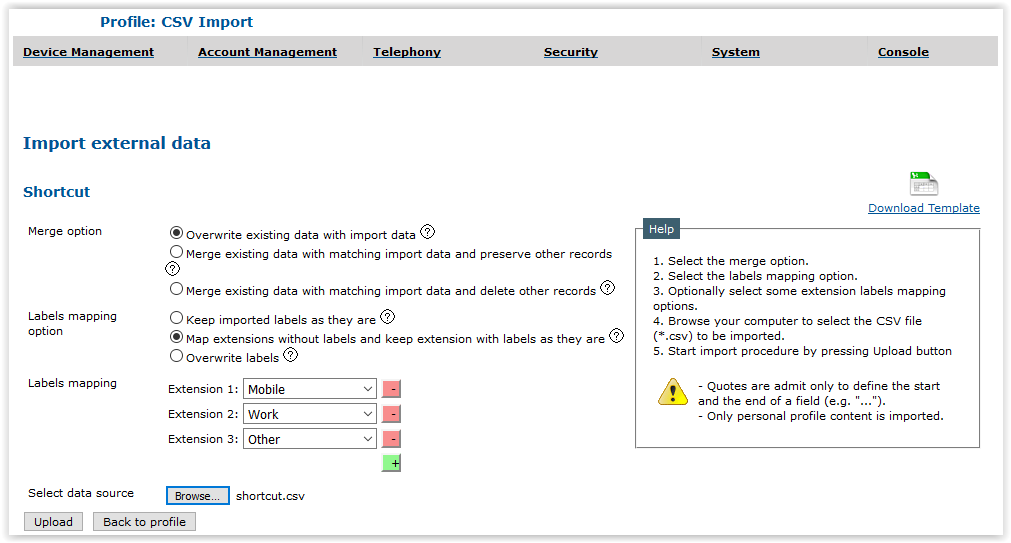
5.Message box appears to confirm import. Accept it and press Back to profile. Merge optionThere are 3 Merge options: •Overwrite existing data with import data: This option deletes the existing records and then imports the new data. This ensures that the same import file will always give the same records no matter what has been previously done on the system. •Merge existing data with matching import data and preserve other records: New records are added. Existing records also found in the import file are updated (keeping the properties that would not be part of the import file); other records are preserved. This allows updating data while keeping anything that has been added since the last import was done. •Merge existing data with matching import data and delete other records: New records are added. Existing records also found in the import file are updated (keeping the properties that would not be part of the import file); other records are deleted. This allows updating data while dropping any record that has been added since the last import was done or any record that has been removed from the import file. Labels mapping optionThere are 3 Labels mapping options: •Keep imported labels as they are: The imported shortcuts keep their extensions unchanged. •Map extensions without labels and keep extension with labels as they are: Only the extensions with no label are mapped according to the selection in Labels mapping. Extensions with a label remain unchanged. It means that position of extension with no label determines label that is mapped. •Overwrite labels: Only the extensions with labels are re-mapped according to the selection in Labels mapping. Extensions without a label remain unchanged. It means that label identifier in extension determines label that is mapped.
How to use Excel templateThe Excel template allows editing the exported shortcuts data more easily, or to import a new set of shortcuts from scratch. To download and edit it, see Edit template.
User can also download template from Shortcuts Import form by pressing Download Template. |