Shortcut Export


Shortcut Export |
|
| IT&Operations > User Profile Management > Import/Export |
OverviewThis section describes the Shortcut Export option in the TSS Administration Console. It exports a CSV text file (tab-separated).
There are two ways of exporting the shortcuts: •Automatic Shortcut Export: This export is generated by a job policy. •Manual Shortcut Export: This export is manually done by the administrator within a user profile.
Automatic Shortcut ExportSee section Automatic shortcuts export for more information.
Manual Shortcut ExportThis scenario illustrates how to export shortcuts of a profile (which can be a shared profile or a user private profile).
The description above assumes the following system configuration: •User “APO” exists and contains shortcuts and shortcut page.
1.On Account Management/Users, press on "APO" user to edit it. 2.Press Shortcuts tab. 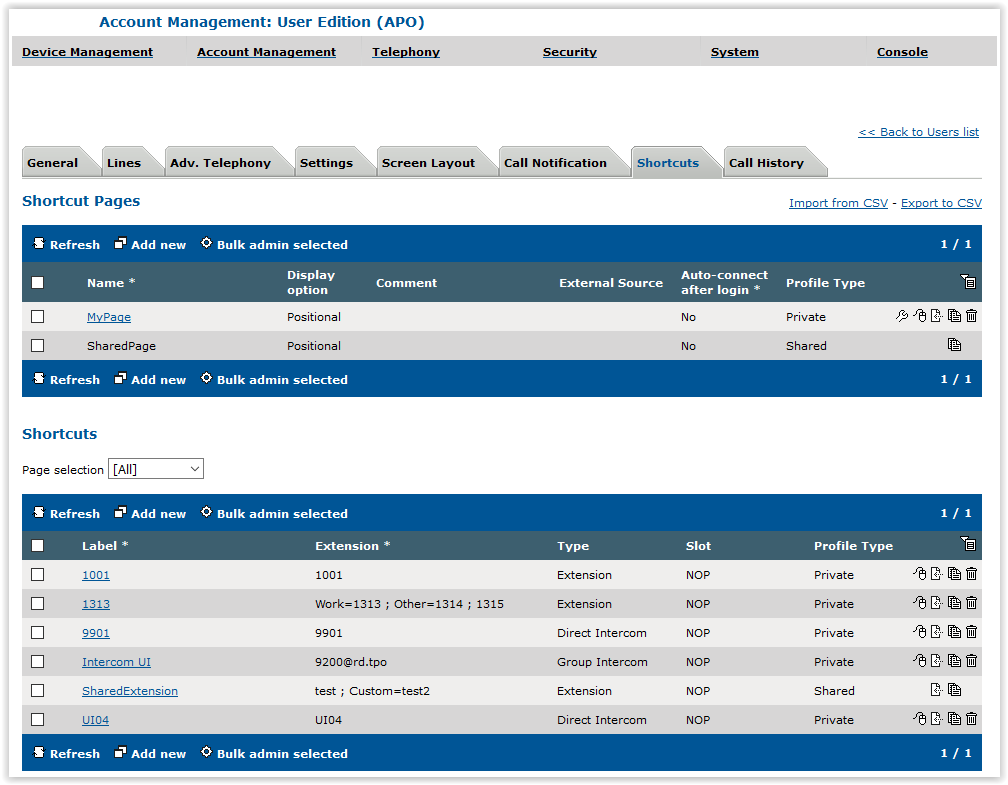
3.Press on Export to CSV. Shortcuts Export form is displayed. 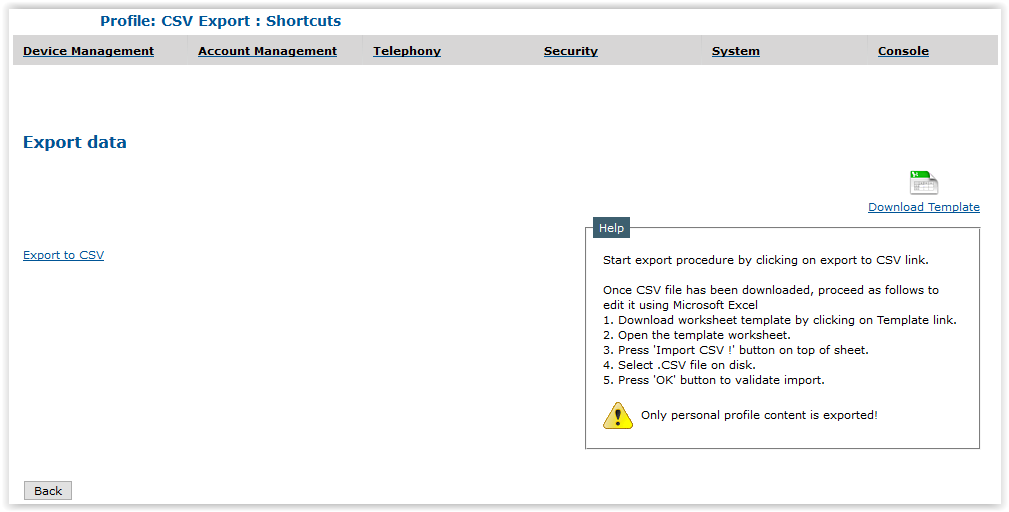
4.Press Export to CSV. A dialog box appears to save file on disk. 5.Select directory where to save CSV file that will be created, indicate a filename and confirm save of file. 6.Press Back.
Edit a shortcut export fileUser modifies a shortcut export file by executing following procedure: 1.On Shortcuts Export form, press on Download Template. 
2.Select directory where to save Excel import template file and indicate a filename and confirm save of file. 3.Navigate into directory where Excel import template file is saved and open it. 4.Press Import CSV ! and choose CSV export file to modify. 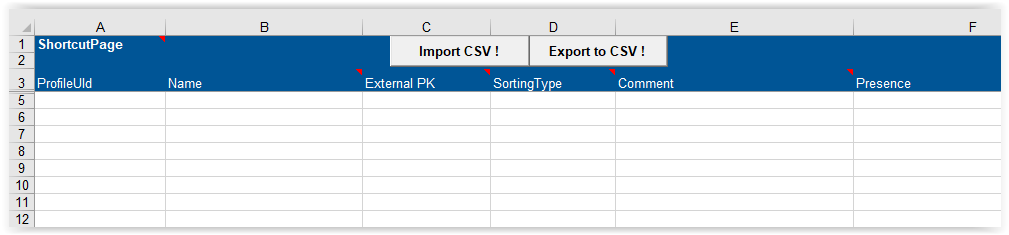
5.Change, add and/or remove data then press on Export to CSV !. Both Excel and CSV shortcut export files are saved in same directory with same filename. Data organization in Excel Template fileEach line can contain either a shortcut page (left columns) or a shortcut. A shortcut can also contain contact information. To link a shortcut to a shortcut page, the shortcut must be defined in a line following the page definition. |