Configure Email Notification (optional)


Configure Email Notification (optional) |
|
| Solution Installation > TSS Installation > Install TSS on a standard server > Maintenance > Microsoft SQL Server |
IntroductionThis configuration step is optional.
If you have a SMTP server available you can configure the SQL Server to send alerts or reports by email, for instance an email alert to an operator if a maintenance operation failed. More specific options can be configured with mail services; refer to your SQL Server documentation. We assume that the server is able to communicate with the SMTP server.
To Enable Database MailFor security reasons, database Mail is disabled by default.
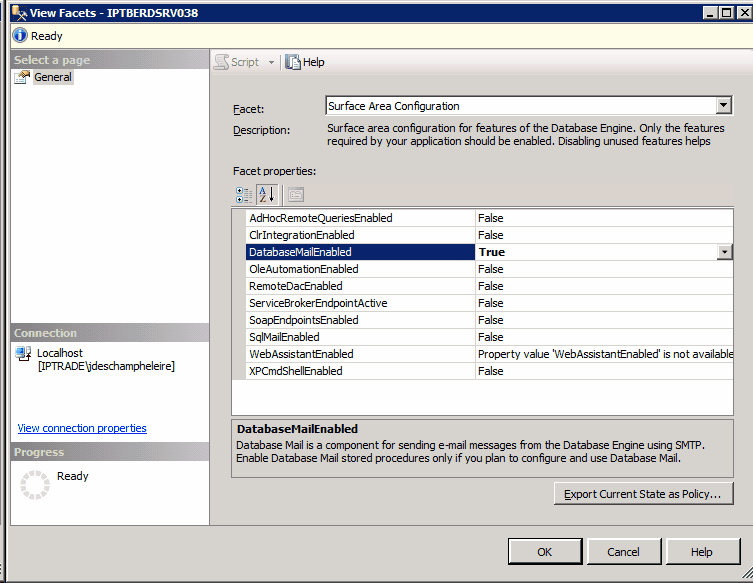
Proceed as follows: •Open SQL Server Management Studio application. •Right click on server node > Facets. •Select Surface Area Configuration as Facet. •Set DatabaseMailEnabled = True. •Click OK button.
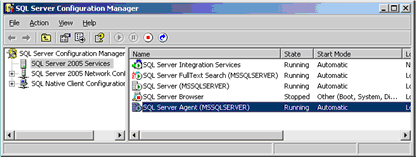
•Open SQL Server Configuration Manager, which is located under Configuration Tools of SQL Server installation. •Select SQL Server Services on the left pane. •On the right panel, right-click on SQL Server Agent and select Restart.
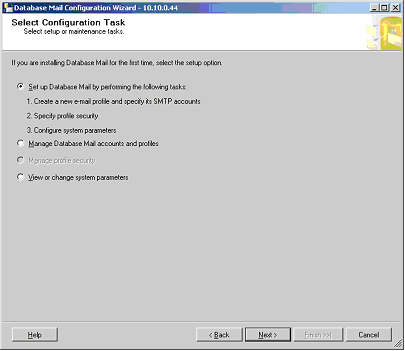
To Configure Database MailProceed as follows: •Open SQL Server Management Studio. •In Management folder, right-click on Database Mail and select Configure Database Mail. •Select Set up Database Mail by performing the following tasks option and click Next button.
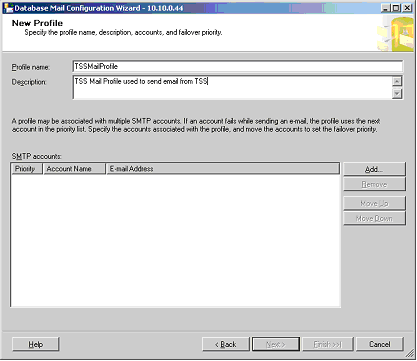
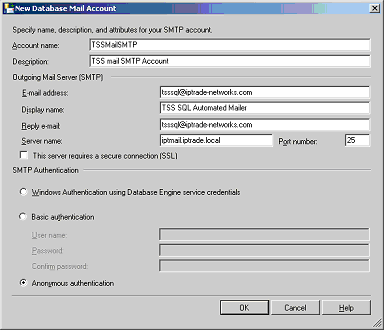
You need to create a Database Mail profile with a profile name and description. If needed, a profile can handle multiple SMTP accounts but these instructions configure only one. Give a name and an optional description then click the Add button to create a SMTP account.
The following dialog gives you the option of configuring SMTP accounts. The settings depend on your SMTP server.
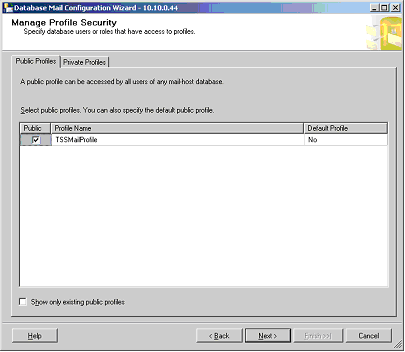
Click the OK button. When you come back on New Profile window, click the Next button. Specify that new created profile is public. Select the Public check-box and click the Next button.
You have the option of configuring System Parameters but keep the default values and click Next button and then Finish button.
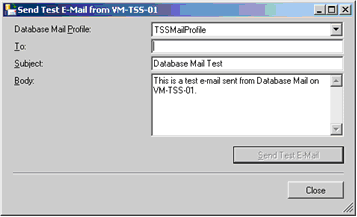
To Test Database Mail ConfigurationAfter configuring Database Mail, it must be tested using Database Mail’s testing functionality.
Proceed as follows: •Open SQL Server Management Studio. •In Management folder, right-click on Database Mail and select Send Test E-Mail. •You can select the profile to test, send the mail and then verify.
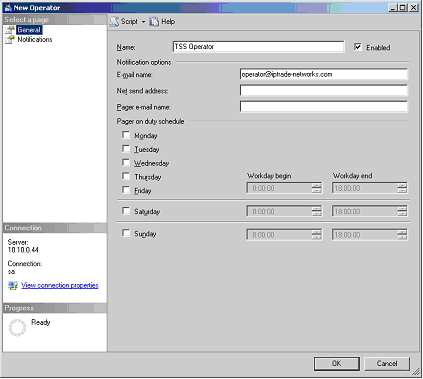
Create an OperatorOperators are aliases for people or groups that can receive electronic notification when jobs have completed or alerts have been raised.
Proceed as follows: •Open SQL Server Management Studio. •In SQL Server Agent folder, right-click on Operators and select New Operator. •Give a name and a valid email address.
•Press OK.
(The email address shown is an example – you will need to utilize an email address relevant to you)
To Send Alert to Operator
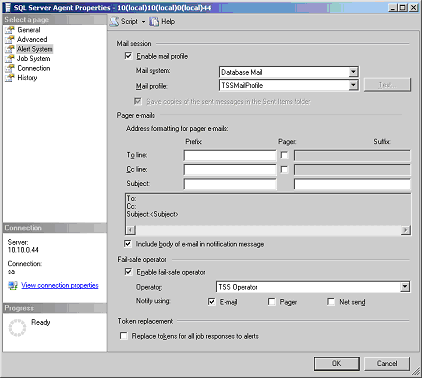
To configure the SQL Server Agent to send alerts by mail to the operator.
Proceed as follows: •Open SQL Server Management Studio. •Right-click on SQL Server Agent and select Properties. •Select Alert System page. •Select Enable mail profile check box and select Database Mail as Mail system. •Select Enable fail-safe operator check box and select the operator. •Select Notify using: E-mail check box.
•Click OK.
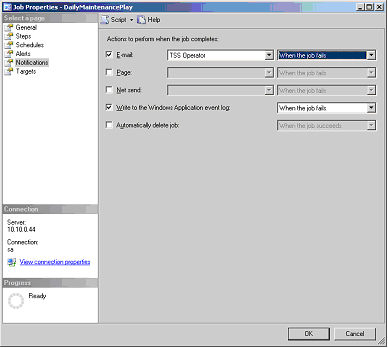
To Notify Operator if a Maintenance Task FailedTo configure the SQL Server Agent to send a report by mail to the operator if a maintenance task failed.
Proceed as follows: •Open SQL Server Management Studio. •Right-click on SQL Server Agent > Jobs > DailyBackUpPlan and select Properties. The name can be different; it depends on what you had configured previously. •Select Notifications page on left pane. •Check to E-mail check-box. •Select the operator created previously. •Select When the job fails option. •Press OK.
|