Automatic Database Maintenance (Mandatory)


Automatic Database Maintenance (Mandatory) |
|
| Solution Installation > TSS Installation > Install TSS on a standard server > Maintenance > Microsoft SQL Server |
IntroductionThis topic describes how to configure Microsoft SQL Server maintenance plan.
A Database Maintenance Plan allows scheduling several tasks, such as: •Index rebuilding •Backup •Cleanup •…
In this section, we are going to configure some tasks that will be executed automatically to perform the following actions: •Backup •Check database integrity •Trunk and shrink transaction log •Purge system events and call logs older than six months •Rebuild indexes
For the following procedures, we assume that the name of the database in use is dbipt_01.
RequirementsEnsure that the SQL Server Agent service is running and that this service is configured to start automatically.
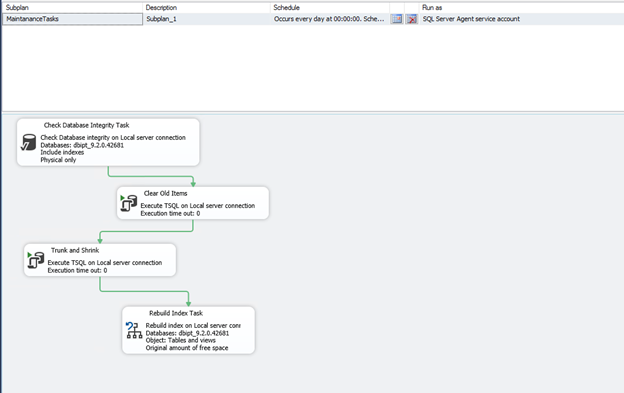
First Plan: Maintenance TaskTo Create New Maintenance PlanProceed as follows: •Open SQL Server Management Studio. •Open Management folder, right-click Maintenance Plans and select New Maintenance Plan.... •Name the plan, e.g. MaintenanceTasks.
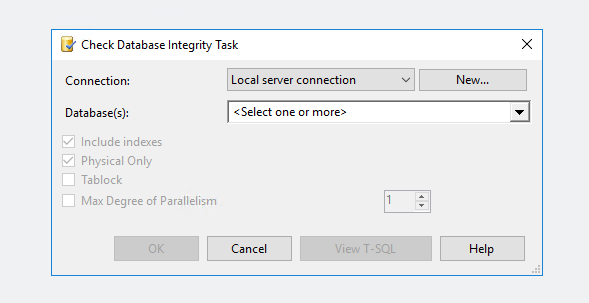
To Check Database IntegrityThis step checks database integrity (allocation and structural integrity of all the objects in the specified database).
Proceed as follows: •Drag and drop the Check Database Integrity Task component from the Maintenance Tasks toolbox to the main window. •Double-click the Check Database Integrity Task to edit the properties. •In the databases list, select your database: dbipt_01.
•Keep the other default values and click OK to confirm.
To Clear Old ItemsThis step clears old items in specified database (events, terminal sessions, user sessions, call log entries, audits).
Proceed as follows: •Drag and drop the Execute T-SQL Statement Task component from the Maintenance Tasks toolbox to the main window. •Link the Check Database Integrity Task box to the new Execute T-SQL Statement Task box. •Right-click on the new box and select rename, rename it as Clear Old Items. •Double-click the Clear Old Items to edit the properties. •Paste the code below. Ensure you enter the database name to match your configuration on the first line.
USE [DATABASE_NAME]
UPDATE APP_GLOBALSETTING SET SettingValue = convert(varchar(19),GETUTCDATE(),120) WHERE SettingKey = 'sql.maintenanceplan.startexecution'
DECLARE @delay INT SET @delay = ( SELECT SettingValue FROM dbo.APP_GLOBALSETTING WHERE SettingKey = 'database.purge.delay' )
IF @delay IS NULL SET @delay = 6
DELETE FROM dbo.SYS_EVENT WHERE (DATEADD(dd, @delay, DateTime) < GETUTCDATE())
DELETE FROM SYS_TERMINALSESSION WHERE DATEADD(dd, @delay, LastUpdateDateTime) < GETUTCDATE()
DELETE FROM ACS_LICENSEOVERFLOW WHERE EXISTS ( SELECT * FROM SYS_USERSESSION WHERE DATEADD(dd, @delay, LastUpdateDateTime) < GETUTCDATE() AND ACS_LICENSEOVERFLOW.UserUId = SYS_USERSESSION.UserUId AND ACS_LICENSEOVERFLOW.TSSId = SYS_USERSESSION.TSSId );
DELETE FROM SYS_USERSESSION WHERE DATEADD(dd, @delay, LastUpdateDateTime) < GETUTCDATE()
DECLARE @reporting_delay INT SET @reporting_delay = ( SELECT SettingValue FROM dbo.APP_GLOBALSETTING WHERE SettingKey = 'reporting.purge.delay' )
IF @reporting_delay IS NULL SET @reporting_delay = 8
DELETE FROM USR_CALLLOGEVENT WHERE CallLogEntryUId in ( SELECT UId FROM USR_CALLLOGENTRY WHERE (DATEADD(dd, @reporting_delay, ConsoleDateTime) < GETUTCDATE()) ) OR (DATEADD(dd, @reporting_delay, ConsoleDateTime) < GETUTCDATE());
DELETE FROM USR_CALLLOGENTRY WHERE (DATEADD(dd, @reporting_delay, ConsoleDateTime) < GETUTCDATE()) AND Version != '000000000'
DELETE FROM USR_LINECOVERAGE WHERE (DATEADD(dd, @reporting_delay, ConsoleDateTime) < GETUTCDATE())
DECLARE @log_delay INT SET @log_delay = ( SELECT SettingValue FROM dbo.APP_GLOBALSETTING WHERE SettingKey = 'calllogentry.purge.delay' )
IF @log_delay IS NULL SET @log_delay = 15
IF @log_delay <= @reporting_delay SET @log_delay = @reporting_delay + 1
DELETE FROM USR_CALLLOGENTRY WHERE (DATEADD(dd, @log_delay, ConsoleDateTime) < GETUTCDATE())
DECLARE @audit_delay INT SET @audit_delay = ( SELECT SettingValue FROM dbo.APP_GLOBALSETTING WHERE SettingKey = 'audit.purge.delay' )
IF @audit_delay < 30 SET @audit_delay = 30
IF @audit_delay IS NULL SET @audit_delay = 30
DELETE FROM dbo.SYS_AUDIT WHERE (DATEADD(dd, @audit_delay, DateTime) < GETUTCDATE())
UPDATE APP_GLOBALSETTING SET SettingValue = convert(varchar(19),GETUTCDATE(),120) WHERE SettingKey = 'sql.maintenanceplan.lastexecution'
GO
•Click OK to confirm. To Configure Trunk and Shrink TaskThis step reduces size of specified database.
Proceed as follows: •Drag and drop the Execute T-SQL Statement Task component from the Maintenance Tasks toolbox to the main window. •Link the Clear Old Item Task box to the new Execute T-SQL Statement Task box. •Right-click on the new box and select rename, rename it as Trunk and Shrink. •Double-click the box Trunk and Shrink to edit the properties. •Paste the code below. Ensure you enter the database name to match your configuration.
USE [Database_Name]; GO ALTER DATABASE [Database_Name] SET RECOVERY SIMPLE; GO DBCC SHRINKDATABASE(N'Database_Name') GO ALTER DATABASE [Database_Name] SET RECOVERY FULL; GO
•Click OK to confirm.
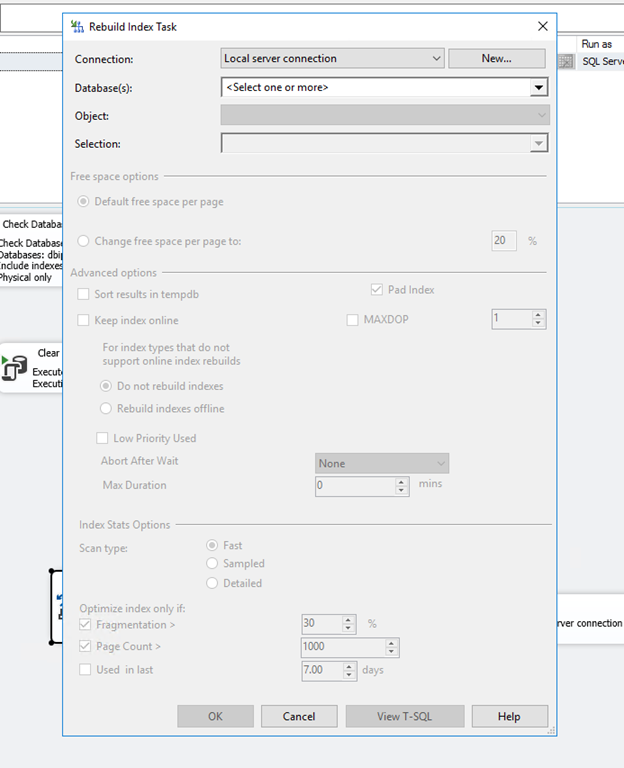
To Rebuild IndexesThis step rebuilds indexes of specified database.
Proceed as follows: •Drag and drop the Rebuild Index Task component from the Maintenance Tasks toolbox to main window. •Link the Trunk and Shrink Task box to Rebuild Index Task box. •Double-click the Rebuild Index Task box to edit the properties. •In the databases list, select your database: dbipt_01.
•Keep the other default values and click OK to confirm.
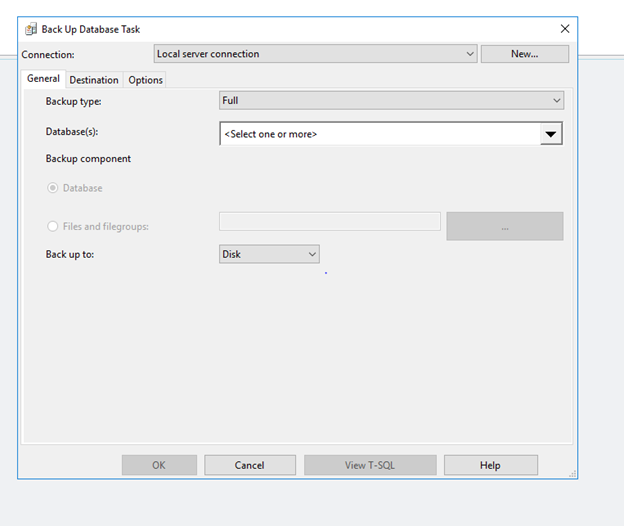
|
|
•Keep the other default values and press OK to confirm.
This step proceeds to first transactional backup.
 This step must not be executed if database is configured as Simple Recovery Model (Full Recovery Model is default value).
Proceed as follows:
•Drag and drop the Execute T-SQL Statement Task component from the Maintenance Tasks tool-box to the main window.
•Link the Back Up Database Task box to the new Execute T-SQL Statement Task box.
•Right-click on the new box and select rename, rename it as Backup Once.
•Double-click the Execute T-SQL Statement Task to edit the properties.
•Enter the following code and adapt the variables to your configuration.
•Replace DATABASE_NAME with the name of your database.
Replace BACKUP_DIRECTORY with your backup directory,
e.g.: E:\Microsoft SQL Server\MSSQL.1\MSSQL\Backup\
use [DATABASE_NAME]
BACKUP LOG [DATABASE_NAME] TO DISK = N'BACKUP_DIRECTORY\DATABASE_NAME_transact.trn'
WITH NOFORMAT, INIT,
NAME = N'DATABASE_NAME-Transaction Log Backup', SKIP, NOREWIND, NOUNLOAD, STATS = 10
GO
•Click OK to confirm
This step clears old database backup.
Proceed as follows:
•Drag and drop the Maintenance Cleanup Task component from the Maintenance Tasks toolbox to the main window.
•Link the Backup Once Task box to the Maintenance Cleanup Task box.
•Double-click the Maintenance Cleanup Task box to edit the properties.
•In the Folder text box, select the folder where the backups are located, for example: E:\Microsoft SQL Server\MSSQL.1\MSSQL\Backup. It depends what you have configured previously.
•In the File extension text box, enter: bak.
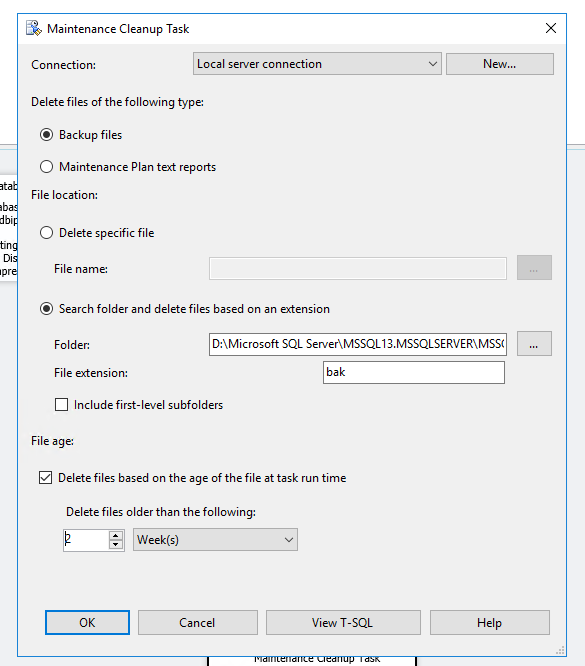
•Select 2 Weeks in the Delete files older than the following box.
•Keep the other default values and click OK to confirm.
 To Configure Job Scheduling
Proceed as follows:
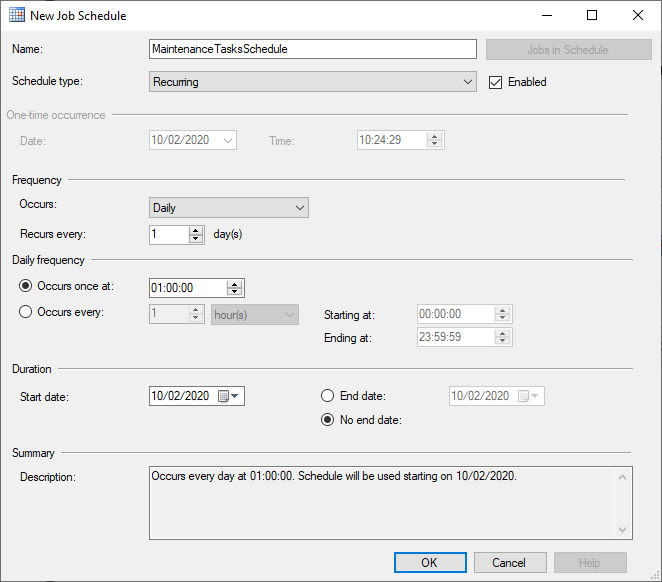
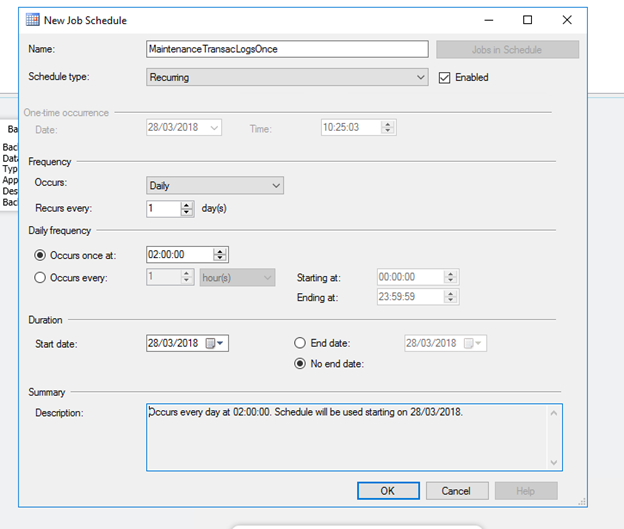
•Click on calendar to edit the Job Schedule Properties  .
.
•Change the name to Server Maintenance Transaction Logs (Once).
•In Frequency settings, change the value of Occurs in the dropdown list to: Daily.
•In Daily frequency settings, change time of Occurs once at to 2:00:00.
•Click OK to validate
This step proceeds to recursive transactional backup.
 This step must not be executed if database is configured as Simple Recovery Model (Full Recovery Model is default value).
Proceed as follows:
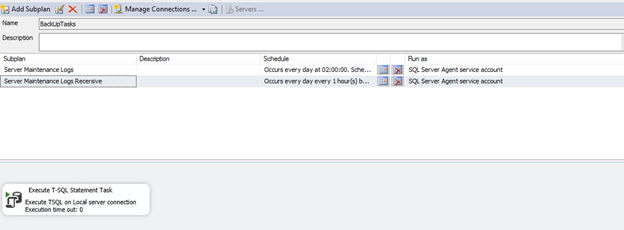
•In the same maintenance plan, create a new subplan by clicking on the button Add Subplan.
•Name this subplan: BackupTasksRecuring.
•Drag and drop the Execute T-SQL Statement Task component from the Maintenance Tasks tool-box to the main window.
•Double-click the Execute T-SQL Statement Task to edit the properties.
•Enter the following code and adapt the variables to your configuration.
Replace DATABASE_NAME with the name of your database.
Replace BACKUP_DIRECTORY with your backup directory,
e.g.: E:\Microsoft SQL Server\MSSQL.1\MSSQL\Backup\
use [DATABASE_NAME]
BACKUP LOG [DATABASE_NAME] TO DISK = N'BACKUP_DIRECTORY\DATABASE_NAME_transact.trn'
WITH NOFORMAT, NOINIT,
NAME = N'DATABASE_NAME-Transaction Log Backup', SKIP, NOREWIND, NOUNLOAD, STATS = 10
GO
•Click OK to confirm
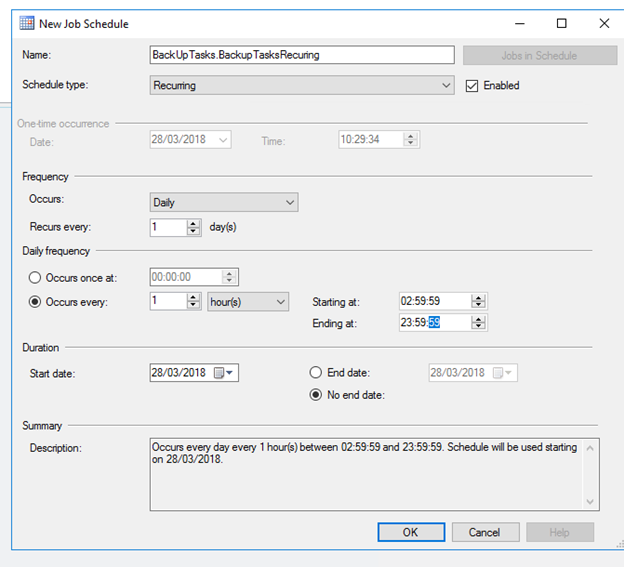
 To Configure Job Scheduling
Proceed as follows:
•Click on calendar to edit the Job Schedule Properties  .
.
•In Frequency settings, change the value of Occurs in the dropdown list to: Daily.
•In Daily Frequency settings, check the radio button to Occurs every 1 hour.
•Change the value of Starting at to 2:59:59. Keep ending value as 23:59:59.
Note: The full backup is executed at 1:00:00. The first transaction log backup will be executed at 2:00:00. The other additional transaction log backup will be executed from 3:00:00 to 23:00:00. Those backups will be appended to the first transaction log backup.
•Click OK to validate
Save your configuration by clicking the Save button.
At the end of this example procedure, your screen should look like this: