User/Role Management


User/Role Management |
|
| Compliance > Assure |
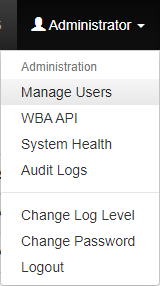
Users with the admin role are able to manage users. The User Management pages are accessed from the Manage Users link on the User menu on the top navigation bar.
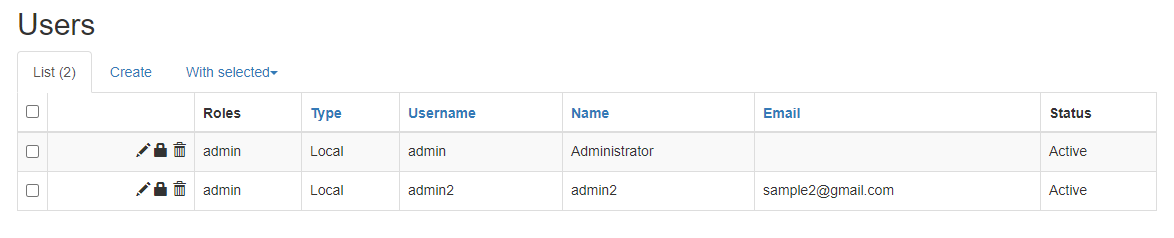
A table shows the current users within the system.
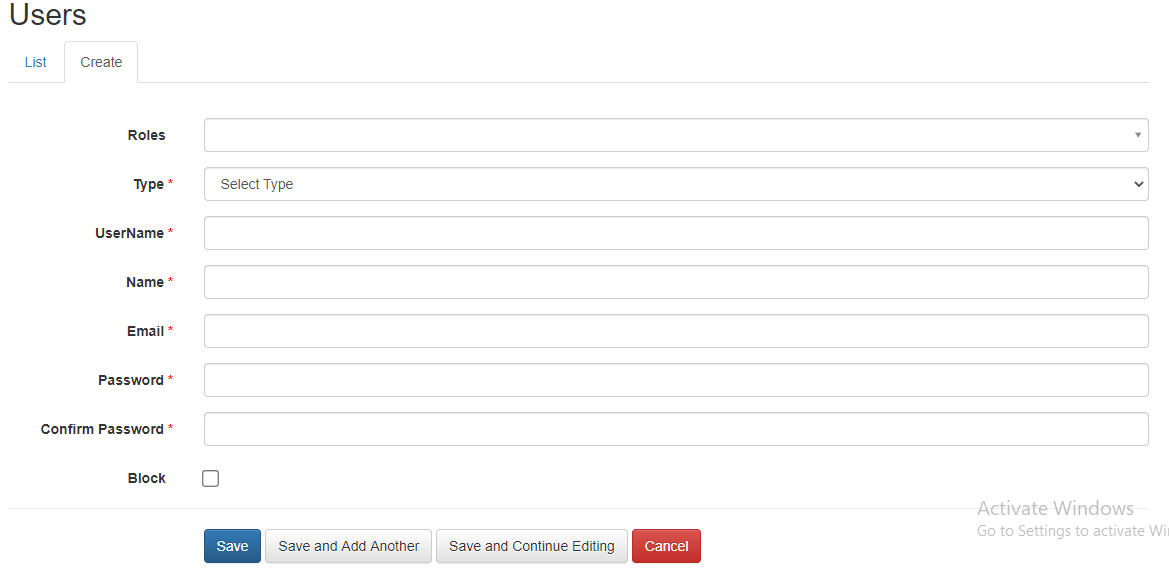
UsersCreating UsersNew users are created by clicking on the Create tab heading on the Users table. A form is provided for you to enter the details of the new user.
TypePossible values for User Type: LDAP User| Local User.
To access the system using LDAP users, they must be created in Assure first. Once created they can login with the LDAP credentials. The following settings needs to be configured in Productivity Tools Cluster settings of the TSS console .
application.assure.ldap.server.address=<ldap server address> application.assure.ldap.search.base=<ldap search base>
If you want to use only LDAP users, the local users in Assure needs to be disabled, add the below setting in the Productivity Tools Cluster settings on the TSS console :
application.assure.disable.local.user.login=True
Removing UsersA user can be deleted by clicking on the trash icon on the table row of the user. You will then be asked to confirm. Multiple users can be deleted by selecting them via the check-box on their row in the table, then clicking on the With selected tab and choosing Delete from the drop-down menu. You will be asked to confirm if you wish to delete the selected users.
Editing a UserUsers details can be edited by clicking on the edit icon on the table row of the user. Users password can be edited by clicking on the lock icon on the table row of the user.
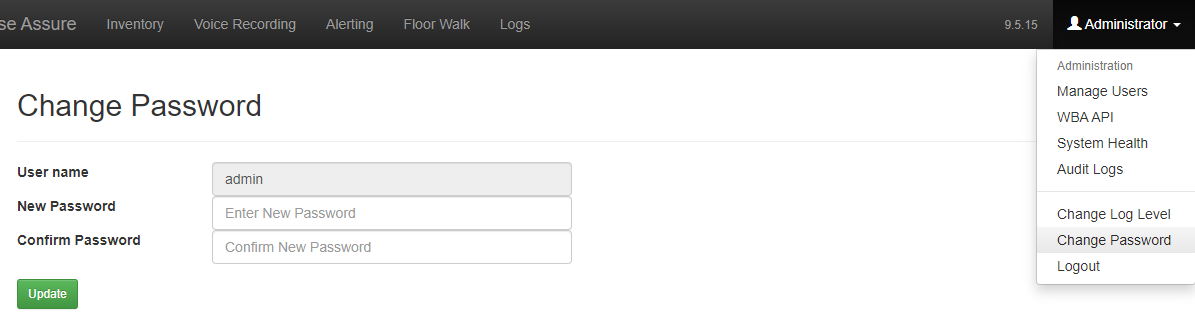
Change the password of the current userThe password of the current user can be changed by clicking on the upper right menu, then Change Password.
RolesFunctionality available to a user is based on the roles they have been assigned. Currently only users with the admin role are able to make changes to the system - users without this role can only view information. Roles are assigned to users either when Creating Users or by Editing a User.Assigning a roleWhen adding or editing a User, clicking within the Roles entry box will produce a list of available roles. Clicking on the role will add it to the user. Clicking on the Save buttons will save the change and add the role, whereas clicking the Cancel button will cancel the change.
Removing a roleA role can be removed from a user by selecting the empty row. Clicking on the Save buttons will save the change and remove the role, whereas clicking the Cancel button will cancel the change.
|