Active Incidents


Active Incidents |
|
| Compliance > Assure > Alerting |
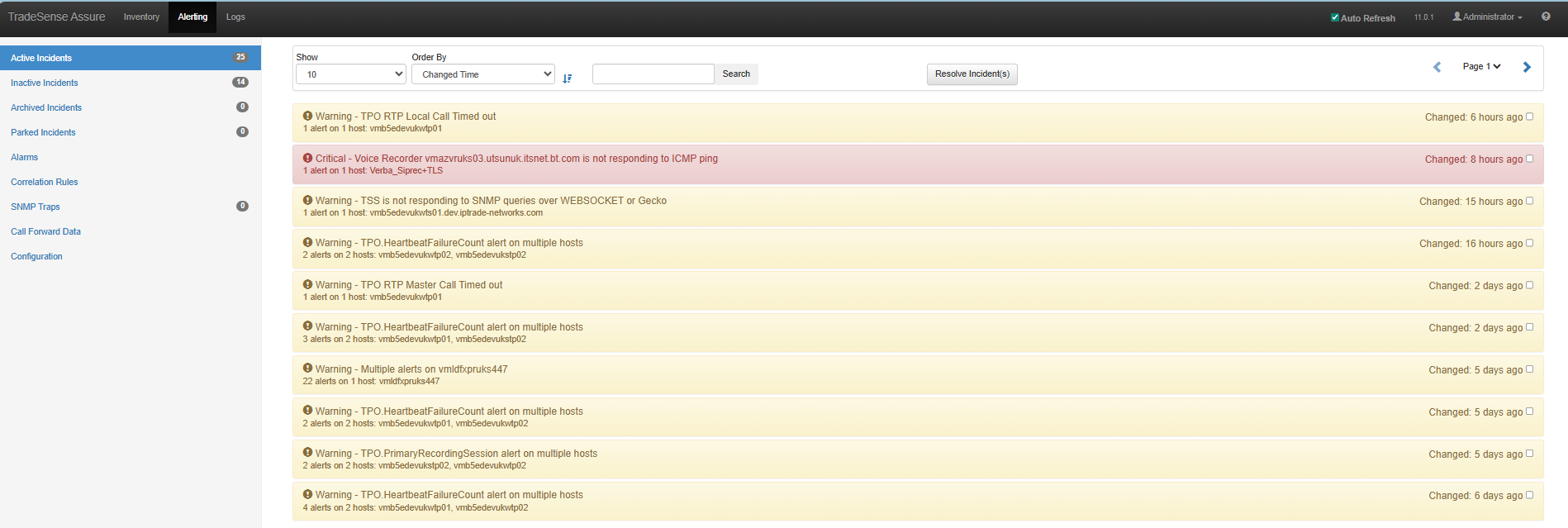
The Active Incidents page within Assure allows for you to manage any open incidents that have been raised. Incidents are generated when preset Alarm conditions are met by any of the platforms Assure is monitoring. Platform Alarms can be configured within the Alarms section of Assure’s Alerting Module.
As you can see, Incidents which have been raised are displayed in a tabular format. Raised incidents are correlated by incident trigger type as well as a personalized correlation configured in the alarms. Correlation rules are configured within Correlation Rules section of Assure’s Alerting Module.
Incidents displayed generally follow the below structure: •Title - Basic overview of what the alarm is •Sub-title - Further details of the alarm including the number of alerts on the number of hosts. Includes hostname tags if relevant •Severity - Severity level of the alarm (Normal, Warning, Critical) •Timestamp - Duration since the alarm was last updated
All alarms are also color coordinated in order of severity: •Red: Critical •Amber: Warning •Green: Normal
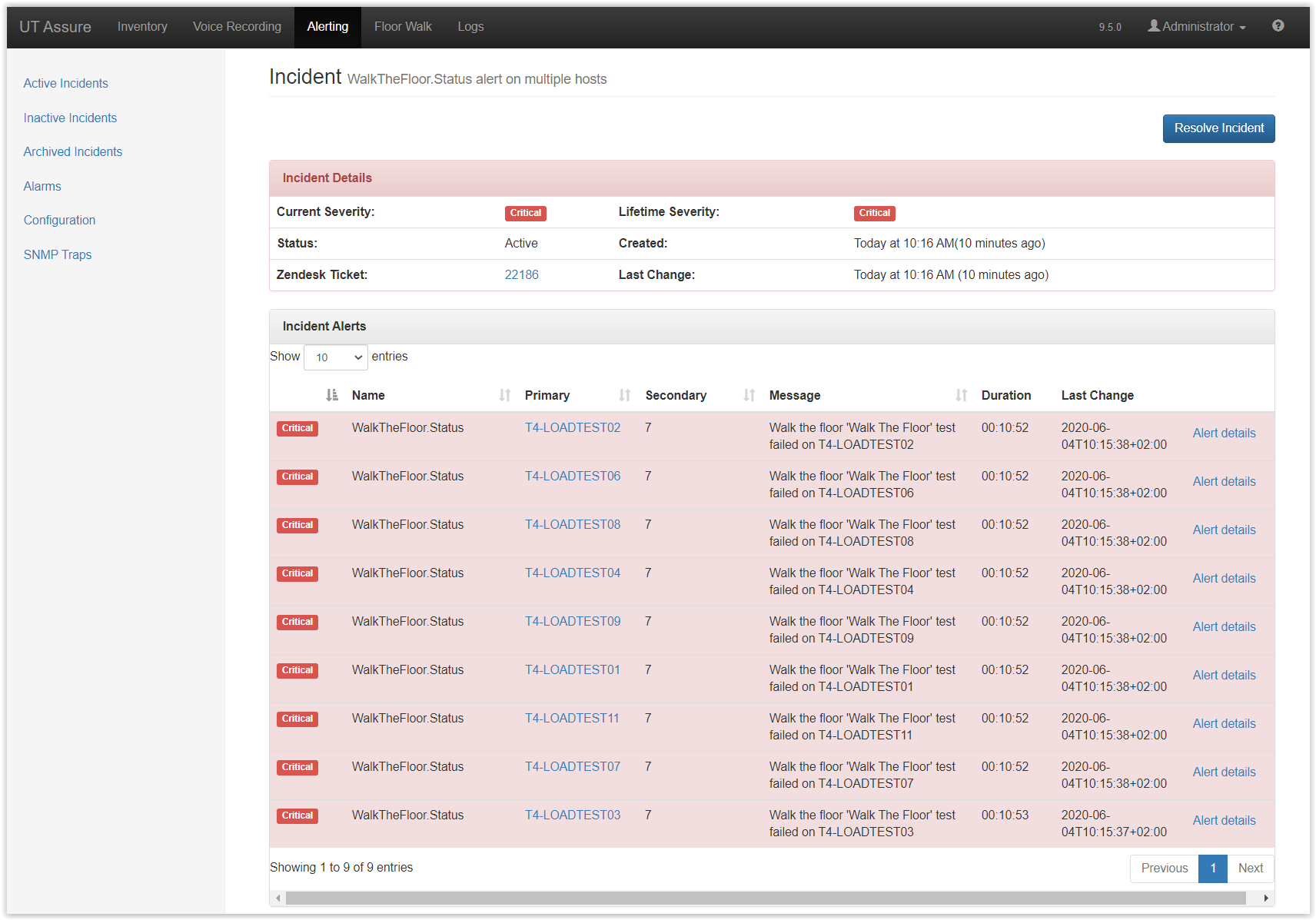
If you click on an Active Incident it will provide you a brief summary of the incident which has been raised. This information includes the Current Severity, Lifetime Severity, when the incident was created and when the last status change occurred. If the Active Incident is a correlation of incidents, you are also able to see a break down of each alert with details of the alert severities, alert name, hosts effected and associated error messages.
To view further details of the raised alarm you can click on the "View Details" button.
Within this window you are provided with further detailed information regarding that particular incident.
Other information displayed within this page includes the following: •Incident Details - Details of the incident which has been raised including its severity, when incident was opened, duration(how since incident was opened), when it was last updated, Incident status and the Zendesk Ticket ID (if configured). •Incident Alerts - A list of all alerts which have been correlated into the raised incidents. •Activity Feed - A list of activities associated with the raised alarm. •Alert Events - A detailed summary of the Alert which has been raised. If the incident contains correlated alerts then multiple Alert Events will be available. •Alert Tags - Displays key value pairs associated with the incident which has been raised.
Clicking on the Alert details link on an alert allows to see the Alert Events and the Alert Tags.
From this window you are also able to resolve the issue by clicking on the "Resolve Incident" button. |