Turret


Turret |
|
| Trading and C&C > Turret Proxy To Open communication (TPO) > DDI Sharing > DDI Lines & Radio Systems > Multicast based radio systems > Cisco Instant-connect Radio Integration > Configuration |
Settings
The LDAP search (disabled by default) is enabled with the following setting:
The emergency state can be automatically disengaged using the following setting:
Private / group call shortcuts
Private and group call shortcuts are Extension-type shortcuts that contain:
•a single extension for a private call •multiple extensions for a group call
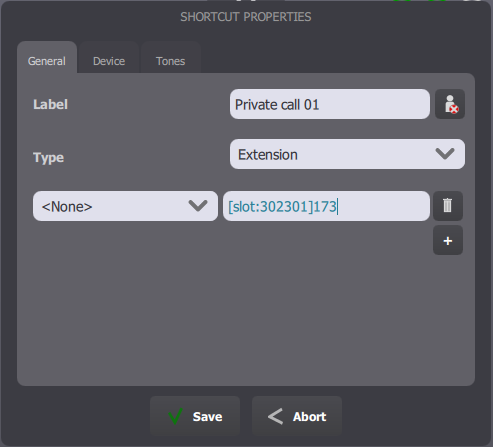
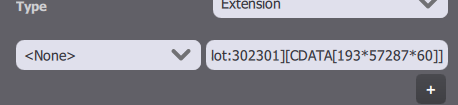
For private calls, The phone extension field must contain the DDI slot extension (in the form [slot:SLOT_EXTENSION]) followed by the call target. If the target contains special characters that could be lost during the shortcut storage in the database or its transfer to the turret at logon time, a CDATA block can be used to surround the target:
The CDATA block must be in the form [CDATA[TARGET_EXTENSION]].
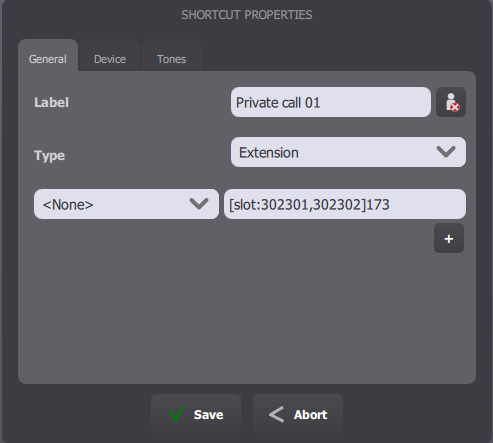
Several slots can also be configured in a shortcut, as shown below:
In that case, the system automatically selects the first free slot in the list to perform the call, a first slot being one that has either no local user connected or only the current user. The format for the slots list accepts either specific slots (302301) or slot ranges (302301-302310), possibly mixed. Examples: •[slot:302301,302302]173 •[slot:302301,302310]173 •[slot:302301,302302-302305, 302309]173
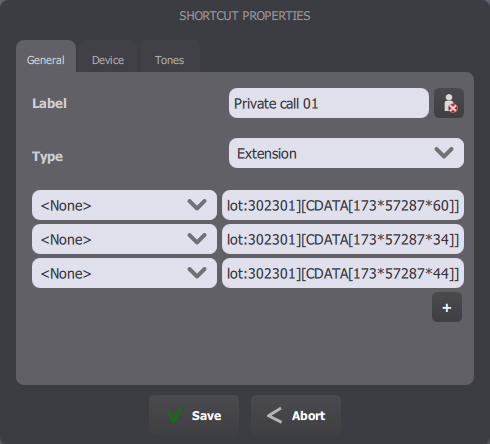
A group call is simply a private call shortcut that contains several extensions:
Note that the slot extension must be defined at least once in any of the shortcut's extensions.
Dynamic extension Private call shortcuts
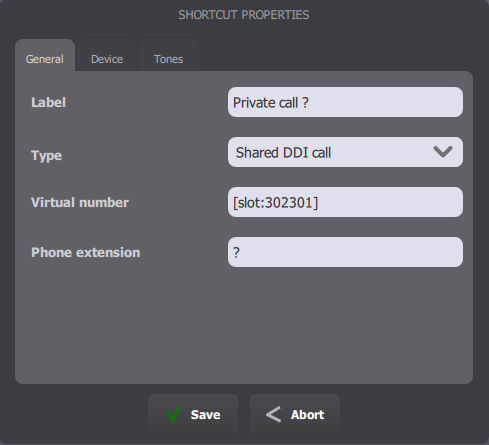
These are Shared DDI Call keys with the slot extension inside the Virtual Extension field, and a free extension (ending with '?') in the Target field.
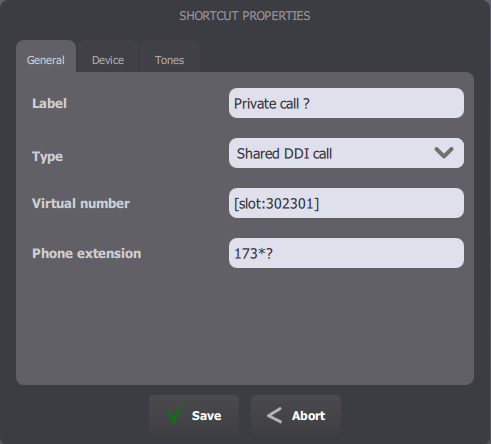
The target can also mention a free extension prefix before the '?' sign, to automatically prefix the user-entered extension when performing the private call.
Call resources monitoring shortcuts
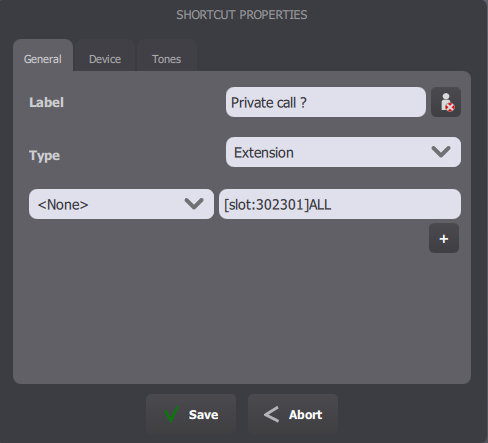
These are just like a private call shortcut, but with 'ALL' as the target extension:
Resource clear access button
This access button (lower part of the turret screen, around the handsets) has to be enabled in the user's Turret Layout configuration on the TSS Console:
1.Edit the user's profile (or any shared profile the user belongs to, but beware of buttons redefinition); 2.Click the Turret Layout tab; 3.Edit one of the Access Buttons configuration; 4.Insert the Radio Clear button template in the configuration and save the changes.
The following setting is also available to control the Radio Clear button behaviour:
|
||||||||||||||||||||||||||||||