Replicate/Unreplicate


Replicate/Unreplicate |
|
| Solution Installation > TSS Installation > Using the TSS Virtual Appliance > Optional Configuration > Optional setup using component manager |
OverviewIf you have set a replication link with a secondary server, you can install or upgrade TSS/Console and choosing whether replication is used or not. At any moment, if you can enable (replicate) or disable (unreplicate) data replication on a specific version. ReplicateWhen replication is enabled, data of primary server is taken as source data.
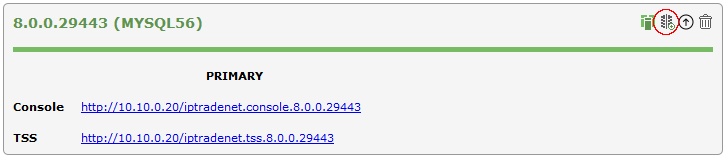
To replicate a TSS/Console version: •Open the Component Manager in a web browser. •Select the TSS Versions tab. •Press the "Add replication" icon next to the version to replicate.
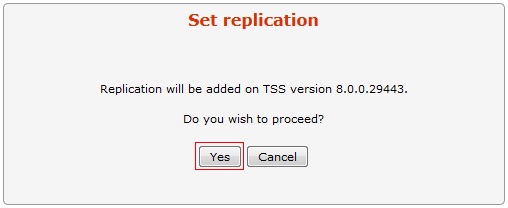
•Press the "Yes" button to confirm.
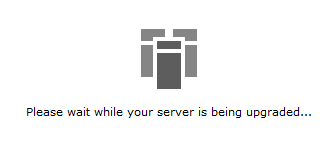
•Wait for the replication process to complete.
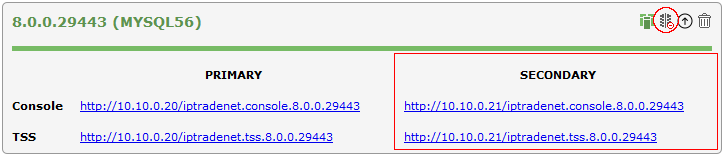
•Once done, the replication icon shows a '-' sign and the secondary TSS/Console URL is displayed.
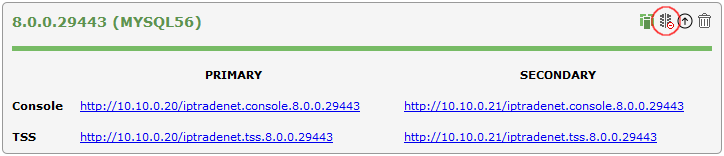
UnreplicateTo unreplicate a TSS/Console version: •Open the Component Manager in a web browser. •Select the TSS Versions tab. •Press the "Remove replication" icon next to the version to unreplicate.
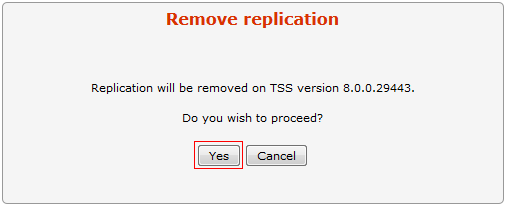
•Press the "Yes" button to confirm.
•Wait for the unreplication process to complete.
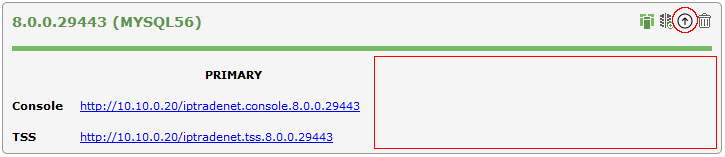
•Once done, the replication icon shows a '+' sign and the secondary TSS/Console URL is not displayed anymore.
|