Set active version


Set active version |
|
| Solution Installation > TSS Installation > Using the TSS Virtual Appliance > Optional Configuration > Optional setup using component manager |
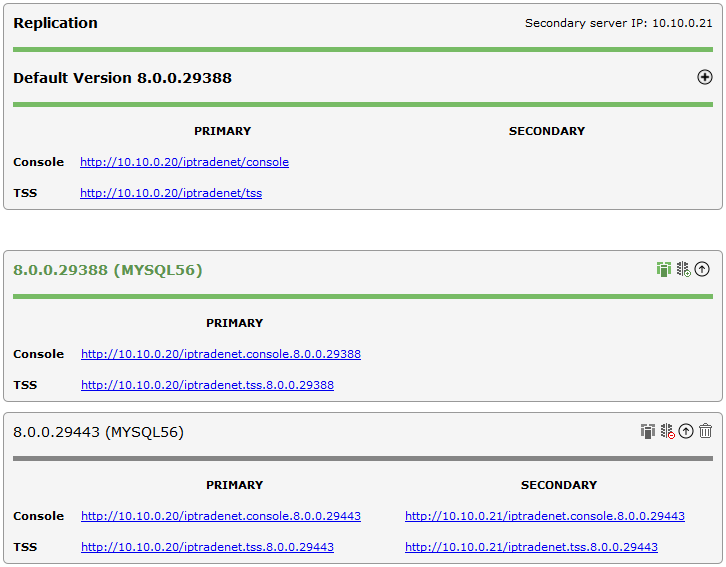
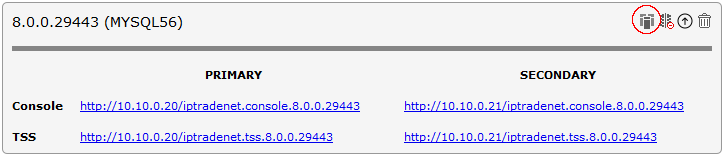
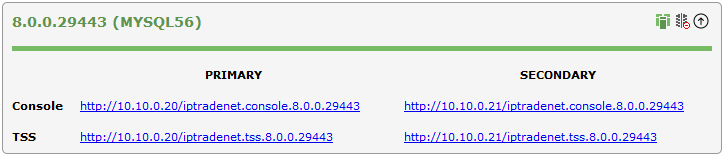
OverviewComponent Manager provides generic URLs to access TSS and Console applications. These URLs point to a specific version that is defined as active. Only one version can be active at a given time. This mechanism allows keeping a single URL in IPTrade devices (or in an administrator bookmark) even if the TSS version changes.
URLs have the following form: •http://<TSS VA IP address>/IptradeNet/Console •http://<TSS VA IP address>/IptradeNet/TSS In the example below, active version is 8.0.0.29388:
|
|
|
|
|
|
|
Active version must be manually changed on both server (primary and secondary) when replication is used, especially when un-replicating a default version as the secondary server will have no default version otherwise. |
|
|
|
|
|