A DDI call does not play the expected ringtone


A DDI call does not play the expected ringtone |
|
| Standard > Use cases > Basic use cases samples |
The user receives an incoming call on a DDI slot; the call blinks on the interface, but generates no ringtone.
This may be due to the fact that the DDI slot hosting the call has no corresponding slot key in the user profile / shared profiles, and thus the system automatically created one with Silence ringtone..
As mentioned in the documentation, under DDI Lines Sharing Configuration section, every DDI line slot must have its corresponding DDI slot key associated. The system checks, during line registration, that each slot indeed has its corresponding shortcut. For each slot that does not, the system automatically creates one and gives it a silence ringtone.
This tone always has precedence over any profile / group / remote party shortcut tone.
The idea is to define any DDI slot that the user effectively uses in his profile (or in any associated shared profile), and let the system manage the other slots automatically. The silence ringtone allows not to be inadvertently notified of events on these other slots.
Follow the steps bellow to check if this is the case, and to fix the issue.
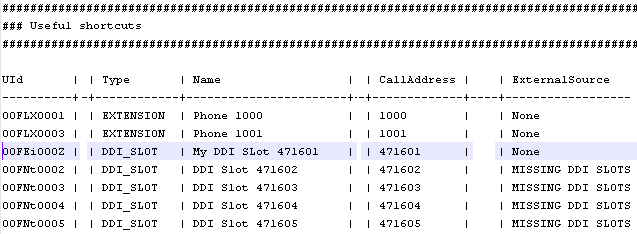
Step 1 – Take a turret debug information dump Expand the zip file and open “SystemInformation.txt” file. Under the "Useful shortcuts" section, any shortcut mentioned elsewhere in the file is listed with its properties. The DDI slot shortcuts associated to any registered DDI line are always listed, as they are mentioned in the "Shortcut matching table", above in the file. The "Useful shortcuts" section looks like this:
The ExternalSource column indicates if the shortcut exists in the user profile (None) or if it has been automatically generated by the system (MISSING DDI SLOT). Here, the first slot is coming from the user profile, and the other ones have been generated by the system. Step 2 – Create the missing slot Create the missing slot(s) in the user profile, either from the turret or from the TSS Administration Console. Step 3 – Log out/in the user Log the user out, and then back in.
|