Logs and Traces


Logs and Traces |
|
| Basic > Troubleshooting Data: How to retrieve them > TradeSense |
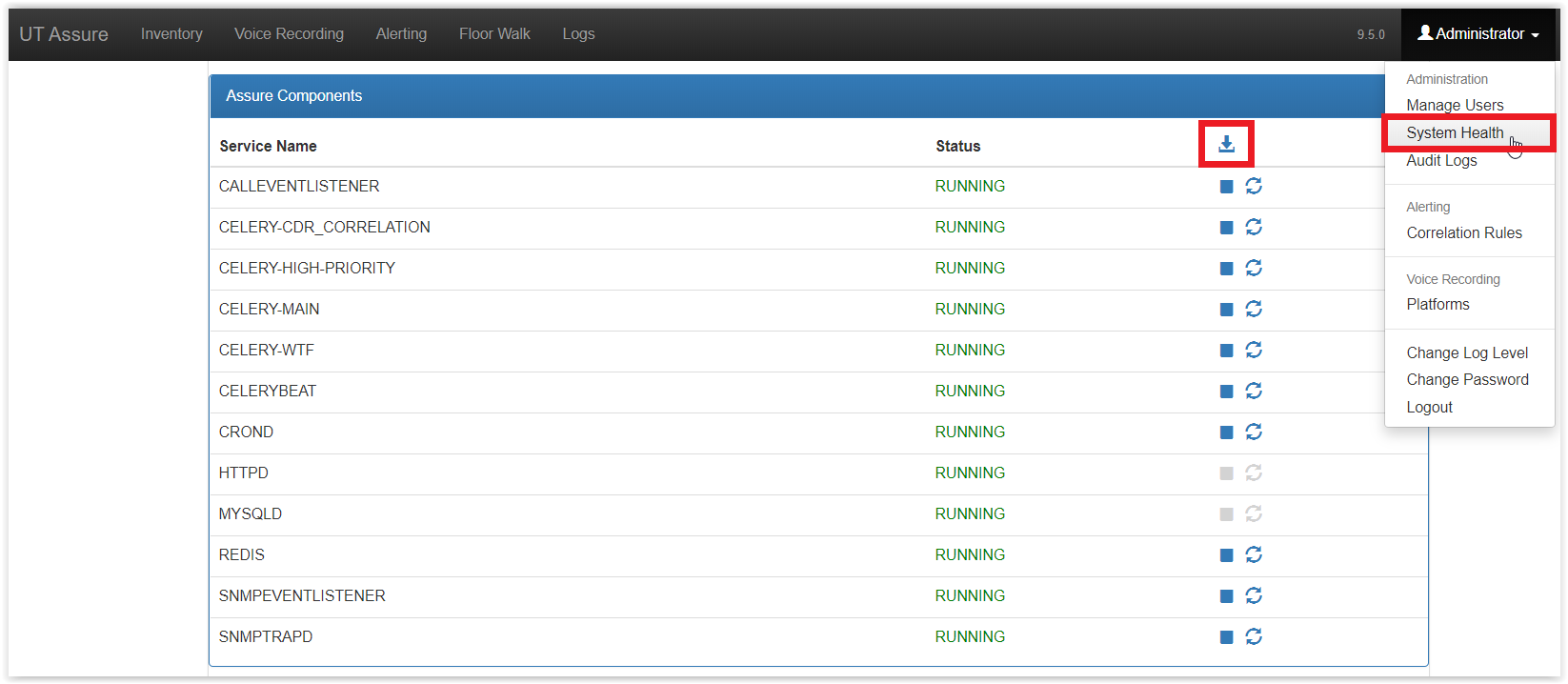
Retrieve LogsFrom AssureTo download TradeSense logs, browse Assure webpage (https://<tradesenseIP>/assure/), then click on System Health of the administration menu in the upper right corner. From this page, click on the download icon in the "Assure Components" panel.
With FTPIn case of Assure being unavailable, logs can also be retrieved with FTP.
•With an FTP client connect to the TradeSense IP with the credentials root / Uta*969131 •In /var/log : you can find the logs about the upgrade process (tss-upgrade), certificate generation (security-cert), configure-node (configure-node.log) •In /var/lib/docker_volumes : you can find the logs for Assure (assure_log), Backend API (assure_backendapi_log), Gecko (gecko_log)
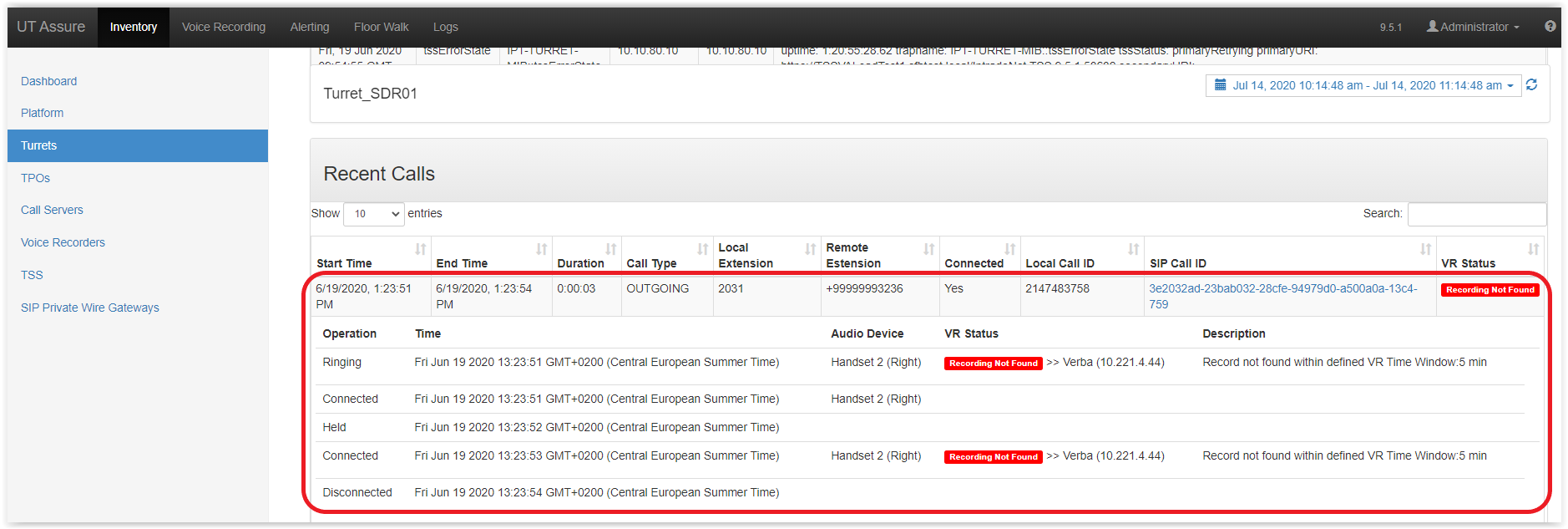
Useful logs for investigationVoice Recording check issues1.In the Inventory > Voice Recorders menu, check that the recorder status is Active 2.Gather the CDR time stamps and call operation timestamps available in turret view page
3.Ensure that the call duration difference between the one on Assure and the recorder is not greater than the Permissible call duration mismatch (Voice Recordings > Configuration) 4.Ensure that the call start time and end time difference between the one on Assure and the recorder is not greater than the configured drift (TSS console > Recording Servers > [YourRecorder] > Compliancy) 5.On the recording server, ensure that the details captured would provide the information of the call with SIP Call-ID (at Redbox) or Platform Call ID (at Verba) 6.On the recording server, ensure that User ID or Channel Name (at Redbox) or Agent ID (at Verba) correspond to the user of the call (Turret recording) or the TPO DNS name (TPO recording) 7.Retrieve the necessary logs (logs should be captured after about 15 minutes after running the required scenario to have the complete checking procedure) : •celery_cdr_correlation_stderr.* log files (in Assure logs folder) •Turret debug information to be able to check Recorder configuration Note: If the VR status of the call is empty, ensure that the call you are searching for is not under the "Voice Recording > Calls in progress" menu. Alerting/IncidentAlerting related logging is available in celery_main_stderr.* log files (in Assure logs folder). For alerting module the logs should be captured immediately after the issue. Walk the floorOn Assure, take a screenshot of the Scheduled Walk the Floor test and a screenshot of the completed test to be able to compare the information in the logs. Walk the floor logging is available in celery_wtf_stderr.* log files (in Assure logs folder). Before 9.5, click to dial part were in Jacky log files. Now, logs related to click to dial are available within celery_wtf_stderr.* logs
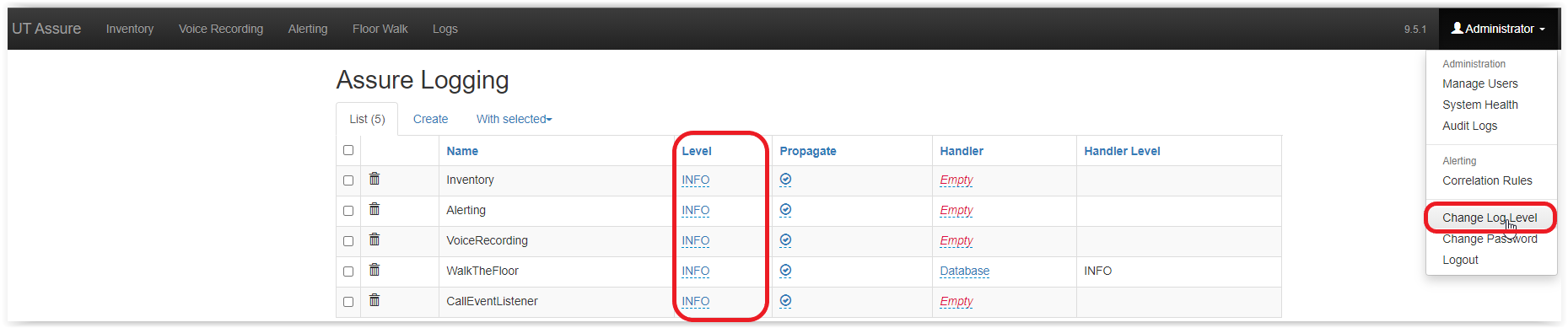
Change log levelDefault logging should be enough for debugging the issues, change the log level only if requested by R&D.
To do so, on Assure go to "Administration menu > Change Log Level" then change the level of the necessary logger.
Note : do not forget to switch back to INFO level after investigation. Network TraceTo take a network trace on TradeSense : •Connect with SSH on Tradesense with the credentials root / Uta*969131 •To start the network trace, enter the command : tcpdump -i eth0 -s 0 -w /opt/ipt/var/backup/capture.pcap •To stop the network trace, type : CTRL+C •When the trace is taken, connect to the TradeSense IP with an FTP client with the credentials root / Uta*969131 •Download the capture.pcap file located in the /opt/ipt/var/backup/ folder
|