Managing Shortcuts


Managing Shortcuts |
|
| User Options > Shortcuts > Basic Usage |
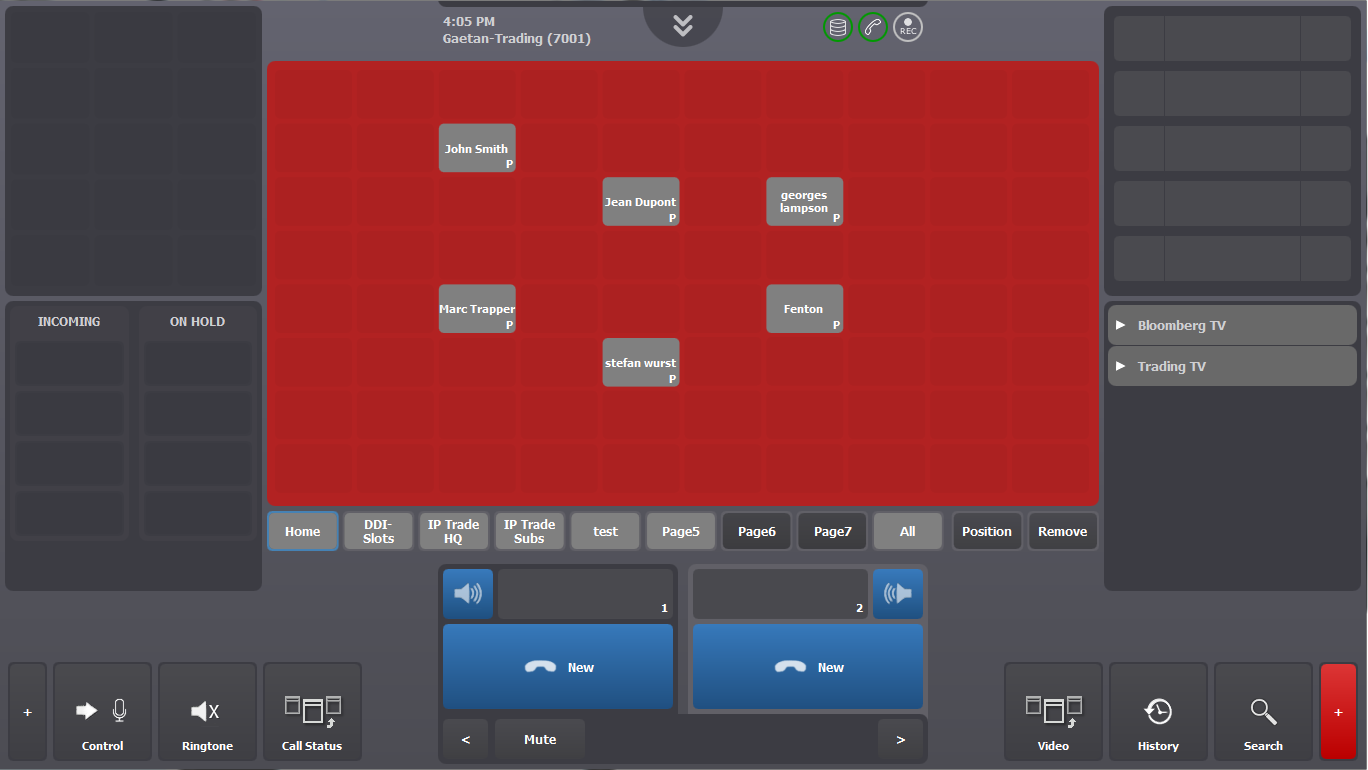
Create a Shortcut To create a Shortcut, proceed as follows: 1.Access the Maintenance Mode by pressing the 2.All the shortcut areas will turn to red
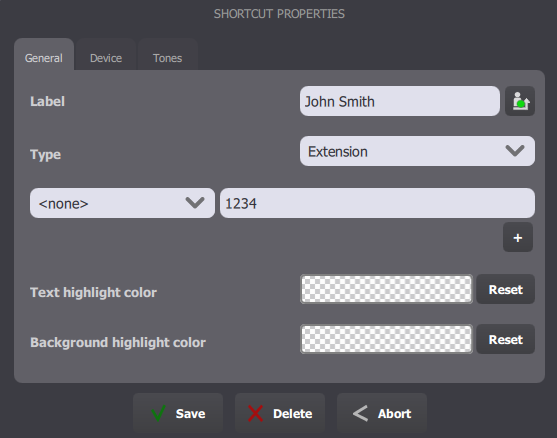
3.Select the position where you want to add your shortcut 4.The shortcut edition form will appear
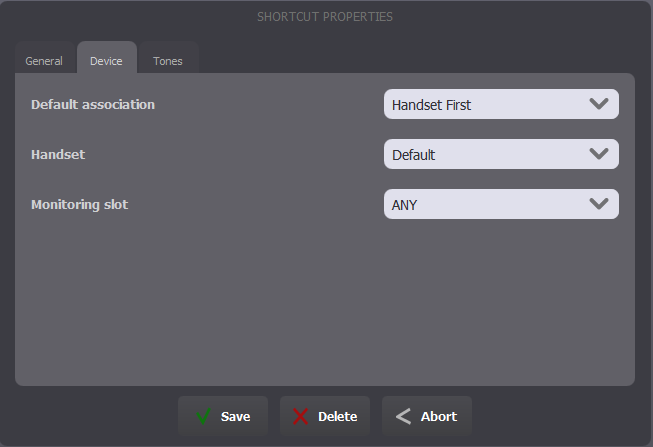
5.Enter the Label for the shortcut 6.Select the type. 7.Enter the Phone extension associated to that shortcut. 8.You can optionally configure the shortcut highlight colors for the text and the background. 9.The Device tab allows you to associate a device to that shortcut meaning that any time you will press the shortcut; the system will try to place the call on the specified device. If the device is already in use, you’ll get a message asking you to free i
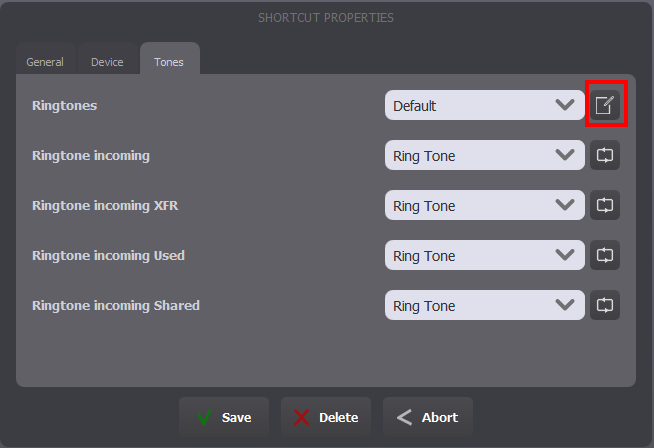
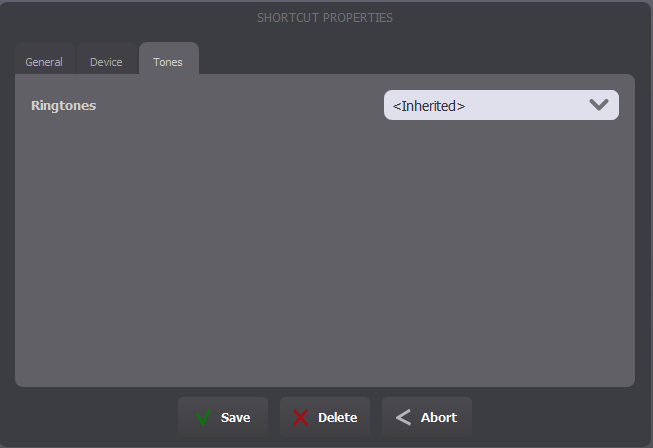
10.The Tones tab allows you to associate a particular ringtone to that shortcut.
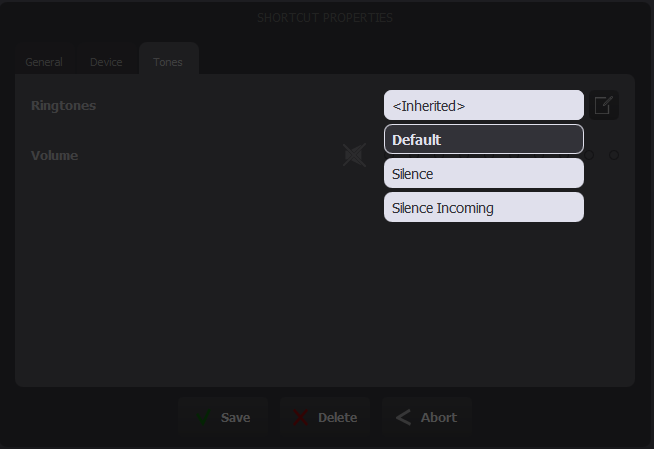
11.You can chose a different Ringtone set via the Drop down Menu
12.Each Ringtone can also be individually defined by pressing the
13.You can listen to the ringtone by pressing the label. 14.You can specify if the ringtone should be played from 1 to 50 times (for example, 1 time Delete a Shortcut To remove a Shortcut from a private page, proceed as follows: 1.Access the Maintenance Mode by pressing the 2.Press the 3.Press the Shortcut you want to remove 4.The Shortcut is removed from the private page Note: Once a shortcut has been removed from a private page, it will still be present in the “All” page. To delete a shortcut from a private page, proceed as follows: 1.Access the Maintenance Mode by pressing the 2.Press the shortcut you want to delete 3.Press the 4.The Shortcut is permanently deleted from the user profile Move a Shortcut To move a Shortcut, proceed as follows: 1.Access the Maintenance Mode by pressing the 2.Press the 3.Press the shortcut you want to move 4.Select the new position for the shortcut 5.The Shortcut has been moved |
 button