Highlighting shortcuts


Highlighting shortcuts |
|
| User Options > Shortcuts > Configure |
Highlight color configuration from TSSHighlight color configuration for a shortcut page
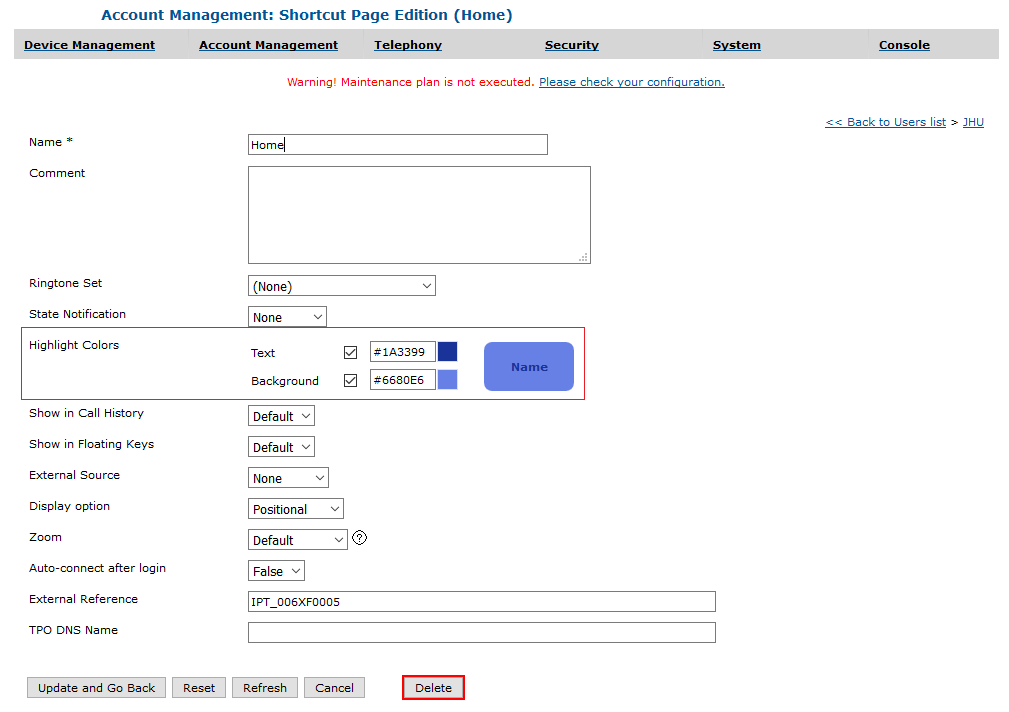
An highlight color can be configured for all shortcuts linked to a page from the TSS console. It will be applied on a shortcut if this one does not define its own highlight color.
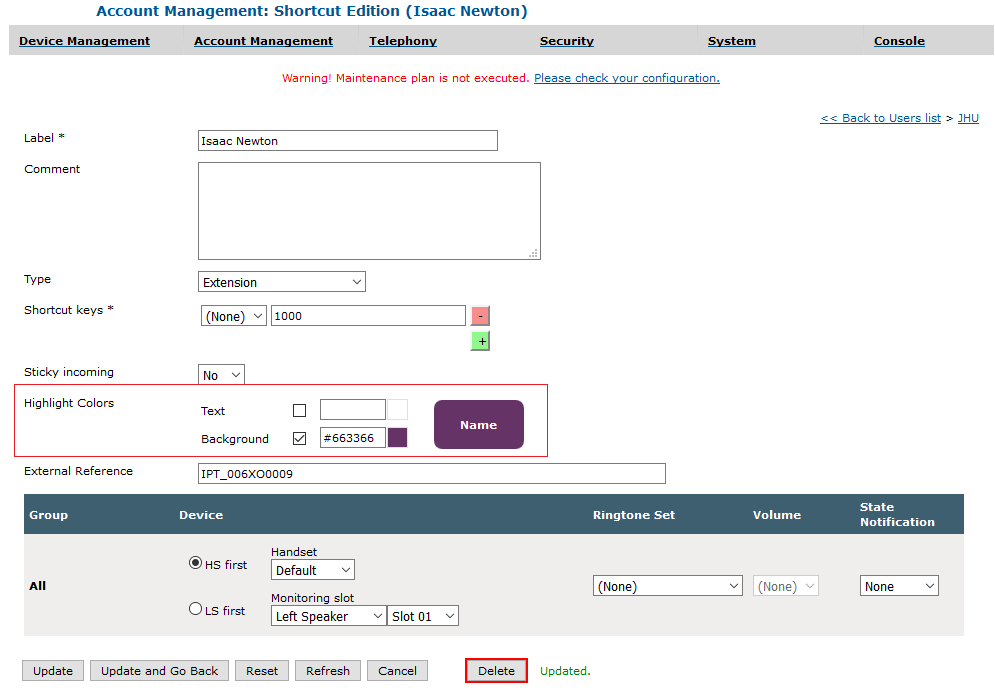
Highlight color configuration for a shortcutAn highlight color can be configured from the shortcut edition page in the TSS console.
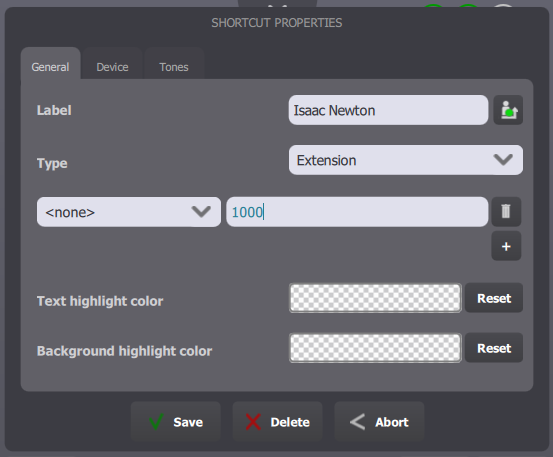
Highlight color configuration from a TurretHighlight color configuration for a shortcut or shortcut pageThe highlight colors for a shortcut or shortcut page can be configured by the user directly from the Turret. Simply enter in Maintenance Mode and select the shortcut or shortcut page to edit. At the bottom of the General tab are two color pickers allowing you to change the highlight color for the text and the background of your shortcut or shortcut page.
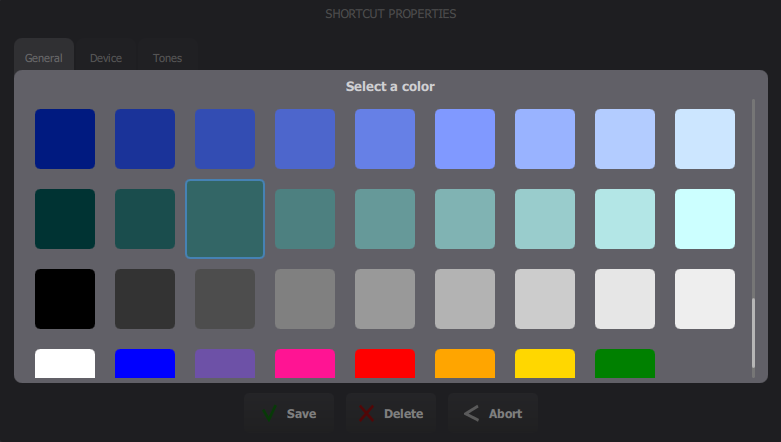
Select the color area (which is transparent if no highlight color have been configured) to open the color picker.
Simply choose a color from those available in the grid or click outside the color picker area to cancel the color selection. The currently selected color appears larger and surrounded. |