Upgrade


Upgrade |
|
| Solution Installation > TradeSense Installation > Using the TradeSense on a standard server |
Upgrade processPre-upgrade steps
Take a Database Backup from TradeSense
Go to the TradeSense home page.
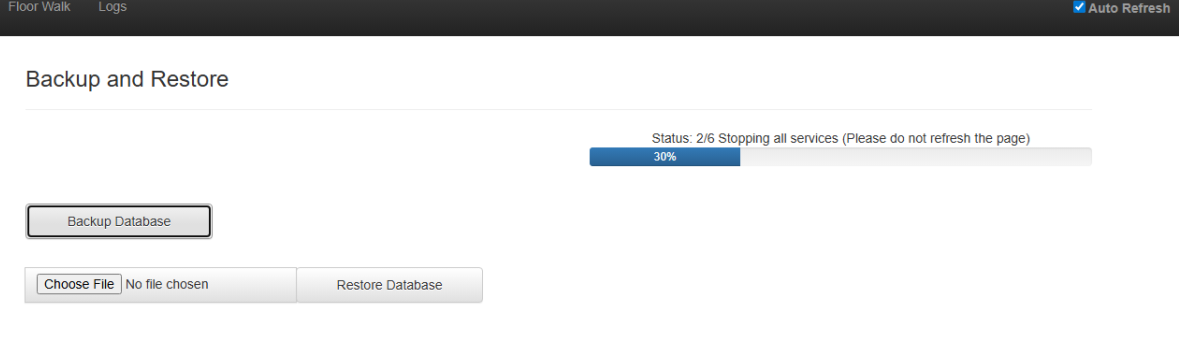
Open the right-hand side dropdown menu and click on the "Backup and Restore" option.
Start the backup process and ensure the backup file is successfully downloaded. (it will take some time, and File will be ready to download once backup done)
Extract the BTPT Standard server Bundle in TSS Console.
Go to the TSS Console → System → Firmware management page.
Click on Add Package on right side, Provide the details of FTP to extract the bundle, Click on OK.
Select the correct bundle and Click on OK.
Once done successfully you can see the BTPT Release version in BT Productivity Tools tab in same page.
Upgrade stepsProceed with the upgrade process from the TSS interface.
Go to the TSS Console → Productivity Tools Clusters Page → Click on your Standard Server Productivity Tools Cluster
In General tab, Choose the Destinated Version from the dropdown in front of BTPT Version.
Click on update button. Post Upgrade steps
Restore the Database
After the upgrade is successfully completed, Go to TradeSense Home page. Open right hand side dropdown menu and click on Backup & Restore option.
Choose the previously downloaded backupfile and Click on Restore button.
Confirm that all data has been restored correctly and that the system is functioning as expected.
ModificationsTo make modifications you must update the values.yaml and delete/install the application
Change the configuration like (TSS URL, TSS VERSION etc..) in /usr/local/bt/tradesense/tradesense-helm-chart-repo/tradesense/values.yaml
View the TradeSense related configuration details
Run below commands to replace the installation. You must follow steps given for upgrading to back up the database.
|