Silent mode


Silent mode |
|
| Solution Integration > Click To Dial from traders' desktop > Click To Dial from desktop app > Configure > Turret PC application setup |
There are two ways to install the Turret PC Application in silent mode : Command line installation
To install the Turret PC Application, use the msiexec utility on command line (with Administrator privileges) :
msiexec /i "<MSI_PATH>" /quiet TSS_URI="<TSS_URI>" TURRET_LOGIN="<TL>" CLICK_TO_DIAL="<CTD>" SIP_LOCAL_DOMAIN="<DEFAULT_SIP_DOMAIN>" TSS_SHARED_TOKEN="<SHARED_TOKEN>" CLICK_TO_DIAL_SFB="<ENABLE_SFB>" SFB_PLUGIN_TPCAPP_ACTION="<SFB_ACTION>" SFB_DISCOVERURI="<SFB_DISCOVER_URI>"
Where : •<MSI_PATH> is the path of the Turret PC Application msi •<TSS_URI> is the TSS server URI •<TL> is a flag indicating whether or not the Turret Login functionality shall be installed. - Set "no" to disable this functionality. - Set "yes" to enable this functionality. •<CTD> is a flag indicating whether or not the Click To Dial functionality shall be installed. - Set "no" to disable this functionality. - Set "yes" to enable this functionality. •<SHARED_TOKEN> is the Shared Token. This value is used to secure the login API and must match the value configured in the TSS. •<DEFAULT_SIP_DOMAIN> is the default SIP domain to add if none was precised by the user. •<ENABLE_SFB> if you want to enable the SfB add-in, set it to "yes", if you do not want to enable it set it to an empty value "". •<SFB_ACTION> is use to define if the the SfB add-in directly call the skype for business contact or if it is opening the business card to allow select a phone number. •<SFB_DISCOVER_URI> is the auto discover uri of your installation, refer to the Skype for Business configuration part of this doc to learn more.
Important notice: ➢ All parameters are required. ➢At least one functionality must be enabled.
e.g. : msiexec /i "C:\Turret PC Application.msi" /quiet TSS_URI="http://10.10.50.21/IptradeNet.TSS.8.3.1.35022" TURRET_LOGIN="yes" CLICK_TO_DIAL="no" TSS_SHARED_TOKEN="Sh@redT0ken"
Group Policy Object installation
To install the Turret PC Application with a GPO, a MST file must be created with the wanted configuration. This MST file contains the parameters to apply while installing the MSI setup.
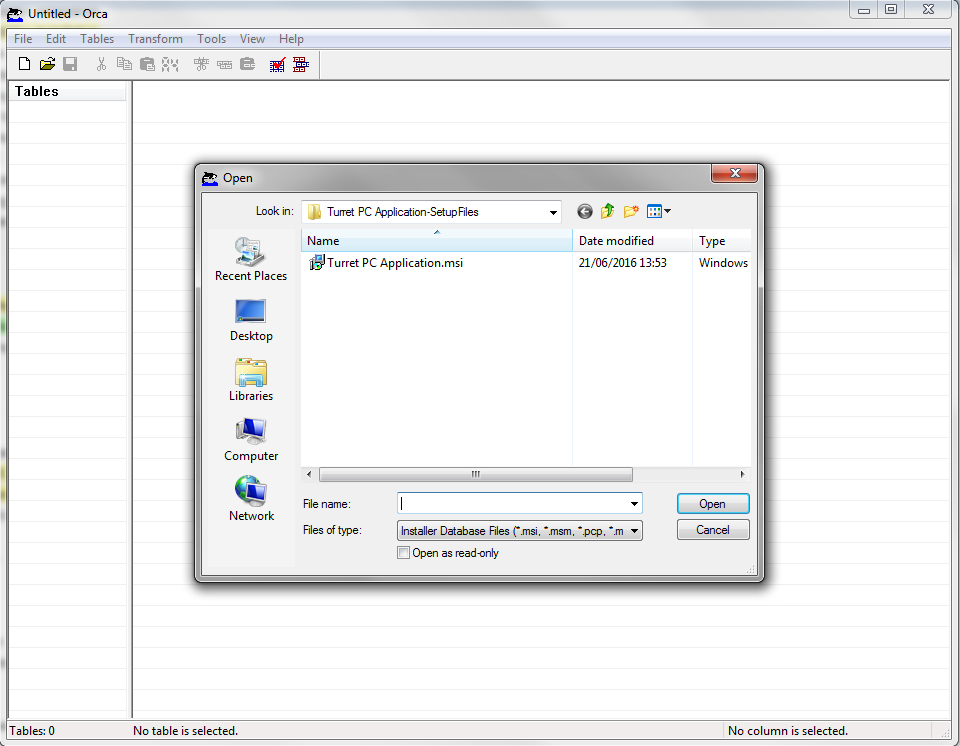
Open the MSI with a tool like ORCA (free MS tool in Windows SDK Components for Windows Installer Developers) :
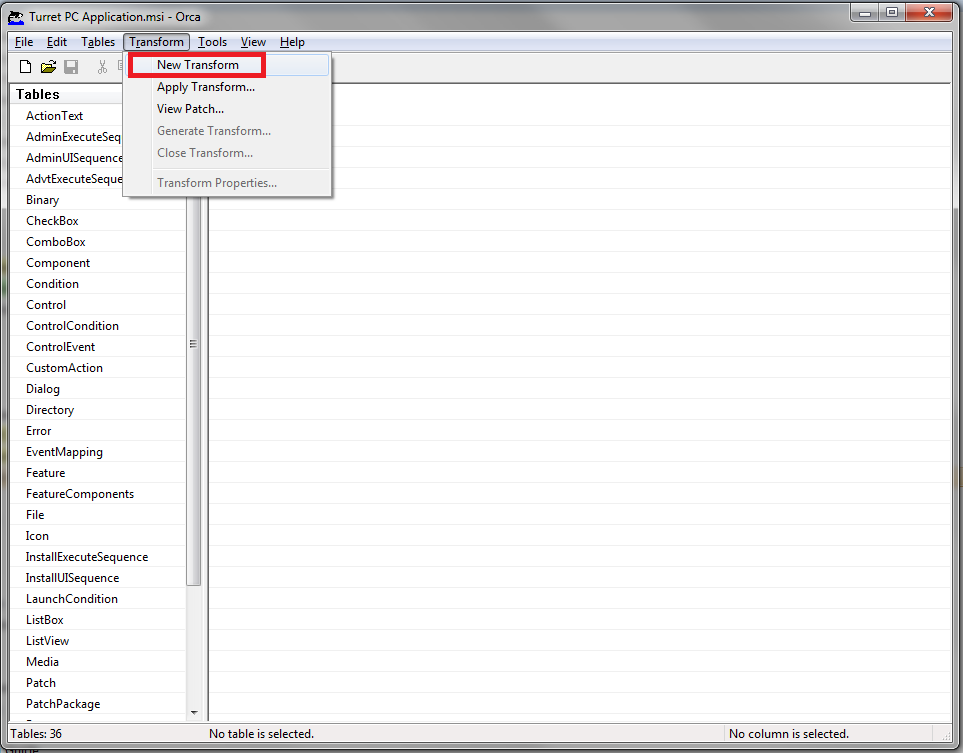
Click on "Transform" > "New Transform"
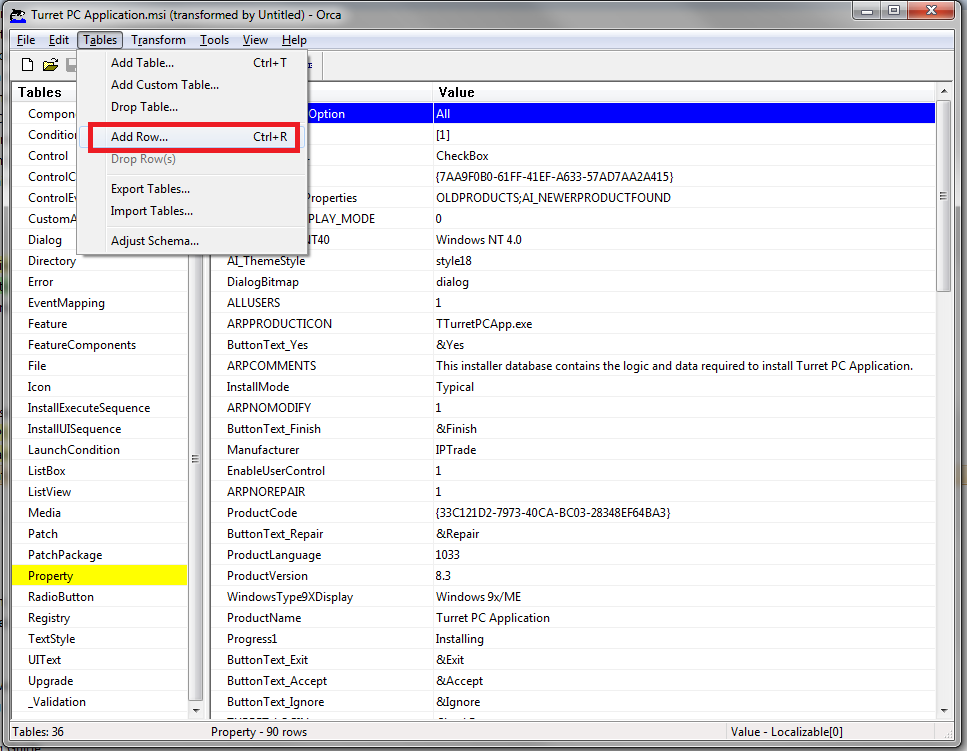
In the list, select "Property" then click on "Tables" > "Add row"
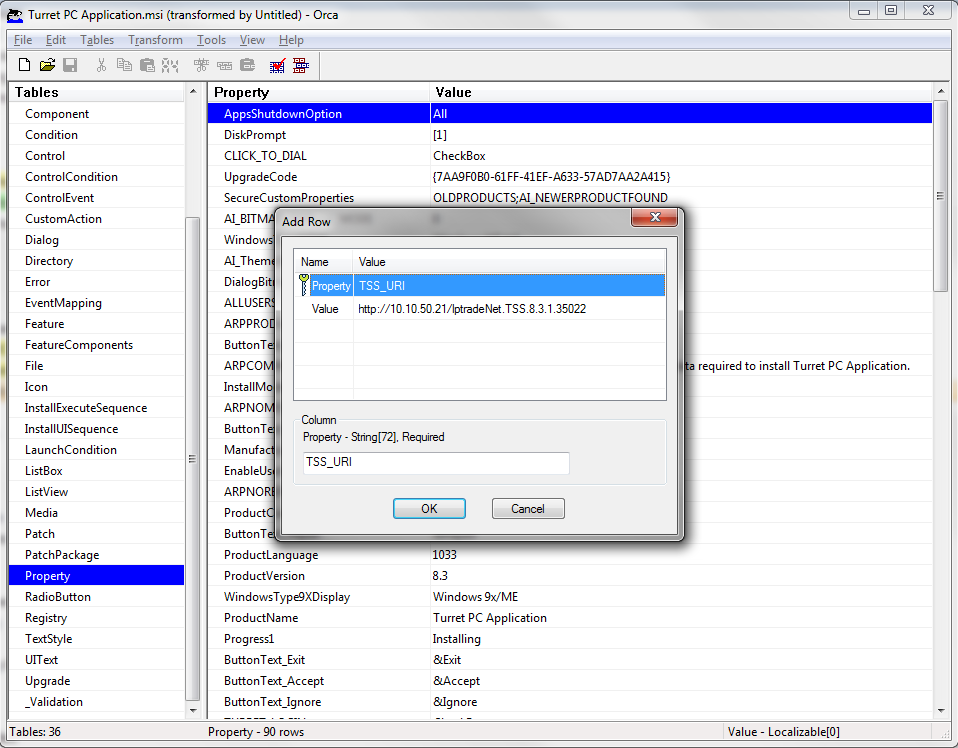
Add or modify the following Properties-Values according to your settings:
Once rows are added, click on "Transform" > "Generate Transform". After saving MST file, close ORCA. Be sure that the computer account of the workstations will have a read access of the MST file.
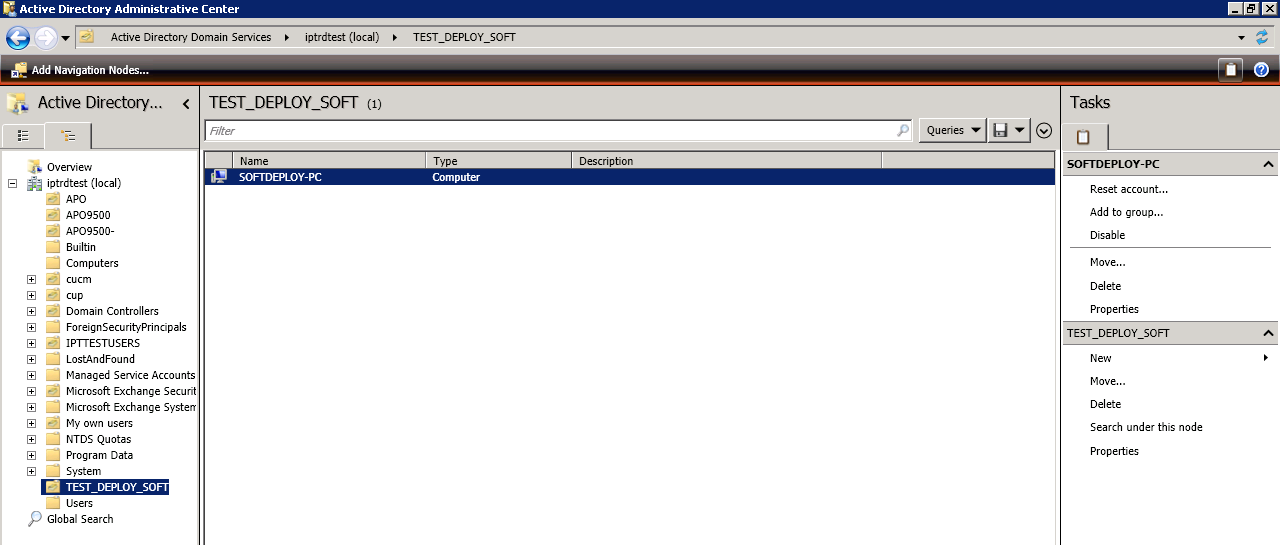
On domain controller, open "Administrative Tools" > "Active Directory Administrative Center" and create an Organization Unit for the workstations on which Turret PC Application will be installed.
Move the related computer account(s) (in this example: SOFTDEPLOY-PC) on the Organization Unit (in this example TEST_DEPLOY_SOFT) :
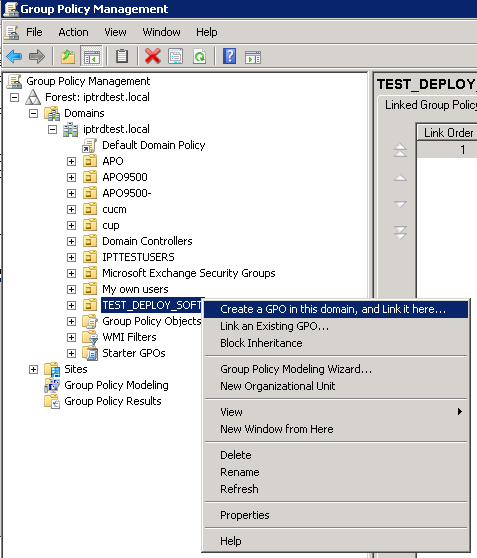
Open "Administrative Tools" > "Group Policy Management" and create a new Group Policy Object for this Organization Unit :
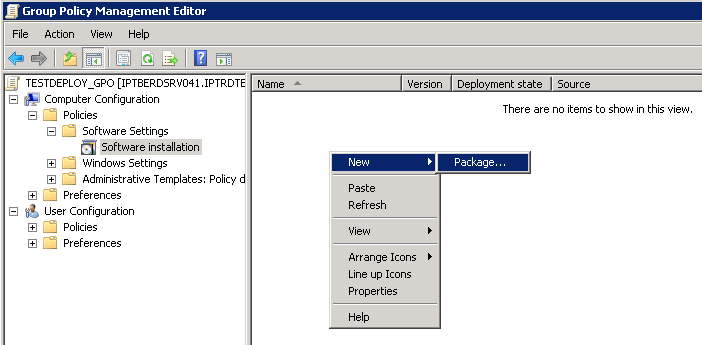
Right click on the new GPO and click on "Edit". Go to "Computer Configuration" > "Policies" > "Software Settings" > "Software Installation". There, Right click on the right panel and select "New" > "Package" :
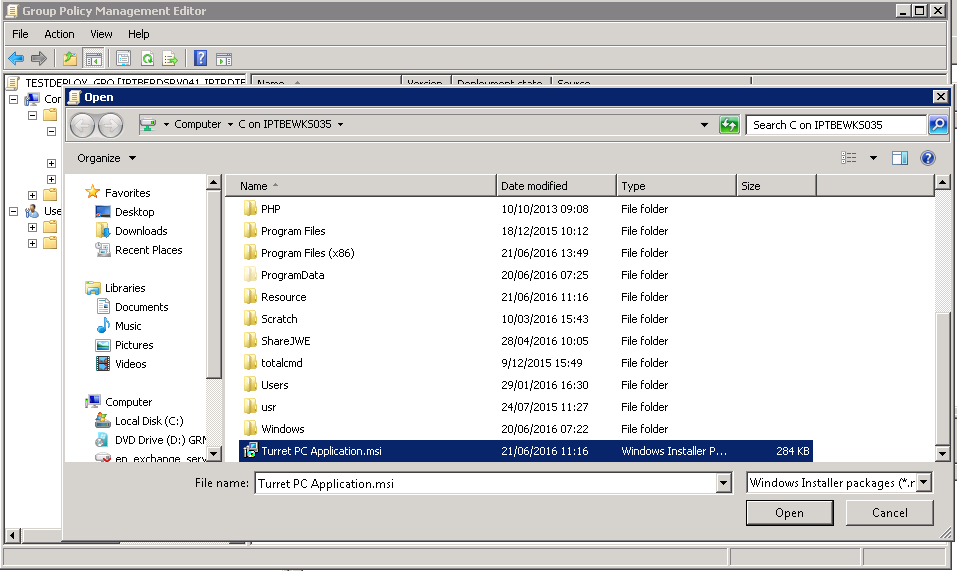
Select the MSI file through the shared folder (note: this location must be available from the workstations targeted for installation):
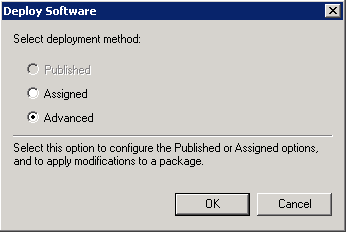
In "Deploy Software" dialog, select "Advanced" option :
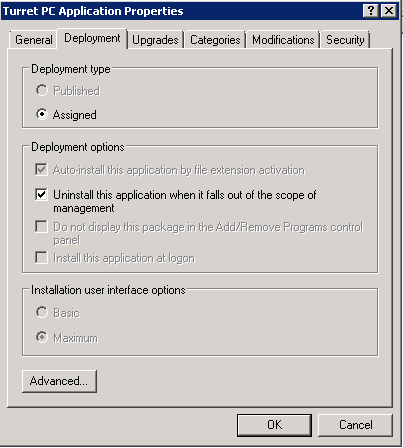
Go to "Deployment" tab and on "Deployment options" group, select "Uninstall this application when it falls out of the scope of management" :
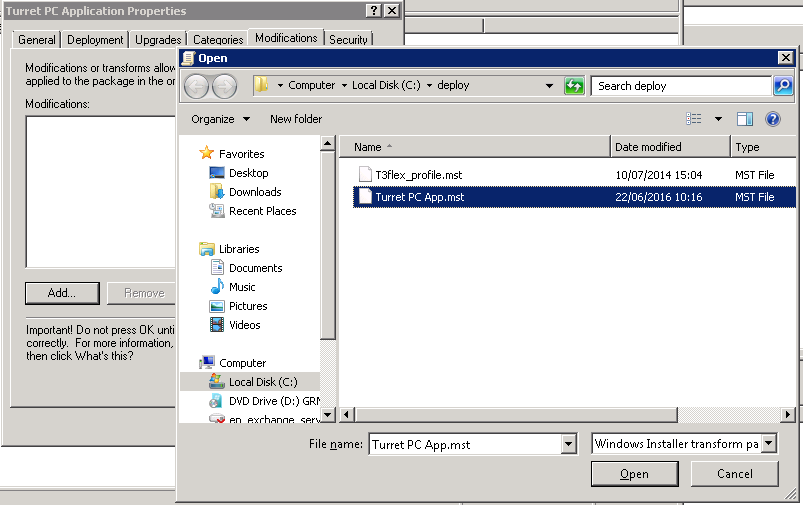
Go to "Modifications" tab and Click to "Add..." button. Select the MST file previously created :
Click on "Ok".
The installation/uninstallation will start after reboot. |