Scripted Install


Scripted Install |
|
| Solution Installation > TSS Installation > TSS STD Server Scripted Install |
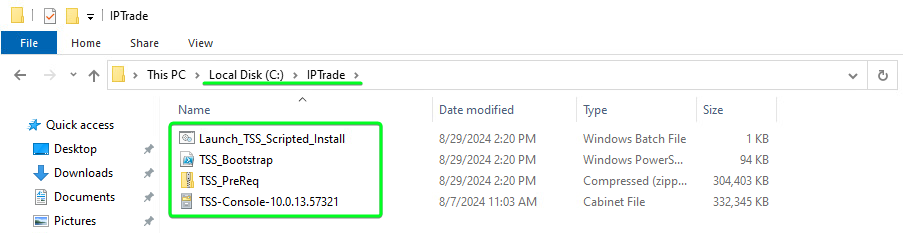
Script requirement and stagingDownload the required files: Extranet > Content > Firmware > Platform > Standard server – Scripted Install > TSS “Launch_TSS_Scripted_Install.bat”, “TSS_Bootstrap.ps1” and “TSS_PreReq.zip” In addition, also download the TSS firmware installer version of your choice “TSS-Console-.xxx.cab”
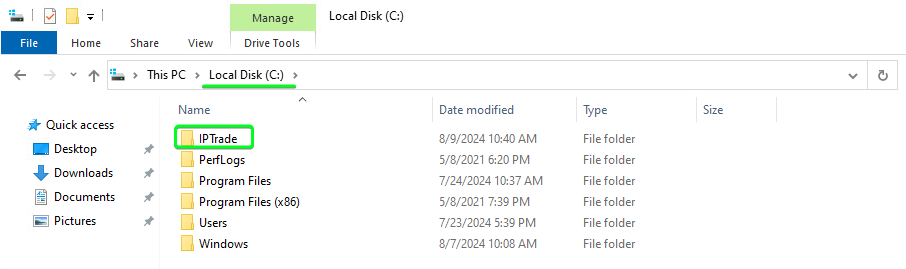
Create a folder called “IPTrade” in the root of C:\
Copy the downloaded files into the newly created folder C:\IPTrade\
Launching the scripted install
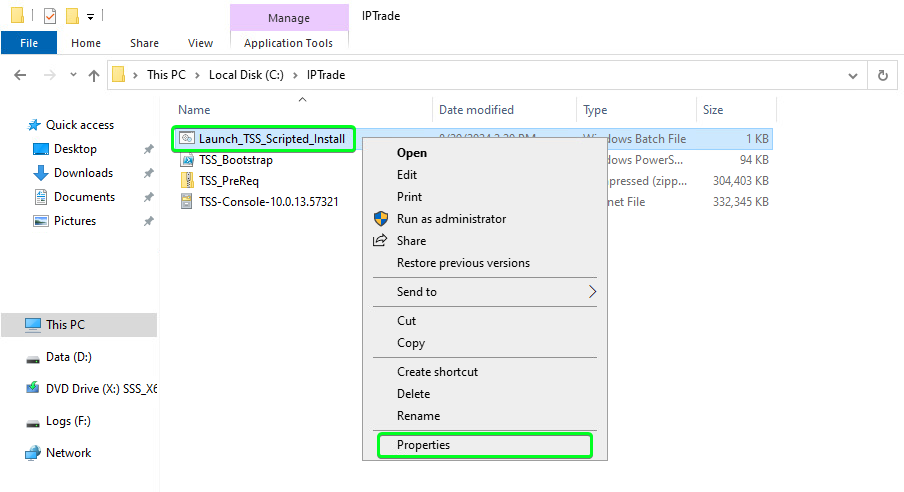
Right click on the “Launch_TSS_Scripted_Install.bat” file and select “Properties”
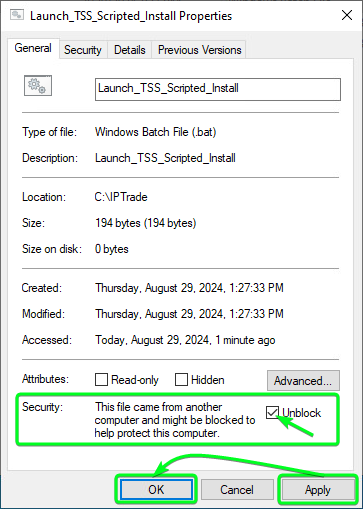
In the “General” tab, click “Unblock” to allow the launcher to run without any warnings or errors. Then click on “Apply” and “OK”
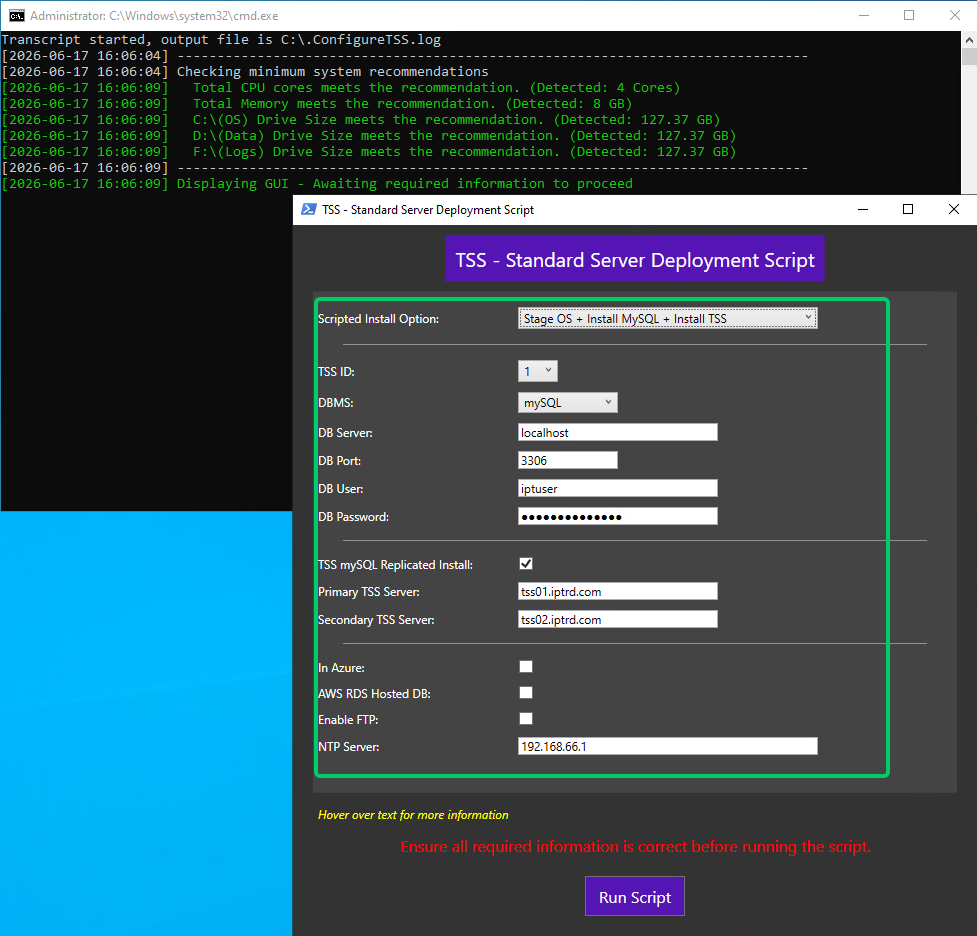
Next double click on the “Launch_TSS_Scripted_Install.bat” to run the scripted installer GUI. Fill in all values relevant for your install and then click the “Run Script” button
Additional information regarding the Scripted Install Options[Stage OS + Install mySQL + Install TSS]
This Option will stage the OS, then locally install mySQL (and Workbench) and lastly install and setup the TSS using the local mySQL install. This Option can be used to install a Single TSS with no replication together with “TSS mySQL Replicated Install” = “Un-checked” It can also be used for a Primary / Secondary replicated TSS setup together with “TSS mySQL Replicated Install” = “Checked”. Replication is setup during the Secondary TSS deployment, “Primary TSS Server” and “Secondary TSS Server” values MUST be provided in this scenario. For a Secondary TSS deployment make sure to select "TSS ID = 2" (ONLY deploy the Secondary TSS once the Primary TSS is fully installed and operational) It is best to leave the "DB Server = localhost" for MySQL installs, as they are always installed locally on the same server.
[Stage OS + Install mySQL]
This Option will ONLY stage the OS, then locally install mySQL (and Workbench) This option is useful if you want to manually setup replication or have additional requirements for the mySQL system configuration prior to TSS deployments. This option will NOT include any required replication related configuration regardless of the values set in “TSS mySQL Replicated Install” You could then re-run the script with “Stage OS + Install TSS” once manual configuration of the DBMS is done, to complete the TSS installation using the local DBMS
[Stage OS + Install TSS]
This option will only stage the OS and then install the TSS with the provided DB connection details. This option is used when deploying a TSS which will connect to an existing DBMS. This could be an external DB system. It could also be used to deploy the TSS after running “Stage OS + Install mySQL” and completing manual setup of mySQL for instance and then setting the DB connection details to the locally installed mySQL when re-running the script with this option.
[Stage OS]
This option will only stage the OS This option is useful if you need the server OS fully staged with all the prerequisites prior to a manual install of SQLSERVER (or mySQL if not using the auto deployed mySQL options. There is no option to automate a “SQLSERVER” setup using this script. Once you have staged the OS, you can manually install and fully configure your DBMS and then rerun the script with “Stage OS + Install TSS” pointing to the locally installed DBMS
mySQL NOTES ▪Install Option “Stage OS + Install MySQL” will NOT use or apply any automated replication setup, this option is used when a default MySQL installation is required, which will be setup and configured manually before TSS deployment. ▪MySQL Install Includes MySQL Workbench for DB management ▪The provided “DB Password” value is used to set the "root", "repl" and "DB User" password on all 3 accounts (Same values are used in TSS Install) ▪"repl" is the replication user, "DB User" (eg iptuser) is the DB user TSS uses to connect to MySQL and the "root" user (only connectable from localhost) is for root management ▪The provided “DB Port” value is also used to setup MySQL with the given port number as well as open Inbound Firewall. ▪When install option is “Stage OS + Install MySQL + Install TSS” and “TSS mySQL Replicated Install” is “Checked”, replication is setup during the Secondary TSS deployment, “Primary TSS Server” and “Secondary TSS Server” values MUST be provided in this scenario. For a Secondary TSS deployment make sure to select "TSS ID = 2" (ONLY deploy the Secondary TSS once the Primary TSS is fully installed and operational) ▪It is best to leave the "DB Server = localhost" for MySQL installs, as they are always installed locally on the same server.
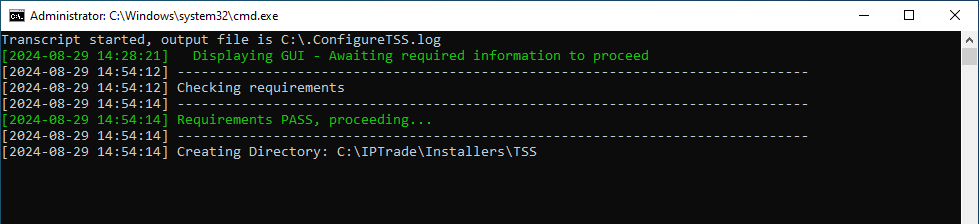
Once the script starts to run you will see the running status in the terminal box that opened with the GUI
The script runs in the background to completion without needing the server to be logged in. You can log back into the server after the above.
If you ran “Stage OS” or “Stage OS + Install mySQL” which only stages the OS / OS and MySQL it will auto reboot the server but no further reboot will occur. You can log back in after 2-3mins in this case.
If you did happen to log in to the server before the scripted tasks were complete, this will not break the scripted install. But be aware that the script will not be able to perform any additional required reboots once the server is logged in.
In all cases you should monitor the script install log (see further below) and manually reboot the server if the last line reads “Rebooting host…” this means the script was not yet completed and will require a manual reboot. Once the end of the script log reads “Bootstrap complete” this indicates the script has fully completed all tasks.
Script Log file output
The script file creates a deployment log file which can be checked. This log file is useful to check if any failures occurred during the install or if the script has completed successfully.
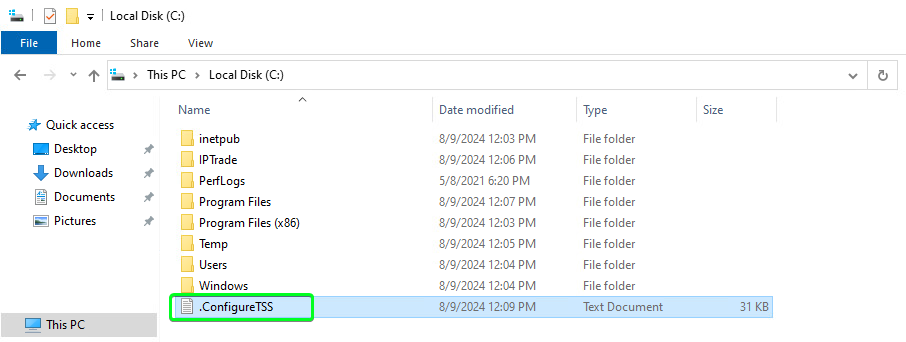
You can find the log file in the root of the C:\ in a fille called “.ConfigureTSS”
If you have logged into the server to soon after an auto reboot happened, you can open this log file to check where the script ended. If the log file ends with “Rebooting host…” as seen below, this means the script is still busy, but unable to reboot the server further. You should manually reboot the server at this point which will allow the script to continue running after the reboot.
This is due to the way in which the script adds itself as a scheduled task in windows to re-run after a reboot. The script then runs as a system user after the reboot and not as the previously logged in Admin user, which is why the server is unable reboot itself if you have logged in too soon after a system reboot.
Once the script log output reads “Bootstrap complete” as seen below, this means the script is fully completed.
In addition to the above, you can also find the TSS UIM installer log file in "C:\IPTrade\UIMInstall.txt" It is useful to check this log file for any TSS UIM installer failures
Checking NTP Server Sync (If optionally set during script install)
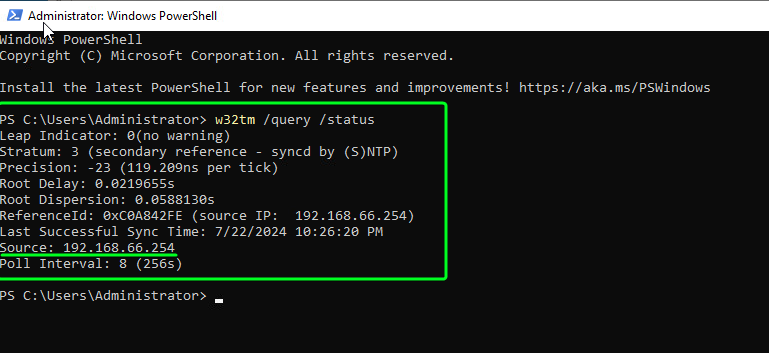
You can query the windows time service with the below command in a PowerShell terminal
You should see similar output to below with the “Source:” matching the NTP server variable value you input during the Script install/Run.
It also shows the last successful sync time.
|