Usage


Usage |
|
| Trading and C&C > Netrix > Directory |
The Directory stores all the current Phone Lists you can use. A Phone List is a collection of contacts. A contact is made up of a name and telephone numbers. Any contact highlighted within a Phone List can be called with a single keypress. Phone Lists are designated as one of the following types: •Shared - Available across a specific group of users. For example, people who work within the same department. A shared phone list is created by your Platform Administrator, which you can view and make calls, but cannot add, edit or delete contacts. Shared phone lists are distinguished by the •Personal - Assigned to an individual. They are not shared with anybody else. You can create or delete personal phone lists and add, edit or amend any contacts contained within one. Personal phone lists do not have any icon next to the name in the Directory. •Corporate - Available to all Netrix users, provided this option is enabled in their profile. An example of a system phone list could be a company-wide telephone directory. Corporate phone lists are set up and maintained by your Platform Administrator. You cannot add or amend contacts in corporate phone lists, although you can copy them to group or personal phone lists. You can assign one of the Personal or Shared phone lists as your Favourite. Every time you access the Directory, the contacts contained within your designated Favourite are automatically displayed.
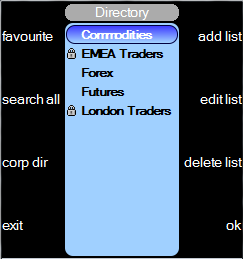
DirectoryThe directory is displayed when you press the dir key on the Netrix. This key is positioned in the bank of keys underneath the rotary control.
Main DIR menu:
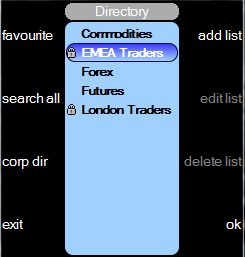
Directory, Shared list primary menu:
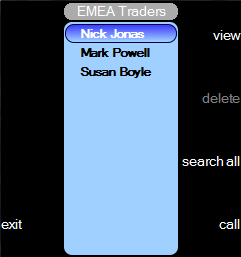
Directory (with phone list opened) Shared list primary menu:
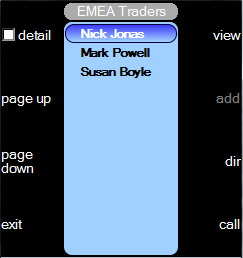
Directory (with phone list opened) Shared list secondary menu:
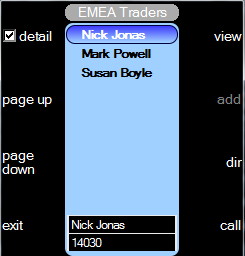
With detail option selected:
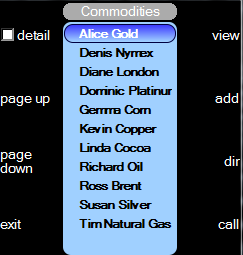
Directory (with phone list opened) Personal list primary menu:
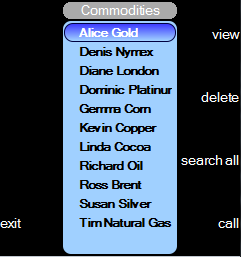
Directory (with phone list opened) Personal list secondary menu:
Opening the DirectoryTo open the directory you press the dir key on your Netrix. This is a toggle-action key, press again to turn close the directory.press dir …the directory is displayed. Making a call using a contact from a Phone List Any contact in any phone list can be called using a single keypress. •Line not connected to your handset - call will seize the default DDI, connects it to your default handset and dials the telephone number assigned to the highlighted contact. The Directory remains open whilst the call is in progress. •Line is connected to your handset - call will maintains the line currently connected to your handset and dials the telephone number assigned to the highlighted contact on this connected line. The Directory remains open whilst the call is in progress.
press dir …on the Netrix The directory is displayed. press …to highlight the phone list to open press ok press …to highlight the contact press call … to dial the number
Up to 3 phone numbers can be stored against a contact. One of these would be marked as the default number, which is dialled when call is pressed. To dial the other 2 numbers: press …to highlight the contact press view press or …to highlight one of the 3 numbers to dial press call
If you have assigned a Favourite, and the contact you require is not included in it, you need to press dir list to return to the Directory. Merging all phone lists when sourcing a contact nameIf you have access to multiple phone lists the search all function merges them together into a single list and displayed in alphabetical order. This function is useful if you are unsure as to what phone list the contact belongs to. press dir …on the Netrix The directory is displayed press search all …all phone lists are merged
You can refine the list displayed by entering text via the dial pad. If you enter “A”, then all contacts beginning with A will be displayed. Creating a Phone ListYou can create your own phone list(s). You can dial the contact with a single keypress. Any phone lists you create are private, nobody else has access to them. Any changes you make are automatically saved to the administration database.
press dir key …on the Netrix press add list …the edit details menu is displayed enter phone list name press ok …the phone list is created and is displayed in alphabetical order in the directory.
Once you have created a Phone List it needs to be populated with contacts. If you have assigned a Favourite, and you want to create a new phone list, you need to press dir list to return to the Directory. Adding contacts to a Personal Phone ListBoth the name and number fields must be populated before the ok to save is enabled, allowing you to save the contact.
press dir key …on the Netrix The directory is displayed. press …to highlight the phone list to add the contact to press ok press add …the edit details menu is displayed enter First name press enter Last name press enter contact label …Label is auto-populated when First & Last name are entered. You can override it with the label of your choice. Note: it is this label field that is displayed in Phone list and when this contact is programmed as a speeddial key. This field is mandatory. press enter telephone number …including any access digit if required for an external number. press ok …you are returned to the phone list. The contact has been added. Repeat for all contacts to be included in the phone list. If you have assigned a Favourite, and the contact you require is not included in it, you need to press dir list to return to the Directory. Edit Details menucaps - This is a toggle action key. Alternates between text being entered as capitals, title case, lower case or set to enter numbers. The icon (top right corner) denotes the current status. back - Deletes the character to the left of the cursor. abort - Returns to the phone list and abandons any changes made. symbols - Displays a range of additional symbols which can be used when adding or editing contact details. See Reference for a full list of available symbols. delete - Deletes the character to the right of the cursor. ok - Saves the contact details and returns you to the phone list. The new contact is slotted into the phone list in alphabetical order.
Changing a contact’s detailsIn a Personal Phone List, you can change the name, label and telephone numbers assigned to a contact.
press dir key …on the Netrix The directory is displayed. press …to highlight the phone list containing the contact to edit press ok press …to highlight the contact to edit press view …the cursor is positioned in the field – First name amend the fields as required. press ok …to confirm and return to the directory or press abort …to cancel Viewing a contact’s detailsYou can view the phone number stored in a contact by pressing the detail key. The label and assigned phone number is displayed for each contact. If a contact has more than one phone number, then the default phone number will be displayed. This is a toggle action key, press again to remove details. Deleting a contactYou can delete any contact only from a personal phone list.
press dir …on the Netrix The directory is displayed. press …to highlight the phone list containing the contact to delete press ok press …to highlight the contact to delete press …to display the secondary menu press delete FavouriteYou can assign a Phone List as your Favourite. This means that every time you press the dir key on your Netrix all contacts in your chosen Favourite are automatically displayed. To return to viewing all Phone Lists you press the dir list key. Assigning a Favouritepress dir …the directory is displayed This lists all your Phone Lists. press press favourite Favourite its name is displayed in Bold/Italic font You can quickly change your nominated favourite by selecting another Phone List, and press favourite press exit Un-assigning a FavouriteYou can un-assign a favourite. This means that the directory is displayed when you press the dir key. press dir …all the contacts in your Favourite are displayed. press dir list …all phone lists are displayed. The name of current favourite is displayed in bold/italic text. press press favourite …the phone list name reverts to normal text. The favourite is removed. press ok Changing the name of a Phone ListYou can change the name of any personal phone list.
press dir …on the Netrix The directory is displayed. press …to highlight the personal phone list whose name is to be changed press edit list …the current name is displayed in the details field enter new name press ok …to confirm and return to the directory or press abort …to cancelDeleting a Phone ListDeletes a personal phone list.
press dir …on the Netrix The directory is displayed. press …to highlight the phone list to delete press delete prompt Delete phone list? press OK … to confirm or press Abort …to abort Corporate DirectoryYou can search the corporate directory for contacts, and dial the contact. It is not possible to add or edit contacts in corporate directory.
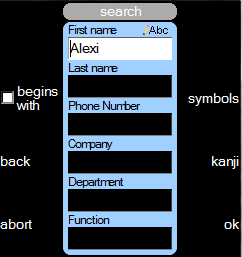
press dir …on Netrix The directory is displayed. press corp dir … to open the search window for corporate directory
Using the dial pad, enter the text string to perform the search. If you enter text in multiple fields, then the search will only display results matching all specified fields.
Example: First name: Brad Last name: S … will only show “Bradley Shaw”, and will not show “Brad Hatton”.
Search when begins with is enabled: Only entries matching the characters from beginning of the text will be displayed. Example: First name: Br … will display Bradley, Brad, Brigit etc.
Search when begins with is disabled: All text containing the specified characters will be displayed. Example: First name: al … will display Ali, Ronald, Sally etc.
press OK … to display the list of contacts.
While the list is displayed, you can use the dial pad to enter a new search. The new search will take the previous search criteria, but replace the “First name” field with the new search that you enter.
|
 icon next to the name in the Directory.





 or
or