Performing a Standard Windows Server Installation


Performing a Standard Windows Server Installation |
|
| Solution Installation > TSS Installation > Install TSS on a standard server > Install Operating System > Windows Server 2022 |
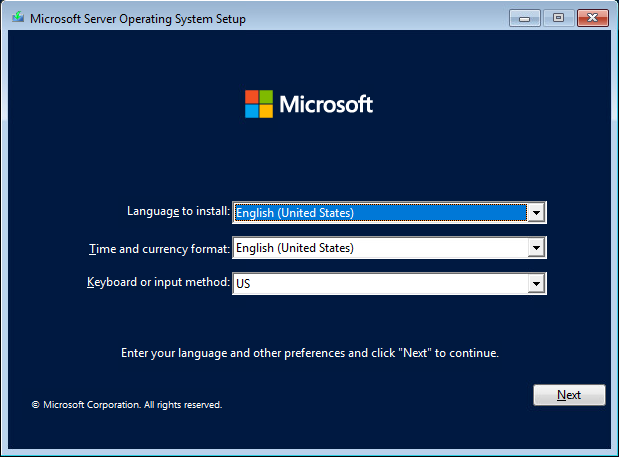
OverviewThis section covers the installation of the Windows Server 2022 operating system. Procedure•Insert installation disk (or image file) and start the Windows Server 2022 install. •First screen allows you to choose language and other preference: Keep all default settings (English / US) except for keyboard where you choose the proper keyboard.
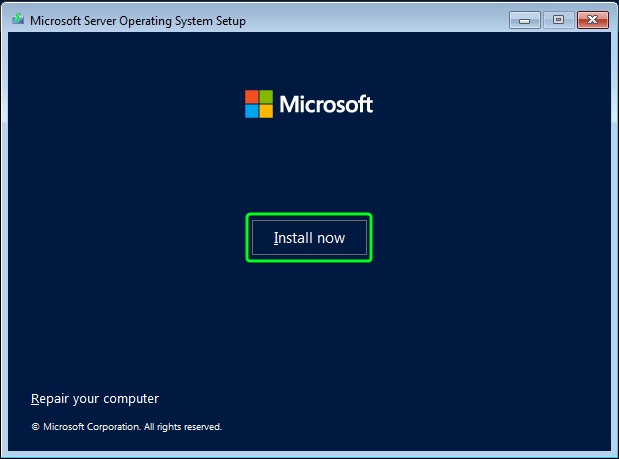
•Click on “Install now” button.
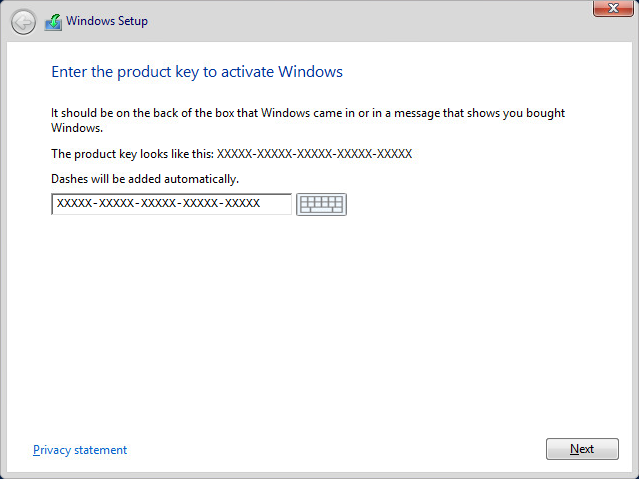
•Enter the product key to activate Windows and click "Next"
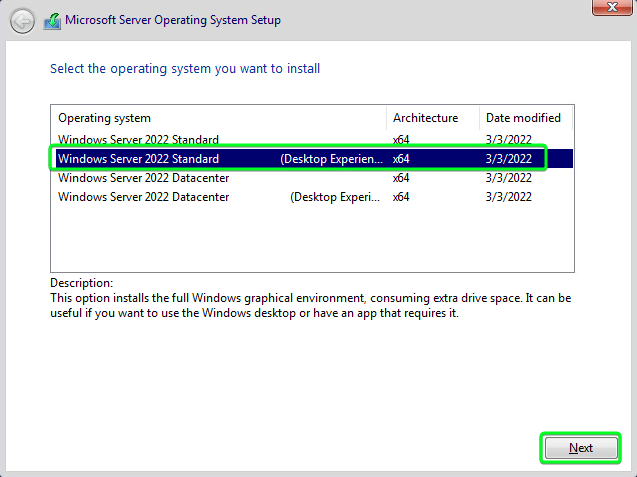
•Choose installation type Windows Server 2022 Standard (Desktop Experience) and click “Next”
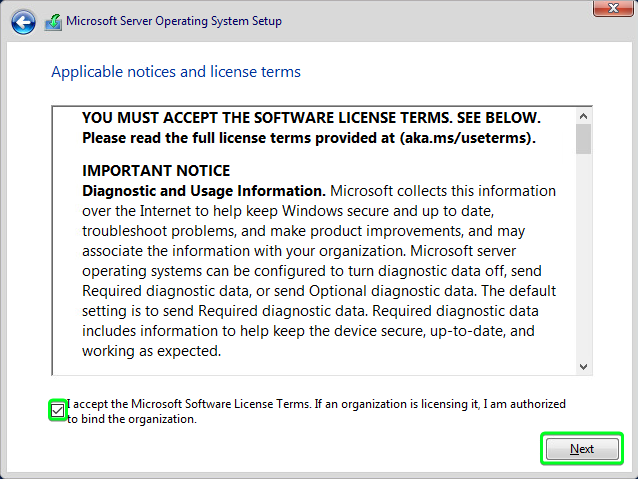
•Accept the license terms checking the box and then click “Next”
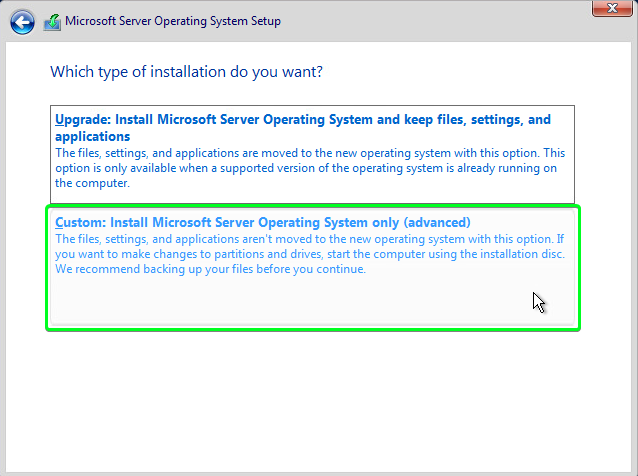
•Click on “Custom: Install” box
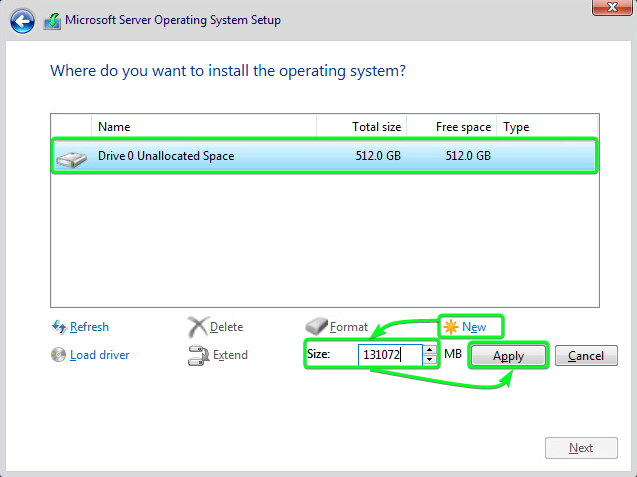
•Select the unpartitioned “Drive 0”, then click on ”New”, enter the Size with the recommended (or larger) value and click on “Apply”
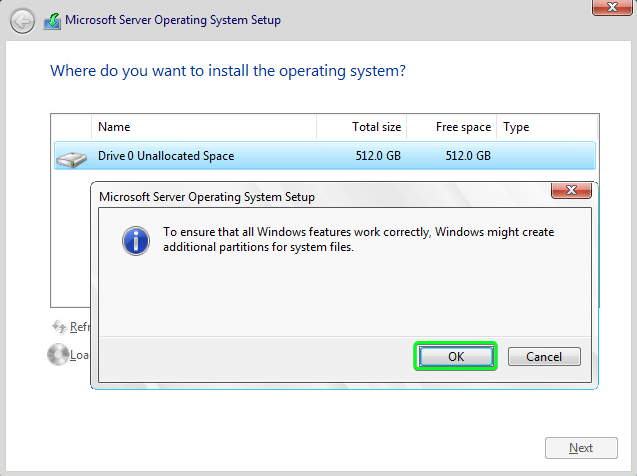
•On the pop-up message select “OK”
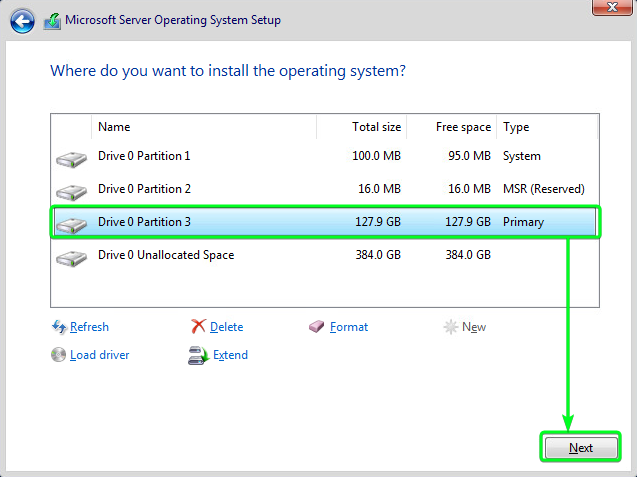
•Next make sure the (Primary) partition is selected and then click “Next”
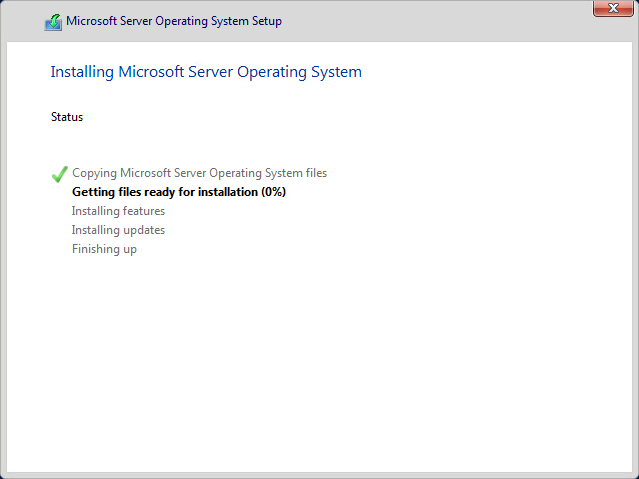
•The OS installation will begin, and once it’s completed the system will automatically reboot
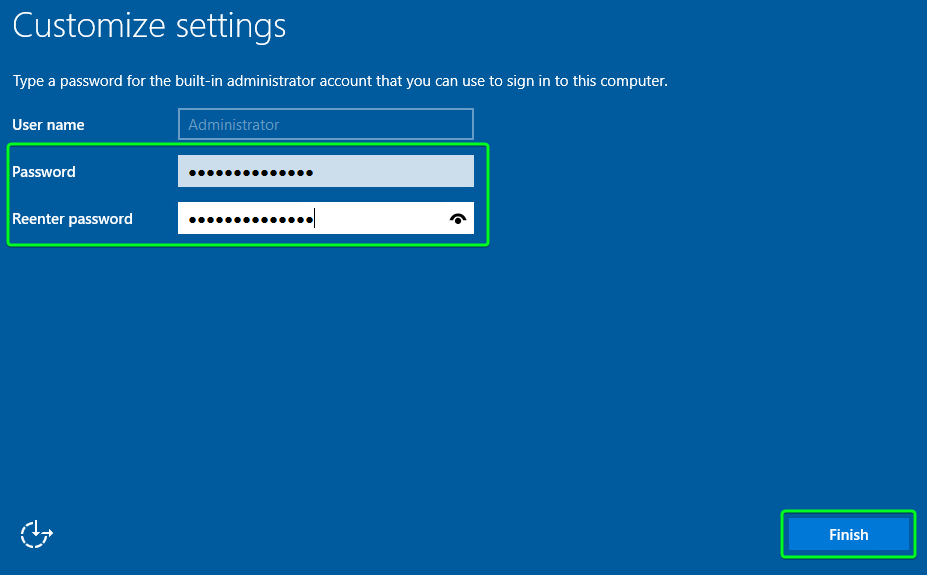
•After the reboot, you will be asked to enter in the administrator password. Fill in a strong password of your choice and click “Finish”
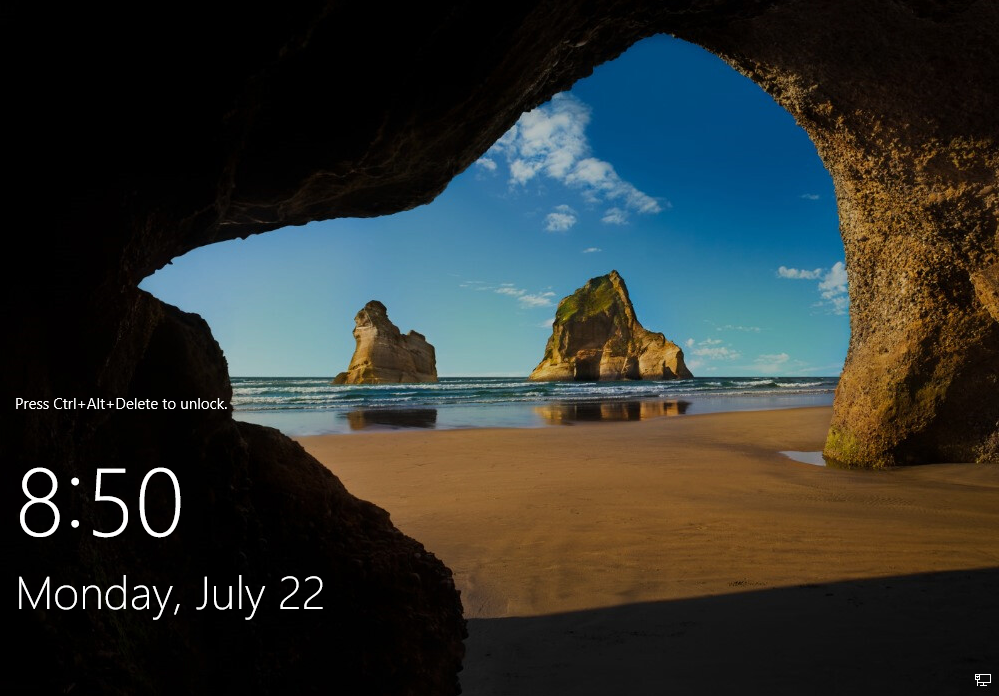
•Once completed, the system is installed and you should get the login screen.
•The server installation is complete
Please see the next section to Configure Server |