Creating Paritioning Table


Creating Paritioning Table |
|
| Solution Installation > TSS Installation > Install TSS on a standard server > Install Operating System > Windows Server 2022 |
OverviewA STD Server requires 2 additional partitions which are mandatory
DBMS = Database Management System (MySQL / MSSQL)
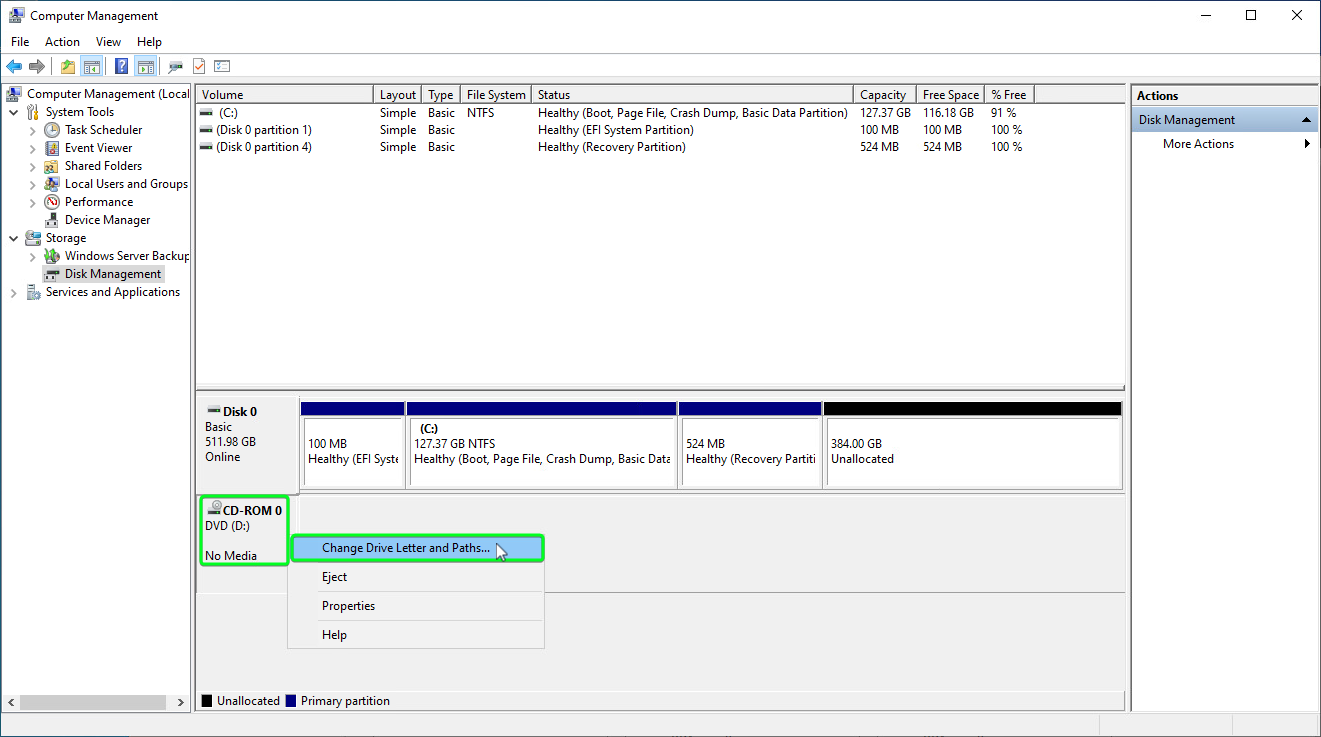
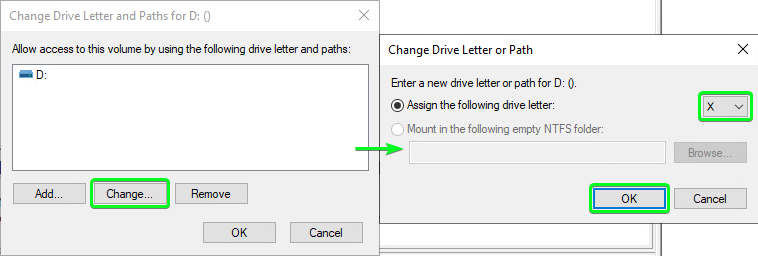
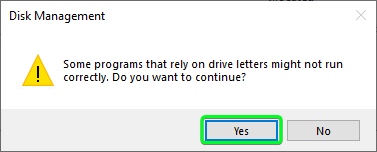
The CD-ROM drive letter must be changed to allow the above drive letters (It will likely be using one of the drive letters above on a fresh install)
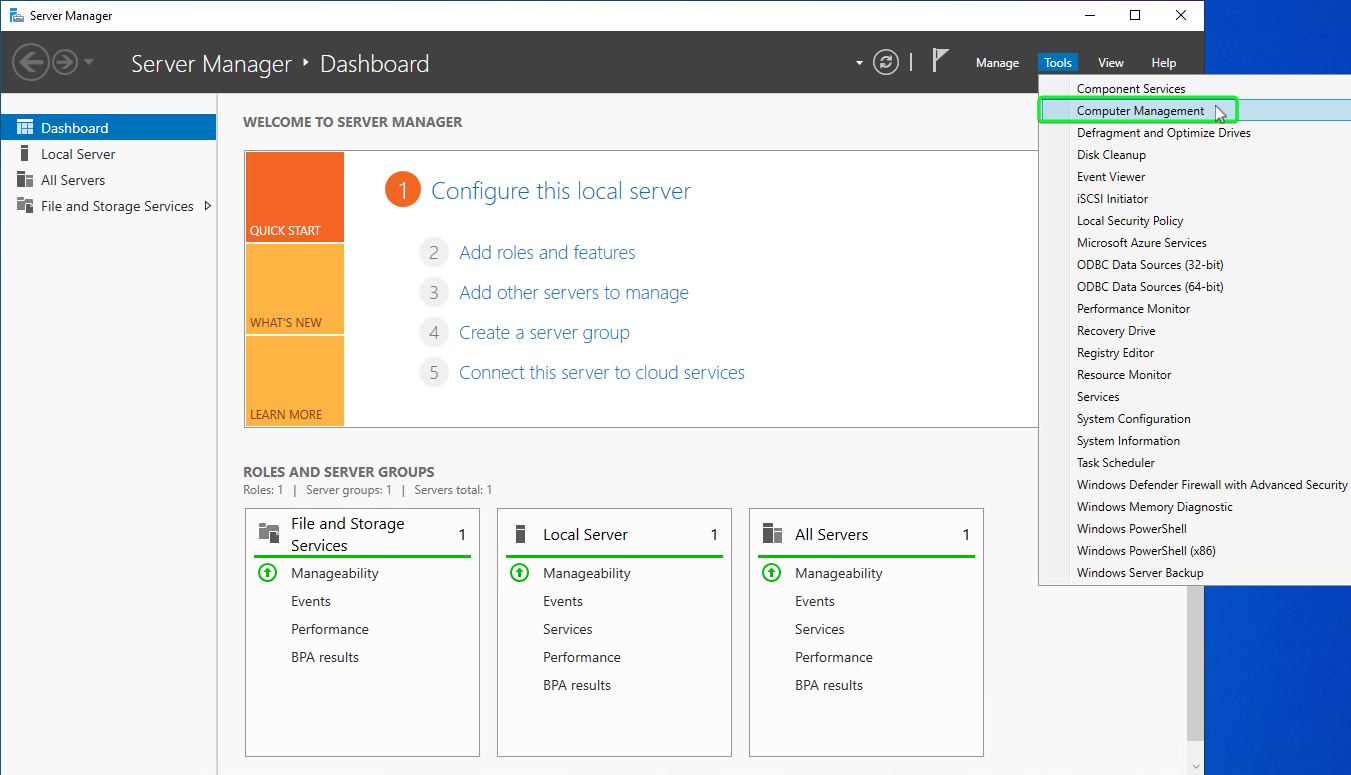
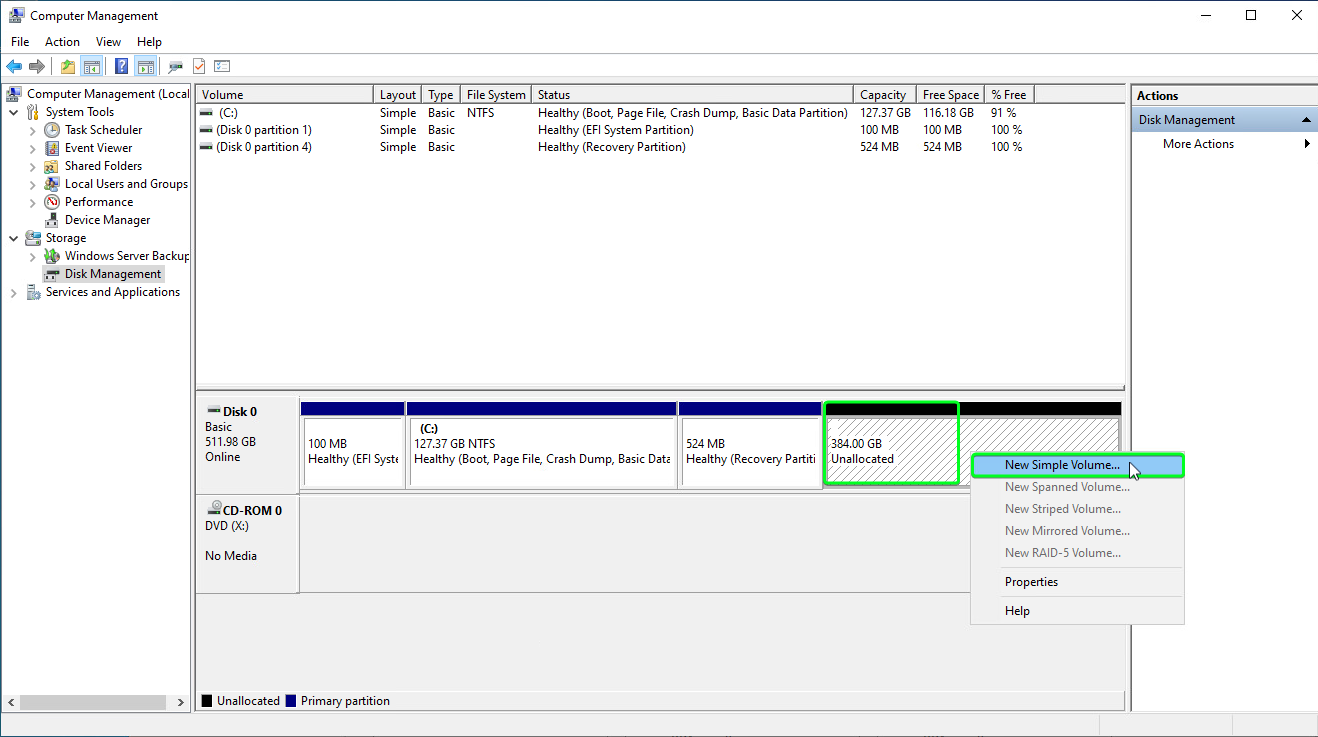
To Create the partitioning tableProceed as follows: |
|
|
|
|
|
|
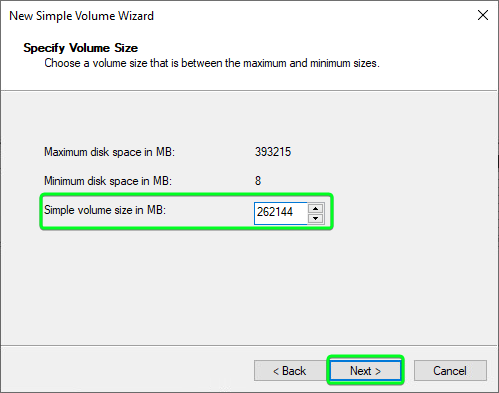
In this example we are creating a D:\(Data) drive\partition with a minimum recommenced size of 256 GB (for local DBMS install) (256GB x 1024MB = 262144MB) |
|
|
|
|
|
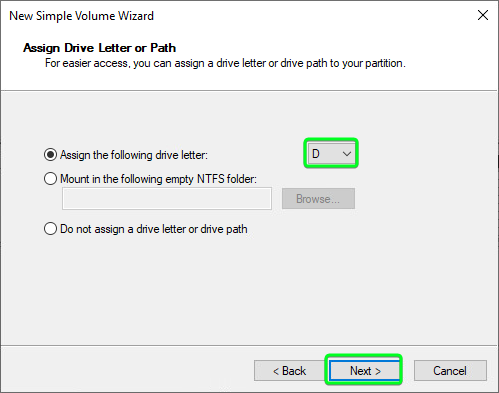
•Make sure the drive letter selection is "D" and then Click "Next"
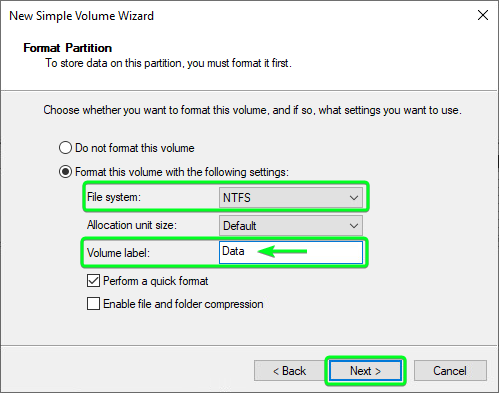
•Make sure the "File system = NTFS" and the "Volume label = Data" and Click "Next"
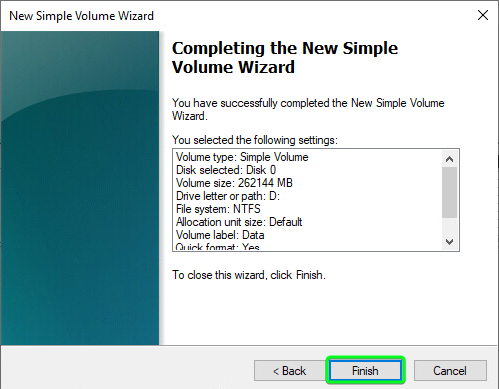
•Finally Click "Finish" to create the D:\(Data) drive\partition
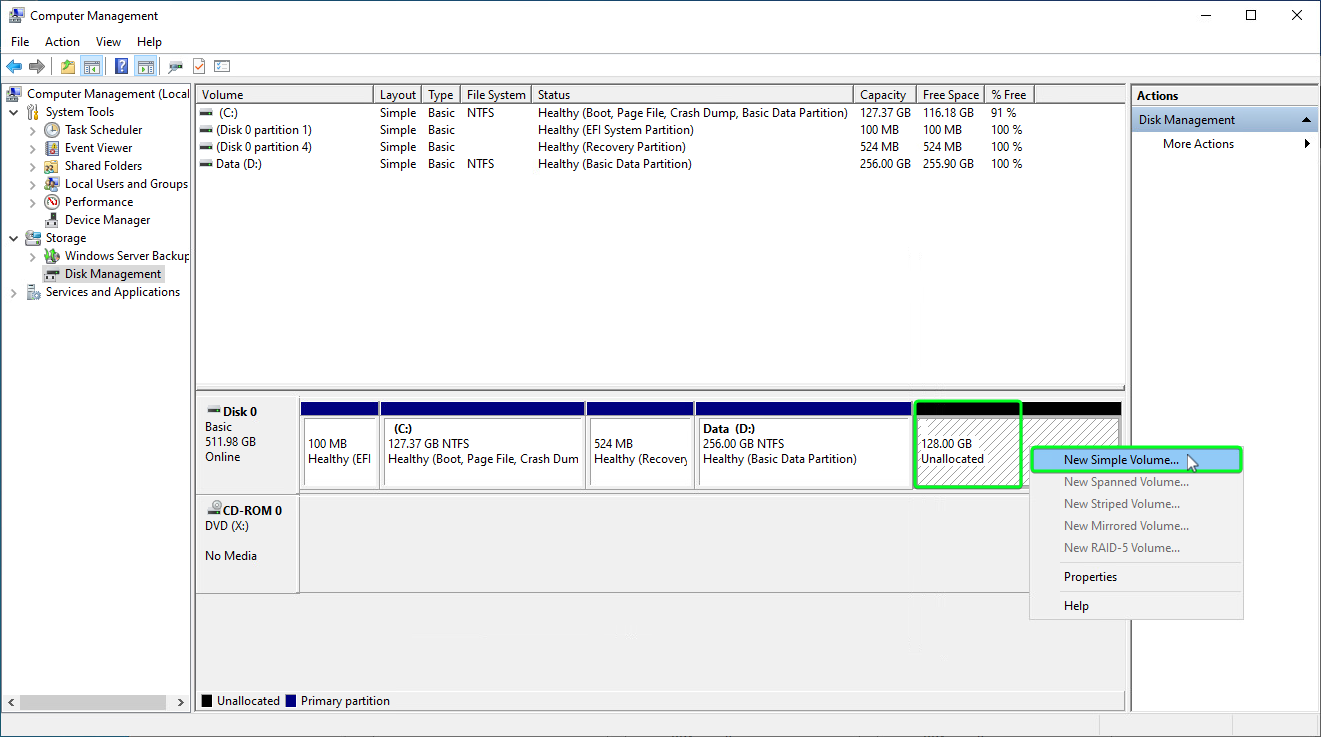
•Once again, Right click on the unallocated space of your disk, and select "New Simple Volume..."
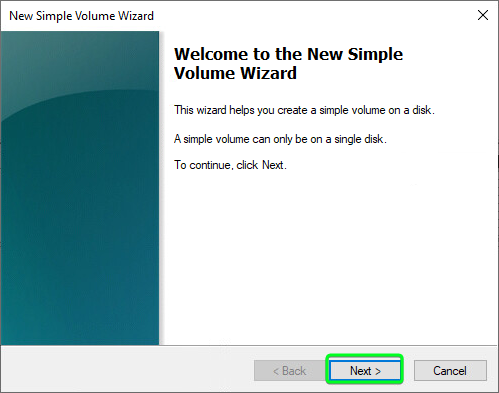
•Click "Next"
•We now create the F:\(Logs) drive\partition, enter in the size (128 GB in this case) of the disk and Click "Next"
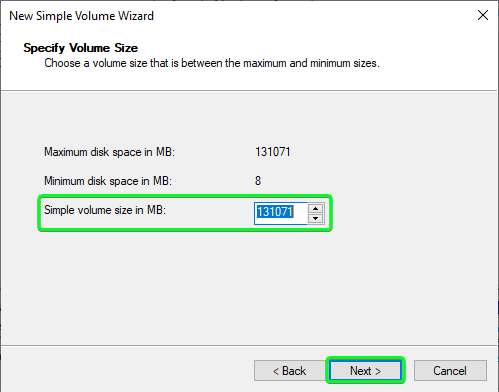
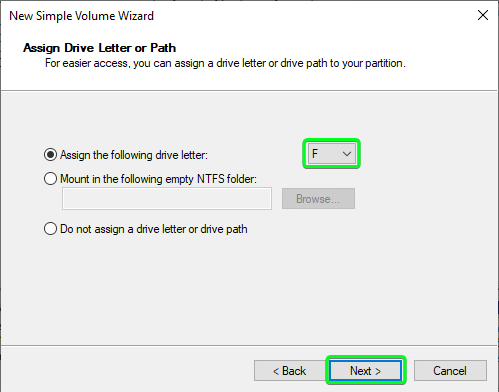
•Make sure the drive letter selection is "F" and then Click "Next"
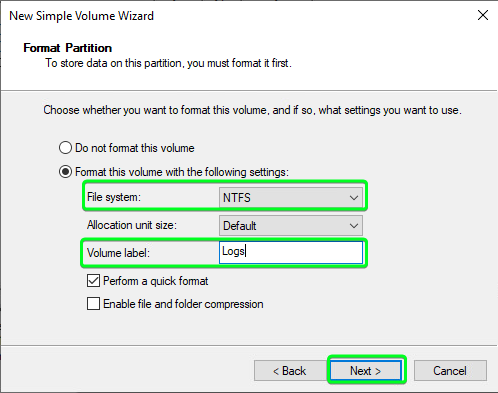
•Make sure the "File system = NTFS" and the "Volume label = Logs" and Click "Next"
•Finally Click "Finish" to create the F:\(Logs) drive\partition
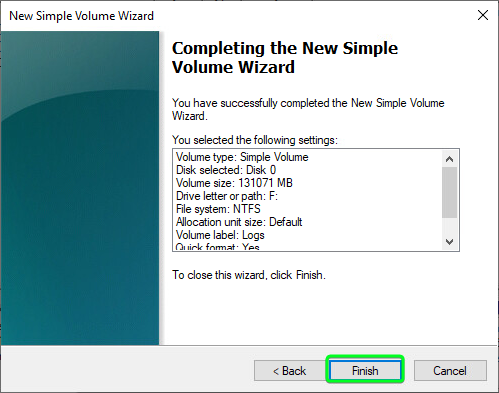
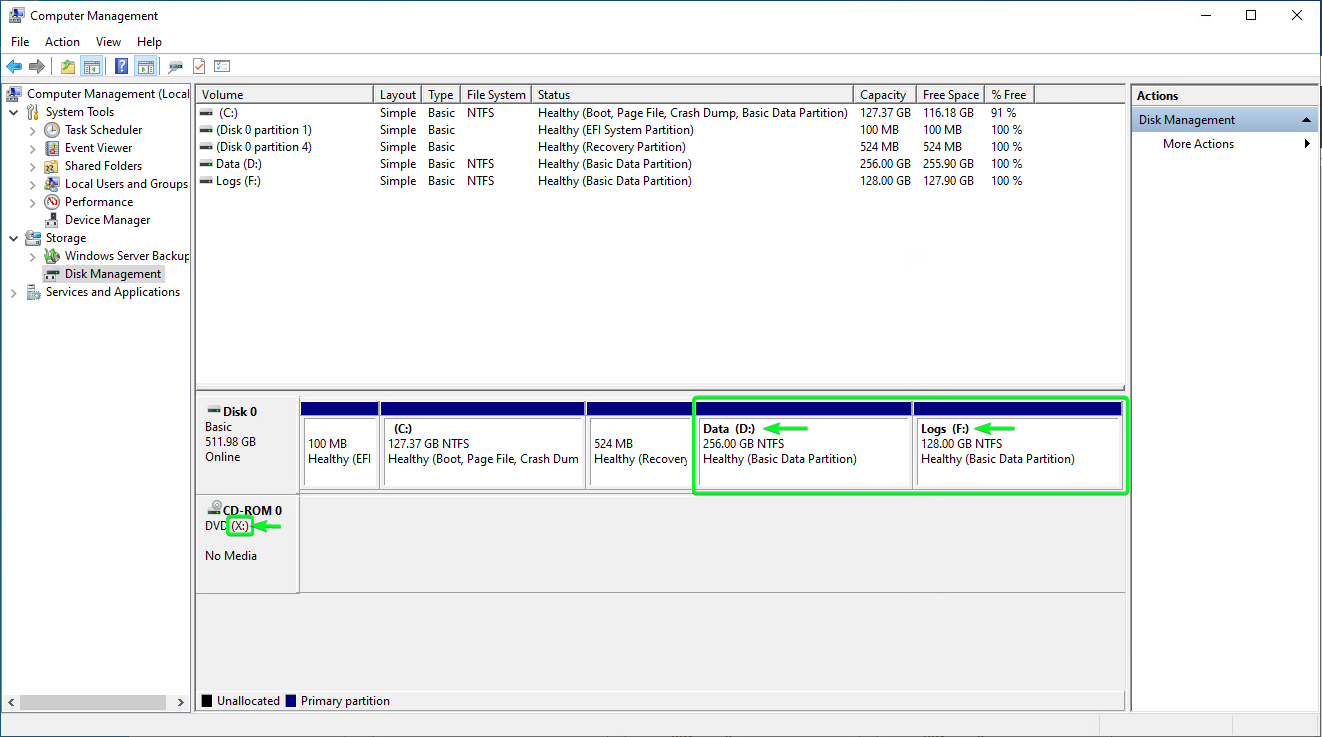
•Drive partitioning is complete and you should have something similar to this