Performing a Standard Windows Server Installation


Performing a Standard Windows Server Installation |
|
| Solution Installation > TSS Installation > Install TSS on a standard server > Install Operating System > Windows Server 2019 |
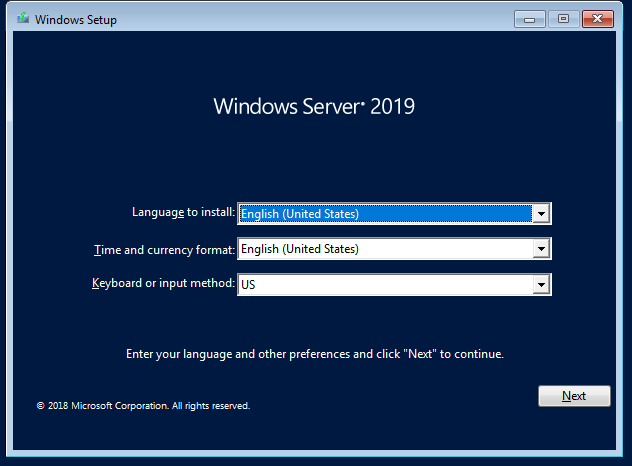
OverviewThis section indicates how to install operating system on server. Procedure•Insert installation disk and start Windows Server 2019 install. •First screen allows you to choose language and other preference: Keep all default settings (English / US) except for keyboard where you choose the proper keyboard. |
The default setting for keyboard is English. Take care when typing names and passwords. The entered password might not be what you expect if the connected keyboard has different layout. |
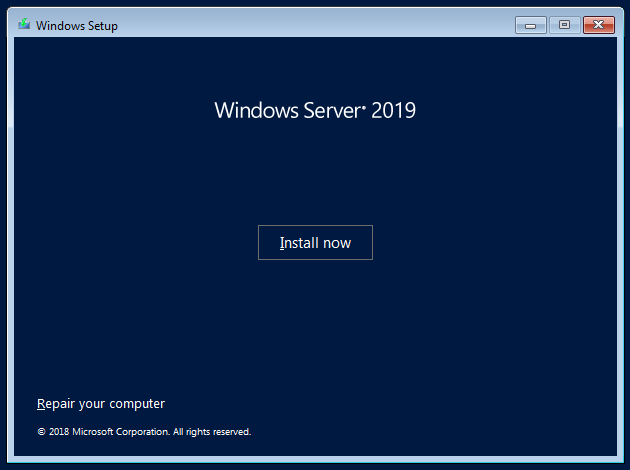
•Press "Install" now button.
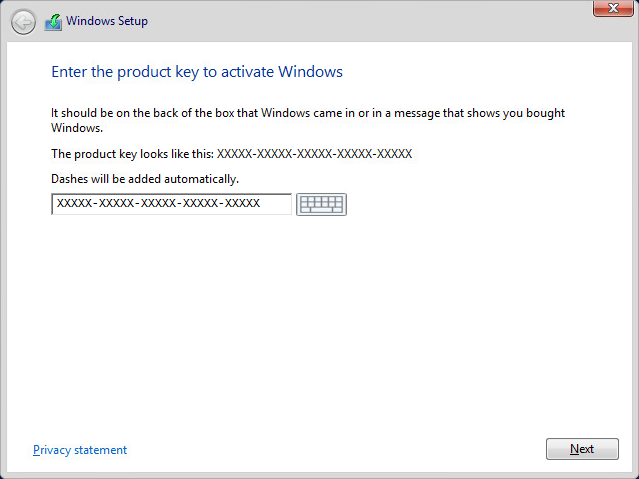
•Enter the product key to activate Windows.
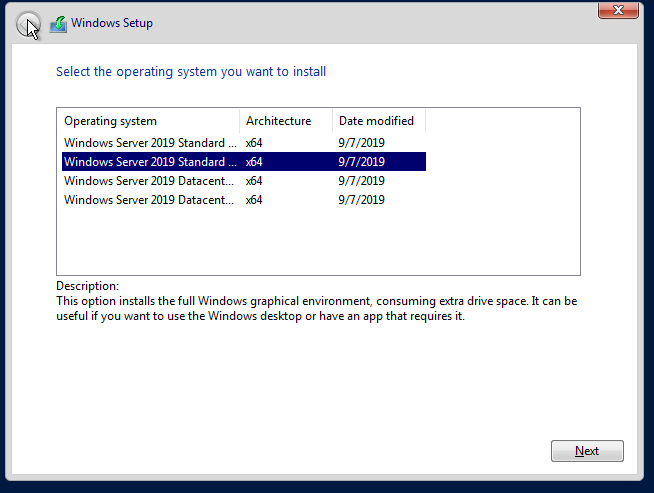
•Choose installation type Windows Server 2019 Standard (Desktop Experience).
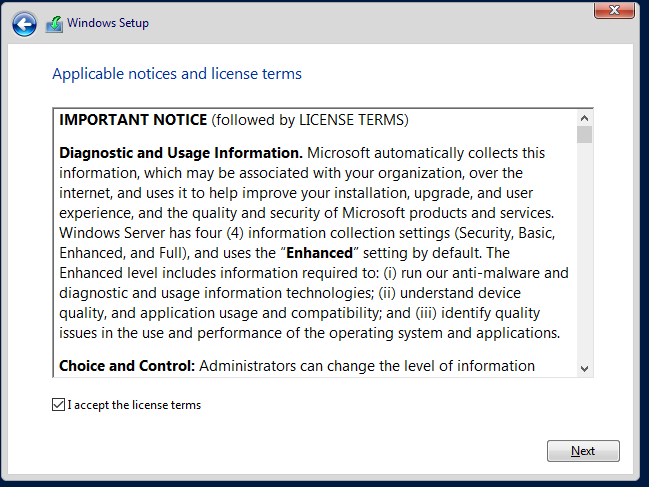
•Read license terms and check the box I accept the license terms.
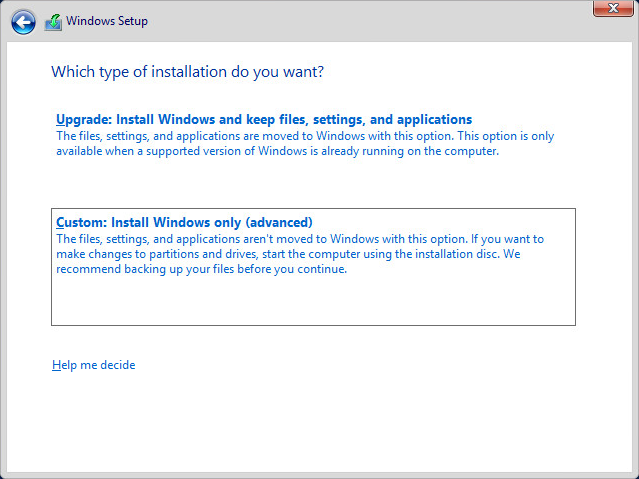
•Select installation type Custom (advanced).
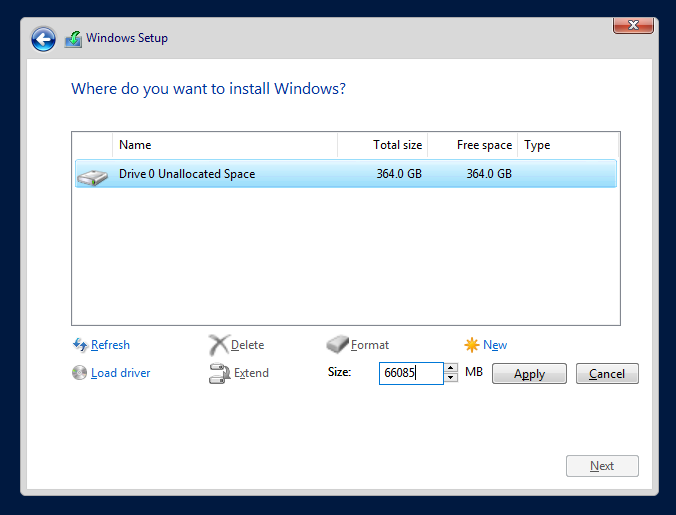
•Select partition where to install Windows. Select Disk 0 and press "New" button.
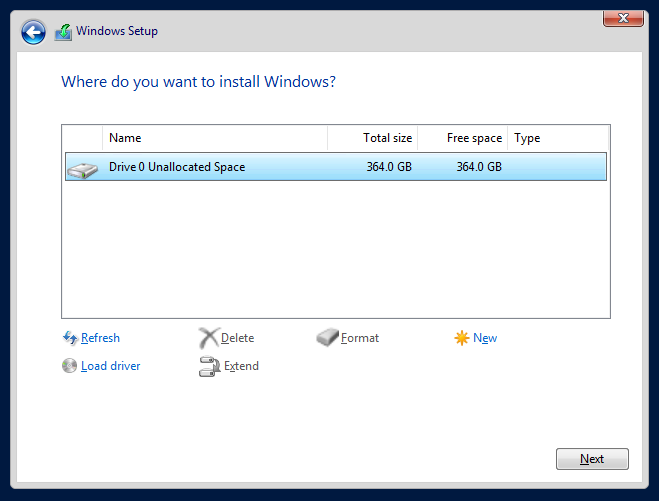
•Set partition size to 66085 MB and press Apply button.
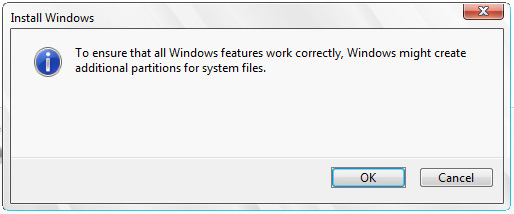
•Press "OK" button to continue.
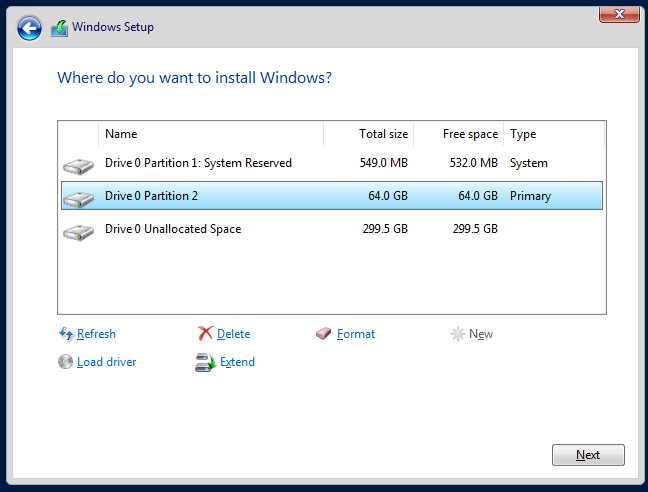
•Press "Next" button to continue.
Wait during installation process...
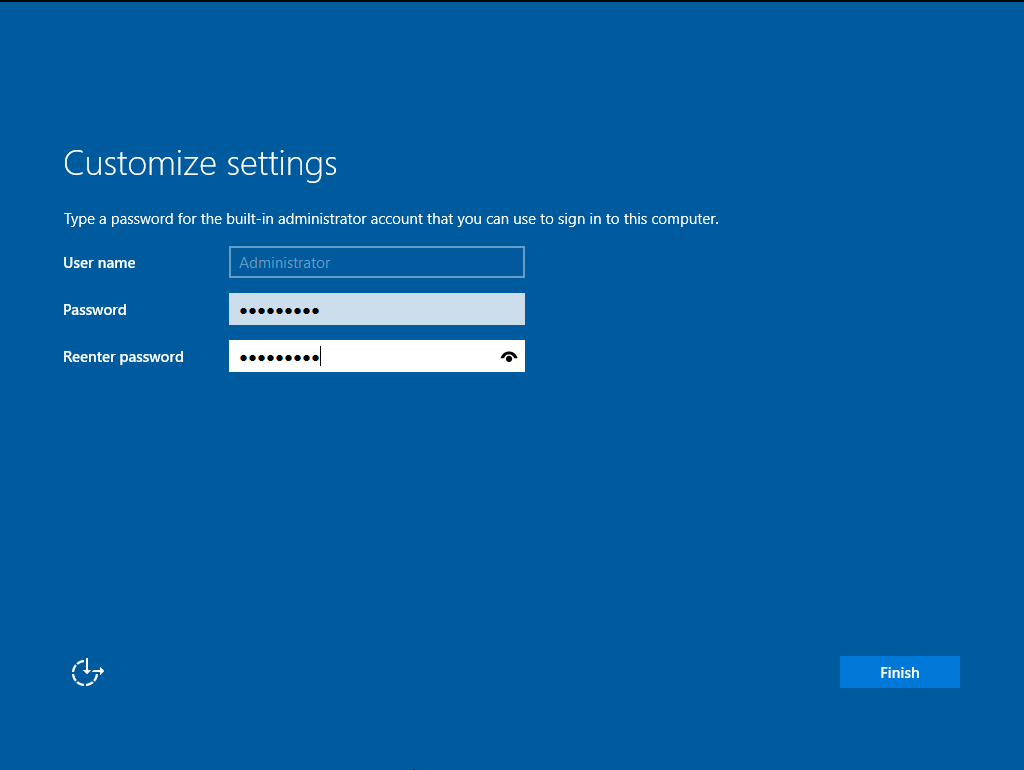
After several reboots enter administrator password twice and press "Finish" button.
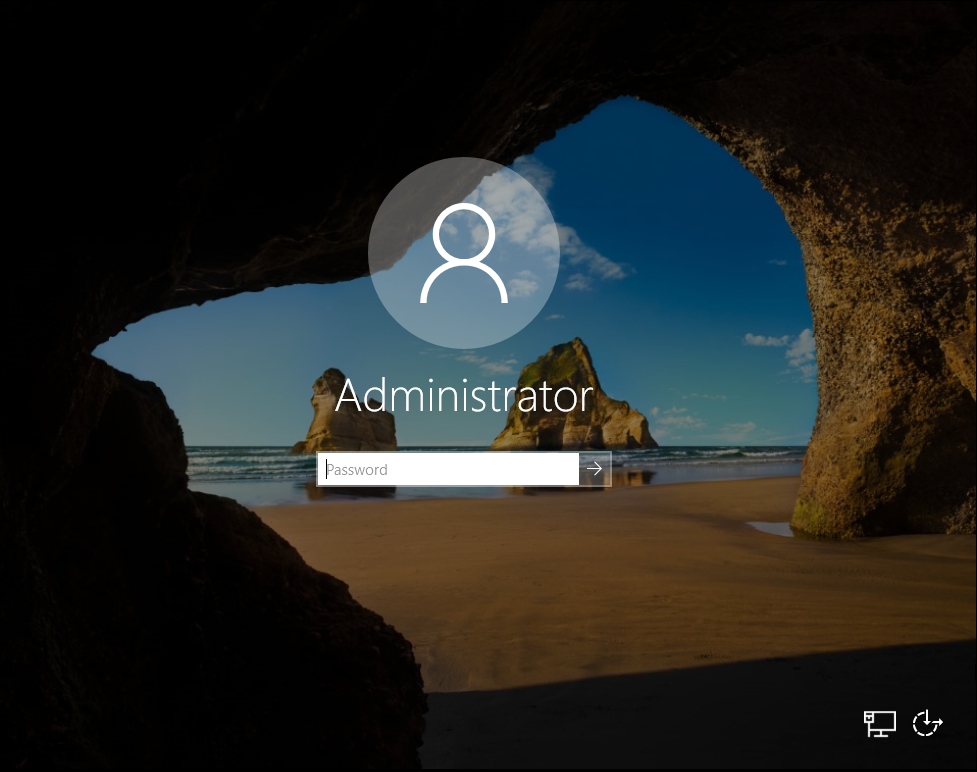
•Press "CTRL + ALT + DEL" to log in.
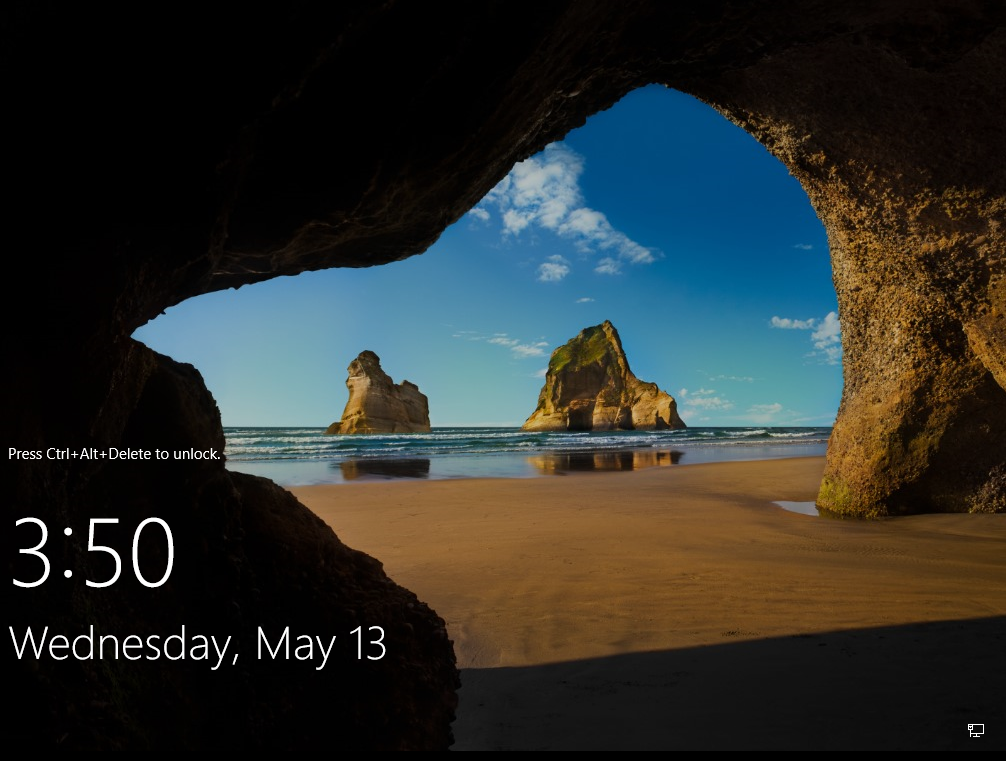
•Enter administrator password and press "Enter"or click on the "Arrow" button.