TSS Licensing


TSS Licensing |
|
| IT&Operations > Licensing |
OverviewThis topic describes how to install license on TSS/Console and how to validate devices.
Obtain licenseThis section describes how to obtain license. •Connect to https://extranet.trading-command.com •Go to Licenses Page > Obtain License(s) •Click on license link (right side of the list) to download license or your machine.
In case of problem please send an email to ipt.licensing@bt.com to request license file.
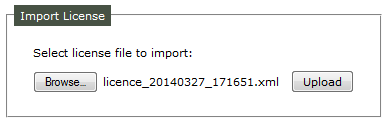
Install licenseThis section describes how to install license on TSS/Console. This allow to benefit of features on devices that are connected to TSS/Console. •Once you get the license file open Console and go to System > Licenses. •Select tab License. •Press button Browse... and select your license file. •Press button Upload.
Licenses are installed!
Validate devices
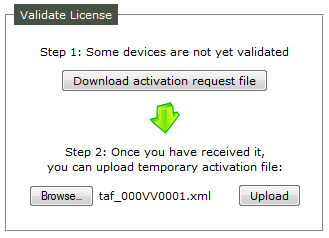
This section describes how to validate devices on TSS/Console. This allow to devices that are connected to TSS/Console to be properly recognized. By default unvalidated devices reboot every 15 minutes. •Once you have configured and started at least one time all devices open Console and go to System > Licenses. •Select tab Validation. •Press button Download action request file. •Connect to https://extranet.trading-command.com •Go to Licenses Page > Validate new IP Trade device(s) •Press Browse button, select .arf file and press OK button. •After few minutes an email is sent to your email address containing TAF file. Others TAF files can be downloaded from Extranet. •Once you get TAF file open Console and go to System > Licenses. •Select tab Validation. •Press button Browse... and select your TAF file. •Press button Upload.
Licenses are validated!
In case of problem please send an email to ipt.licensing@bt.com to request temporary activation file (TAF).
Extend TAF validity period
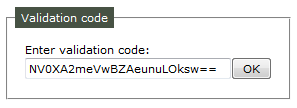
Once they are validated devices are valid for 90 days by default. It is possible to extend this period of 30 days, 7 days, 2 days or for unlimited period. •Send an email to ipt.licensing@bt.com to request period extension. •Once you get validation code open Console and go to System > Licenses. •Select tab Validation. •Paste validation code in validation box and press OK button.
Validation period is now extended!
|