OS Activation


OS Activation |
|
| IT&Operations > Licensing |
IntroductionThe way that Microsoft allows to activate their licenses for Windows 10 is very different than previous versions of Windows. An internet connection is highly recommended to activate the OS but it is possible to activate Windows offline.
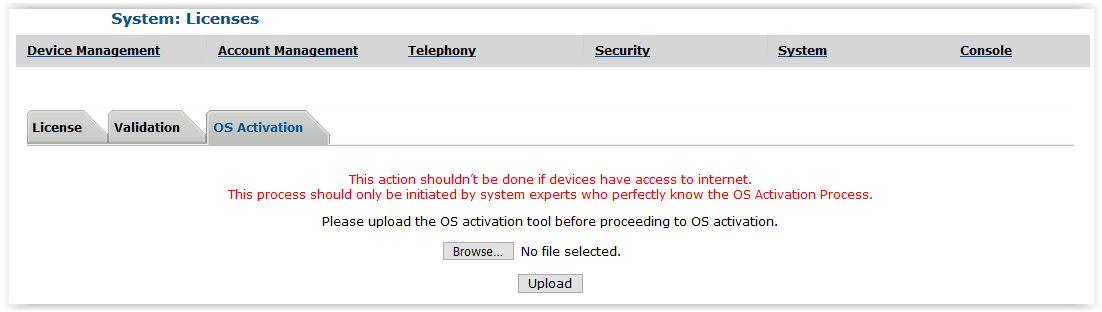
Activate WindowsStep 1 : Upload the Windows Activation Tool on the FTP serverThe first step to activate Windows is to upload the activation tool on the TSS. Go to System > Licenses > OS Activation. Click on Browse and select the archive of the Activation Tool (ActivationTool.cab).
Click on Upload to finish.
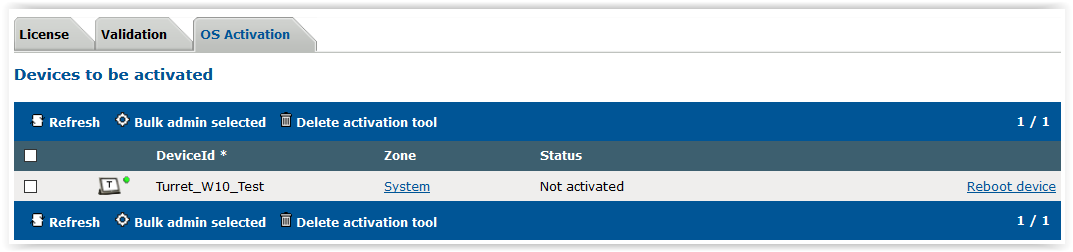
Step 2 : Check Activation StatusYou can see the status of the activation tool and the activation status of each device on the TSS. Only Windows 10 devices that are not activated will be displayed.
Go to System > Licenses > OS Activation and you'll see the status of your device.
Step 3 : Deploying Windows Activation ToolOnce the Windows Activation tool is uploaded on the TSS, you will be able to deploy and install it on the Turrets and TPO. When the status is Not activated it means that, on this device, the OS is not activated and the Activation tool is not yet installed.
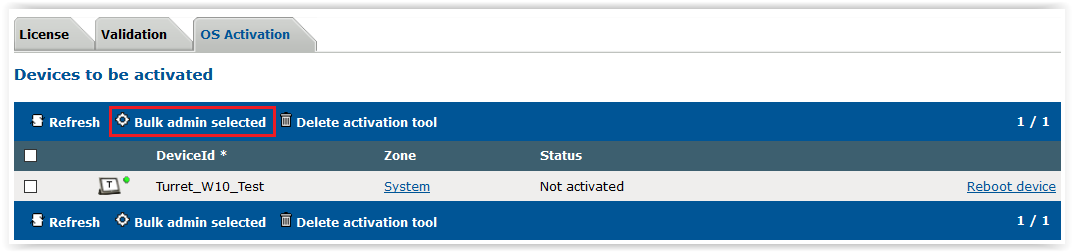
Go to System > Licenses > OS Activation, select the devices that are not activated. Then, click on Bulk admin selected.
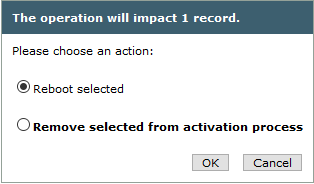
Select Reboot Selected and press OK to reboot the devices and install the activation tool.
The Activation Tool is then installing.
Step 4 : Generating Activation RequestsOnce the Windows activation Tool is deployed on all the devices that are not activated, you can generate the activation requests for the Microsoft servers.
Go to System > Licenses > OS Activation and select the devices with the Activation tool installed that are not activated (Tool installed status in the Device being activated list). Then, click on Bulk admin selected.
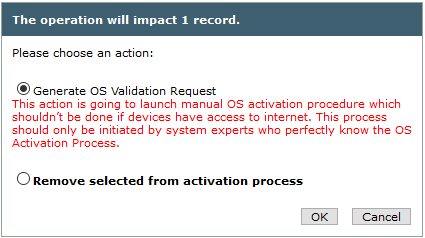
Select Generate OS Validation Request and press OK
The status of the device will change from Generating request to Request ready after a moment when the activation request is available on the TSS
Step 5: Collecting activation request filesWhen the request files of all the devices are available, you need to download them on a computer that have a full Internet Access (no proxy) for the activation.
Go to System > Licenses > OS Activation and click on Download Activation Request.
The system asks for a file system location where it can store the archive.
Step 6: Retrieving activation files from Microsoft serversTo retrieve the activation files from Microsoft servers, you will need to use the "Windows Activation Tool" on your PC that has an access to Internet.
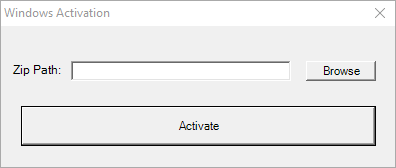
In order to do that, extract the same "ActivationTool.cab" archive that you uploaded earlier on the TSS. Open the archive folder and execute "Windows Activation.exe"
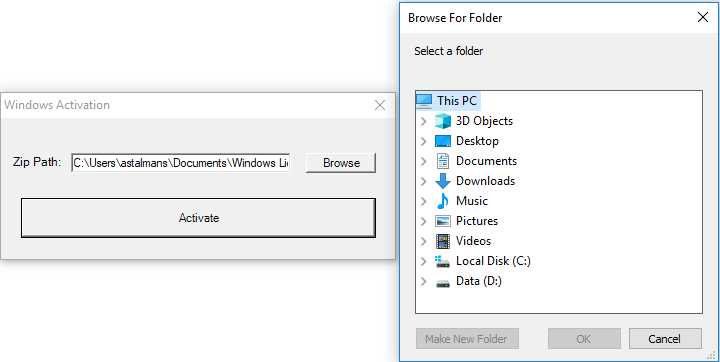
Click on Browse and select the activation requests archive you get from the TSS (OsActivationRequests.zip).
Press Activate to activate all the request files in the archive. The application will then ask where you want to store the archive that contains the activation files.
Step 7: Deploying activation filesGo back to the TSS and go to System > Licenses > OS Activation. Click on Upload activations.
Browse the activation files archive (OsActivationRequests-activated.zip).
Once the activation files archive is downloaded on the TSS, the devices need to reboot to activate Windows (Reboot needed status). Select the devices and then click on Bulk admin selected.
Select Reboot selected and press OK.
After the reboot, all the devices will be activated.
|