Register extension .s


Register extension .s |
|
| Solution Installation > TSS Installation > Install TSS on a standard server > Troubleshoot |
Introduction
If you encounter error message “Extension .s is not registered” on TSS about page read this section to know how to configure this.
Resolution (with IIS 6.0)
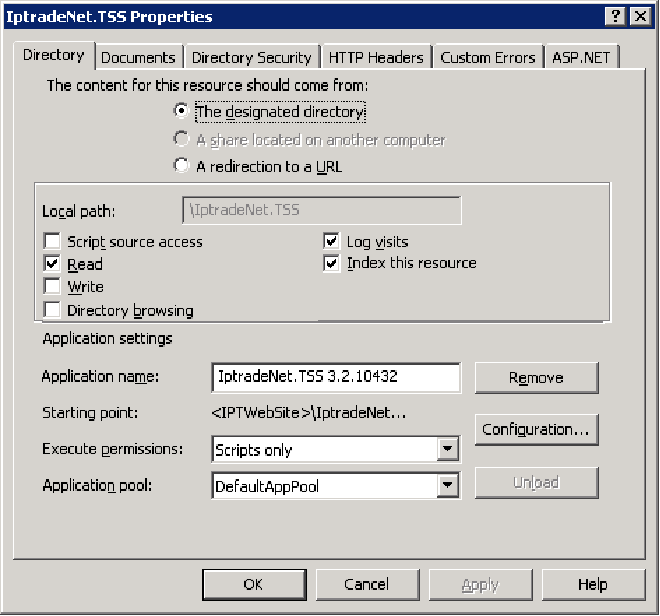
•Open IIS 6.0 •Right click on IptradeNet.TSS application > Properties
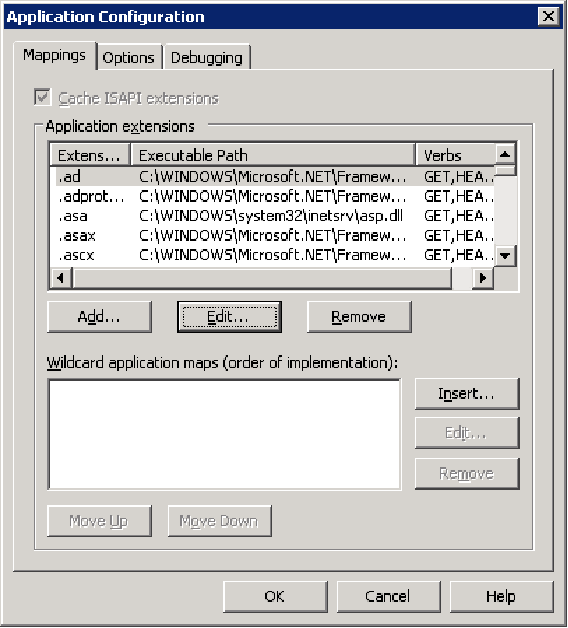
•Press Configuration button
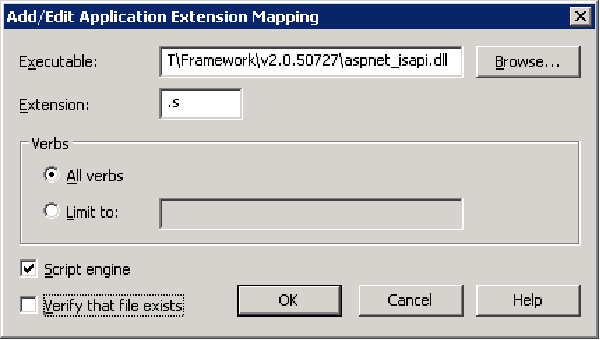
•Edit one item of the list that use Microosft .NET and copy Executable path (eg: C:\WINDOWS\Microsoft.NET\Framework\v4.5.2.xxxx\aspnet_isapi.dll) and press Cancel. •Check .s extension is not already exists in the list. If exist press, select it and press Edit button. If not exist press Add button.
• Paste Executable path • Enter .s as Extension • Uncheck Verify that file exists • Press OK button to validate
Resolution (with IIS 7.0)•web.config Open we.config file of your web application.Place following code in section httpHandlers :<httpHandlers><add verb="*" path="*.s" type="IptradeNet.Core.ServiceHandler.IptDispatcher, IptradeNet.Core" /></httpHandlers>...<system.webServer><handlers><add name="*.s_*" path="*.s" verb="*" type="IptradeNet.Core.ServiceHandler.IptDispatcher, IptradeNet.Core" preCondition="integratedMode,runtimeVersionv2.0" /><add name="_s" path="*.s" verb="*" modules="IsapiModule" scriptProcessor="C:\Windows\Microsoft.NET\Framework64\v2.0.50727\aspnet_isapi.dll" resourceType="Unspecified" requireAccess="Script" preCondition="classicMode,runtimeVersionv2.0,bitness64" /></handlers></system.webServer>•Managed pipeline mode Check Managed pipeline mode of your application is configured in classic mode.Run IIS and change value of Managed pipeline mode (Application Pools -> <your_application_pool> -> Basics Settings -> Managed pipeline mode) to classic. |