Console


Console |
|
| Solution Installation > TSS Installation > Install TSS on a standard server > IptradeNet/TSS/Console: Quick Start Guide |
Overview
The console is designed to work with a recent version of Mozilla Firefox or Internet Explorer 7.
Set Administrator Password
On the first startup of the console, you have to update the admin1 password and configure some TSS settings. The use of the Console is protected by a password. On the first login of an administrator, you have to change its password. Default login password is: •admin1 / admin1 •admin2 / admin2 •admin3 / admin3 Open a web browser and go to address: http://[TSS_IP_ADDRESS]/IptradeNet.Console.10.1.Y.Z/Login.aspx Login with user name admin1, password is initialized as admin1.You have to change the password with a different password that contains at least one special character.
Check folder rights
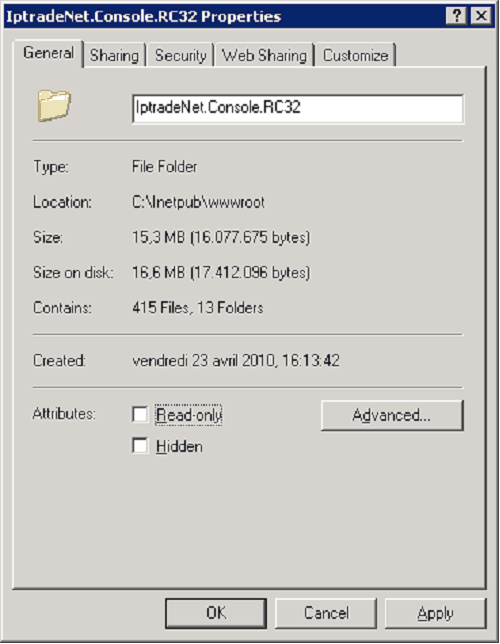
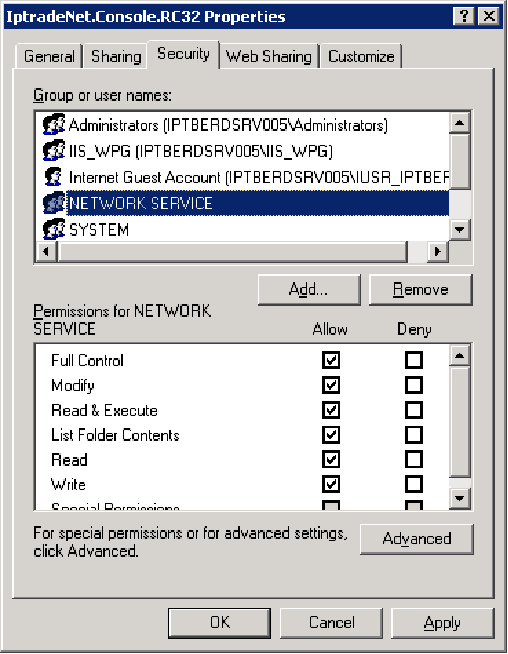
In Console application, it is necessary to check rights on folders: Shortcuts (for version >=3.2), Reports, Uploads. Right click on folder to access folder properties. •Remove read-only attribute:
•Set NETWORK_SERVICE user with read/write access:
Configure TSS Console settings
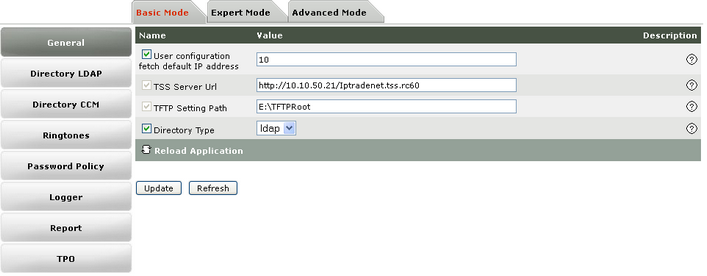
At first use, some TSS settings have to be set. Proceed as follows: •Open the Console and log in. •Go to System/Settings/TSS Settings, the General section. Adapt the TSS Server Url setting.
•Press on Update button and restart IIS to reload the settings.
Configure Turret/console SIP settings & FirmwareSee Turret/Console Installation
|