Automated Uninstall (UIM)


Automated Uninstall (UIM) |
|
| Solution Installation > TSS Installation > Install TSS on a standard server > Uninstall Applications |
Overview
You have also the possibility to use Unified Installer Manager to uninstall a version of TSS/Console application. This uninstall a version of TSS/Console but keep database.
Procedure
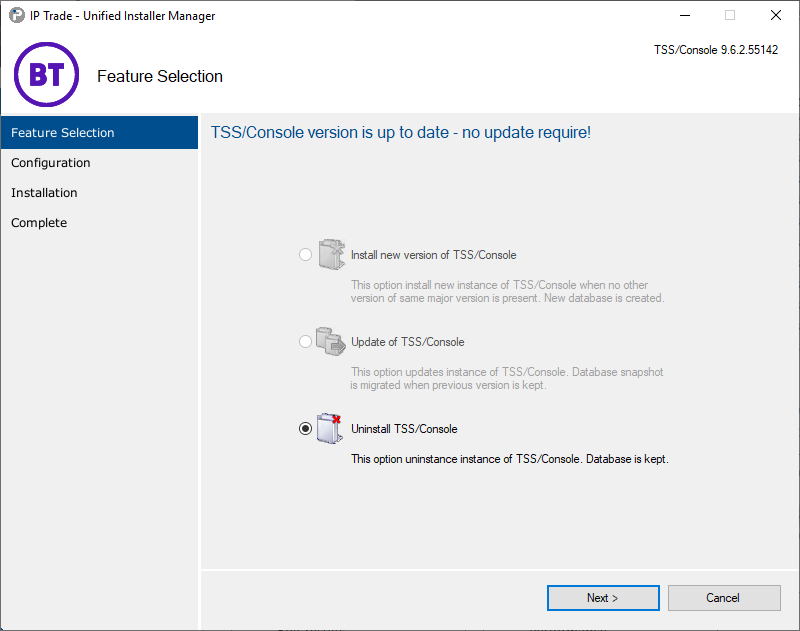
Proceed as follows: •Extract the archive TSS-Console-10.1.Y.Z.cab. •Start the application UIM.exe. •Select Uninstall TSS/Console option and press Next > button
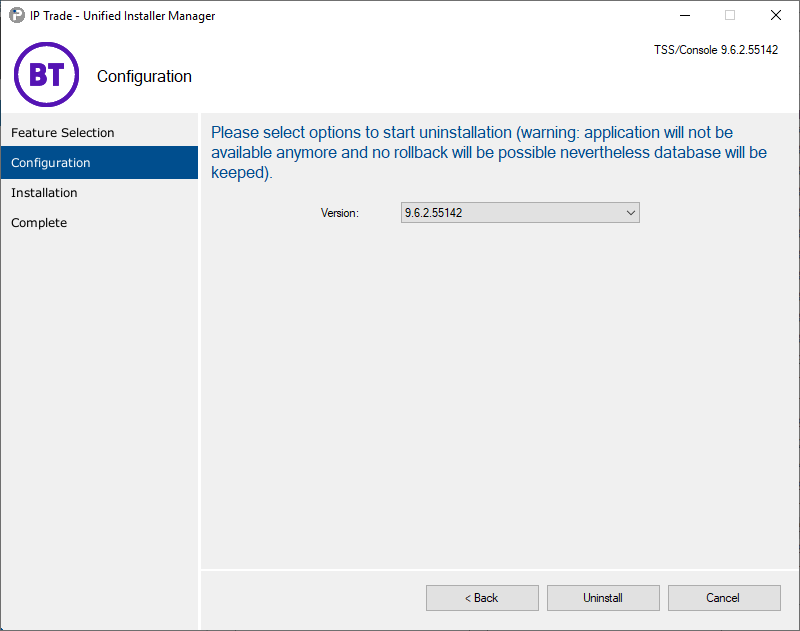
•Choose version you want to uninstall. •Press Uninstall button.
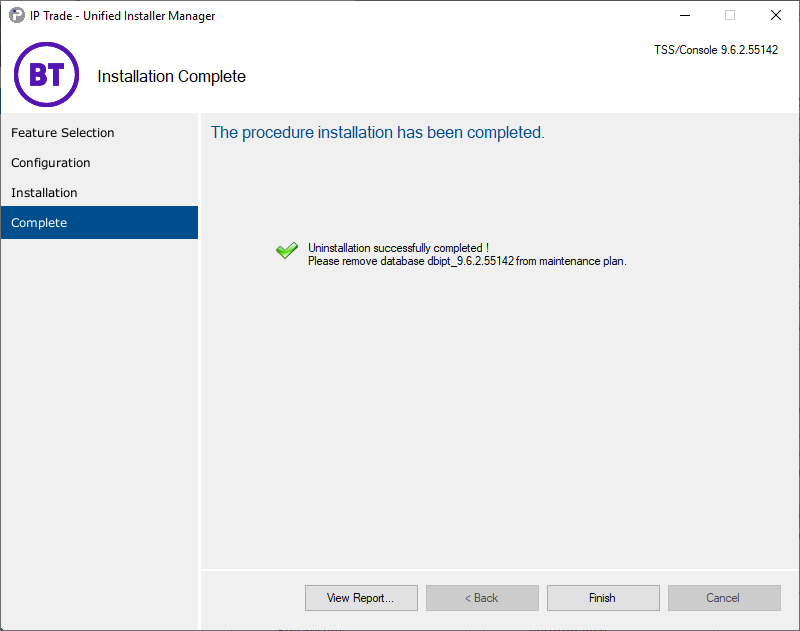
Information are displayed during uninstall... •Once it’s finished application display final status:
If an error occurs during uninstall you can consult uninstall report by pressing View Report… button. Additionally please send generated report file (present in current folder under name log_uim.txt) to IP Trade support team.
Delete physical folders of TSS and Console
Once TSS/Console applications are uninstalled, it is necessary to delete physical folders of TSS/Console to avoid folder permission corruption. XX is the number version of uninstalled application. •Open folder where TSS and Console where installed (to determine the folder path open IIS, right click on ServeName>Sites>IPTDevSite and press Explore). •Delete physical folder IptradeNet.Console.10.1.Y.Z •Delete physical folder IptradeNet.TSS.10.1.Y.Z
|