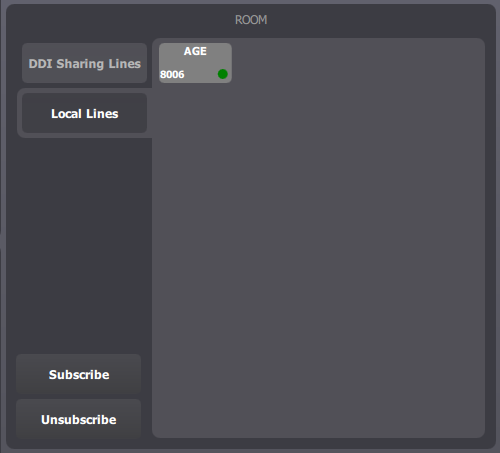
Using line forward is a mean to setup different forward rules depending on the user lines. Line forward feature is accessible from Room -> Local lines / DDI Sharing Lines -> Line edition form. Note that the room button must be present in the layout (see configuration for further details)
|
|
Effects
Any new incoming call which reaches terminal through a particular line is directly forwarded to the particular target defined by the rule. Those calls are not stored in call history.
Setup typing in phone number
User can setup a line forwarding rule manually typing in the target phone number.
|
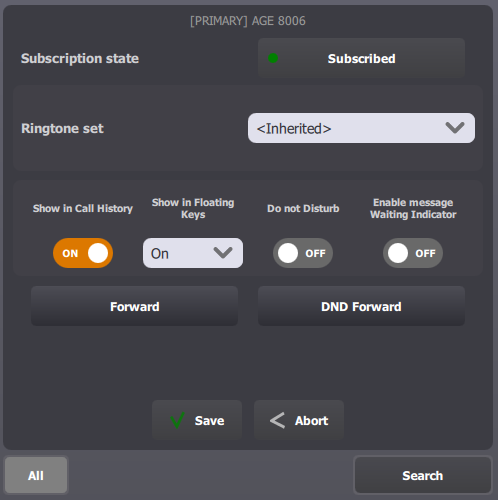
In line edition form, press Forward button in order to display line forward panel.
|
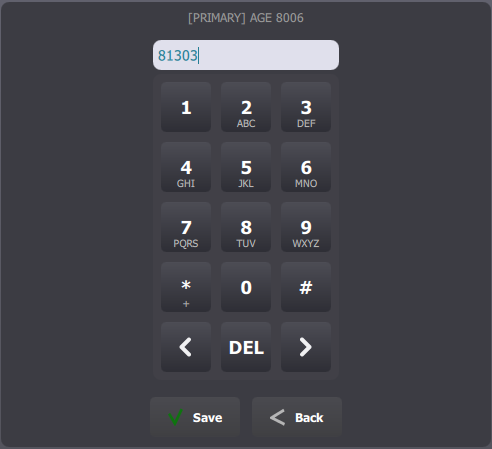
Use numeric keypad to type in forward target phone number.
Press OK button in order to validate phone number.
|
|
|
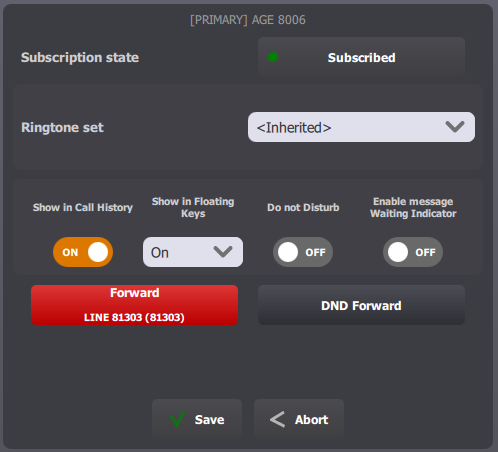
Back on line edition form, new forward rule value is displayed but is not applied yet.
Save button is now available. It becomes available when modification has been made but not validated yet.
Press Save button in order to validate forwarding rule.
|
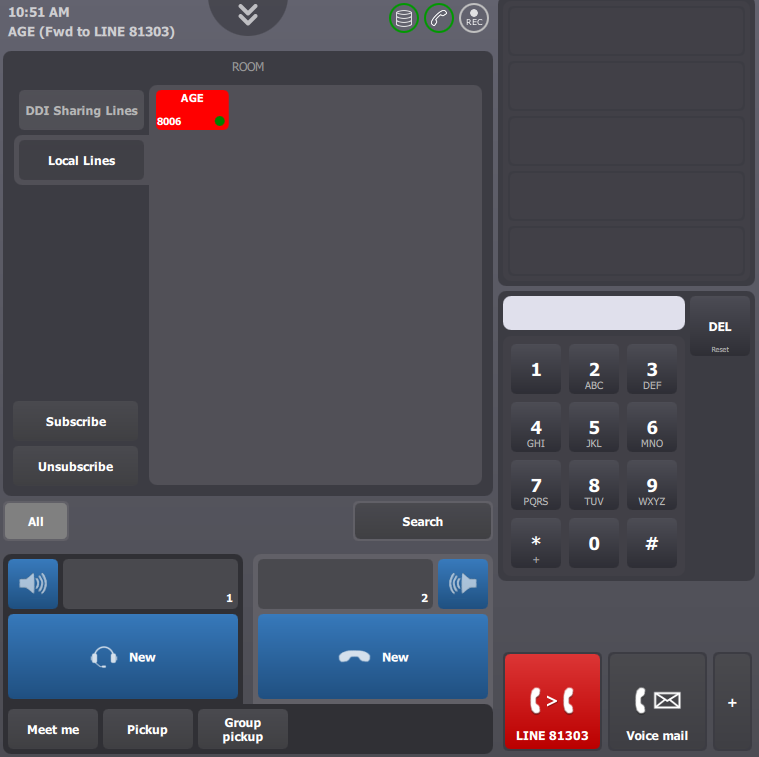
Once rule is applied:
•Line button is displayed red in room panel •Forward access button is displayed in red to reflect the forward status |
|
Setup using shortcut
User can setup a line forwarding rule selecting a contact or extension shortcut.
|
In Room->line edition form, keep Forward button pressed for few seconds in order to activate line forward shortcut selection procedure.
|
Forward access button border starts to blink red. Press a contact or extension shortcut in order to define it as the line forward target.
Note that alternate number of contact or extension shortcut can also be used as a line forward target.
|

|
|
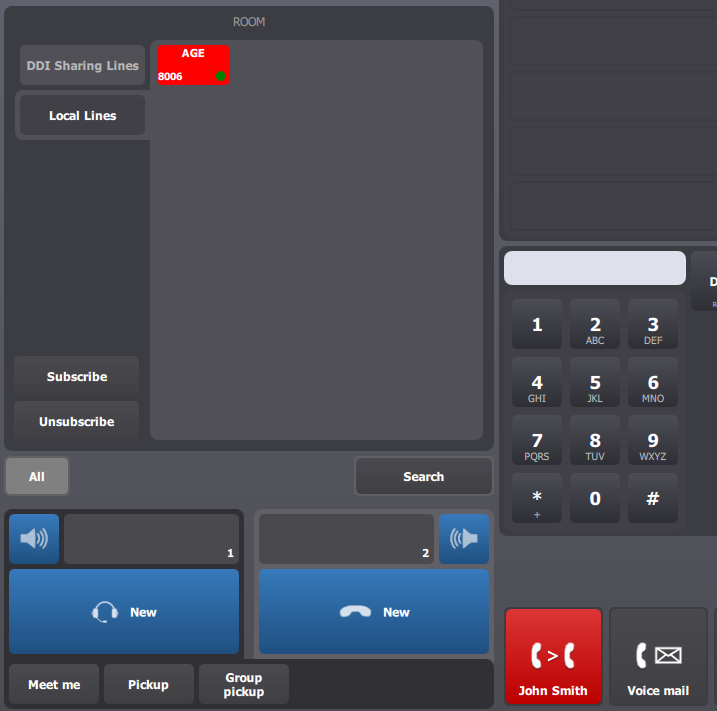
Once rule is applied:
•Line button is displayed red in room panel •Forward access button is displayed in red to reflect the forward status Remark: Line forward shortcut selection procedure is aborted if user doesn’t provide any forward number within 10 seconds (configurable).
|
Note:
- Partial forward is only displayed on access button for lines that are listed as "Forward all extensions".
- When forwarding all "Forward all extensions" to the same target, it is considered as a global forward.
|


