First time configuration


First time configuration |
|
| Compliance > Assure |
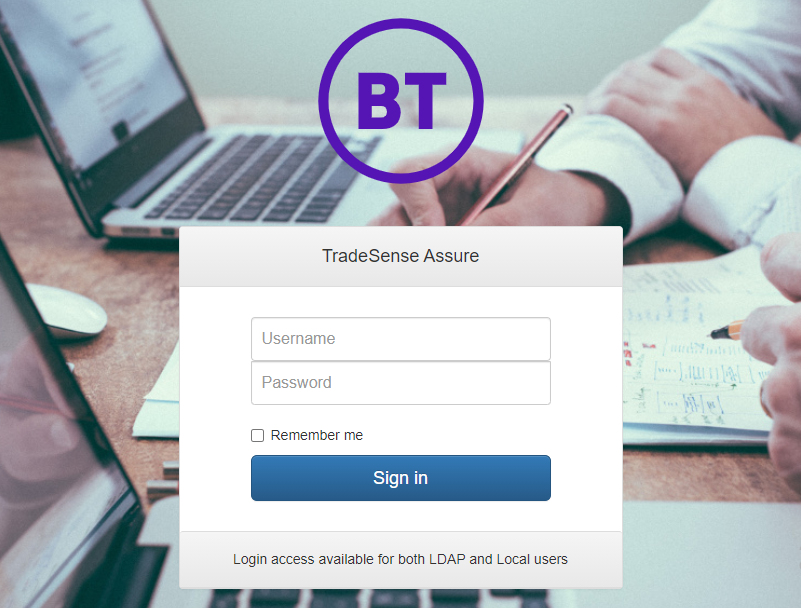
LoginIn order to use Assure you must have a username and password. These should be provided to you by the administrator or if you are the administrator you should log in using the default credentials and then change them immediately.
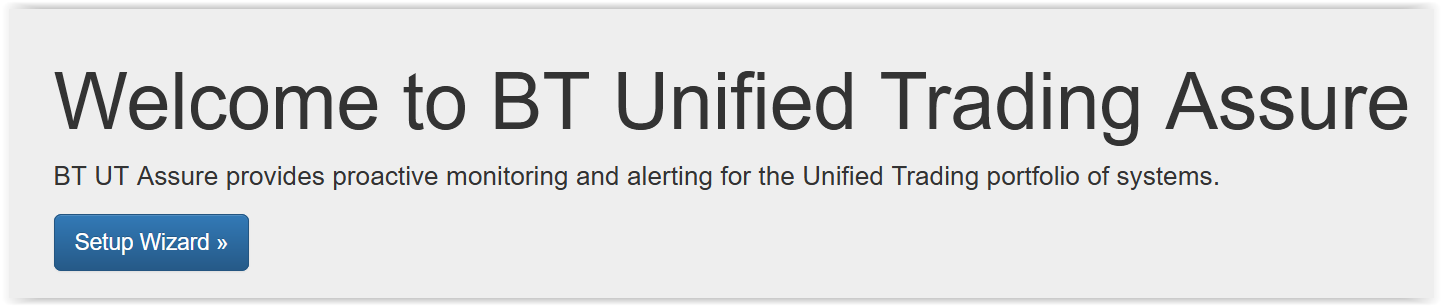
On successful login on a newly provisioned system, you will be presented with a link to a Setup Wizard which will guide you through adding a Platform to monitor.
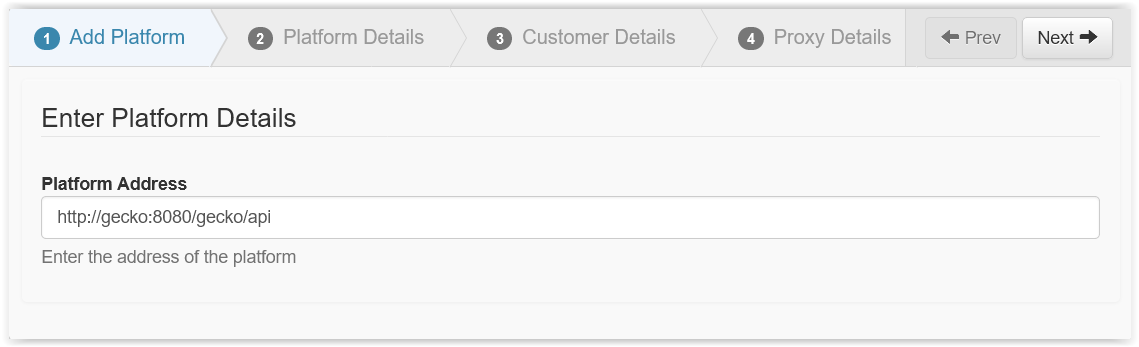
Adding a PlatformPlatform information is provisioned by entering the URL of the platform. For IPTrade platforms, this should be the IP address of the co-hosted Gecko instance i.e. http://gecko:8080/gecko/api. By default Gecko is installed on the same server as TradeSense (use : http://gecko:8080/gecko/api). Although Gecko can be on a different server.
Click Next. If the address entered is incorrect, or connection fails, then an error will be displayed. If successful the Wizard continues to the next page.
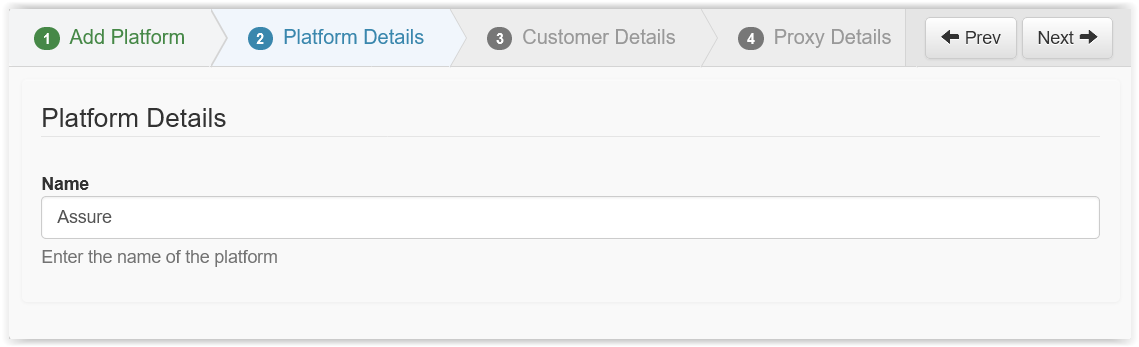
Enter a name for the Assure platform
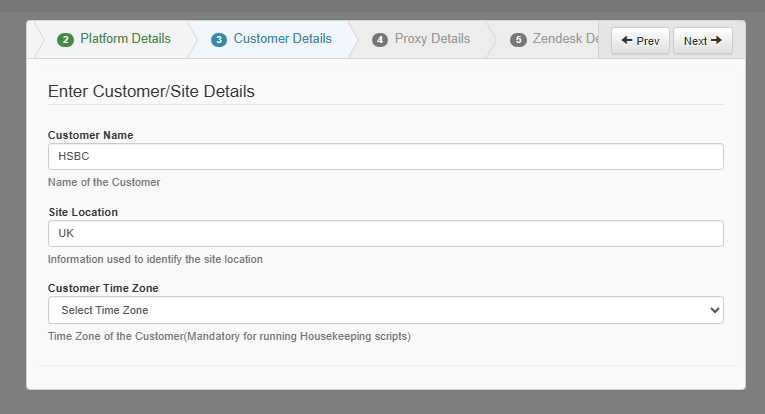
You will then be prompted to provide the Customer and Site information to help identify the site location. This data will appear in Zendesk tickets raised by TradeSense
Customer Time Zone is Mandatory for running housekeeping scripts like deleting old data.
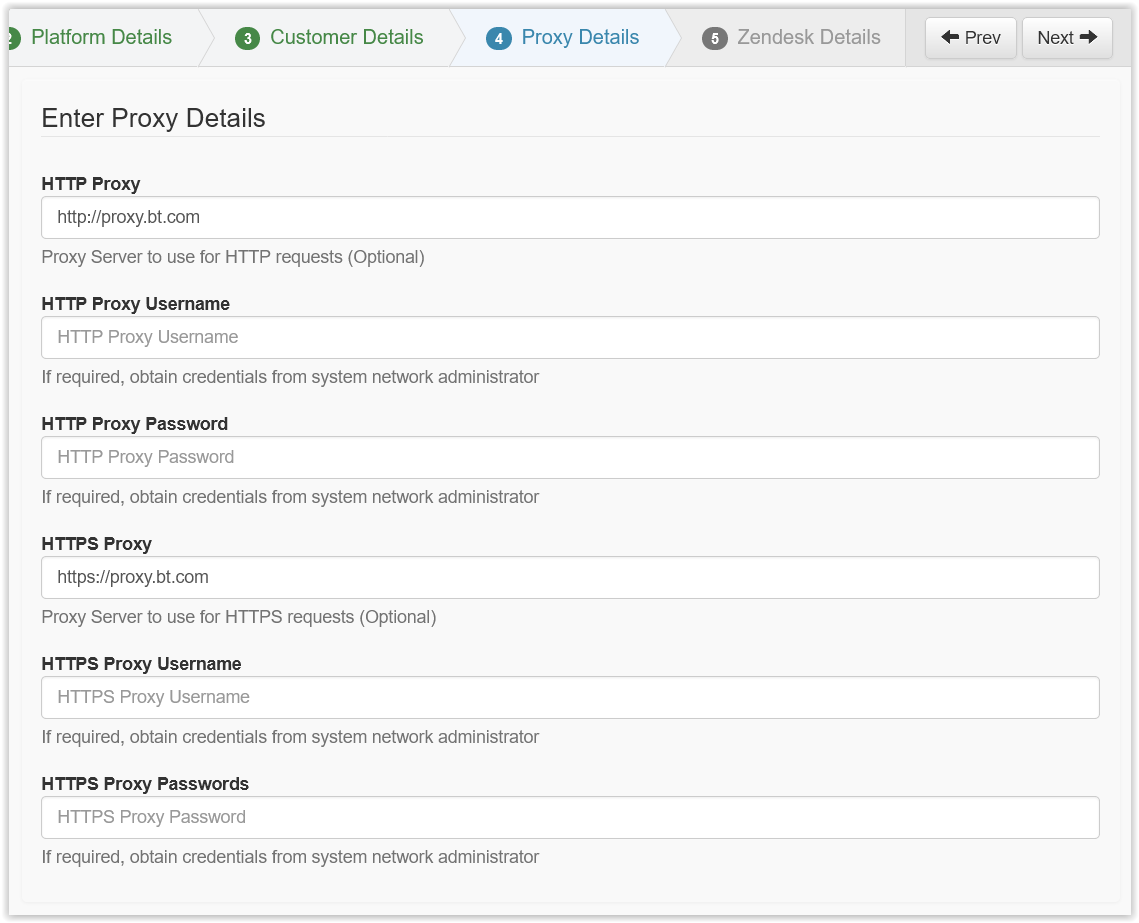
Next you will be prompted to provide some information for both HTTP and HTTPS proxy servers. These only apply if Zendesk Integration is to be enabled, and are only mandatory if a proxy is required to reach the outside internet from the network where UT Assure is hosted.
The format of the proxy value should be http://PROXY_IP:PROXY_PORT as an example http://192.168.2.1:8080
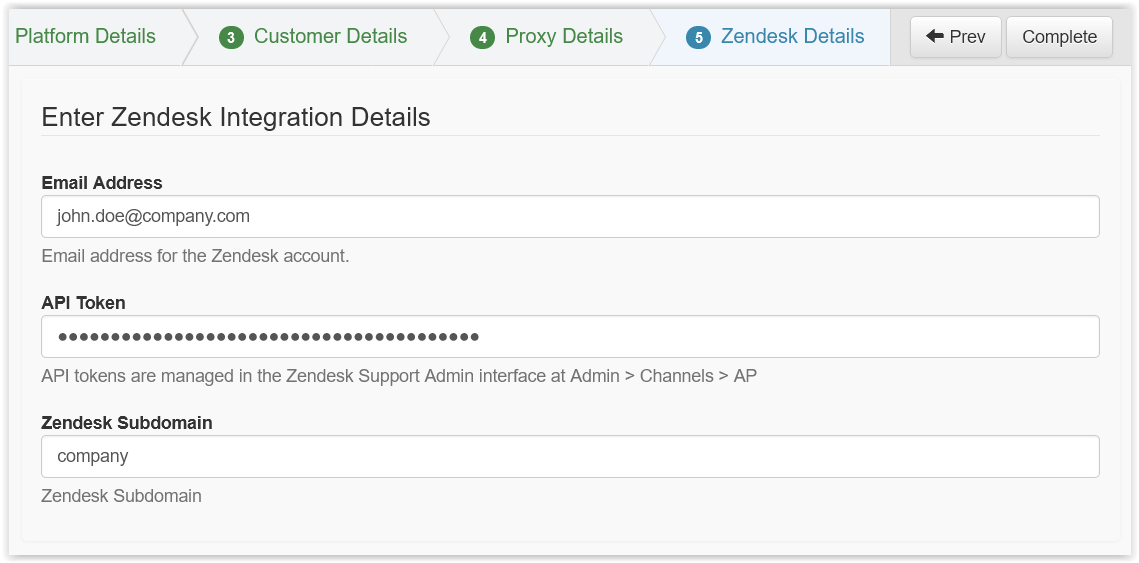
The final stage is to configure a Zendesk instance for trouble ticket integration, if required. Please provide an Email address of the Zendesk account which will be used, an API token and the Zendesk Subdomain.
Click Complete. If details entered are invalid, or connection to Zendesk fails, an error will be displayed.
|