Step 2 - Configure Queue Applet


Step 2 - Configure Queue Applet |
|
| Attendant Features > Call Waiting Queue > Configure > Using DDI Line |
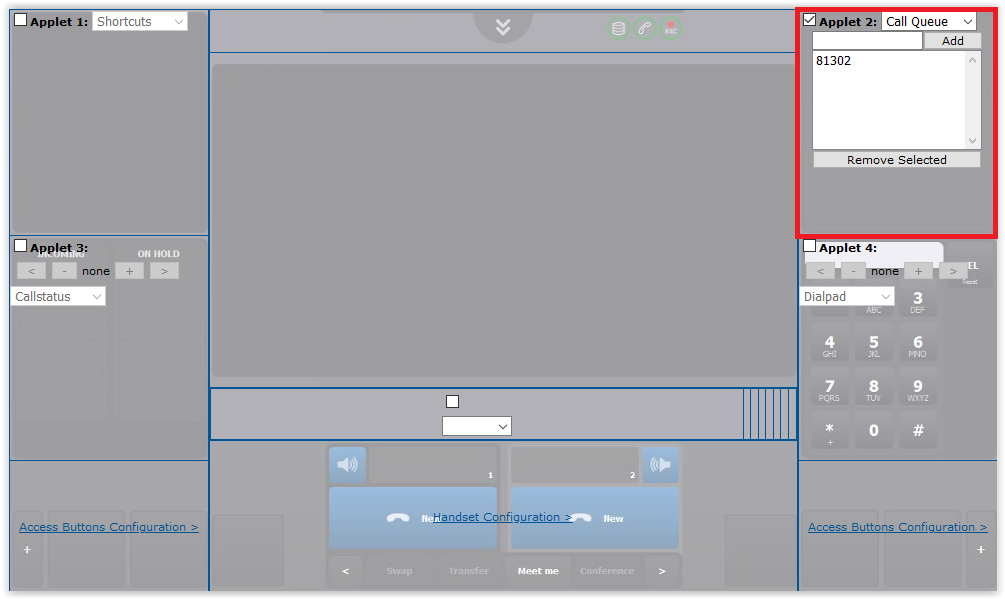
Second operation is to add the Call Queue Applet to the user profile and to link it to desired extension(s). The following configuration can be done in both User Profile and Shared Profile.
1.On the TSS Console, edit the User Profile / Shared Profile (Account Management > Users / Shared Profiles > Edit the profile) on which you want to configure the queue line
2.On the user profile, open the "Screen Layout" tab
3.Select the desired applet and set it's type to "Call Queue"
4.Using the field present in the applet (in red on the picture), fill the extension(s) of line(s) you want to link to this queue and press "Add"
5.Validate update of the screen layout configuration by pressing Update button |