Oauth Setup


Oauth Setup |
|
| Solution Integration > PBXs > BT Call Server > Web UI > Accounts |
The system can be configured to use OAuth for Web UI access.
Azure Setup
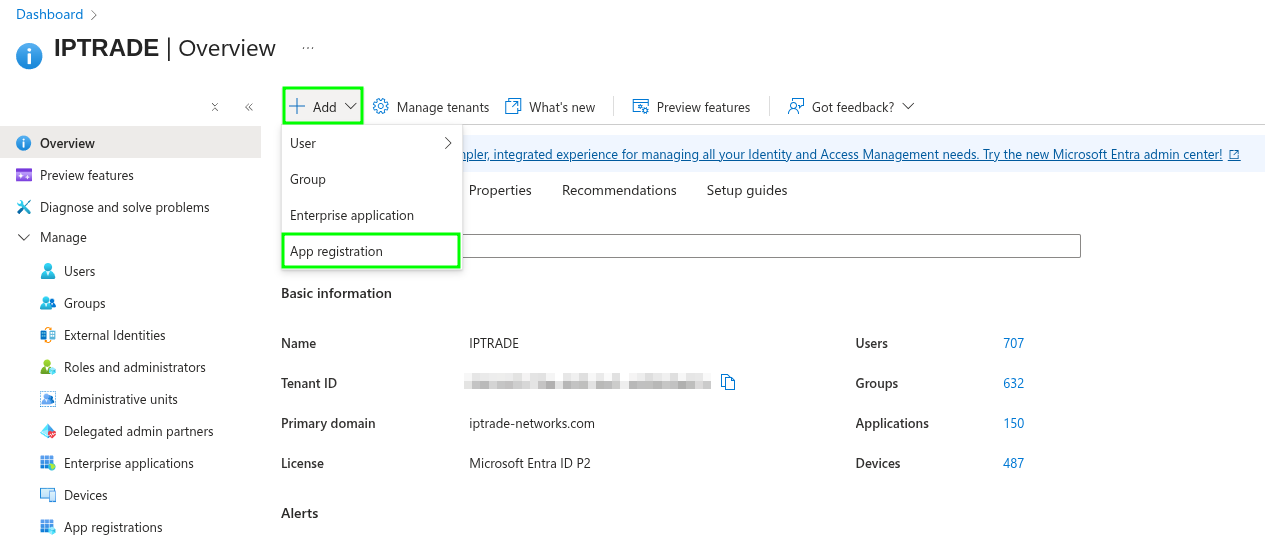
1.Register the app •Go to Azure Portal > Microsoft Entra ID > Add > App Registration.
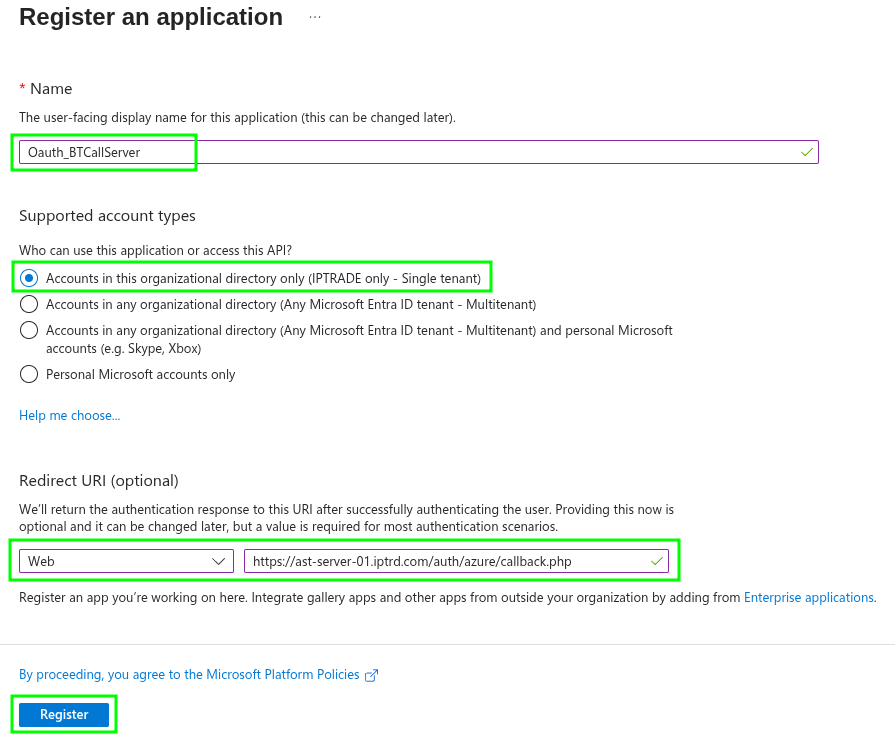
•Name: [Your_App_Name] - Eg: Oauth_BTCall_Server •Supported account types: Pick “Accounts in this organizational directory only (Single tenant)” •Redirect URI: Platform = Web, URI = https://<your-host>/auth/azure/callback.php (Must match exactly what the Admin UI shows on the OAuth setup page. See below) •Click Register.
•After the new application is created and registered, the overview page will be displayed.
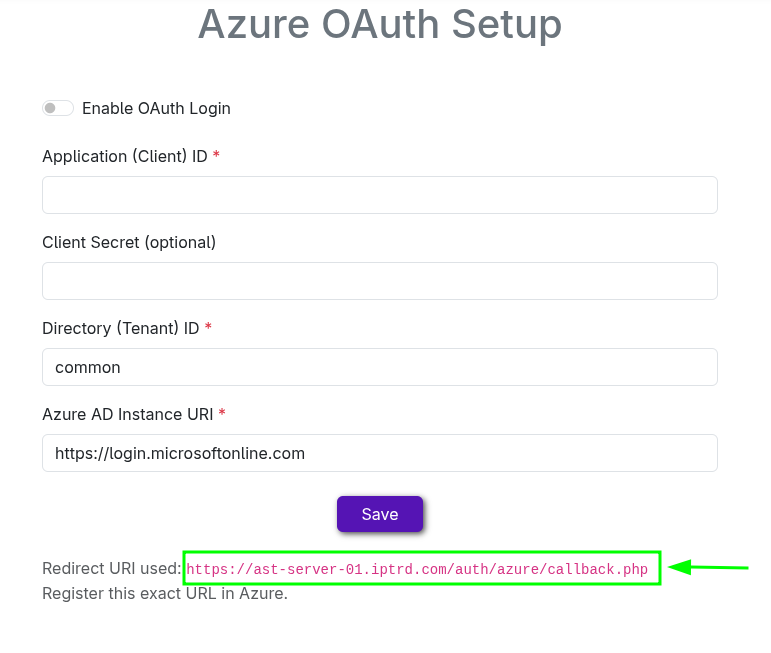
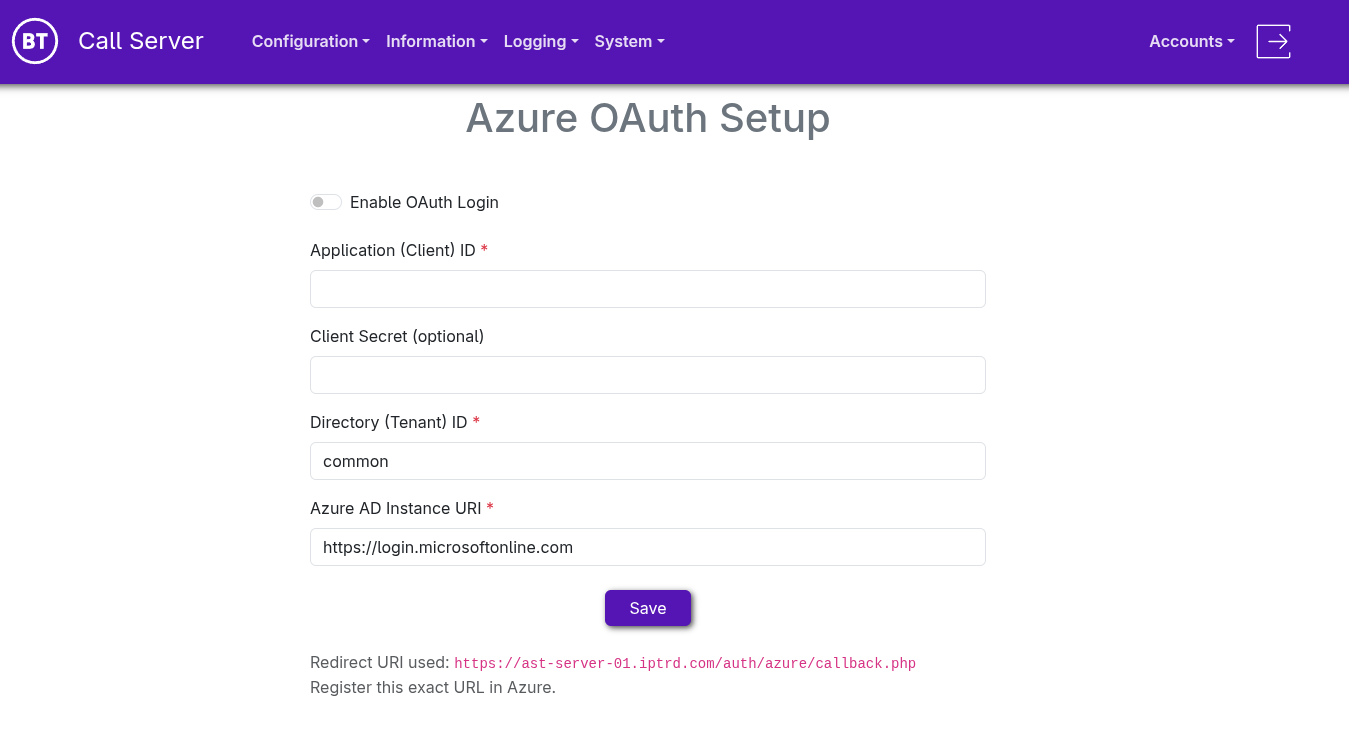
•Note the unique Redirect URI is displayed at the bottom of the OAuth Setup page in the BT Call Server Admin UI (Navigate to: "Accounts > Oauth Setup")
2.Authentication settings
In the app’s Authentication blade: Verify your Web Redirect URI is listed correctly.
3.(Optional) Client Secret
If you want to use a client secret: Certificates & secrets > New client secret. Description: e.g. BT Call Server. Expiry: pick a period you can rotate. Copy the Value (not just the ID) and paste it into Admin UI - OAuth Setup Page Client Secret field. (You won’t see it again after you leave the page.)
4.Restrict who can sign in
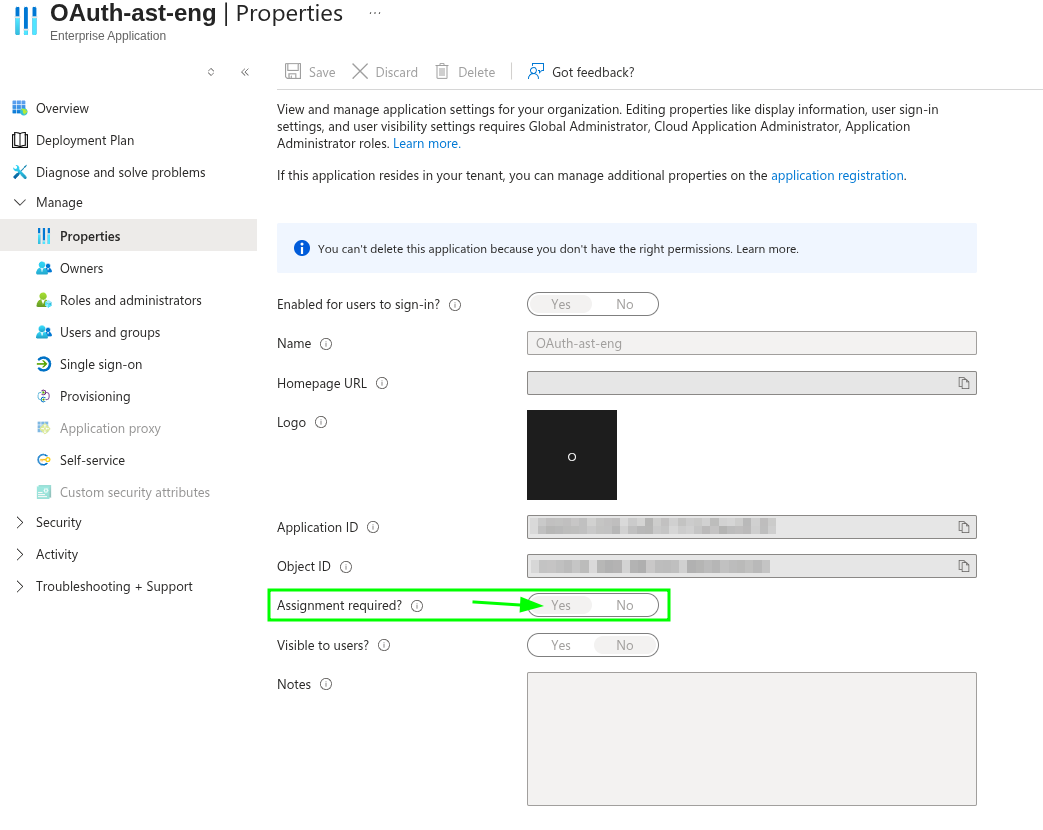
Azure creates a Service Principal for the (app name) “Oauth_BTCall_Server” under Enterprise applications. That’s where you control assignments. Go to Microsoft Entra ID > Enterprise applications. Open Oauth_BTCall_Server (same name as in App registrations). Properties: Set User Assignment required? > Yes
This means only assigned users/groups can sign in. Save.
Users and groups: Click Add user/group. Select the specific users and/or security groups who should be allowed. Assign.
Unassigned users will be blocked from signing in to BT Call Server.
5.Where to find values for Admin UI - OAuth Setup Page
Application (client) ID > App registrations > Oauth_BTCall_Server > Overview. Directory (tenant) ID > same Overview from above. Azure AD Instance URI > https://login.microsoftonline.com (default). Client Secret (optional) > Certificates & secrets > copy Value you created.
Web UI Setup
•From the navigation menu, select "Accounts > Oauth Setup"
•Toggle "Enable OAuth Login" •Then fill in all the required fields and press Save
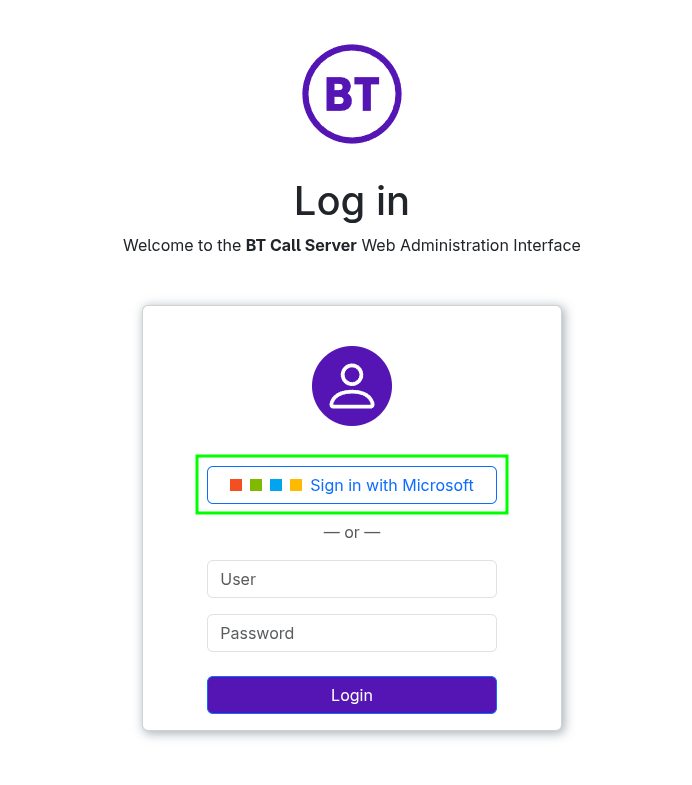
•Once OAuth is enabled, you should Log out of the current user. •The login page will now provide an option to choose your login method.
|