Troubleshooting


Troubleshooting |
|
| Standard > Other > Asterisk PBX (>= v3.0) |
Collecting logs and trace
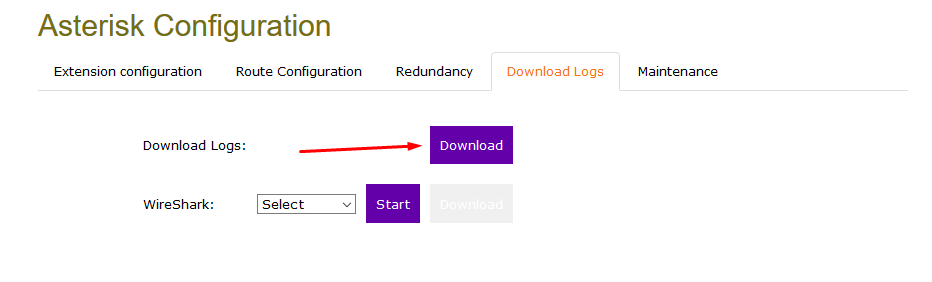
Logs can be collected from the web interface in the “Download Logs” tab
This will download a zip file: Asterisk_Logs_[date and time].zip •pjsip_wizard.conf – Current configuration for extensions/lines and trunks •pjsip.transports.conf – Current configuration for transports •pjsip.conf – Current configuration from “Advanced Configuration” (Generally unused) •extensions.conf – Current configuration for the call routing •asterisk (folder) ocdr-csv > Master.csv : Call detail records omessages : Asterisk logs oqueue _log : Queue log events
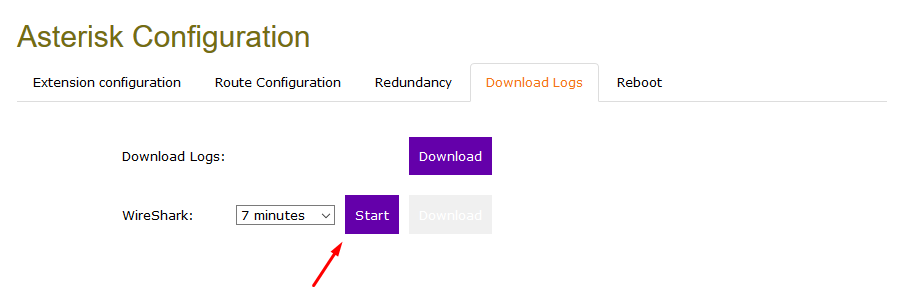
A Wireshark trace can be taken from the download logs tab. The duration can be customized with the drop-down menu.
Do not refresh or close the page while a capture is in progress Network settings
Some network commands are still available with the admin account in the CLI •Ping •Nslookup : Allow to check domain name resolution •ip addr : Display current ip settings •ip route : Allow to check the routing to a destination
CLI Access
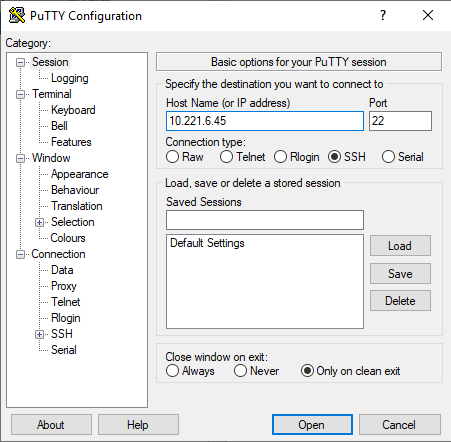
SSH via Putty or any ssh client :
Default credentials are : - Login: admin - Password: iptrade
vSphere Console accessAs we know from the main Solution Documentation, the system now directly logs in to the “configure-system” GUI when using the vSphere Console with the “admin” user. Thus, if you need Network related commands, use a SSH terminal client to login as “admin”
|