Syslogs


Syslogs |
|
| Basic > Troubleshooting Data: How to retrieve them > Turret |
Navigation in the syslogs listYou can access to the Syslogs by going to System > Monitoring > Syslogs. The syslogs list contains information about files and each columns can be filtered (except file size). •Device: the device identifier (or the IP address) •Index: the index of the syslog file •Zone: the zone of the device •From: The creation date of the syslog file. •To: The last edition date of the syslog file. •File size: the size of the syslog file.
Filtering the syslogs listEach columns of the syslogs list can be filtered (except the file size) simply by clicking on the filter button on the top right of the list (
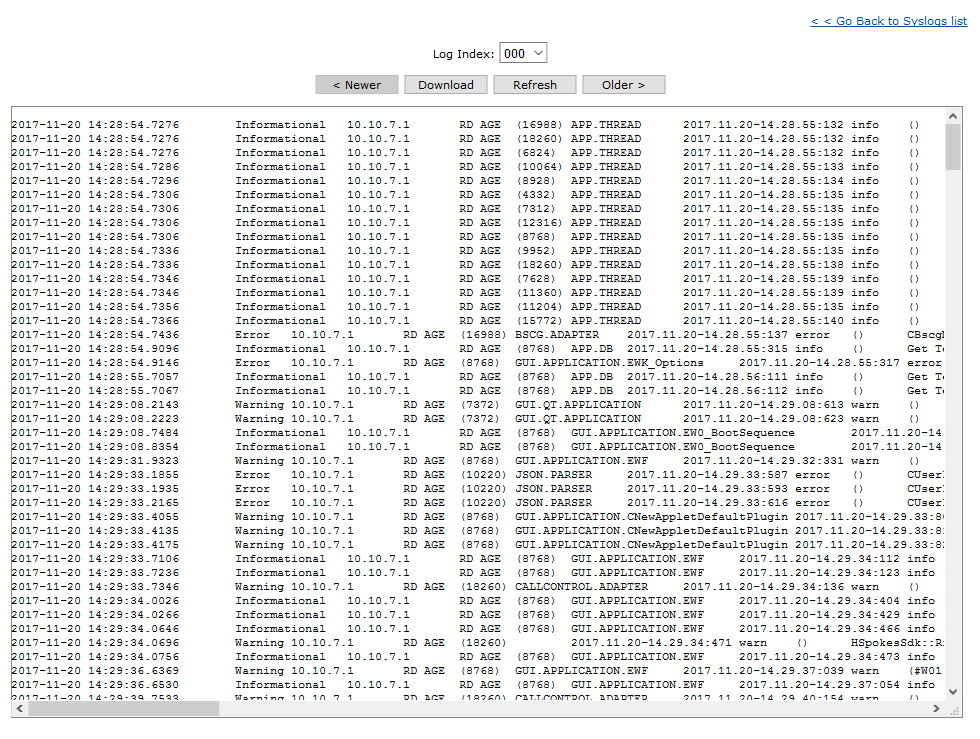
1.It is possible to filter all logs generated by a specific device using its name. 2.Filtering the index of a syslog is useful when you want to retrieve only one chunk of the syslog, the index 000 is always the most recent log trace chunk. 3.Filtering the syslog by zone will only show the syslog of the devices that are actually in the selected zone. Please note it is the zone where the devices are when you are filtering them, it is not the zone where the devices were at the time the logged. 4.and 5. "From" and "To" allow filtering files that could contains syslogs in the desired time frame. Syslog RetrievalYou can read the syslog of a device by clicking on his name in the list. The page is divided in two frames: the navigation and the syslog visualization. Navigation•Log Index: the index number of the syslog file. When this value is changed, the syslog corresponding to the index will be loaded in the visualization frame. •"Newer" button: If a newer log index of the syslog file exists, this button will be enabled and when it is clicked the previous log index of the syslog file will be loaded. •"Older" button: If an older log index of the syslog file exists, this button will be enabled and when it is clicked the next log index of the syslog file will be loaded. •"Download" button: Allow downloading the selected syslog file. •"Refresh" button: Reload the syslog in the visualization frame. Syslog preview panelUnder the navigation buttons, a text panel is displaying the content of the selected syslog file as a preview.
Download multiple syslogsYou can download multiple syslog files at once simply by selecting them in the syslog list. Then press the "Bulk admin selected" button and choose the "Download selected" option, selected syslogs will be zipped for the download.
ReportSyslog can be included in TSS Report (System > Monitoring > Report) by checking option: Include the last 24 hours report. In this case syslog folder containing last 24 hours syslog files is included is report zip file. |