Enable Remote support service


Enable Remote support service |
|
| Standard > Troubleshooting Data: References > Turret > Remote Control |
The embedded Team Viewer is started when user activates Remote Support mode.
Note that Remote Support mode starts Remote Packet Capture service as well.
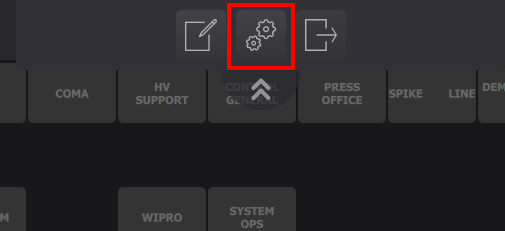
1.Get in Option panel
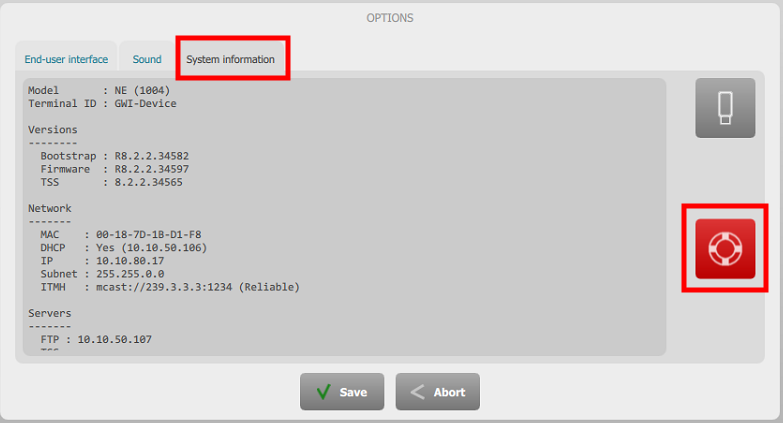
2.Click System Information tab 3.Press Remote support button
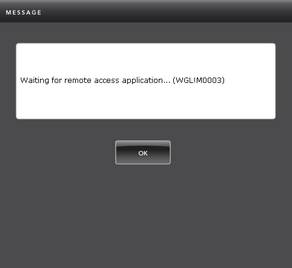
4.Wait for Teamviewer application to start
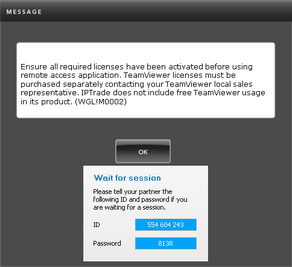
5.Wait for Teamviewer to obtain a session ID
6.Provide both ID and password to the person who's going to remotely access the device.
If the Remote Support button is not visible, 3 options: •Add the key "profile.setting.remotesupportbutton.alwaysavailable = true" to the user profile and logout/login the user •Connect a keyboard to the turret and press CTRL+F12 •Hot plug of an usb key containing a file named “ipt.superuser”.
|