The turret’s virtual keyboard provides an alternative input mechanism: it allows users to input text in various parts of the turret firmware GUI without the need for physical keys.
Theme
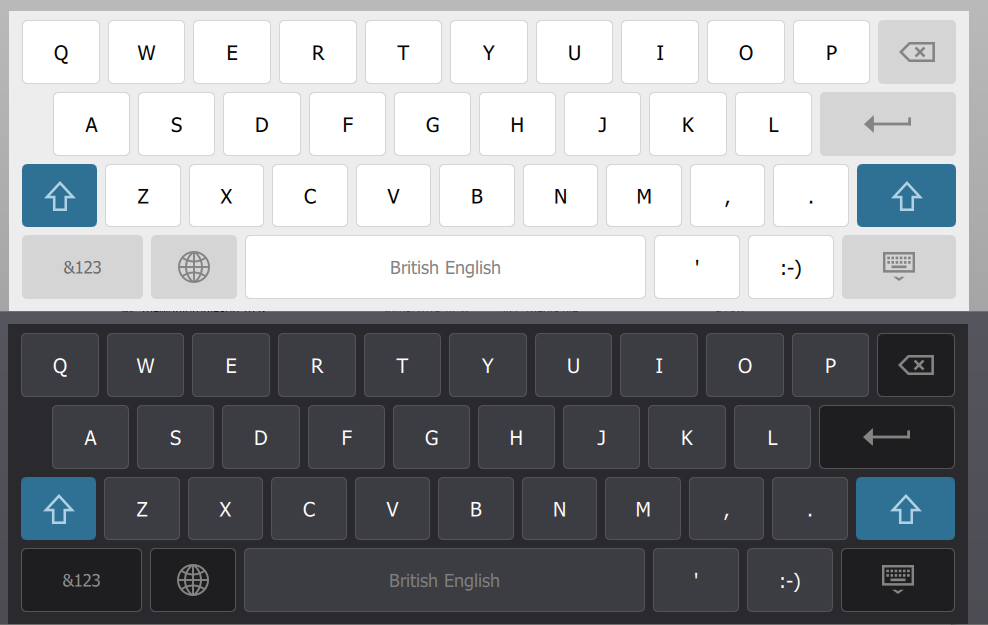
The colors of the turret’s virtual keyboard change depending on the chosen theme:
Transparency
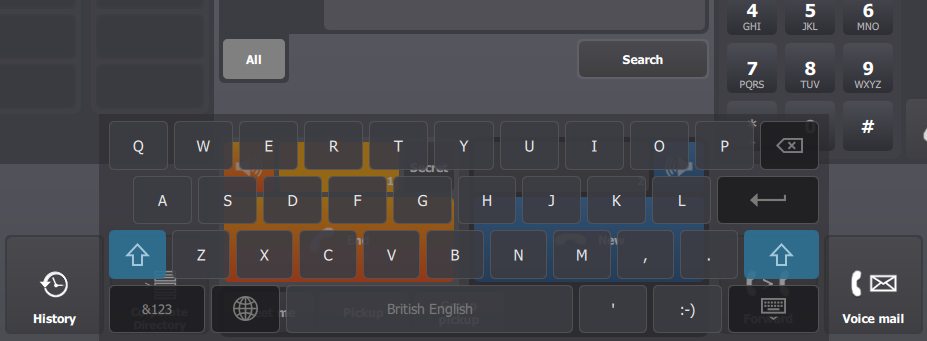
It is also possible to configure the transparency of the virtual keyboard (background and keys separately).
Transparency allows the user to keep an eye on the parts of the GUI under the virtual keyboard that may receive updates and to react quickly accordingly.
See configuration.
Hide keyboard
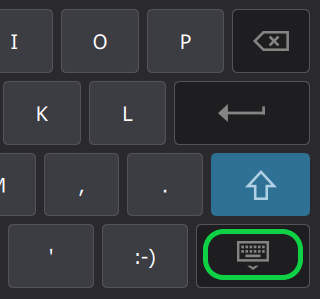
The turret’s virtual keyboard can be manually hidden by pressing the key illustrated with a "keyboard" icon.
Special and accented characters
Adding some accented characters is pretty easily. Just hold your finger on the letter you’d like to accent. You’ll see a pop-up of all available accent marks and symbols you can choose from.
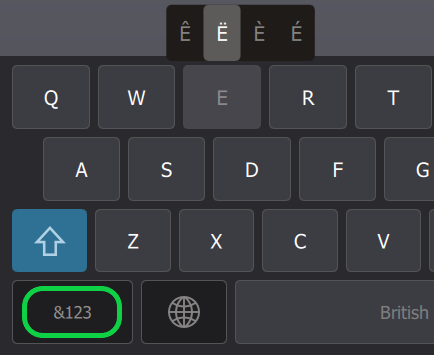
Many other special characters are also accessible by pressing the key "&123".
Automatic capitalization
The turret’s virtual keyboard can automatically switch from/to uppercase and lowercase for first words.
See configuration.
Language
The language can be changed by pressing the language key, which is illustrated with a "globe" icon.

The name of the current language is displayed on the space bar key.
Layouts
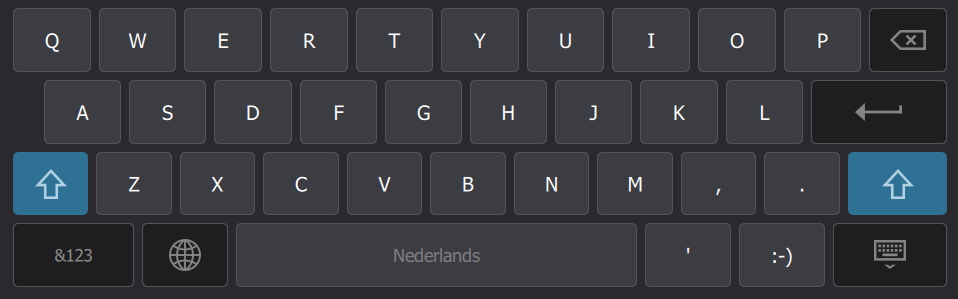
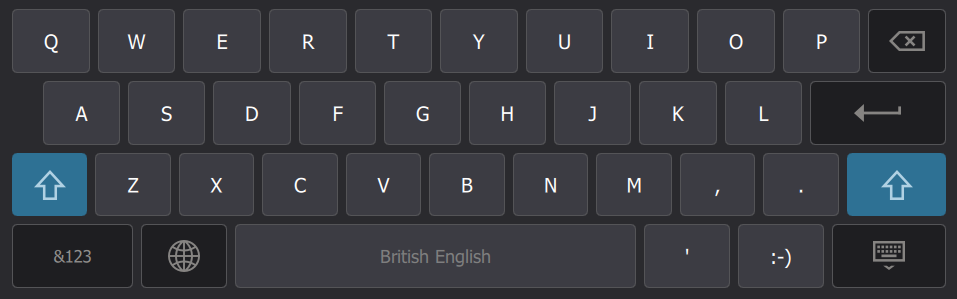
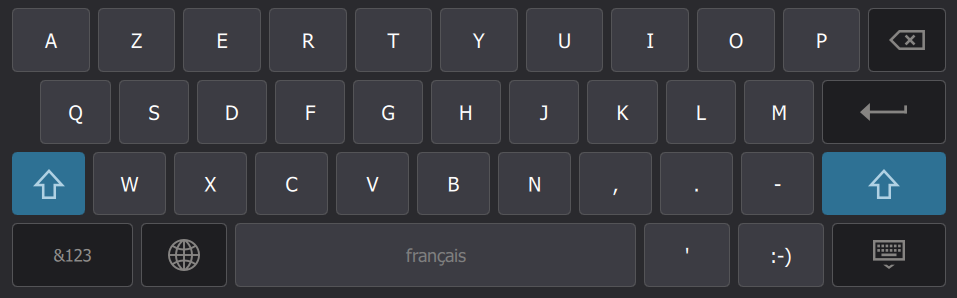
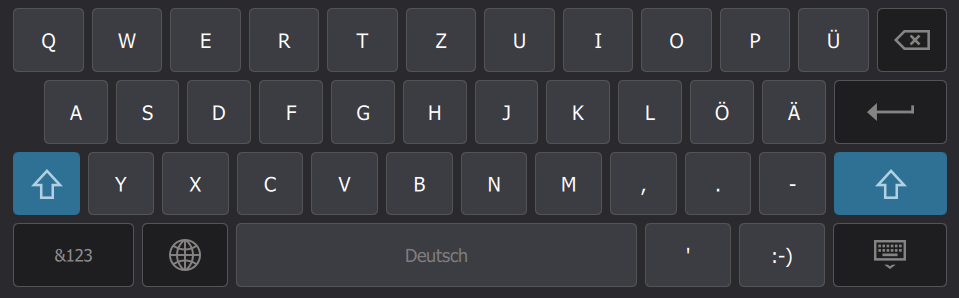
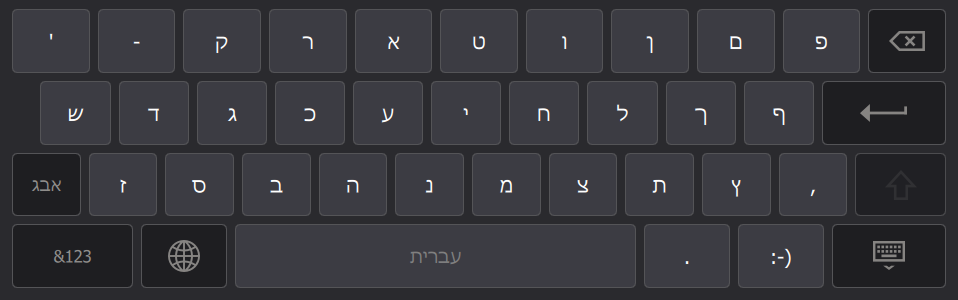
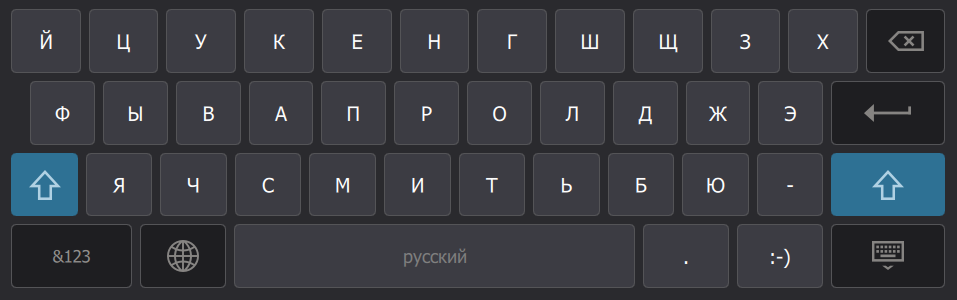
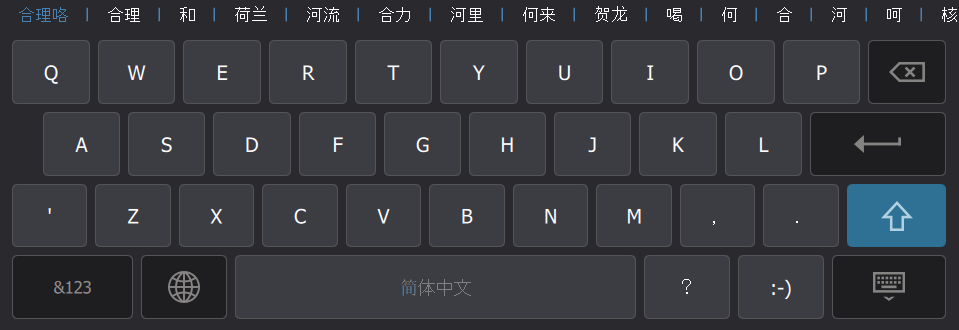
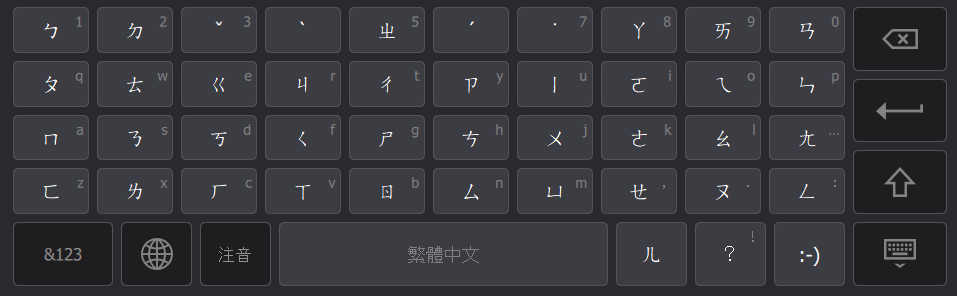
The turret’s virtual keyboard supports the following languages:
Dutch Layout
English Layout
French Layout
German Layout
Hebrew Layout
Russian Layout
Simplified Chinese Layout
Traditional Chinese Layout (Zhuyin)
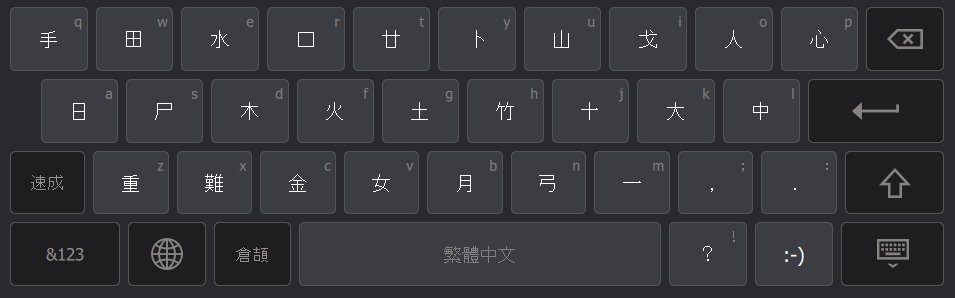
Traditional Chinese Layout (Cangjie)
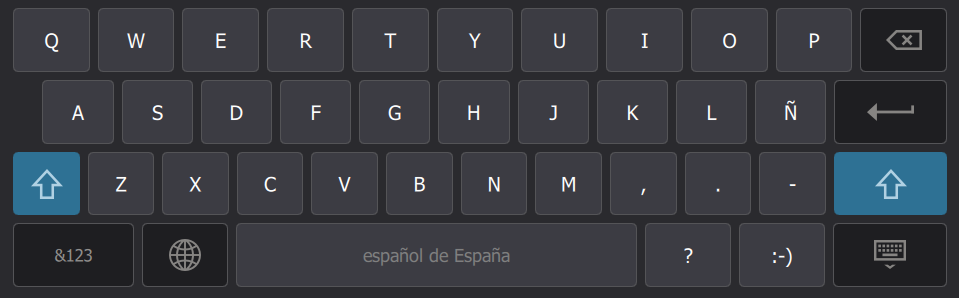
Spanish Layout
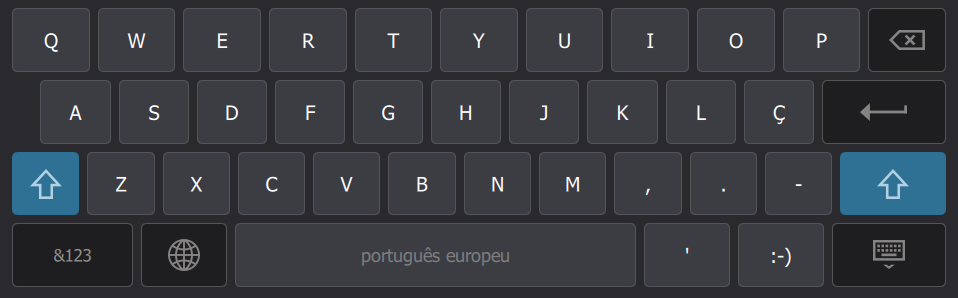
Portugese Layout
|


