Usage


Usage |
|
| User Options > Peripheral devices > Stream Deck |
General usageAny supported Stream Deck device can be connected at any time during the user session. If it is supported, it will be automatically detected and configured with the current configuration.
Disabling key interaction while the user session is lockedTo avoid any abuse, no key interaction will be possible while the user session is locked. If you want to extend this behavior when the underlying Windows session is locked, please set the below key to "true"
Monitor slots display and interactionsLike the turret user interface, monitor slots can be manipulated in two different modes: normal and control. Normal mode display informationThe following information can appear on a monitor key:
•Whether or not a call is currently present on this monitor slot. •Display the microphone status as the user interface would do. •Display Voice Activity (if the Voice Activity Detection is enabled) as the user interface would do.
Normal mode interactionPressing a monitor key, when a call is present on the configured slot, will toggle the microphone state on the selected key.
Control mode display informationThe user can switch in control mode via a "Monitor Control" key directly from its Stream Deck device. Once in this mode, all configured monitor keys will display the current volume on the slot, if there is a call present on the key.
In this particular mode, the configured volume keys will also appear. Control mode interactionThe control mode exists only on a Stream Deck to modify the audio volume on any configured monitor slot keys.
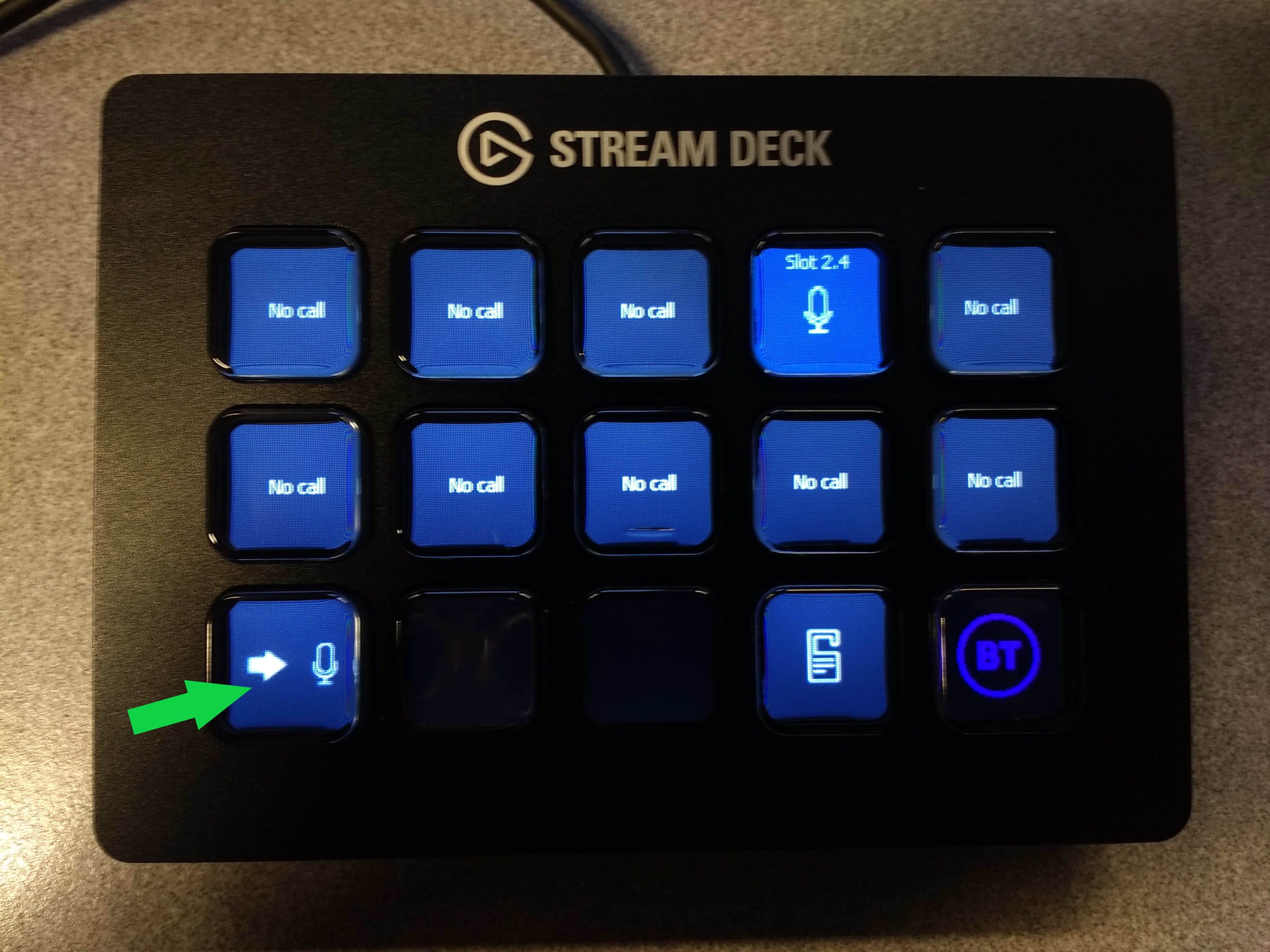
The user can select any monitor key by pressing on it, then use the volume increase or decrease key to adjust the volume.
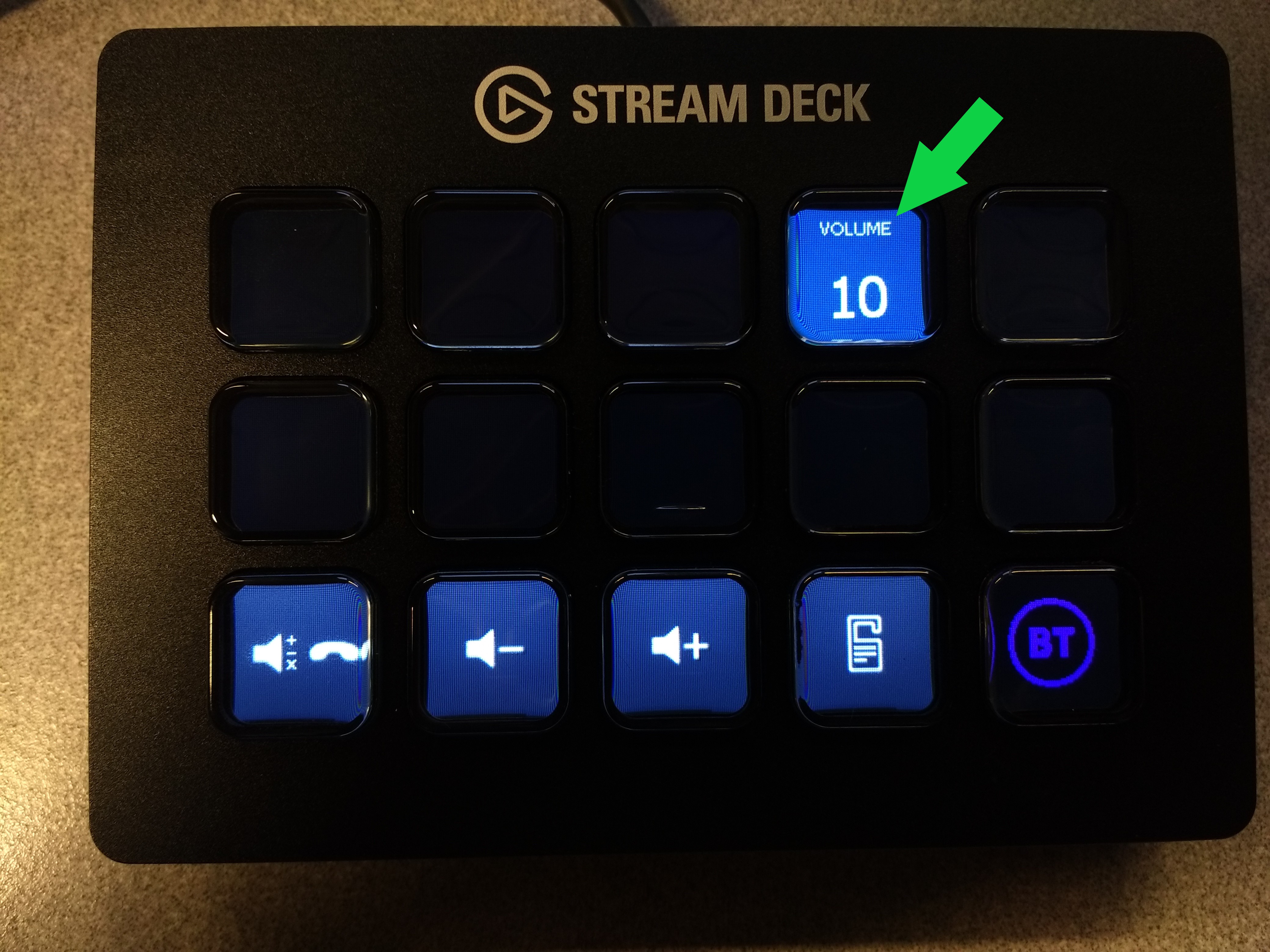
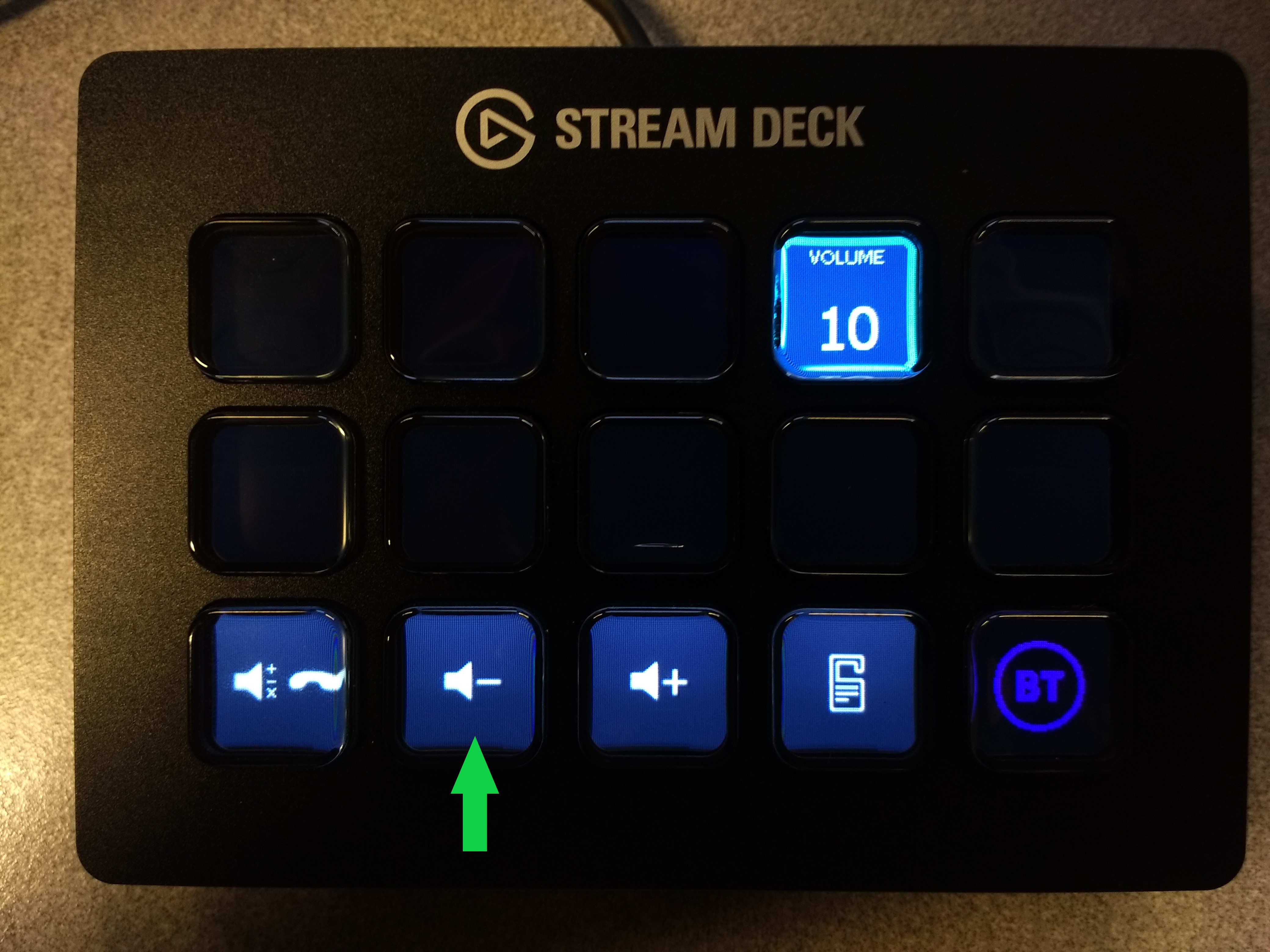
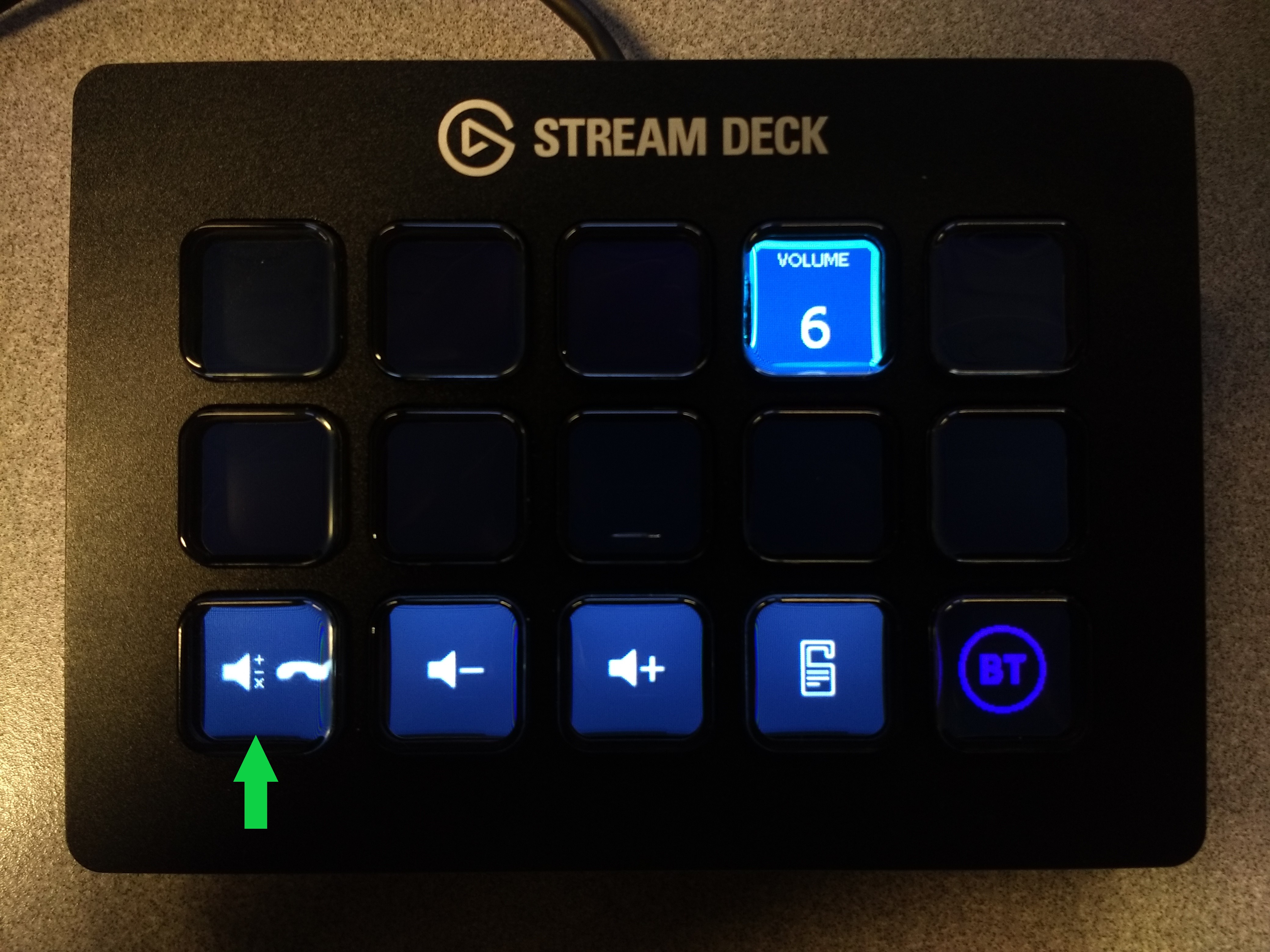 Once the user is satisfied with the changes, go back to normal mode by pressing the "Monitor Control" key again.
Do Not Disturb Action key"profile.streamdeck.key.x.y.action = dnd" Allows to toggle the Do Not Disturb user status Do Not Disturb Intercom Action key"profile.streamdeck.key.x.y.action = dnd_intercom" Allows to toggle the Do Not Disturb Intercom state of the current user. Focus turret window Action key"profile.streamdeck.key.x.y.action = focus" When pressed, this action key, will bring the FlexPro or FlexCom window to the foreground of all other windows present on the screen. This feature is intended to quickly return to the Flex window. Volume+ Action key"profile.streamdeck.key.x.y.action = volume+" Allows to increase the volume on the current selected monitor slot on the Stream Deck. Volume- Action key"profile.streamdeck.key.x.y.action = volume-" Allows to decrease the volume on the current selected monitor slot on the Stream Deck. Monitor Control Action key"profile.streamdeck.key.x.y.action = monitorcontrol" Allow to toggle the current mode between normal and monitor control. The monitor mode is a mode in which the user can see and adapt the volume on each configured monitor entry, like the one available in the turret by pressing the "Control" access button. Mic Action key"profile.streamdeck.key.x.y.action = mic.a.b" Reflects a monitor entry microphone status. The "a" variable defines the entry column, which belongs to the set: {1, 2, 3} where: - 1 is the left applet column - 2 is the center applet column - 3 is the right applet column The "b" variable defines the entry index in the monitor entries column, which varies in the interval [1; 12] For example: - if you have a small monitor applet at the top left column, its entry coordinates are: (1, 1), (1, 2), (1, 3), (1, 4), (1, 5) - if you have a small monitor applet at the bottom center column, its entry coordinates are: (2, 6), (2, 7), (2, 8), (2, 9), (2, 10) - if you have a big monitor applet in the right column, its entry coordinates are: (3, 1), (3, 2), ..., (3, 12) Pressing a mic.a.b key in normal mode allows to open/close the microphone on this monitor slot.
In monitor mode, pressing this key allows to toggle the selection, and increase/decrease volume on it by pressing to a volume+ or volume- key. Speed Dial Action key"profile.streamdeck.key.x.y.action = speeddial_xxxxxxx" Allow to add a speed dial key on the Stream Deck Where 'x' and 'y' are the position of the key on the Stream Deck device and 'xxxxxxx' is the speed dial number. For example "profile.streamdeck.key.0.1.action = speeddial_2001" which would dial "2001" when selected.
Stream Deck BrightnessThe brightness level can be modified on the Turret/Flexpro in "End user interface" tab |
||||||||||||||||||||||