UAMI


UAMI |
|
| Solution Installation > TSS Installation > Install TSS on a standard server |
Overview This section describes how to connect the TSS to its database using Azure UAMI.
Setting up UAMIUAMI is a method of authentication between multiples Azure resources. Notably, it can be used to connect the TSS to its database without a password.
The Azure resources group setup should contains at least 3 resources: a VM hosting the TSS, a database server, and a managed identity.
•Assign the already created UAMI to the TSS Server •Add Microsoft Entra admin to the Azure SQL Server •Login to DB and add roles for UAMI:
Using UIM GUI
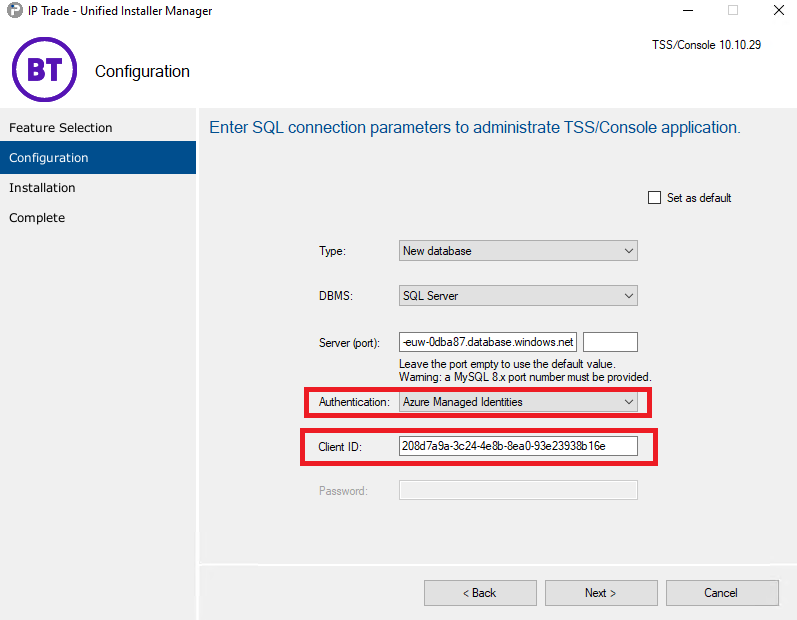
During the first configuration step, choose "Azure Managed Identities" in the authentication dropbox, and use the managed identity's Client ID as login:
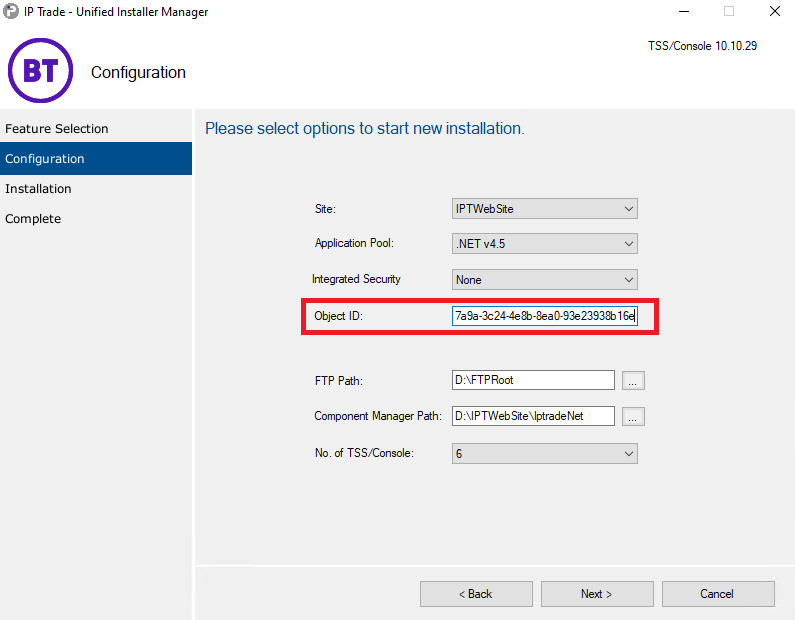
In the second screen, enter the client ID in the associated box (it should be there by default):
Using Command line
This section describes how to connect the TSS to its database using Azure UAMI in command line.
example: UIM.exe /new_install /port:3306 /id:1 /remote: /remote_port:3306 /service: /database_host:sql-tssdb-euw-0dba87.database.windows.net /database_driver:SQLSERVER /login:208d7a9a-3c24-4e8b-8ea0-93e23938b16e /path:"F:\LocalLogs\UIMNewInstall.txt" /external_database:true /UAMI:true
|