Barging a call from the Call Browser applet


Barging a call from the Call Browser applet |
|
| Trading and C&C > Barge-in > Usage |
Barging a call can be done from the Call Browser applet, the applet that lists the other active calls in the trading room.
The Call Browser applet can be accessed from several locations inside the user interface:
Pressing a matching shortcut
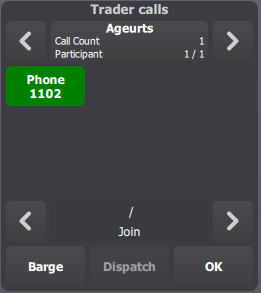
When a shortcut matches another trader's call, thus changing the shortcut's color and text labels, pressing it displays the Call Browser applet. The applet then gives information on that call, such as the participants currently involved.
Here, we see that JLA is currently in a call with a remote party: London trader.
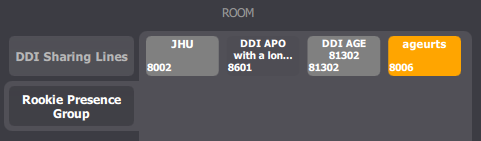
Pressing a Room panel entry button
The Room panel lists the available presence groups, and their members. When a member has an active call, its entry turns orange.
Pressing the entry displays the Call Browser applet, which lists all the trader's calls.
Barging a call from the Call Browser applet
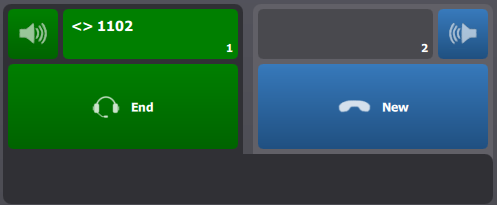
At this point, pressing the Call Browser applet's Barge button initiates the barge-in operation on the active handset.
The barge call is distinguished from a standard call by the <> prefix in its display name.
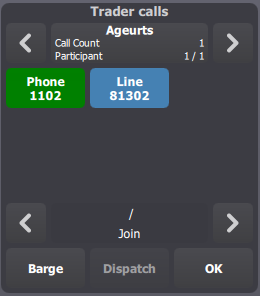
The Call Browser entry for the call now displays the local trader (John) in the call's participants list, in blue color to indicate that it only listens.
|