TPO, Setup ringdown places


TPO, Setup ringdown places |
|
| Trading and C&C > Turret Proxy To Open communication (TPO) > Automatic Ringdown > Configure |
This section describes how to setup an Automatic Ringdown (ARD); the corresponding TPO place is a RingDown place.
Requirements:
•TPO lines pool are correctly provisioned and populated as described in TPO, Lines pool population.
•Automatic RingDown lines are reachable by the configured TPO lines.
Example: Automatic RingDown line is 1007; By calling 1007 by using a phone on the PBX system, we can reach the far end user of the Automatic RingDown line.
1.Open your preferred Internet navigator, connect to the TSS administration console URL and log onto the system with administrator privileges;
2.From the main menu, select Device Management | TPO Cluster ;
3.From the list of TPO cluster, select the TPO cluster to modify
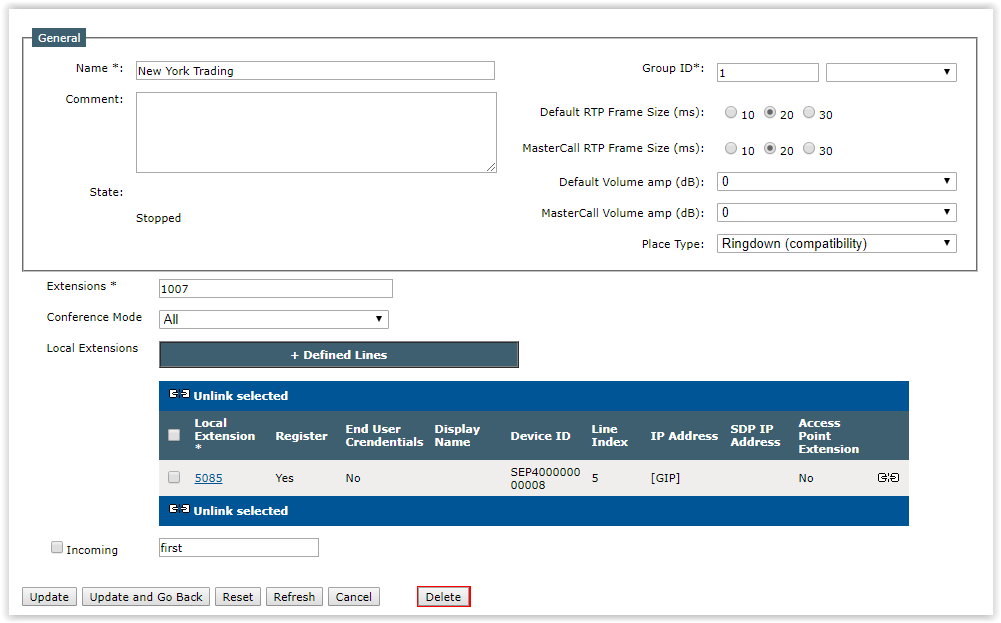
4.Select the tab panel TPO Places and press Add new button ; the TPO place edition form is displayed
5.Fill in the TPO place edition form as per the table below
6. Press Update to commit changes; the newly created place is listed in the TPO places tab panel and reported as Stopped ;
7.Start the place by pressing the start icon ; press the Refresh button until the place is reported as Started (this might take a few seconds) ;
|